Table of Contents
If Task Manager will not open, first identify the symptom. A message that it was “disabled by your administrator” points to policy or malware; a blank, frozen, or immediately closing window more often points to damaged system files, a conflicting utility, or a corrupted user profile. On a work-managed PC, contact the administrator before changing policy.
Try another launch method
- Press Ctrl + Shift + Esc.
- Press Ctrl + Alt + Delete and select Task Manager.
- Press Windows + R, enter
taskmgr, and press Enter. - Open an administrator Terminal or Command Prompt and run
taskmgr.exe.
The first three options do not normally need administrator rights. If one works, restart Windows and check whether only a shortcut or shell menu was damaged. TipsMake also lists additional ways to open Task Manager.
Remove the “disabled by administrator” policy
If this is your own PC and you did not intentionally disable Task Manager, scan for malware before and after correcting the setting. Malicious software sometimes applies this policy to obstruct diagnosis.
Group Policy method
This editor is normally available in Pro, Enterprise, and Education editions.
- Press Windows + R, enter
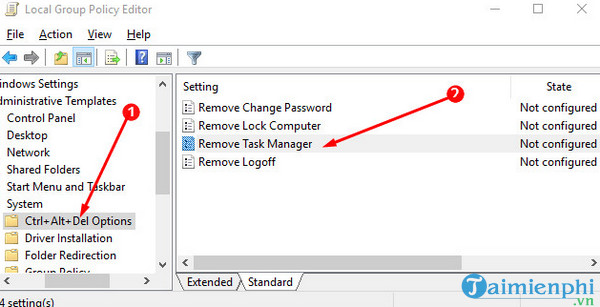
gpedit.msc, and press Enter. - Go to User Configuration > Administrative Templates > System > Ctrl+Alt+Del Options.
- Open Remove Task Manager.
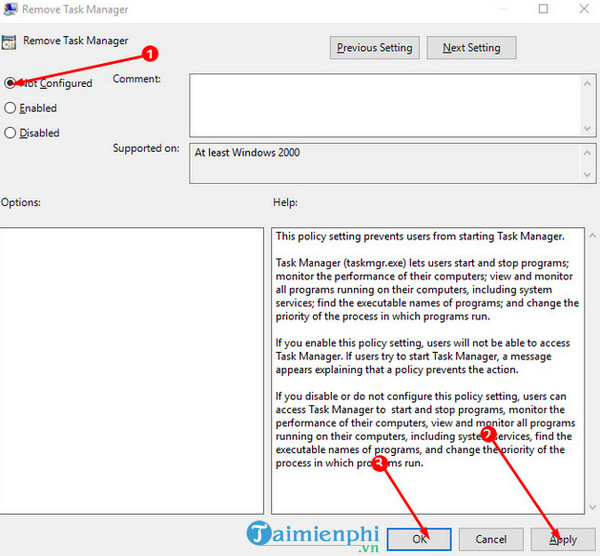
Select Not Configured, then Apply > OK. Choosing Disabled also permits Task Manager, but Not Configured returns the policy to its normal unmanaged state.
Registry method
Back up the affected key before editing. Open regedit and navigate to:
HKEY_CURRENT_USERSoftwareMicrosoftWindowsCurrentVersionPoliciesSystem
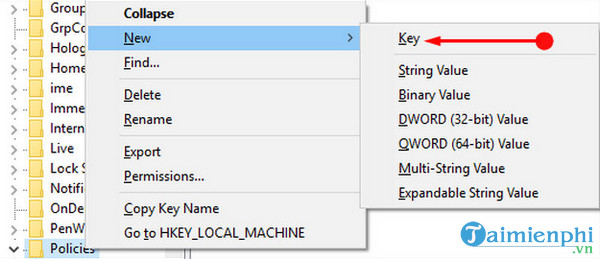
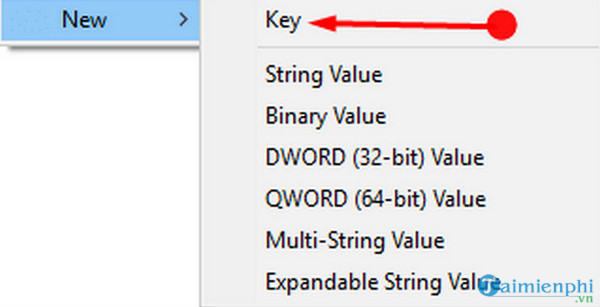
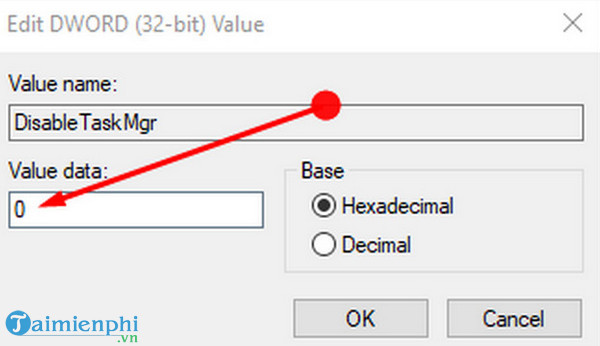
If the DisableTaskMgr DWORD exists and is set to 1, either delete that value or set it to 0, then sign out and back in. Do not create the System key or DisableTaskMgr value when they are absent; their absence already means this restriction is not configured.
Repair a Task Manager window that freezes or closes
- Restart Windows and install current updates for the supported operating system.
- Perform a full Microsoft Defender scan. If malware is suspected, use Microsoft Defender Offline or another trusted boot-time scanner.
- Open Terminal or Command Prompt as administrator and run:
DISM.exe /Online /Cleanup-Image /RestoreHealth sfc /scannow - Restart after both commands complete.
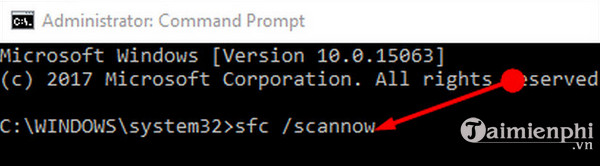
Run DISM before SFC so Windows can repair the component store that SFC uses. The DISM repair guide explains how to interpret failures.
Check for a profile or software conflict
Create a temporary local user account and test Task Manager there. If it works, the original profile or its per-user policy is likely responsible. If it fails for every user, perform a clean boot to identify third-party security or tuning software that interferes with Windows tools.
Do not disable antivirus protection permanently. Add an exception only if the security vendor confirms a false positive and provides an updated product. If the PC is organization-managed, policy may be intentionally enforced and will return after sign-in.
Related Articles
 7 Simple Ways to Open Task Manager on Macbook, Windows 10,117 minutes read
 All Problems About Using Task Manager6 minutes read
 4 How to Open Task Manager Windows 114 minutes read
 Ways to Enable Task Manager in Windows 113 minutes read
 Ways to Open Task Manager on Windows 103 minutes read
 How to Open Task Manager, Introduce the Functions in Task Manager6 minutes read
Reader Comments 0
Sign in with email or Google to join the discussion.