Table of Contents
The Wi-Fi Sense controls shown in early Windows 10 guides are obsolete. Microsoft removed the contact-based network sharing feature, and current Windows 10 installations do not provide the original Wi-Fi Sense switch. If the goal is simply to turn on wireless networking, use the normal Wi-Fi control; if Wi-Fi is missing, check the adapter and WLAN AutoConfig service.
The screenshots show an older Windows 10 interface
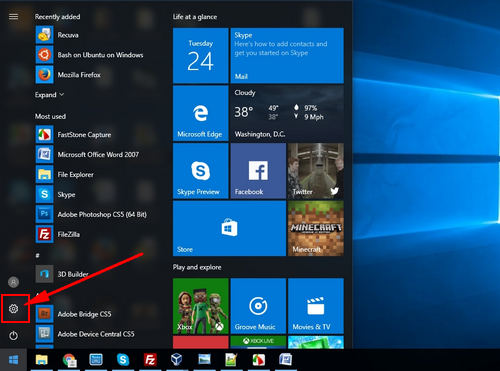
The original route began at Start > Settings.
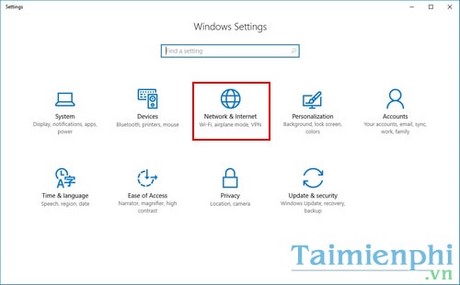
It then opened Network & Internet.
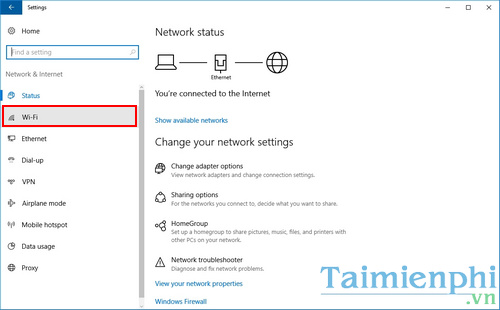
The Wi-Fi page contained wireless options.
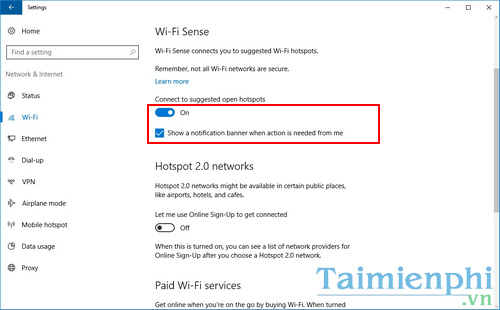
Some early builds displayed Wi-Fi Sense or related hotspot controls like the following. Do not expect this section on an updated installation.
Turn on Wi-Fi in Windows 10
- Select the network icon in the taskbar notification area.
- Select the Wi-Fi tile so it is enabled, and make sure Airplane mode is off.
- Choose a trusted network, select Connect, and enter its password.
You can also open Settings > Network & Internet > Wi-Fi and turn on the main Wi-Fi switch. A laptop may have a physical wireless switch or an Fn-key shortcut that must also be enabled.
If the Wi-Fi control is missing
Enable the wireless adapter
- Right-click Start and choose Device Manager.
- Expand Network adapters.
- If the wireless adapter has a down-arrow icon, right-click it and choose Enable device.
If the adapter is absent, select View > Show hidden devices and Action > Scan for hardware changes. Then install the correct driver from the PC or adapter manufacturer's support site. Broader driver and radio checks are in the Windows Wi-Fi troubleshooting guide.
Restore WLAN AutoConfig
- Press Windows + R, enter
services.msc, and press Enter. - Open WLAN AutoConfig.
- Set Startup type to Automatic, select Start if the service is stopped, and then select OK.
This service detects, connects to, and manages wireless networks. The WLAN AutoConfig repair guide covers startup errors and service dependencies; the underlying checks also apply to Windows 10.
What replaced Wi-Fi Sense?
Windows still saves profiles and can automatically reconnect to networks you choose, but it no longer offers the original contact-based password-sharing behavior. Manage saved networks under Settings > Network & Internet > Wi-Fi > Manage known networks. Select a profile to forget it or change whether Windows connects automatically.
To share this PC's internet connection with another device, use Settings > Network & Internet > Mobile hotspot. That is a separate feature; instructions are available in the PC-to-mobile Wi-Fi sharing guide.
If Wi-Fi turns on but internet does not work
Test another device on the same router, restart the router if all devices are affected, forget and reconnect to the network, and temporarily disconnect VPN software. An enabled Wi-Fi radio confirms only the local wireless link; it does not guarantee that the router or internet service is working.
Related Articles
 10 Common Errors on Windows 10 and How to Fix Bugs12 minutes read
 Automatic Timer to Turn on Wi-Fi After 1 Hour, 4 Hours or 1 Day4 minutes read
 How to Enable Private WiFi on iPhone3 minutes read
 How to Enable IPv6 on a TP-Link Wi-Fi 6 Router5 minutes read
 How to Use Storage Sense Windows to Free up Disk Space4 minutes read
 How to Enable Unicode UTF-8 in Windows 113 minutes read
Reader Comments 0
Sign in with email or Google to join the discussion.