Table of Contents
In many cases, you can view the saved password directly on the operating system without resetting the modem.
Use these steps only on a computer and network you own or are authorized to manage. Windows and macOS protect saved network credentials with the signed-in account, device authentication, or administrator approval. A network that has never been saved on the computer cannot be recovered from that computer.
Fastest current methods
- Windows 11: Open Settings > Network & internet > Wi-Fi. Open the current network's properties—or Manage known networks for a saved network—and select Show next to Wi-Fi network password. Supported builds can also display a QR code for sharing.
- Windows 10: Open Network and Sharing Center, select the active Wi-Fi connection, choose Wireless Properties > Security, then select Show characters.
- Recent macOS: Open the Passwords app, authenticate, choose Wi-Fi, and select the saved network. On macOS 13 or later, System Settings > Network > Wi-Fi > Advanced can also offer Copy Password for a known network.
- Older macOS: Open Keychain Access, search for the network name, open the matching Wi-Fi password item, and authenticate to show the password.
Microsoft's Windows Wi-Fi guide and Apple's instructions for finding a Wi-Fi password on Mac reflect the current built-in paths. Menu availability depends on the operating-system version and device management policy.
Share access without exposing the password unnecessarily
Prefer the operating system's nearby sharing or QR-code option when available, especially for guests. Do not post a QR code publicly: it contains the network credentials in scannable form. For a business, school, or managed network, ask the administrator for guest access instead of revealing a shared credential. If a password has been exposed beyond the intended group, change it on the router and reconnect authorized devices.
TipsMake also explains how to view saved Wi-Fi passwords, configure a TP-Link Wi-Fi 6 router, and create a stronger password.
Before you reveal a saved network password
- The laptop needs to have previously connected to WiFi and still have the network profile saved in order to view the saved password.
- On Windows, you can view WiFi passwords using Settings, Control Panel, or the CMD command prompt.
- On macOS, saved WiFi passwords can be viewed via Keychain Access or System Settings.
- If you can't find your password, it's usually due to an incorrect SSID, lack of access permissions, or administrative policy restrictions on the machine.
1. Things you need to know before viewing your WiFi password
To view your WiFi password on your laptop, your device needs to meet the following conditions:
- The laptop has previously successfully connected to the WiFi network whose password needs to be viewed.
- Network information (WiFi profile) is still saved on the device.
- Knowing the exact network name (SSID) is possible if you use CMD.
- You need access to the device; in some cases, administrator privileges are required.
- The machine is not restricted by the governance policies of the company or school.
The password can only be viewed if the laptop has previously connected to a WiFi network.
2. Find a Wi-Fi password in Windows
2.1. View your WiFi password in Settings
This is the most intuitive way for the average user. The interface between Windows 10 and Windows 11 is slightly different, but the operation logic is almost the same.
- Step 1: Click the Windows icon, then select Settings.
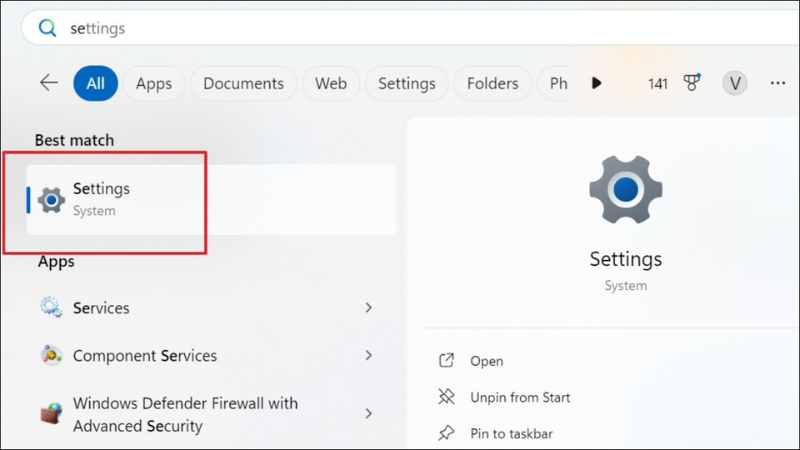
Click the Windows icon, then select Settings.
- Step 2: Go to Network & Internet. Select the WiFi network you want to view the password for.
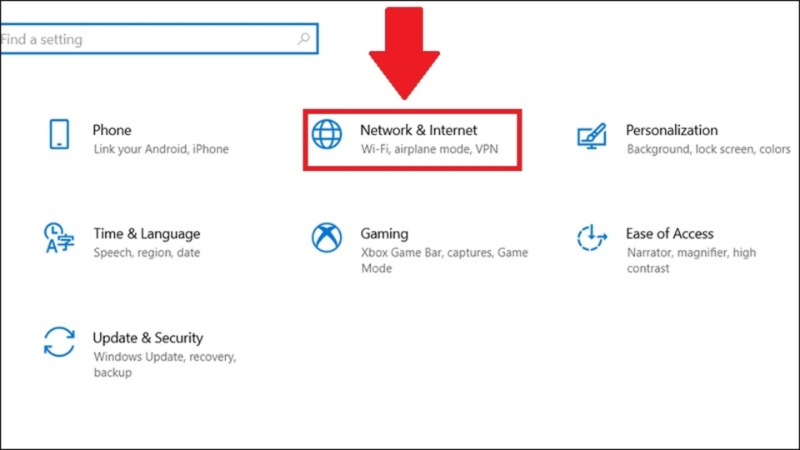
Go to Network & Internet
- Step 3: In the WiFi network password section, click Show to display the password.
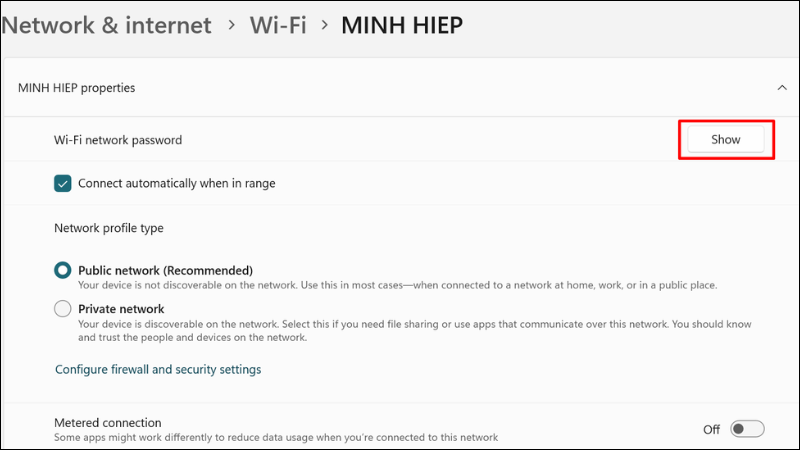
In the WiFi network password section, click Show.
2.2. Use Network and Sharing Center
- Step 1: Click the Start Menu icon, type Command Prompt, and press Enter.
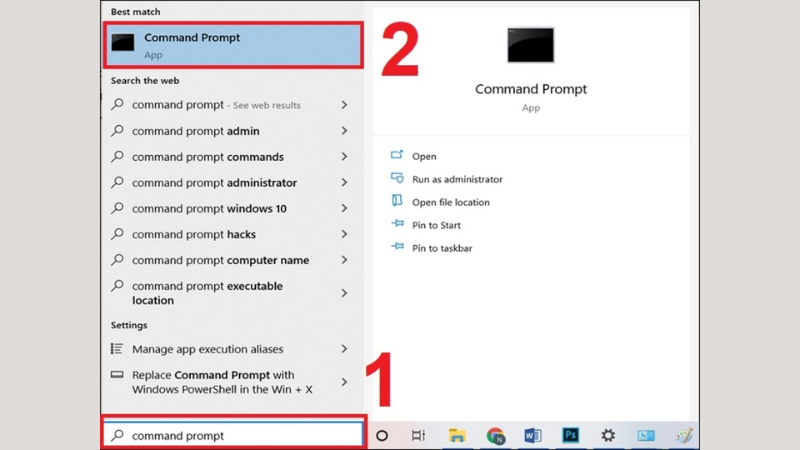
Click on Command Prompt
- Step 2: Enter the command ` netsh wlan show profiles` and press Enter. You will see a list of WiFi networks that have previously been connected to your computer.
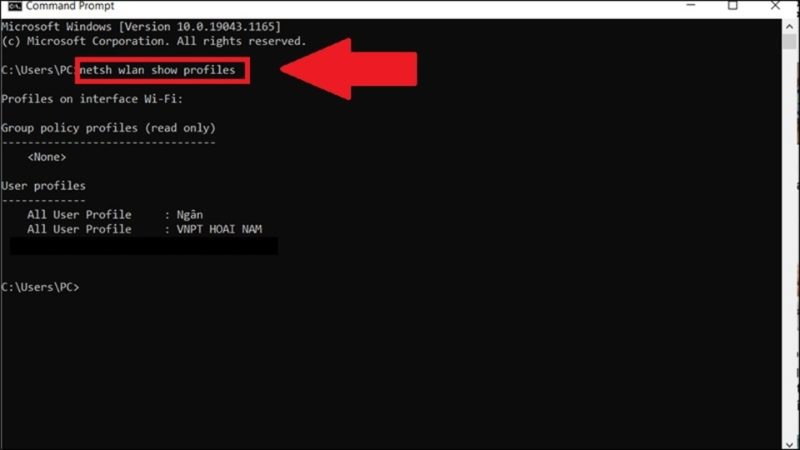
Enter the command netsh wlan show profiles
- Step 3: Enter the command `netsh wlan show profile name="WiFi-name" key=clear`. Replace "WiFi-name" with the exact name of the WiFi network whose password you want to view. For example: `netsh wlan show profile name="MINH HIEP" key=clear`.
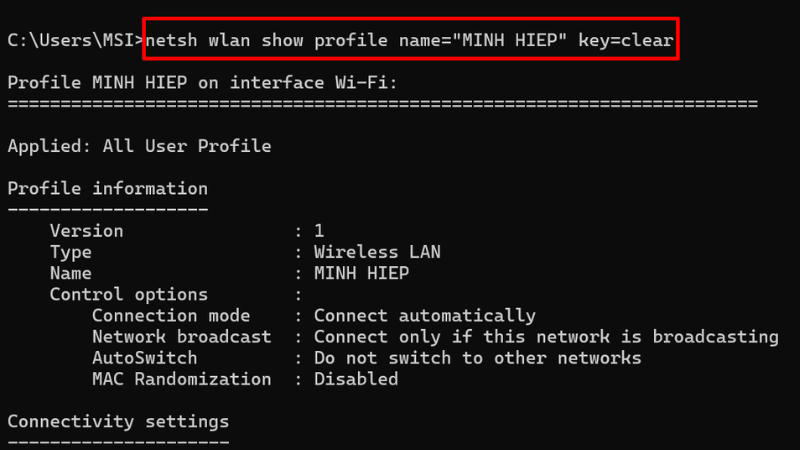
Enter the command netsh wlan show profile name="WiFi-name" key=clear
- Step 4: The password will be displayed in the Key Content section.
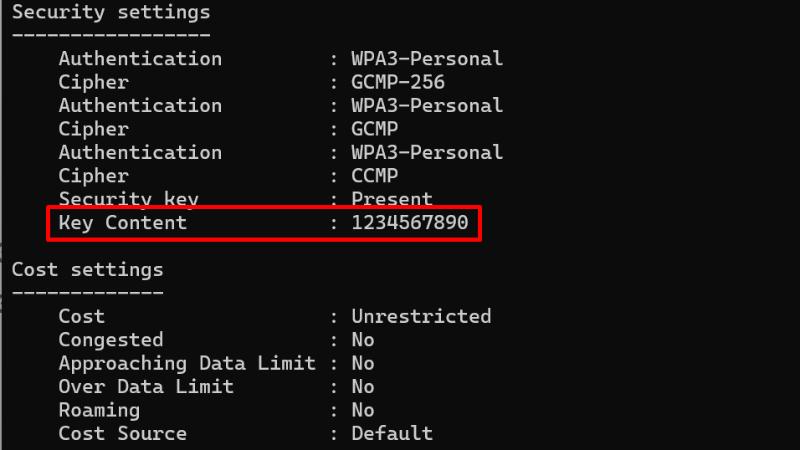
Please check the password in the Key Content section.
3. Find a Wi-Fi password on macOS
3.1. Use Keychain Access
- Step 1: Tap the magnifying glass icon, type Keychain Access, and open the application.
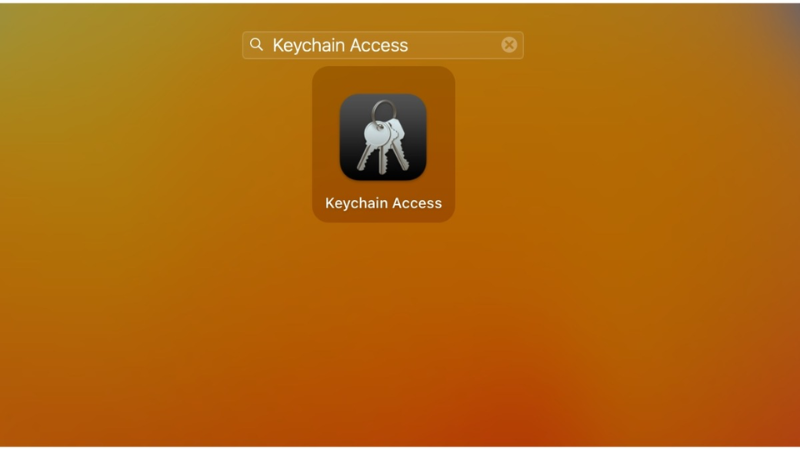
Type Keychain Access and open the app.
- Step 2: In Keychain Access, go to System, select Passwords, then find the WiFi network whose password you want to view.
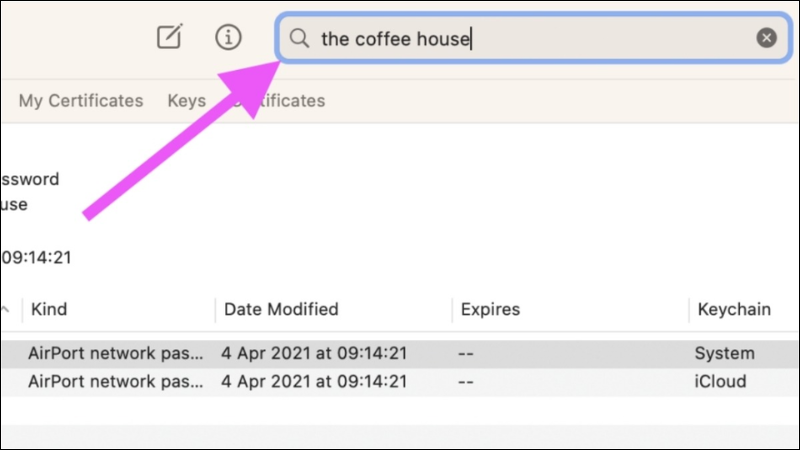
Find the WiFi network whose password you want to view.
- Step 3: Check the "Show password" box, enter your Keychain Access password (if any) and your computer password. After verification, the WiFi password will be displayed.
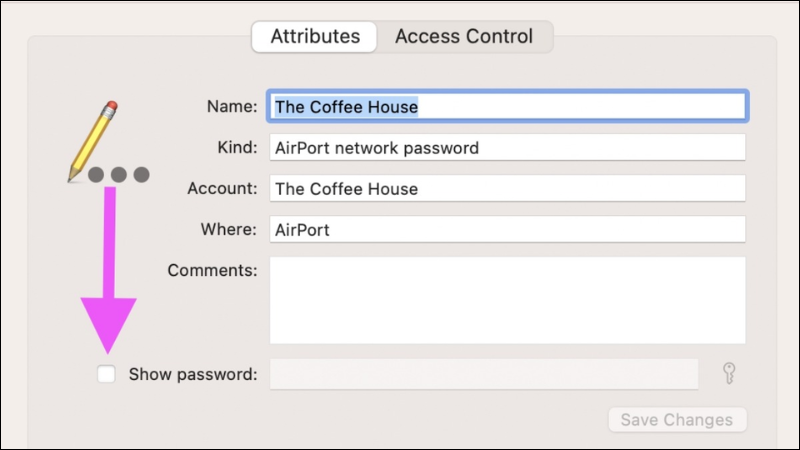
Check the "Show password" box to view the password.
3.2. Use System Settings or the Passwords app
- Step 1: Click the Apple logo in the upper left corner of the screen, then select System Settings from the drop-down menu.
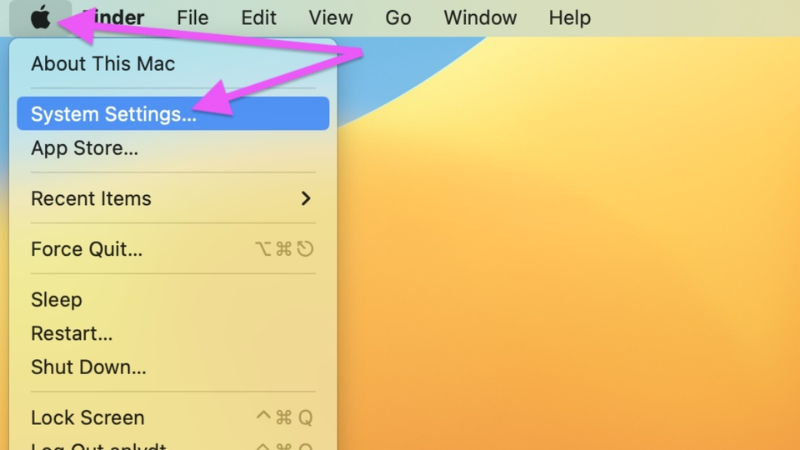
Select System Settings from the drop-down menu.
- Step 2: Go to the WiFi tab located in the left-hand menu, then click the Advanced. button in the bottom right-hand menu.
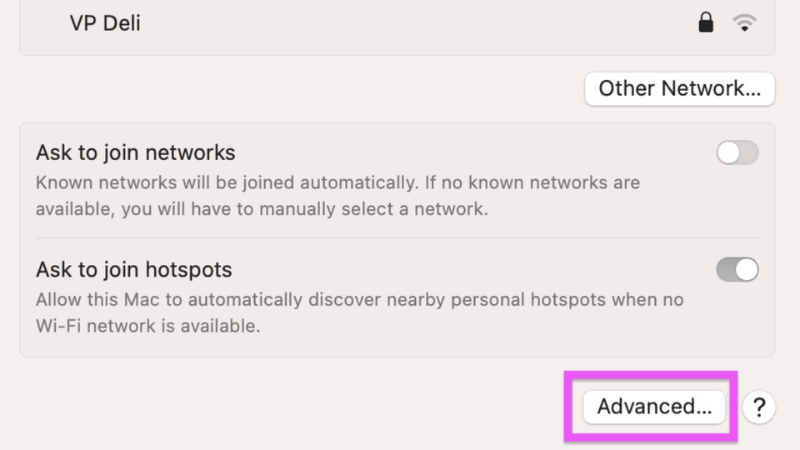
Click the Advanced button.
- Step 3: Click the More button (three dots) to the right of the WiFi network name you want to view the password for in the Known Networks section. Click the Copy Password button.
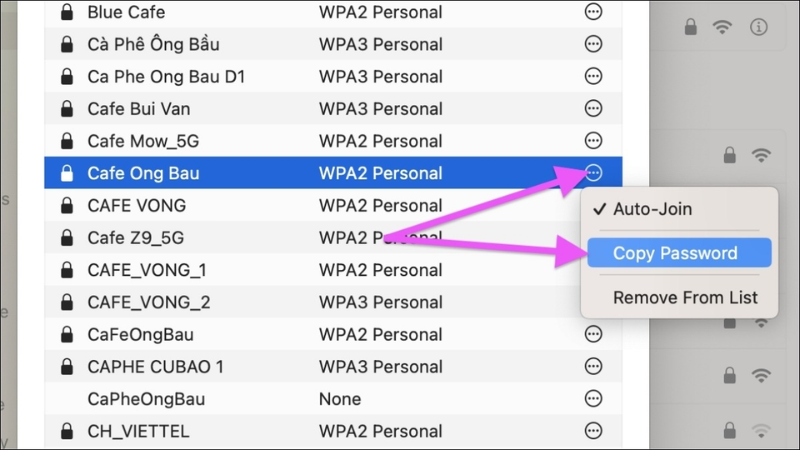
Click the Copy Password button.
- Step 4: You can paste the password into a text editor, a note-taking app, or open the Clipboard window to view it directly.
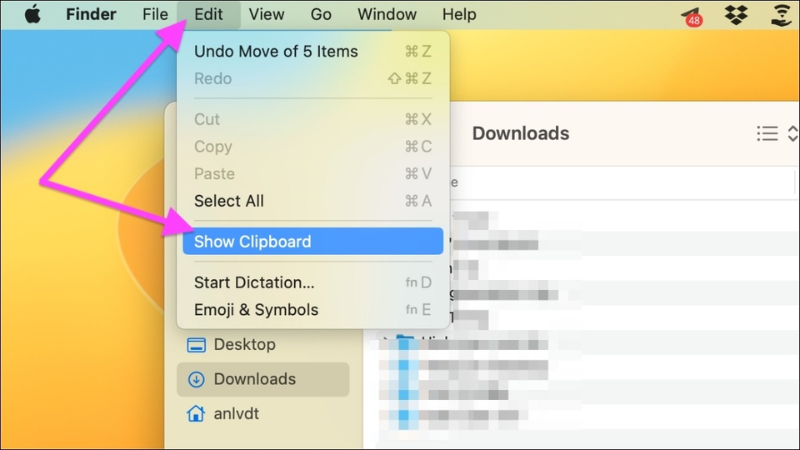
Open the Clipboard window to view it live.
4. Unable to view WiFi password? These are common problems
If you've followed the steps correctly but still can't view your WiFi password, the problem could be related to system settings, access permissions, or saved network information. Below are the most common errors and quick troubleshooting steps:
- The machine has never been connected to the network: There is no profile to retrieve. The solution is to check if the laptop has ever successfully connected.
- Incorrect SSID entered when using CMD: Just one incorrect character will cause the command to not return the correct result. Please run the command again to check the list of profiles first.
- Insufficient administrator privileges: Some machines require administrator privileges to view full information. Please log in with the correct account or open CMD with the appropriate permissions.
- The interface doesn't show any options: This usually happens when the computer isn't connected to WiFi at the time. Try using CMD instead.
- Company or school computers are blocked: The centralized administration device may be restricting access to security keys. In this case, you need to contact the system administration department.

Centralized administration devices can restrict access to passwords.
5. Security precautions when viewing and sharing WiFi passwords
- Only view and share passwords for networks you have permission to use.
- Do not send passwords via public group chats unless absolutely necessary.
- Do not take screenshots of passwords and save them for a long time on a shared computer.
- Avoid installing third-party software just to view WiFi passwords.
- After sharing your network with others, consider changing your password if it's a private or important network.
After sharing with others, consider changing your password.
6. Saved-profile and permission questions
6.1. Can I view the password if my laptop has never connected to WiFi?
No. If the laptop has never connected, the system will not have saved the WiFi profile or authentication information for that network.
6.2. Does using CMD to check the WiFi password require administrator privileges?
It depends on the machine and system policies. In many cases, appropriate permissions are still needed to view full information, especially on machines with centralized administration.
6.3. Why is the Key Content not showing up even though the network has saved it?
The causes are usually incorrect network name entry, a corrupted profile, insufficient account permissions, or the system no longer storing the complete security key.
Related Articles
 3 Ways to View Connected Wi-Fi Passwords on Your Android or iPhone Phone10 minutes read
 How to View Wifi Password, View WIFI Password on Windows 113 minutes read
 How to View Wi-Fi Passwords Saved on Your Phone, Computer4 minutes read
 Instructions on How to View Wi-Fi Passwords on Windows 104 minutes read
 Offer to Download Wi-Fi Password Recovery Pro 2020 ($($ 29.95)3 minutes read
 How to Connect Wi-Fi for Windows Laptops and Fix Wi-Fi6 minutes read
Reader Comments 0
Sign in with email or Google to join the discussion.