Table of Contents
If a computer has already saved a Wi-Fi network, you can usually reveal its password with built-in system tools. You may need to authenticate with an administrator account, device password, or biometric check. These methods are for networks you own or are authorized to use; do not disclose a workplace, school, or another person's network credentials without permission.
If the network uses enterprise authentication such as WPA2-Enterprise or WPA3-Enterprise, there may be no shared Wi-Fi password to reveal. Those networks normally use individual usernames, certificates, or account credentials.
View a saved Wi-Fi password in Windows 11
Current versions of Windows 11 can show passwords for the active network and other saved networks directly in Settings:
- Open Settings > Network & internet > Wi-Fi.
- For the active connection, open its Properties page. For another saved network, choose Manage known networks and select the network.
- Next to Wi-Fi network password, select Show.
Microsoft documents both paths in its Windows Wi-Fi guide. If your build does not show this control, use one of the methods below.
Use Wireless Properties for the current network
This classic Control Panel method works for the Wi-Fi network currently connected to the PC:
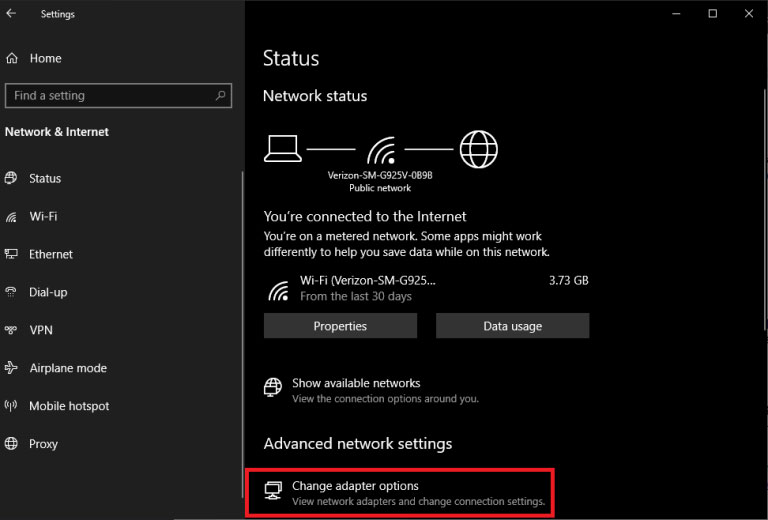
- Open Settings > Network & internet > Advanced network settings.
- Open More network adapter options. On older Windows versions, use Change adapter options.
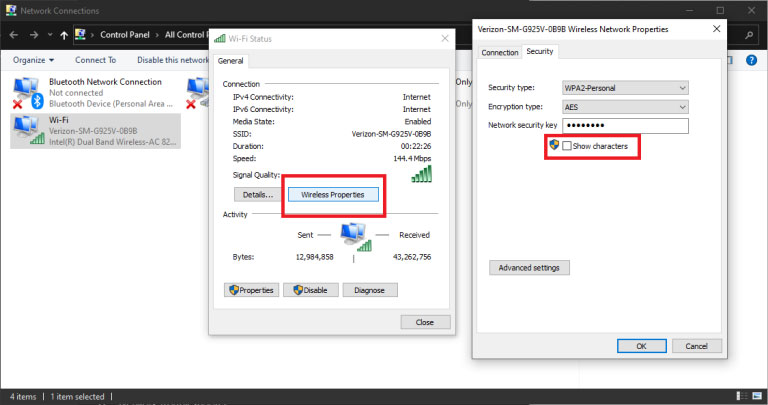
- Double-click the active Wi-Fi adapter, then select Wireless Properties.
- Open the Security tab and select Show characters. The password appears in the Network security key box.
Use Command Prompt for any saved Windows Wi-Fi profile
Windows includes netsh, so a third-party password-recovery utility is unnecessary.
- Open Command Prompt. If the key is hidden, reopen it with Run as administrator.
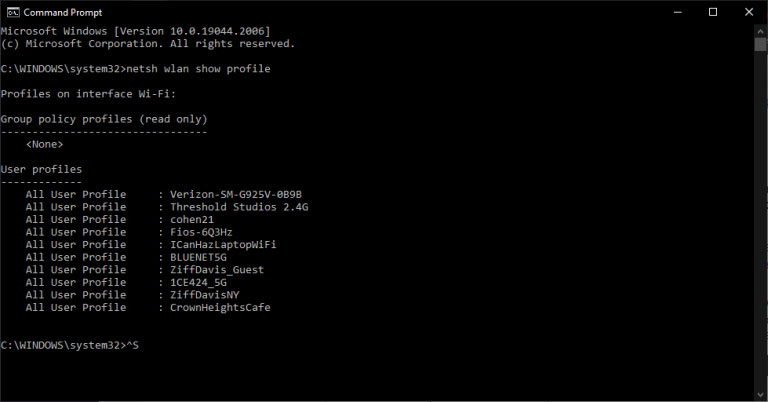
- List the saved profiles:
netsh wlan show profiles- Replace
NETWORK_NAMEwith the exact profile name. Keep the quotation marks when the name contains spaces:
netsh wlan show profile name="NETWORK_NAME" key=clear- Under Security settings, find Key Content.
If Key Content is absent, the profile may use enterprise authentication, the password may not be stored, or the current account may lack permission. For more detail on the command, see how to manage wireless profiles with Command Prompt. A separate Windows Wi-Fi password walkthrough covers the graphical method.
View a saved Wi-Fi password on a Mac
Use the Passwords app on current macOS versions
- Open Passwords.
- Authenticate with Touch ID or your Mac login password.
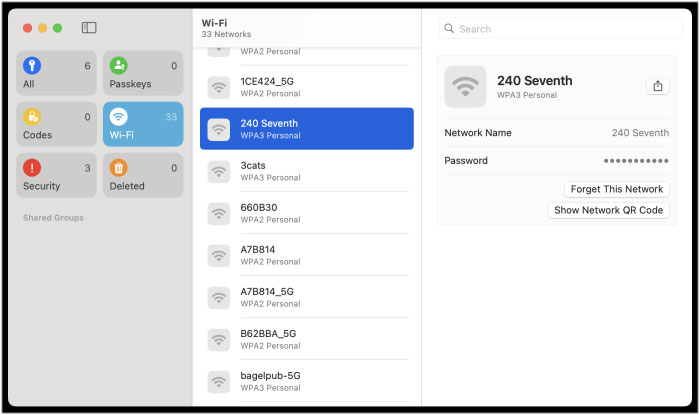
- Select Wi-Fi in the sidebar.
- Choose a network and hold the pointer over the dots next to Password to reveal it. You can also copy the password from the entry.
Apple's Passwords guide for Mac describes the current interface.
Use Wi-Fi settings or Keychain Access on older macOS versions
On macOS 13 or later, another route is Apple menu > System Settings > Network > Wi-Fi > Advanced. Open the menu beside a known network and choose Copy Password.
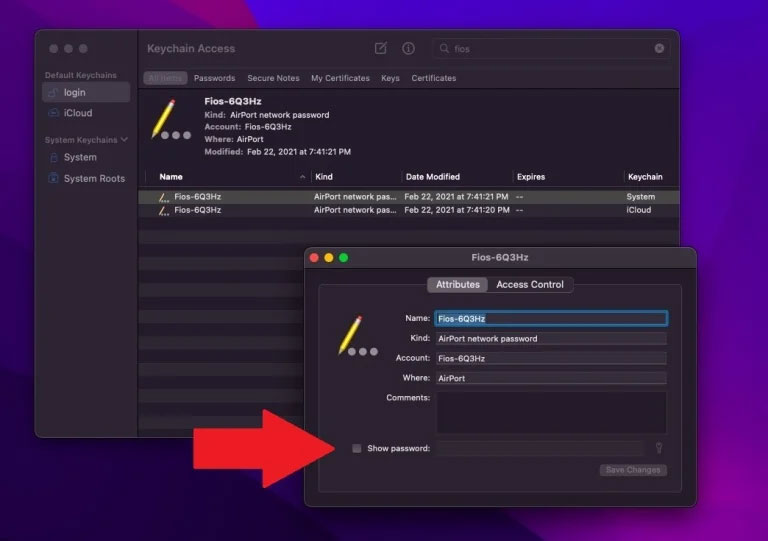
On older releases, open Keychain Access, search for the Wi-Fi network name, double-click the matching network item, select Show password, and authenticate. Verify that you selected the Wi-Fi network entry rather than a similarly named website or application credential.
View a saved Wi-Fi password on Linux with NetworkManager
The exact interface varies by distribution and desktop environment. The following methods apply when NetworkManager manages the connection.
Use the terminal
- List saved connection profiles:
nmcli connection show- Use the exact profile name in this command:
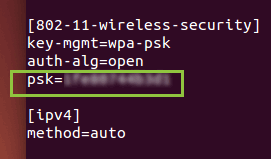
sudo nmcli --show-secrets connection show "PROFILE_NAME"- Look for
802-11-wireless-security.psk. That value is the pre-shared key for a WPA-Personal network.
The profile name is not always identical to the visible SSID, so copy it from the first command. The NetworkManager command reference explains the --show-secrets option. Secrets managed only by a desktop keyring or an authentication agent may not appear in the system profile.
Use Ubuntu's graphical network settings
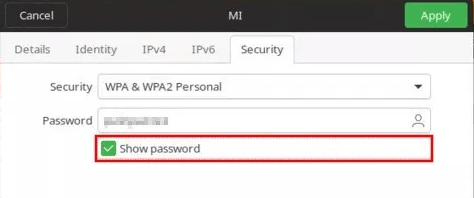
These screenshots show an older Ubuntu interface; current GNOME, KDE Plasma, and distribution themes may use different labels.
- Open Settings and select Wi-Fi.
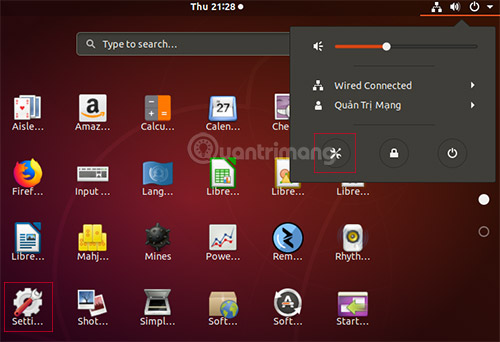
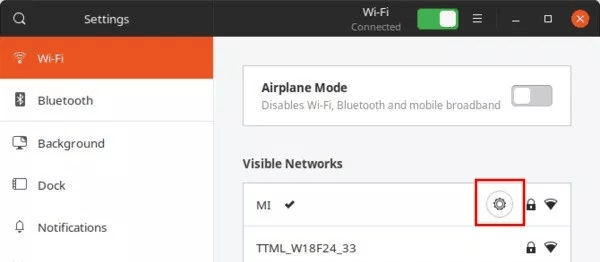
- Open the settings or gear button for the saved connection.
- Select the Security or Wi-Fi Security tab.
- Enable Show password and authenticate if prompted.
If the password is not available
- Make sure you selected the saved profile, not merely a currently visible network with the same name.
- On a managed computer, policy may prevent users from revealing stored credentials.
- If the router is yours, sign in to its administration page to view or replace the wireless key. Changing it disconnects devices until they use the new password.
- You can also share access directly from a supported Apple device without reading the password aloud.
- If the password is correct but the PC still cannot connect, follow these Windows 11 Wi-Fi troubleshooting steps.
Close any window or terminal that displays the key when finished, and avoid pasting it into chat, email, or screenshots unless the recipient is authorized to use the network.
Related Articles
 How to View Saved Wi-Fi Password on Windows - If You Accidentally13 minutes read
 How to Login to Your Computer When You Forget Your Password10 minutes read
 How to Fix Windows 10 App Error Forgot Saved Password3 minutes read
 How to View the Password, Delete the Saved Password on Chrome5 minutes read
 Instructions for Viewing Saved Passwords on Bchrome2 minutes read
 How to View Saved Wi-Fi Passwords on Windows 7/8/103 minutes read
Reader Comments 0
Sign in with email or Google to join the discussion.