Table of Contents
The easiest way to change an FPT Wi-Fi password is through the Hi FPT app. You can also use the modem's local administration page from a phone or computer connected to the network. The app is usually the better first choice because menu names and login details vary between modem models.

Before changing the password
- Keep the phone number associated with the FPT contract available in case an OTP is required.
- Choose a long, unique password rather than a name, phone number, or easily guessed sequence.
- Expect every connected phone, computer, TV, camera, and smart device to disconnect after the change.
- If possible, use a wired connection when changing settings through the modem page.
Method 1: Use the Hi FPT app
FPT Telecom's current support instructions recommend managing the connection through Hi FPT. Install the app from the link on the official Hi FPT page, then sign in with the information associated with your internet contract.
- Open Hi FPT and select the relevant internet contract if more than one is listed.
- Tap the three-dot menu next to the Wi-Fi name, or open Manage modem. The exact route can vary by app version.
- Select Change Wi-Fi name and password or choose the network under Wi-Fi network and access points.
- Enter the new password twice, then tap Update, Save, or Change.
- Complete OTP verification if the app requests it.
Wait for the modem to apply the change, then reconnect each device with the new password. FPT's current step list is also available on its official support page.
Method 2: Use the modem administration page
This method works from either a computer or phone, but the device must be connected to the FPT modem's network. The screenshots below show an older GPON interface; newer hardware can use different labels.
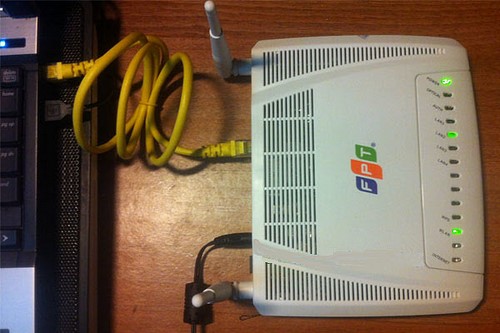
- Open a browser and enter the modem's gateway address. It is often http://192.168.1.1, but check the label on the modem or your device's network details instead of assuming.
- Sign in with the administrator credentials printed on the modem label or supplied by FPT. Do not assume every modem uses admin/admin.
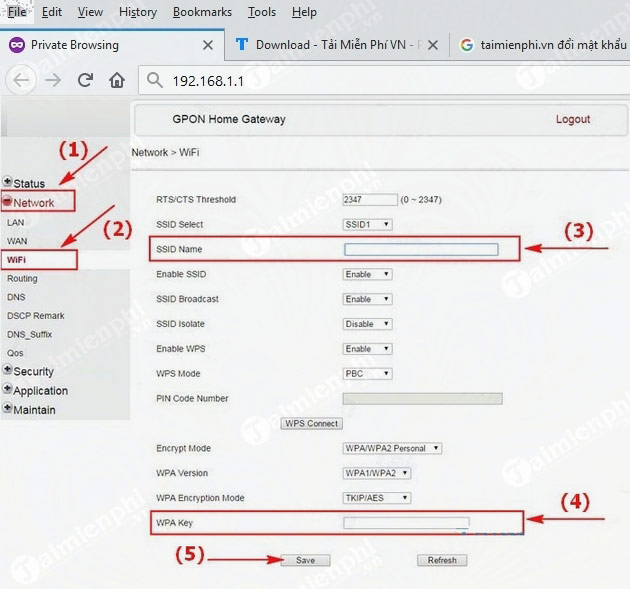
- Open the Wi-Fi or wireless settings. On the interface shown here, the path is Network > WiFi.
- Find the password field, which may be labeled WPA Key, Pre-Shared Key, or Wireless Password.
- Enter the new password and select Save or Apply. Repeat the change for separate 2.4GHz and 5GHz network names if required.
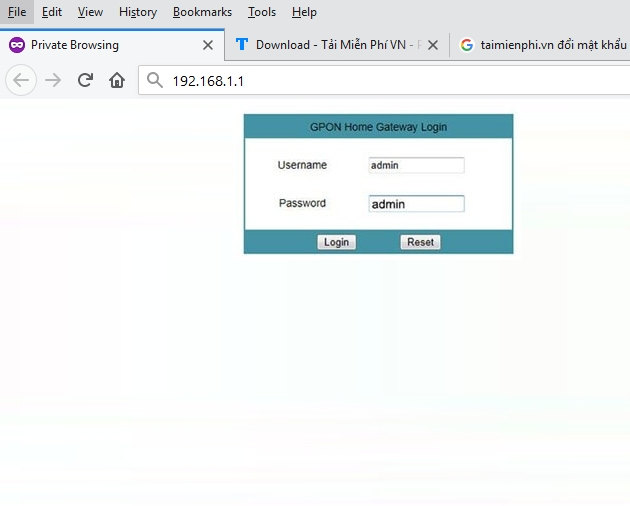
If 192.168.1.1 does not open, find the router address shown as Default Gateway on Windows or Router in a phone or Mac network-details screen. TipsMake's guide to finding the default gateway address covers the main platforms.
If you cannot sign in
Check the modem label first and make sure you are using the modem administrator password, not the Wi-Fi password. If the credentials were changed and are now unknown, request support through Hi FPT. Avoid pressing the physical Reset button simply to recover a login: a factory reset can erase provider configuration and leave the connection offline until it is restored.
After the password changes
Forget the old network profile on devices that keep reporting an authentication error, then reconnect with the new password. Use WPA2-Personal or WPA3-Personal when the modem offers those choices; do not select WEP or obsolete WPA modes. For additional precautions, see how to prevent unauthorized Wi-Fi access.
If changing the password does not fix a slow or unstable connection, investigate signal strength, interference, modem placement, and service status separately. The Windows 11 Wi-Fi troubleshooting guide can help when the problem affects one computer rather than the whole network.
Related Articles
 How to Change Your Viettel Wi-Fi Password7 minutes read
 How to Change Wi-Fi Password, Change Wi-Fi Pass Vnpt, Fpt, Tenda7 minutes read
 Change Wi-Fi Password: How to Change Vnpt Wi-Fi Password5 minutes read
 Change Wi-Fi Password: 2 Steps to Change Linksys Wi-Fi Password2 minutes read
 How to Changing Viettel Wi-Fi Modem Password3 minutes read
 Change Wi-Fi Password: How to Change Fpt Wi-Fi Password4 minutes read
Reader Comments 0
Sign in with email or Google to join the discussion.