Table of Contents
A factory reset returns a TP-Link router to its out-of-box settings and erases the Wi-Fi name, Wi-Fi password, administrator password, internet configuration, parental controls, and other custom rules. Use it as a last resort—not as the first response to a slow or briefly disconnected network.
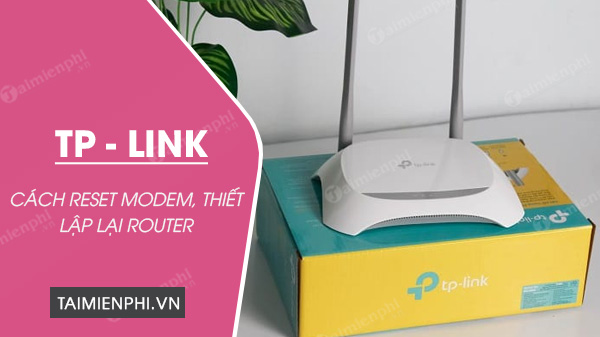
Reboot and factory reset are different
A reboot simply restarts the router and keeps its settings. A factory reset deletes the configuration and requires you to set up the router again. Reboot first when the connection is temporarily unstable. Consider a factory reset only when you have forgotten the administrator password, persistent problems remain after basic troubleshooting, or you are transferring the router to someone else.
Prepare before resetting
- Identify the exact model and hardware version on the router label.
- If you can still sign in, save a configuration backup from the web interface.
- Record any internet settings supplied by your provider, especially PPPoE credentials, VLAN settings, or IPTV and VoIP configuration.
- Keep an Ethernet cable available and make sure the router remains powered during the reset.
- If the device was supplied and configured by an internet provider, contact that provider before erasing it.
The administrator password and the Wi-Fi password are separate. Losing only the Wi-Fi password may not require a reset: if you can still sign in to the router, view or change the wireless password there.
Method 1: Use the physical Reset button
- Leave the router powered on and wait until it has finished starting.
- Find the button labeled Reset or WPS/Reset. It may be recessed and require a paperclip.
- Press and hold it for about 10 seconds. On some models, the system LED changes from a slow flash to a quick flash; follow the label or model manual if its behavior differs.
- Release the button and wait without unplugging the router while it restarts.

A brief press on a combined WPS/Reset button may start WPS instead of resetting the device. Holding it for the model's specified interval is important. TP-Link's current factory-reset instructions describe the button and interface methods.
Method 2: Restore defaults in the web interface
Use this option only if you can still access the router's management page.
- Connect directly to the TP-Link router by Wi-Fi or Ethernet.
- Open tplinkwifi.net or the management IP printed on the label. Common addresses include 192.168.0.1 and 192.168.1.1, but the actual address can differ.
- Sign in with the local administrator password you created during setup, or use a linked TP-Link ID when the interface supports it.
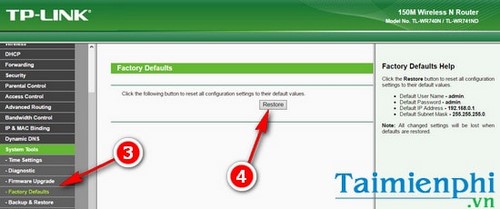
- On current firmware, open Advanced > System or System Tools > Backup & Restore.
- Select Factory Default Restore or Factory Restore, confirm the action, and wait for the reboot to finish.
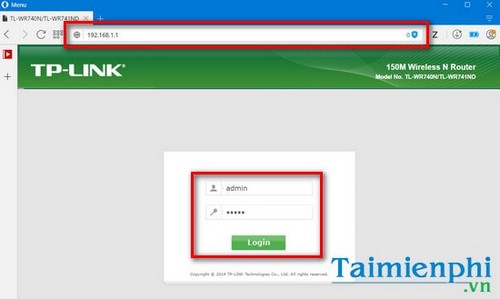
Older TP-Link models may use admin as both the default username and password, but many newer routers ask you to create an administrator password during initial setup. Check the label and model instructions instead of assuming admin/admin.
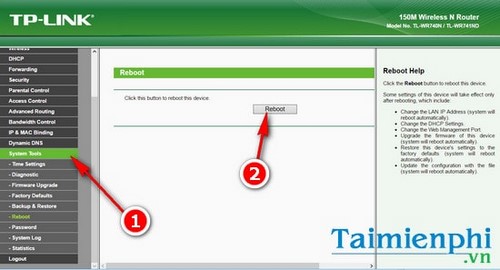
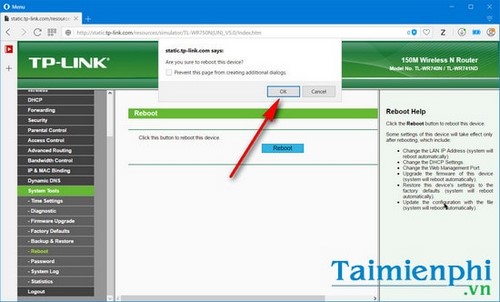
The two screens above perform a reboot, not a factory reset. They are useful when you only need to restart the router without erasing its settings.
Set up the router after a reset
- Connect to the default Wi-Fi name printed on the label, or use Ethernet.
- Open tplinkwifi.net or the label's management address.
- Create a unique administrator password when prompted.
- Run the setup wizard and enter the connection details required by your internet provider.
- Set a new Wi-Fi name and a strong, unique password. Use WPA2-Personal or WPA3-Personal if available.
- Reconnect phones, computers, TVs, and smart devices to the new network.
- Install the correct firmware update for the exact model and hardware revision if one is offered.
TipsMake's TP-Link Wi-Fi 6 setup guide shows the modern browser-based setup flow. If the usual address does not load, first find the router's actual default gateway.
If the reset does not work
- Confirm the router was fully powered on before pressing Reset.
- Try again with the correct button; do not confuse Reset with Power, Wi-Fi, or LED controls.
- Hold the button for the interval specified in the model manual and watch the status LEDs.
- Disconnect the internet cable temporarily if another modem or router is assigning a conflicting address.
- Contact TP-Link or the internet provider if the router never completes startup or requires provider-managed configuration.
After recovery, store both the administrator and Wi-Fi passwords in a password manager. That reduces the chance that another destructive factory reset will be needed.
Related Articles
 Steps to Reset Wi-Fi Modem6 minutes read
 How to Reset Wi-Fi TP-Link to Factory Defaults4 minutes read
 How to Reset TP-Link Wi-Fi Modem in a Snap6 minutes read
 Common TP-Link Modem Login Addresses - Change Password and Wi-Fi Name4 minutes read
 Common Tp Link Modem Login Addresses3 minutes read
 Reset Wi-Fi: How to Reset Tp-link Wi-Fi Router3 minutes read
Reader Comments 0
Sign in with email or Google to join the discussion.