Table of Contents
Windows 10 can share an Ethernet, Wi-Fi, or cellular connection through its built-in Mobile hotspot feature. No third-party hotspot app is required. The PC needs a working internet connection and a wireless adapter that supports the feature.
Set up the hotspot
- Press Windows + I to open Settings.
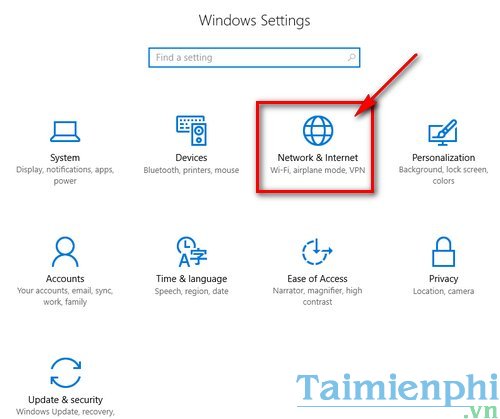
- Select Network & Internet.
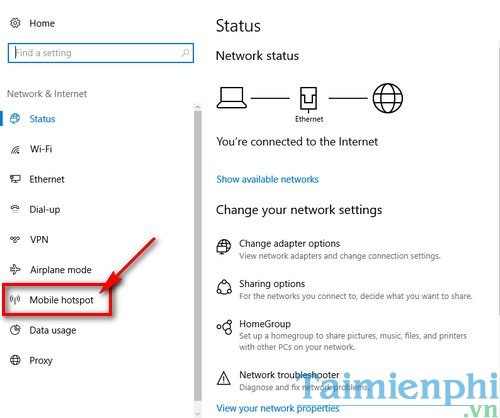
- Select Mobile hotspot.
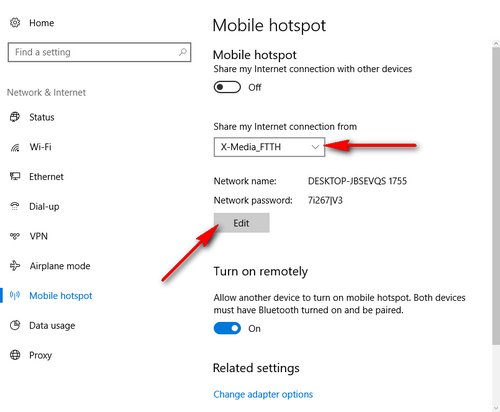
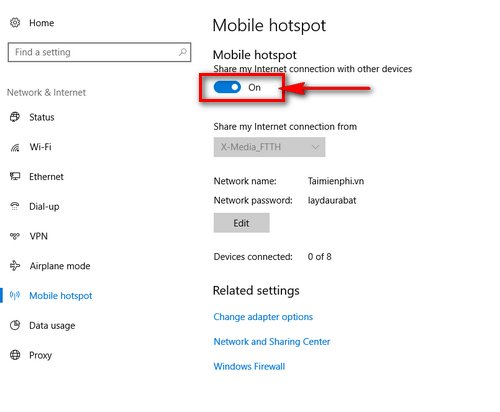
- Under Share my Internet connection from, choose the connection that currently has internet access. Select Edit to change the hotspot details.
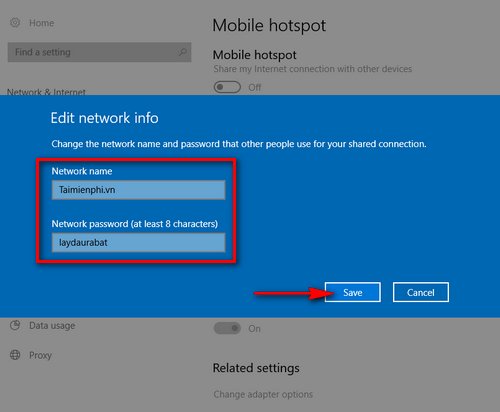
- Enter a recognizable Network name and a strong Network password of at least eight characters, then select Save. Do not leave the hotspot open; a password is required on normal Windows 10 Mobile hotspot configurations.
- If the page offers a network band, use 2.4 GHz for range and compatibility or 5 GHz for less congestion and potentially higher speed at shorter range. Any available is a sensible default.
- Turn on Share my Internet connection with other devices.
Connect a phone or another computer
On the other device, open Wi-Fi settings, choose the network name created above, enter the password, and connect. Windows shows the connected devices on the Mobile hotspot page.
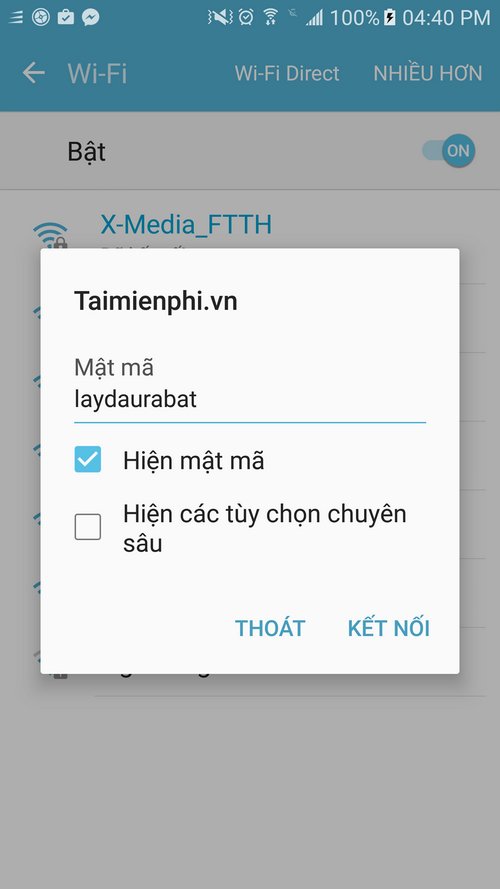
The PC-to-mobile connection guide provides device-side steps. Remember that every connected device uses the PC's source connection and, on mobile data, the same allowance.
What “Turn on remotely” means
Some Windows 10 builds show a Turn on remotely option.
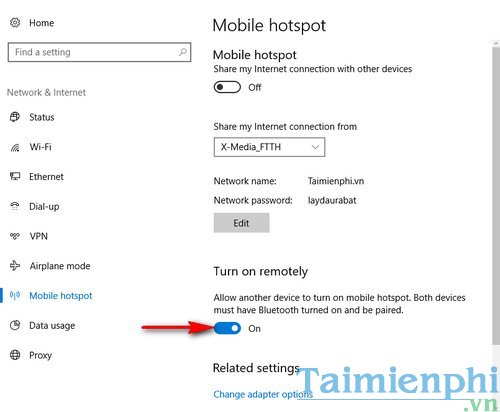
This allows a paired device to wake or enable the hotspot through Bluetooth signaling. It does not mean that every client receives the shared connection over Bluetooth. Leave it off if you do not need remote activation, and pair only devices you trust.
If Mobile hotspot is missing or will not turn on
- Confirm that the source connection can browse the web before sharing it.
- Turn Wi-Fi on, disable Airplane mode, and restart the PC.
- In Device Manager, enable the wireless adapter and update its driver from the PC or adapter manufacturer.
- Press Windows + R, run
services.msc, and confirm that WLAN AutoConfig and Internet Connection Sharing (ICS) are not disabled. Start them if required. - Temporarily disconnect a VPN. Some VPN policies intentionally block connection sharing.
- Run the Network Adapter troubleshooter. Use Network reset only after recording VPN, virtual-switch, static IP, and custom adapter settings.
If Wi-Fi itself is missing or unstable, work through the Windows Wi-Fi diagnostic checklist before troubleshooting the hotspot.
Security and reliability tips
- Use a unique hotspot password and change it after sharing with temporary guests.
- Turn the hotspot off when it is no longer needed.
- Avoid exposing shared folders to untrusted connected devices; use an appropriate public network profile.
- Keep the PC connected to power for long sessions. Battery-saving modes can turn off the hotspot or wireless adapter.
- A hotspot is not a full Wi-Fi range extender: performance is limited by the source link, adapter, interference, and the PC's location.
Related Articles
 Hotspot Shield - Free VPN Software: What to Know18 minutes read
 How to Create a Portable Hotspot on Windows 114 minutes read
 Create VPN on Windows 10: How to Create a VPN on Windows 104 minutes read
 Steps to Fix Mobile Hotspot Not Working on Windows 108 minutes read
 The Difference Between Tethering and Hotspot8 minutes read
 Review Hotspot Shield: the Fastest VPN Available with Proprietary8 minutes read
Reader Comments 0
Sign in with email or Google to join the discussion.