Table of Contents
This updated guide explains how to turn off fast startup on Windows 11 with clear steps, practical tips, and useful context. Turning off Fast Startup on Windows 11 is an effective way to help your computer start more stably, avoid crashes or not being able to shut down completely.
1. How to Turn Off Fast Startup on Windows 11 Using Control Panel
Control Panel is a manager on Windows computers that allows users to intervene in most different features. In Control Panel settings, the system allows users to quickly set up the Fast Startup feature. To turn off or turn on the Fast Startup feature on Win 11 computers, do these:
Step 1 : Type Control Panel in the search bar to open the manager on your Windows computer.
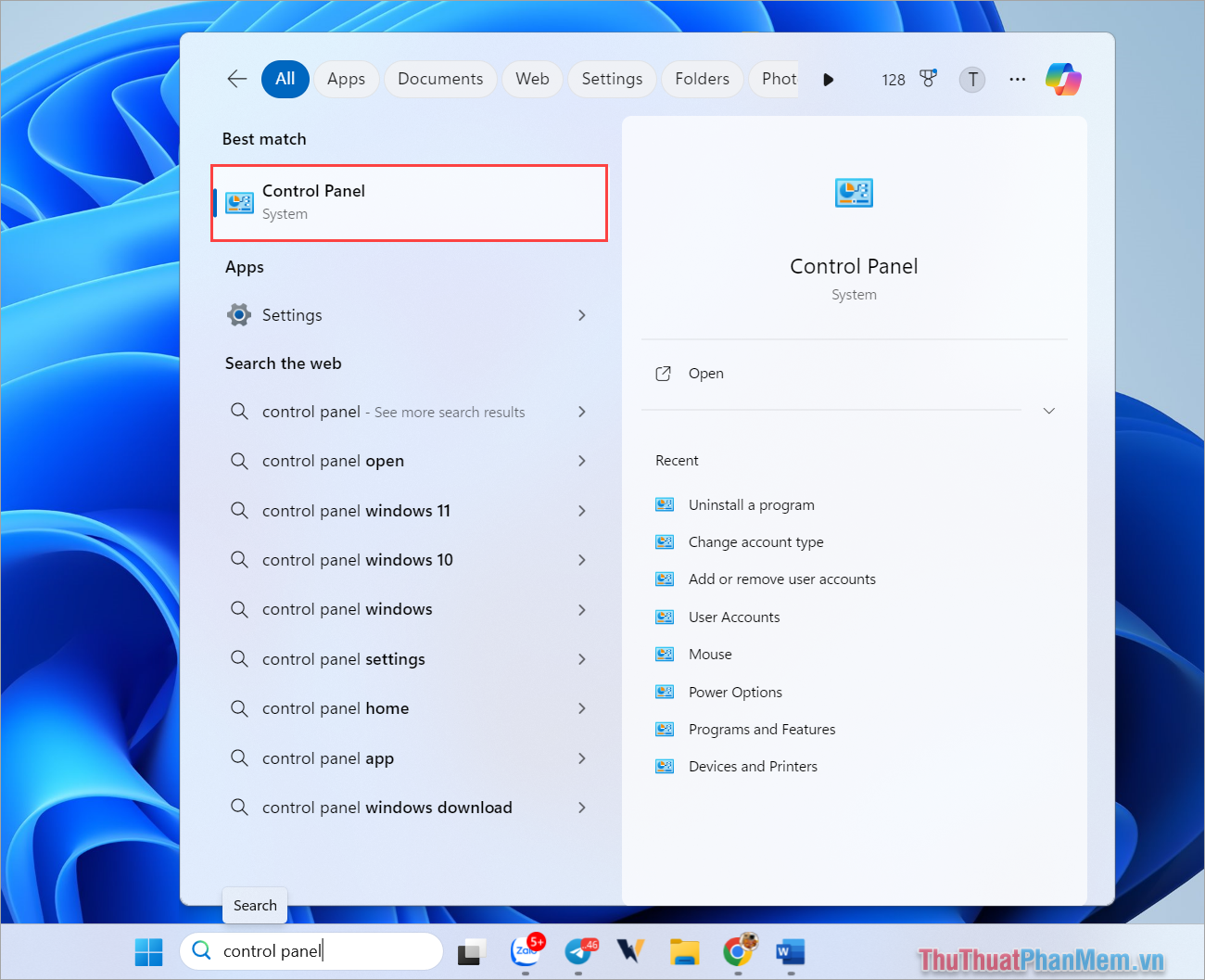
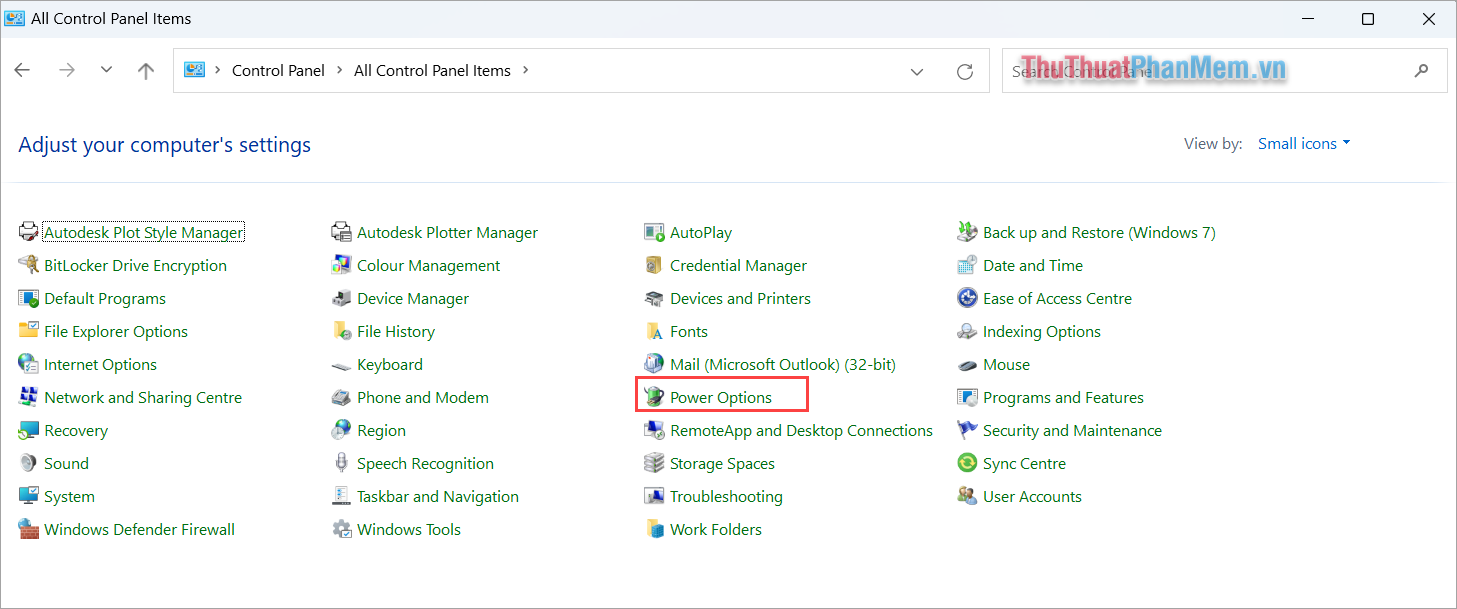
Step 2 : Then, select View by: Small icons and select Power Options to set up power on your Windows computer.
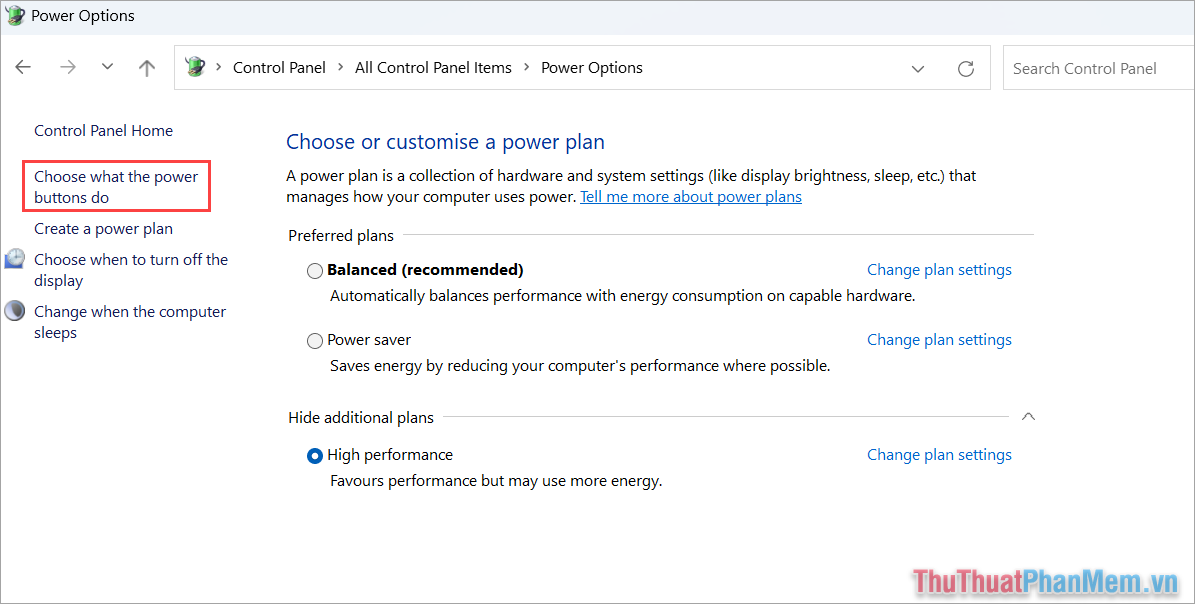
Step 3 : Next, select Choose what the power buttons do .
Step 4 : To be able to set up in this section, you need to select Change settings that are currently unavailable .
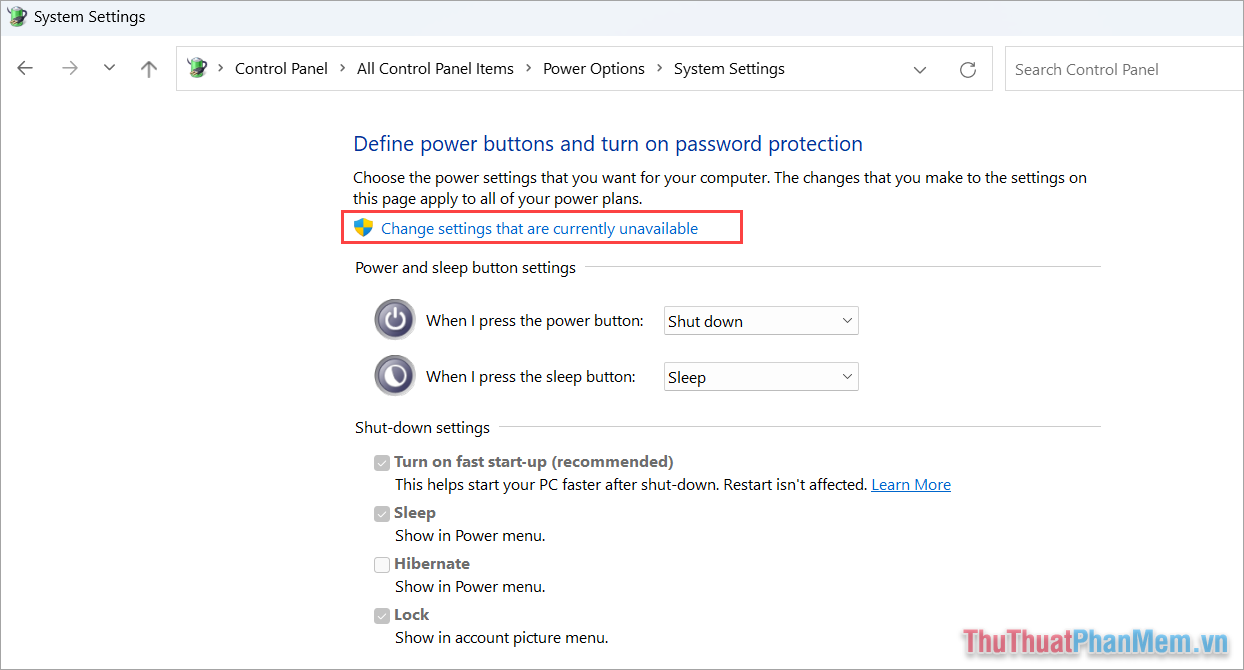
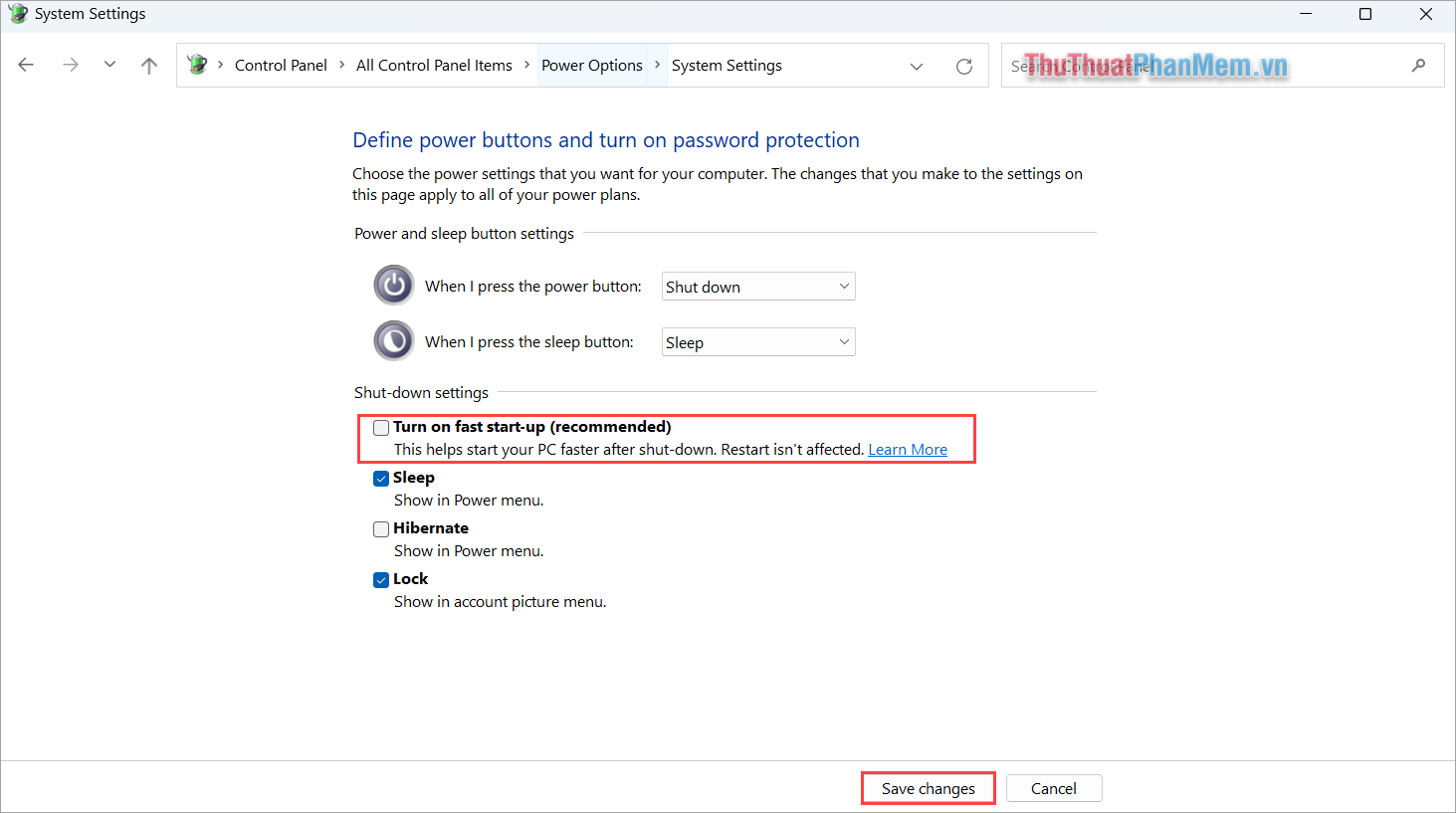
Step 5 : To turn off the Fast Startup feature, simply uncheck Turn on fast startup and choose Save changes to save the changes on your Windows computer.
2. How to Turn Off Fast Startup on Windows 11 Using Command Prompt
Command Prompt is a popular command line program on Windows 11, allowing users to set up many different information through command lines. To turn off Fast Startup on Windows 11 via Command Prompt, you only need to use a single command as follows:
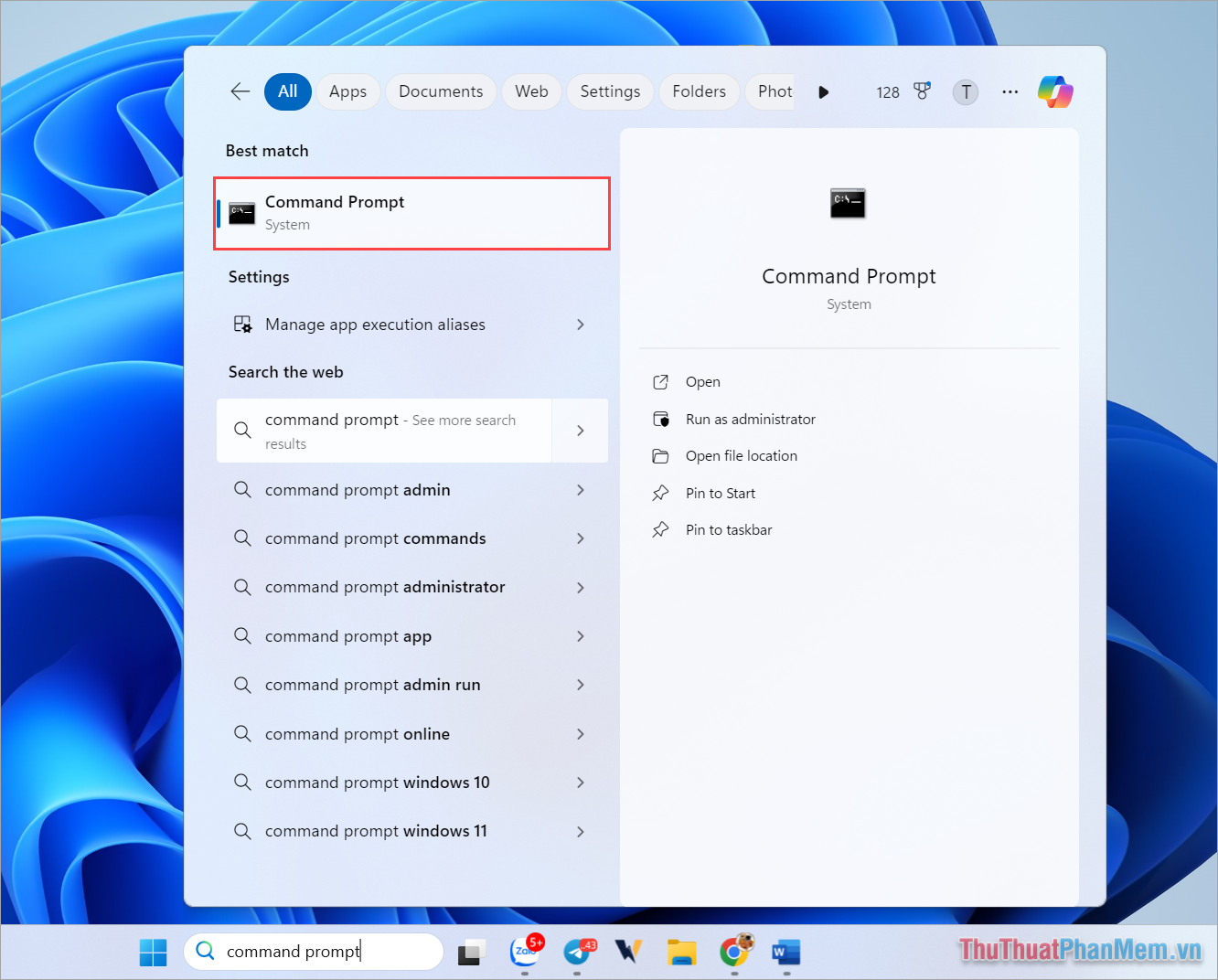
Step 1 : Type Command Prompt in the search bar and select Run as administrator to run the software with Admin rights.
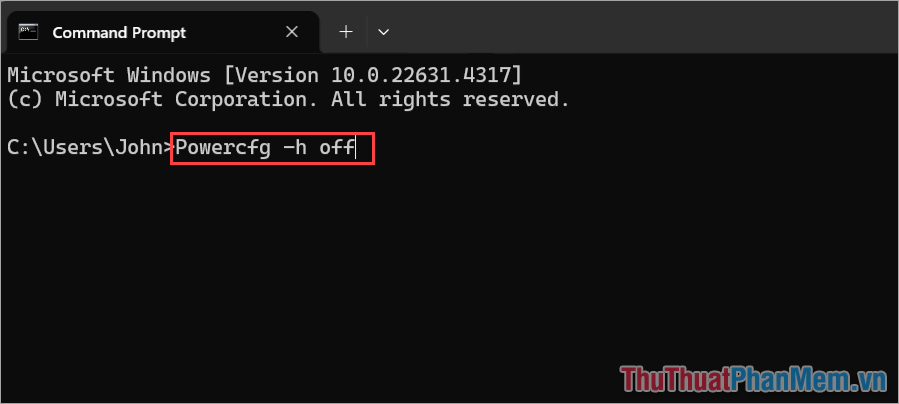
Step 2 : In the CMD window, enter these command and press Enter to run the command.
| powercfg /h off |
In this guide, Software Tips has shared with you how to turn off Fast Startup on Windows 11 quickly and simply. Have a nice day!
FAQ
What should I prepare before I turn off fast startup on windows 11?
Review the requirements and options in the guide first. Having the correct device, app version, account access, or materials ready helps prevent avoidable errors.
How long does it take to turn off fast startup on windows 11?
The time depends on the task and your setup. Most basic steps can be completed quickly, while downloads, updates, scans, or troubleshooting may take longer.
What should I do if the steps do not work?
Repeat the instructions in order, confirm that your software or device is supported, and check permissions, connectivity, and available updates before trying again.
Related Articles
 How to Turn Off Fast Startup on Windows 10 and Windows 8.1 // 87 minutes read
 How to Disable Fast Startup on Windows3 minutes read
 Boost Windows 10 Startup Speed by Enabling Fast Startup3 minutes read
 How to Disable Hibernation Without Disabling the Fast Startup5 minutes read
 How to Disable the Fast Startup Feature on Windows5 minutes read
 Microsoft Is Committed to Fixing Updates on Windows 103 minutes read
Reader Comments 0
Sign in with email or Google to join the discussion.