Table of Contents
Download CyberLink YouCam only from CyberLink’s official site, run the installer, and then choose your webcam and microphone inside the app. YouCam can take webcam photos, record video, and add effects, but the current product is commercial software with a trial option—not an unrestricted free program.
Check compatibility before installing
The current YouCam system-requirements page lists 64-bit editions of Windows 11, Windows 10, Windows 8/8.1, and Windows 7. CyberLink recommends a modern Intel Core i5 or AMD Ryzen-class processor for some features. Requirements vary by version and feature, so check the official YouCam specifications before buying or installing.
The Windows XP/Vista and 512 MB RAM requirements in the old installer shown below apply only to an obsolete YouCam release. Do not use that legacy installer on a current PC.
Download and install the current YouCam version
- Visit the official YouCam download page. Select the trial or purchased version that matches your license.
- Open the downloaded installer. If Windows displays a User Account Control prompt, verify that the publisher is CyberLink before approving it.
- Choose the installation language, read the license terms, and follow the setup prompts. Keep the default folder unless you have a reason to change it.
- When setup finishes, open YouCam. Sign in or enter a license key if your edition requires activation.
Avoid third-party “full version” downloads, cracks, and bundled installers. They may be outdated, unlicensed, or unsafe.
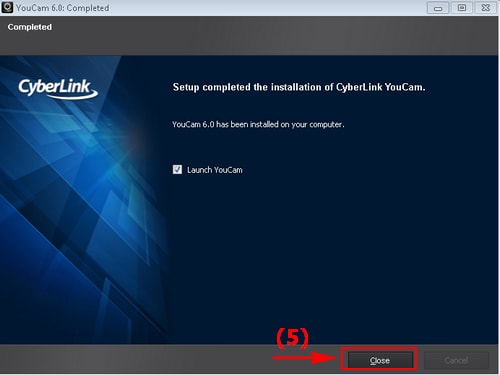
Legacy installer screens
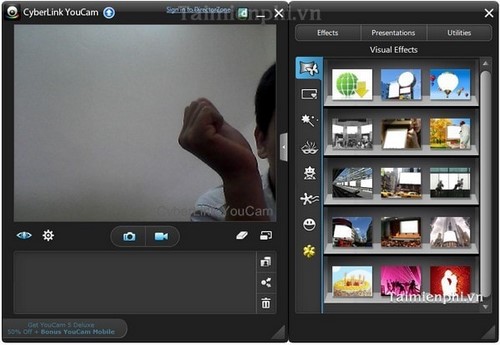
The following images document an older YouCam installer. The button names remain broadly recognizable, but the current wizard and system requirements may look different.
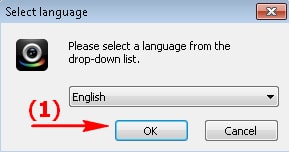
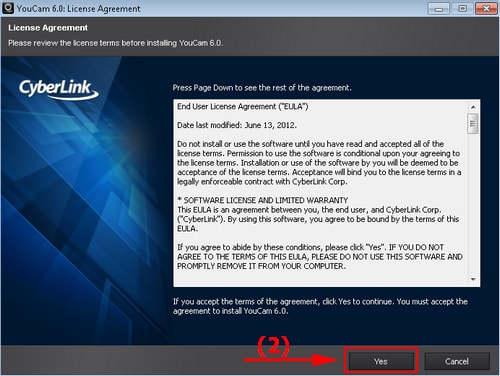
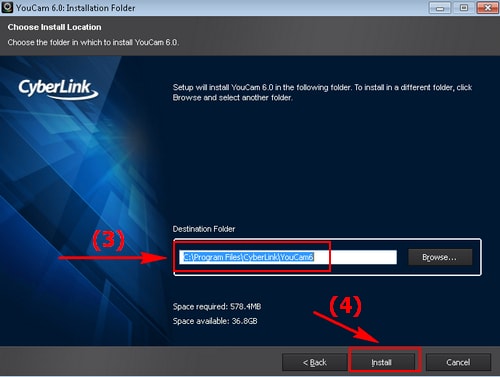
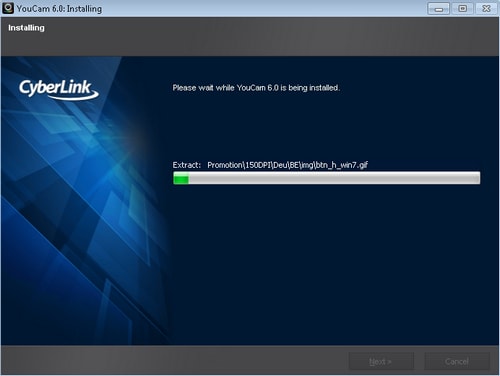
Set up the webcam and microphone
- Connect the webcam before launching YouCam. A laptop’s built-in camera should appear automatically.
- In YouCam settings, select the correct camera and microphone when more than one device is listed.
- In Windows, open Settings > Privacy & security > Camera and allow camera access for desktop apps. Check the Microphone page as well.
- Close other apps that may already be using the camera, then restart YouCam if the preview stays black.
- Make a short test recording and play it back to confirm framing, lighting, and sound.
For Windows’ built-in option, see how to open the camera on a laptop.
Take a photo or record video
Open the Capture workspace. Select the camera control for a still photo or switch to video mode and start recording. Choose effects before capture only when they serve the final video; heavy filters can distract and may increase processor use.
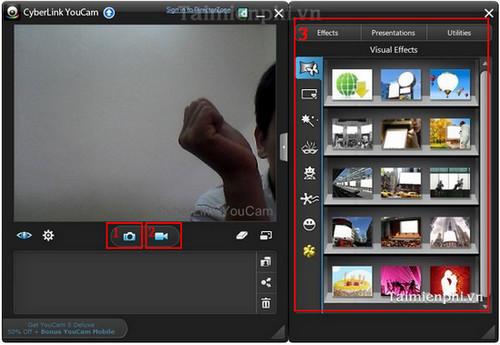
After capture, open YouCam’s media library to review the file and locate its saved copy. If you need to record the desktop rather than the webcam, read the CyberLink YouCam screen-recording guide; feature availability can depend on the YouCam version.
Fix common setup problems
- No camera detected: reconnect the device, try another USB port, check Windows camera permissions, and update the driver through Windows Update or the camera maker.
- Black preview: quit Teams, Zoom, browsers, and other programs that might have exclusive access to the webcam.
- No sound: select the intended microphone and confirm its Windows input level is not muted.
- Poor performance: reduce the capture resolution, disable unnecessary effects, and close demanding background apps.
- Installer will not run: download a fresh installer from CyberLink and confirm that the Windows edition and hardware meet the current requirements.
Related Articles
 Download Cyberlink Youcam 94 minutes read
 How to Install the Open Broadcaster Screen Recording Software4 minutes read
 Instructions for Filming the Screen with Cyberlink Youcam4 minutes read
 YouCam Perfect -- Photo Editor5 minutes read
 Download Cyberlink Colordirector 5, a Professional Video Color4 minutes read
 CyberLink PowerDirector 15: Archived Giveaway Guide4 minutes read
Reader Comments 0
Sign in with email or Google to join the discussion.