Table of Contents
This guide provides a practical overview of 5 the Most Professional Screen Capture Software 2020, including its main features, benefits, limitations, and important considerations.

1. Snagit
Snagit is a powerful, professional screen capture and video capture software that is not as complicated as many other software. The interface is simple and easy to use, you can choose the mode you want to take photos such as: take a full screen image, capture an area, capture an application window, capture a whole web page. Then you can set timeout, capture mouse cursor or not, you can also set up keyboard shortcuts for faster shooting operations.
In addition, Snagit also provides a lot of photo editing tools, you can control everything captured from the smallest pixels.
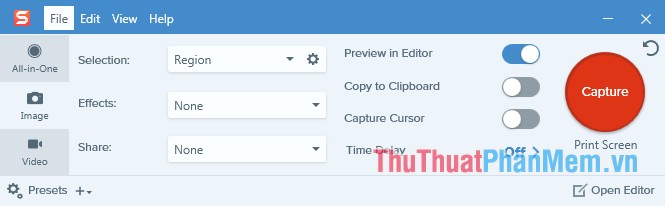
Key features of Snagit:
- Take a screenshot of your computer screen quickly with many modes: take full screen picture, capture 1 area, capture application window, capture web page.
- Support shortcut keys to take photos.
- Maximum support image editing tools in Snagit Editor: add text, draw pictures, arrows, fill color, blur, insert many other images, resize images.
- Snapshots are automatically saved to the gallery.
- Easily search photos taken by date.
- Providing many unique visual effects in the Effects section.
- Support screen video to record all activities taking place on the screen.
- Save images in many formats: BMP, JPG, JPEG, PNG, CUR, GIF, ICO.
- Share images via email, FTP, add images to Word, PowerPoint, Excel, or store on OneDrive, Dropbox, Google Drive.
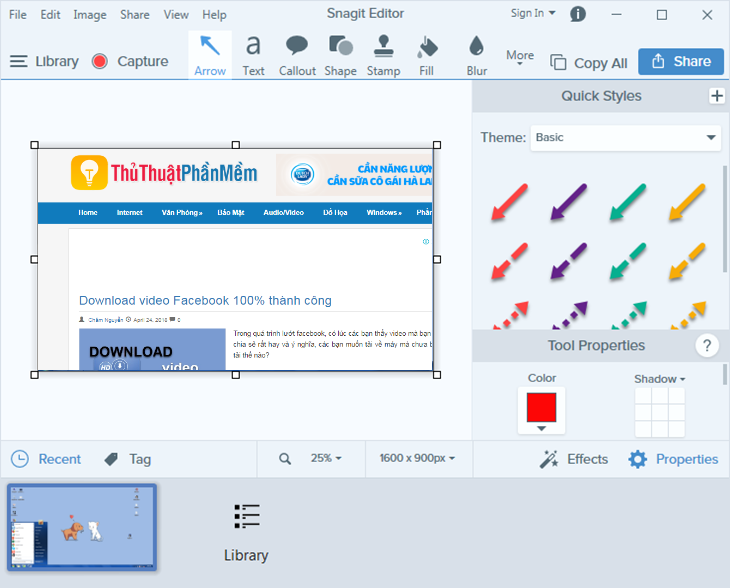
You can download Snagit here: https://www. techsmith. com/screen-capture. html
2. FastStone Capture
FastStone Capture is a professional screen capture software, although the software is compact but powerful to help users capture all activities on the computer screen: windows, menu objects, full screen, web.
After you have taken screenshots with FastStone Capture, you will be provided with image editing tools to perfect the image as you like.

Key features of FastStone Capture:
- Support hotkeys to activate screen capture feature.
- Support many shooting features such as: capture window, object, menu, full screen, rectangular area, etc.
- Provide photo editing tools: draw objects (lines, watermarks, rectangles, circles.), add captions, many effects (shadows, frames.), change resize, crop, rotate, sharpen, change brightness, adjust colors.
- Save in BMP, GIF, JPEG, PCX, PNG, TGA, TIFF and PDF formats.
- Convert images to multi-page PDFs.
- Support for sending captured images via email, to Word and PowerPoint documents, or sending images to an FTP server.
- FastStone Capture also helps you record all activities and sounds on the screen into a video file.
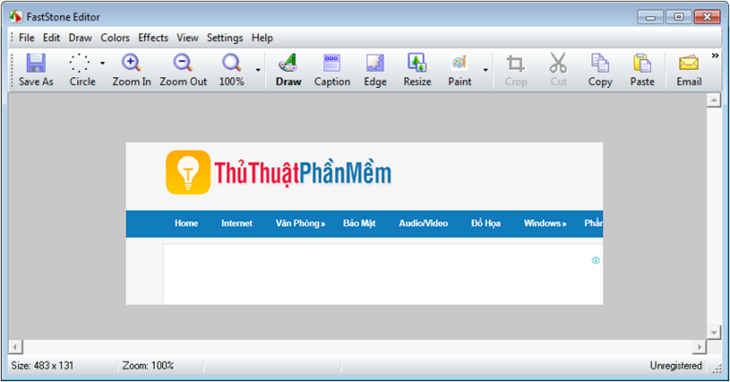
You can download FastStone Capture here: http://www. faststone. org/FSCapturerDownload. htm
3. Screenshot Captor
Screenshot Captor is a professional screen capture software, you can take screenshots quickly with many modes: full screen, workspace, arbitrary area, fixed size area. Screenshot Captor supports many unique effects including the ability to automatically locate and enhance working windows. The software supports many image formats such as gif, png, jpg, tiff.
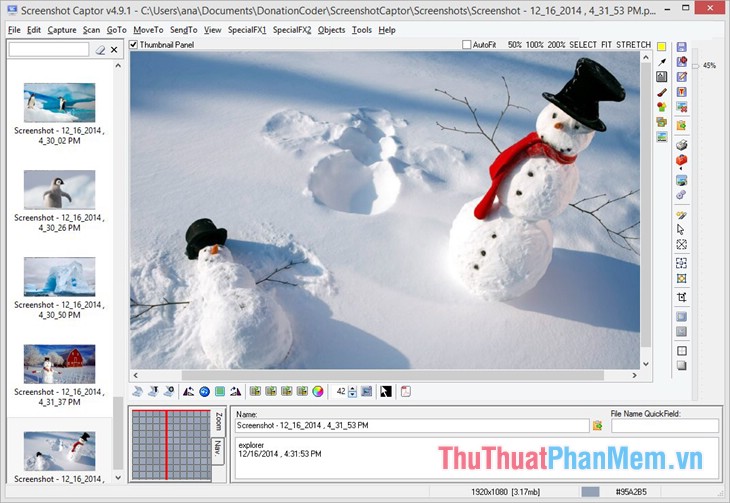
Key features of Screenshot Captor:
- Provides multiple screen capture modes to meet the user needs of users: full screen capture, multiple screens, selections taken, web page scrolling, application windows. each mode has A customizable shortcut key for taking snapshots.
- Provides many image editing tools: add arrows, draw shapes, many special effects, add text annotations in the file, create thumbnails and watermarks.
- Partial capture of Windows 7 with transparency effects.
- Intelligent automatic naming of files, easy renaming and format conversion, automatic conversion of image files.
- Support sending images via email, uploading images to image hosting services.
You can download Screenshot Captor here: http://www. donationcoder. com/software/mouser/popular-apps/screenshot-captor
4. LightShot
LightShot is a free screen capture software that helps you take photos of any area of your computer screen. The interface is designed intuitive, friendly, anyone can easily use this software without taking too long to get used to.
You can quickly take photos and edit photos with the tools that LightShot supports, then save as BMP, JPEG or PNG formats and share on social networking sites like Twitter, Facebook, Pinterest or send. Photos via email to friends and relatives.
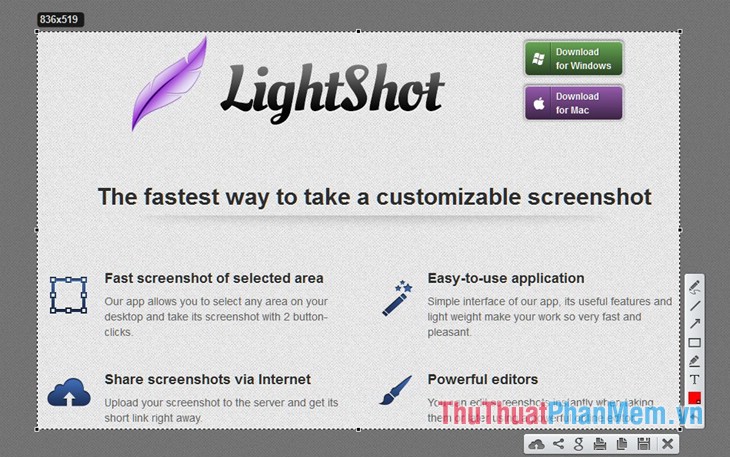
Main features of LightShot:
- Take screenshots quickly.
- The interface is simple and intuitive, easy to use.
- Support photo editing tools.
- Support similar image search on Google through LightShot's powerful search feature.
- Share photos via the Internet.
- Supports a variety of platforms including: Windows / Mac, extensions on Chrome, Firefox, IE and Opera.
You can download LightShot here: https://app. prntscr. com/en/index. html
5. Greenshot
Greenshot is a screen capture software that lets you take part or the whole screen quickly. The program supports multiple languages to help you use it simply and effectively. Greenshot lets you use keyboard shortcuts to take photos faster, after taking screenshots you will be provided with tools to edit the image you have just taken: blur, note, sharpen, change. colors for elements on a photo.
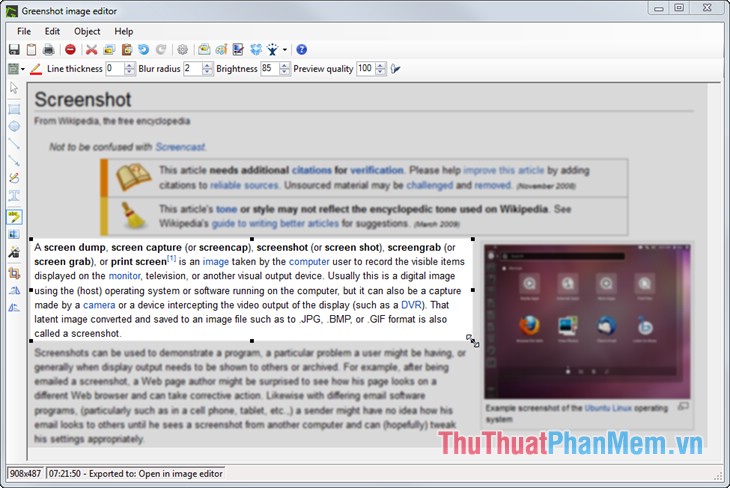
Key features of Greenshot:
- Support capturing part or the whole screen
- Integrated note tool, mark images taken from the screen.
- Save images easily, support connecting to the printer, copying to the Clipboard, sending images by email, or uploading images to the internet.
- Save images in many formats: JPG, JPEG, TIF.
You can download Greenshot here: http://getgreenshot. org/downloads/
So, with 5 professional screen capture software that the article has just introduced, hope you will choose the professional screen capture software that best suits your usage. Good luck!
FAQ
What should I know about 5 the Most Professional Screen Capture Software 2020?
Focus on the key features, requirements, limitations, and practical use cases explained in this guide.
How do I get the best results with 5 the Most Professional Screen Capture Software 2020?
Follow the recommended steps, use current software or information, confirm compatibility, and review settings before major changes.
Are there any risks or limitations?
Potential limitations depend on compatibility, data quality, cost, privacy, support, and how the product or method is used.
Related Articles
 15 Useful Screen Capture Applications for Windows12 minutes read
 How to Take Screenshots of Your Computer Using FastStone Capture in Detail4 minutes read
 26 Useful Screen Capture Apps for macOS17 minutes read
 Screen Capture Tools for GIF Screens for Windows 105 minutes read
 What Is Capture: What Is a Capture?3 minutes read
 How to Use Tinytake to Capture Screen Video8 minutes read
Reader Comments 0
Sign in with email or Google to join the discussion.