Table of Contents
Learning how to stop iMessage from filling up iPhone and iCloud storage doesn't have to be complicated. This updated guide presents a clear workflow, practical checks, and troubleshooting advice you can use while completing the process.
Key Takeaways
- Follow the steps to free up iMessage storage on iPhone and iPad.
- Explore automatically delete old messages.
- Understand reduce image quality sent via iMessage.
How to Free Up iMessage Storage on iPhone and iPad
Step 1: Delete iMessage attachments.
To check how much space iMessage is taking up on your iPhone, visit:
Settings > General > iPhone Storage > Messages.
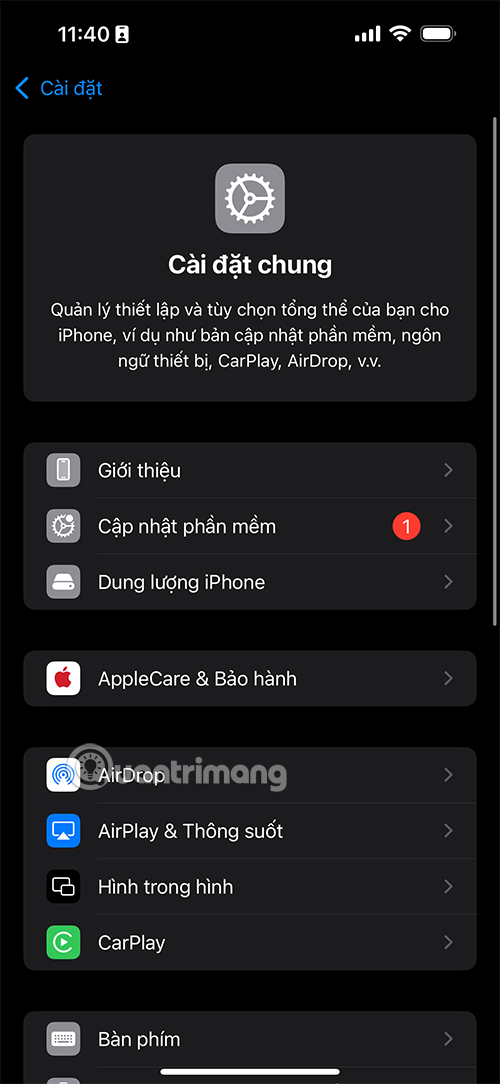
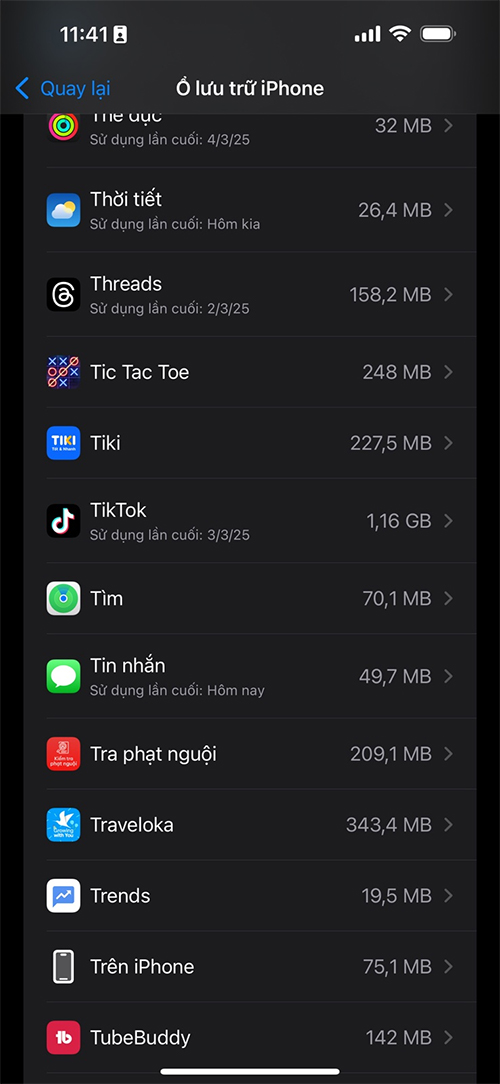
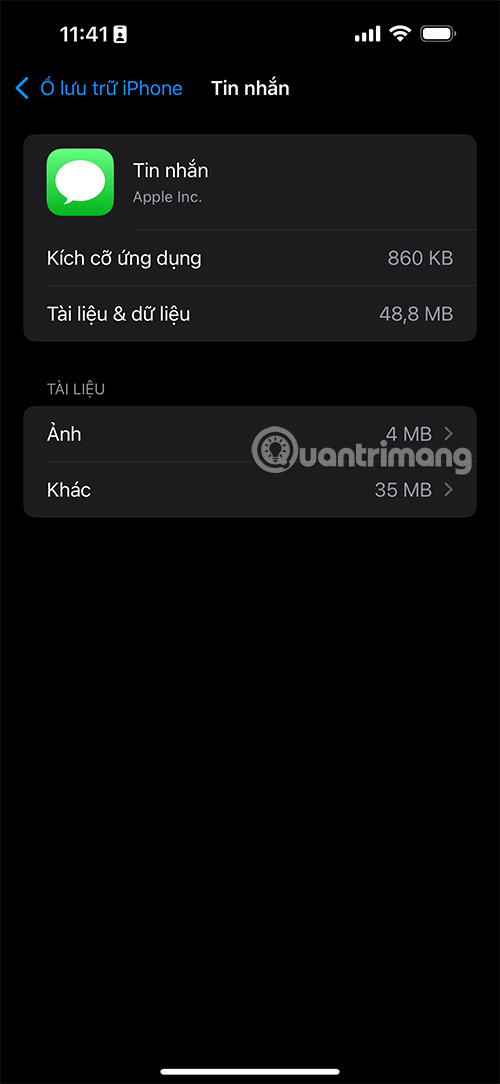
You may find tens of gigabytes (GB) of iMessage data taking up space if you haven't deleted unwanted attachments in a while. Here, Messages' Documents section is only a few dozen MB.
Do the following: if you're ready to delete the entire conversation.
- Tap Top Conversations.
- Click Edit in the upper right corner.
- Select the conversations you want to delete, then tap the trash icon in the upper right corner.
This is the quickest way to free up space, but it can get you kicked out of iMessage chat groups. You may have to ask people to invite you back to the group if you do this.
Delete attachments by type
To delete attachments more selectively, open:
Settings > General > iPhone Storage > Messages.
Here you can see each type of attachment like:
- Image
- Video
- GIFs & Stickers
- Other
Tap each item, then tap Edit, select the files you don't need, and delete them using the trash icon.
How to Stop iMessage from Taking Up iPhone Storage.
IMessage can continue to accumulate junk data if left unchecked. Take these precautions:
Automatically Delete Old Messages

Open Settings > Messages, then open Message History and tap Keep Messages. Here, you can change it from Forever to 30 days or 1 year. This will automatically delete messages and attachments older than the time period you choose.
For voice messages, in the same settings page, tap Expires and select After 2 minutes to automatically delete unnecessary voice recordings.
Reduce Image Quality Sent via iMessage
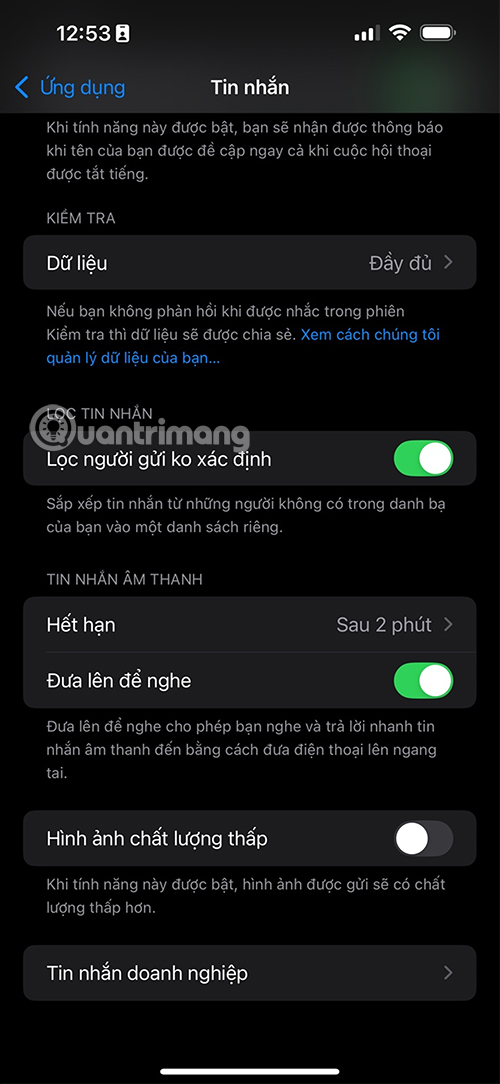
Scroll to the bottom of the Messages Settings page and turn on Low-quality Photo Mode. This option reduces the size of photos you send and receive via iMessage. However, photos may appear blurry and hard to read if they're screenshots that contain text.
Turn Off SMS Forwarding Between Apple Devices
If you don't want SMS messages to automatically appear on all your Apple devices, open:
Settings > Messages > SMS Forwarding, then turn off message forwarding to unnecessary devices. Note: This doesn't affect iMessages.
How to Reduce iMessage Storage on iCloud
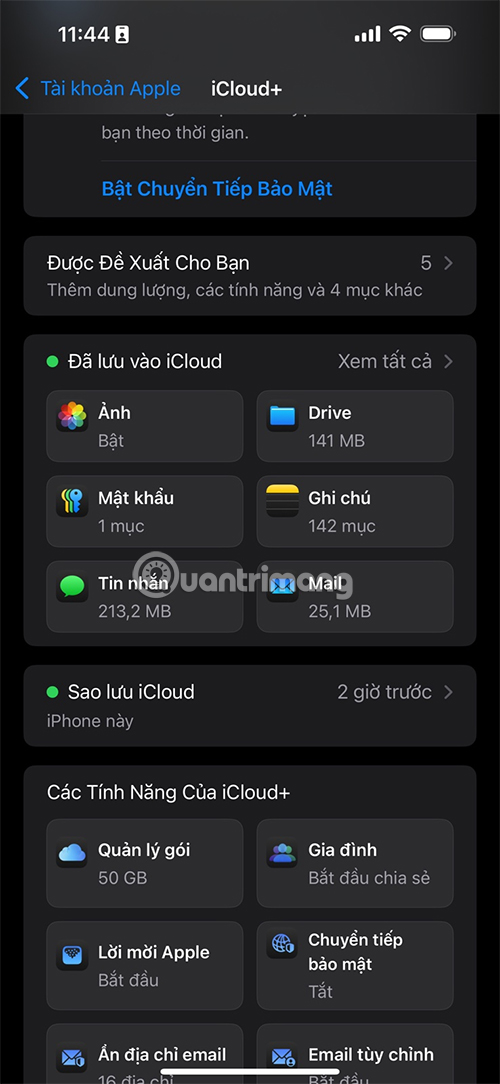
ICloud storage is also a big issue. Here's what you can do: if you find that iMessage is taking up too much iCloud space.
Turn Off iMessage Sync with iCloud
On your iPhone or iPad, open Settings > [Your Name] > iCloud.
Tap Messages, then turn off "Use on this iPhone.".
Note: This will remove messages from iCloud and stop syncing messages between Apple devices.
Final Thoughts
The most reliable way to handle stop iMessage from filling up iPhone and iCloud storage is to follow the process in order, verify each important setting, and test the result before moving on. Use the guidance above as a practical reference, then adjust the details for your device, software version, or specific goal.
FAQ
What should I check before I stop iMessage from filling up iPhone and iCloud storage?
Use the latest available software, confirm that your device meets the requirements, and make sure you have the necessary permissions, account access, or backup before changing anything.
Why might I be unable to stop iMessage from filling up iPhone and iCloud storage?
Common causes include outdated software, missing permissions, incompatible settings, incomplete setup steps, or a temporary network problem. Recheck the process from the beginning and restart the app or device if needed.
Is it safe to stop iMessage from filling up iPhone and iCloud storage?
It is generally safe when you use official tools, review every permission, and back up important data before making system-level or account-level changes.
Related Articles
 These ICloud Settings Are Taking up Your Storage: Here's How to Fix It!7 minutes read
 Cheap Backup Tips to Replace When You Run Out of iCloud Storage9 minutes read
 6 iCloud+ Features You Should Be Using7 minutes read
 Clean up to Regain Storage Space for Icloud16 minutes read
 Apple Announced New Prices for Icloud Storage Service3 minutes read
 How to Fix Errors Waiting to Activate Imessage on iPhone7 minutes read
Reader Comments 0
Sign in with email or Google to join the discussion.