Table of Contents
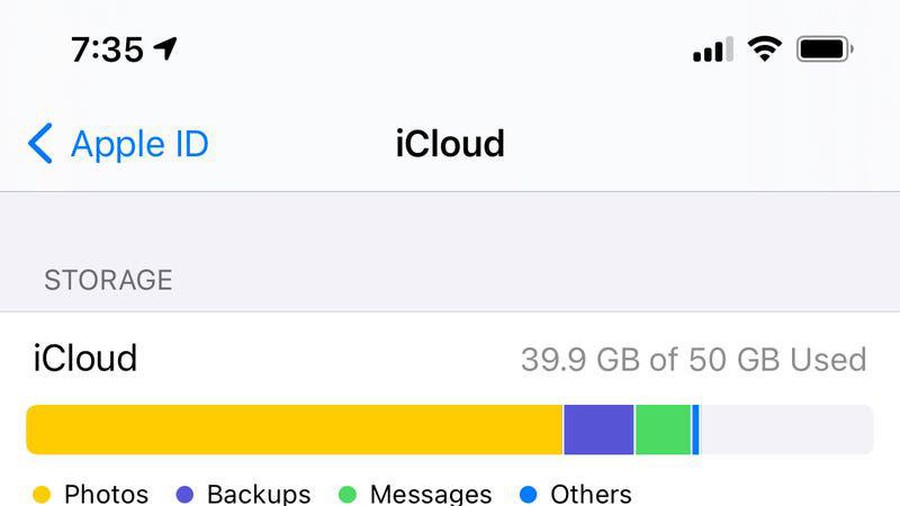
This updated guide compares ways to free up icloud storage without paying extra and highlights the details that matter most. Apple's free 5GB iCloud plan seems generous until you start snapping photos with your iPhone's amazing camera. Photos, videos, backups, and app data quickly eat up space. You'll soon see the dreaded "iCloud storage is almost full" warning.
1. Delete Unwanted Photos and Videos
The biggest culprit for iCloud overflow is your Photos library (and your photography habits). While there are plenty of reasons to never delete old photos, not every photo is worth keeping.
Over time, your photo library gets cluttered with blurry photos, duplicates, accidental screenshots, and videos you never watch again. To clean up your Photos library, open the Photos app and tap Select in the upper-right corner.
Scroll through your library, selecting anything you do not want to keep, such as duplicate photos, out-of-focus shots, old memes, and screen recordings. Once deleted, open Utilities > Recently Deleted and tap Delete All . This step is important; otherwise, deleted photos will still count against your iCloud quota for 30 days.

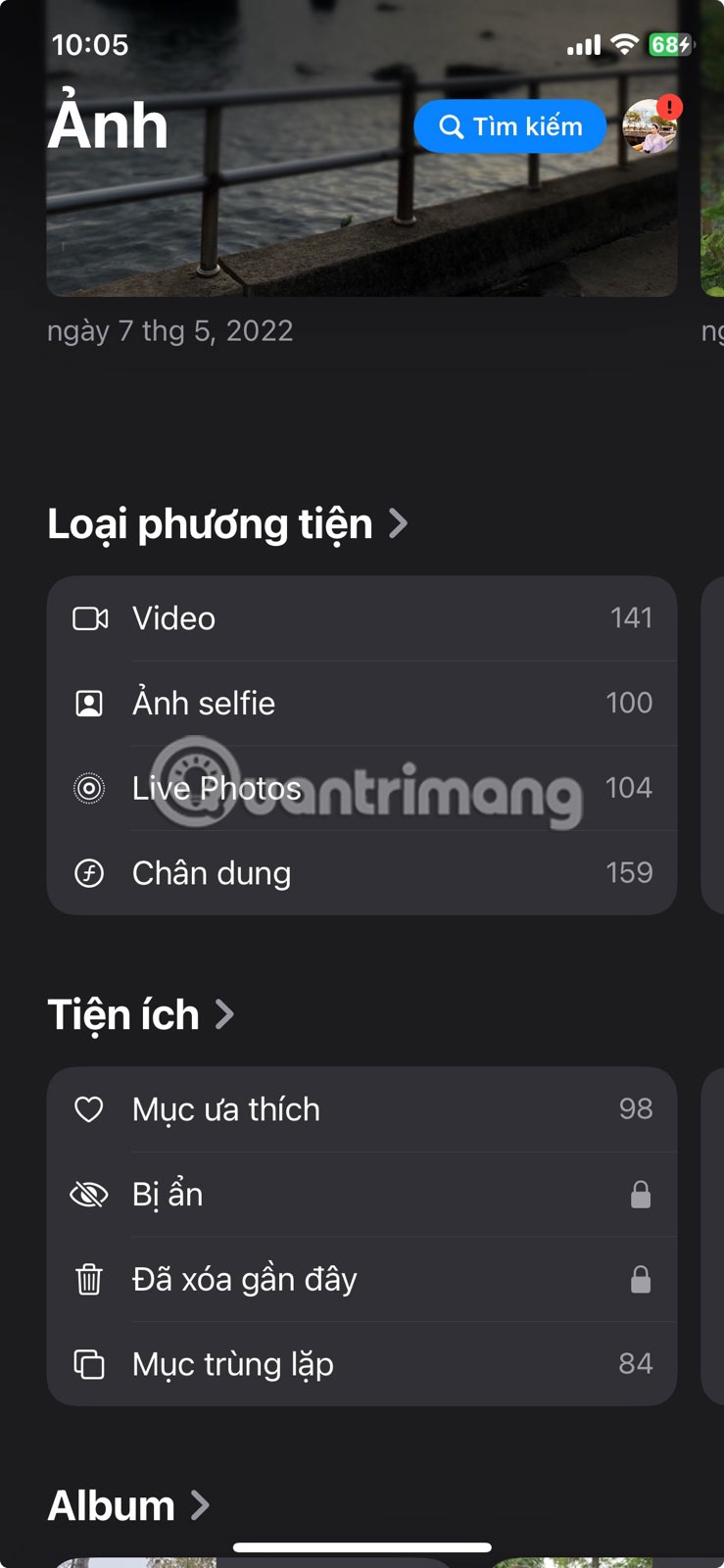
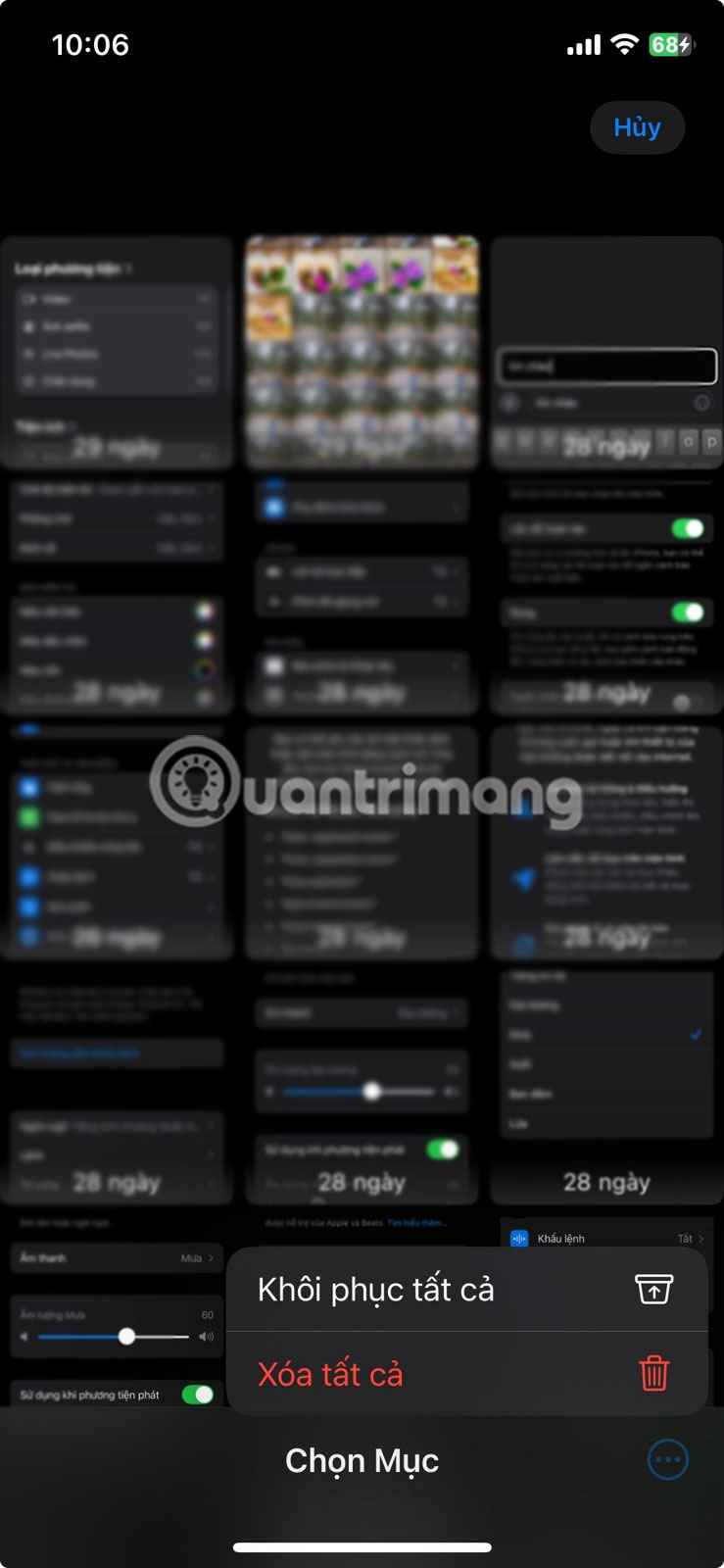
On iOS 16 and later, the Duplicates album in Photos makes this easier. open Photos > Utilities > Duplicates .
Tap Merge to merge a set of duplicates. Then tap Merge [number] Items . If you do not have duplicate photos, this folder will not be in the Add-ons list.
Make this a weekly habit so it becomes part of your iPhone photo organization routine. Your library stays tidy and you never accidentally delete anything important. If you're worried about losing photos, back them up to your computer or an external hard drive first.
Tip : If you have a Mac, the Photos app can help you find duplicate photos. Along with manual removal, photo removal apps for iOS can detect hidden duplicates and similar photos. They can be customized and flag dozens of duplicate photos that you might otherwise miss.
2. Optimize iPhone Storage with iCloud Photos
Next, take a look at your device's storage. open Settings > iCloud > Photos > Manage Storage . Your iPhone stores smaller, more device-friendly versions of your photos and videos locally. Full-resolution originals are stored in iCloud, and you only download them when you need them.
iCloud Photos automatically manages backups so you do not have to think about it. And you can still see every photo in your library, even ones from years ago.
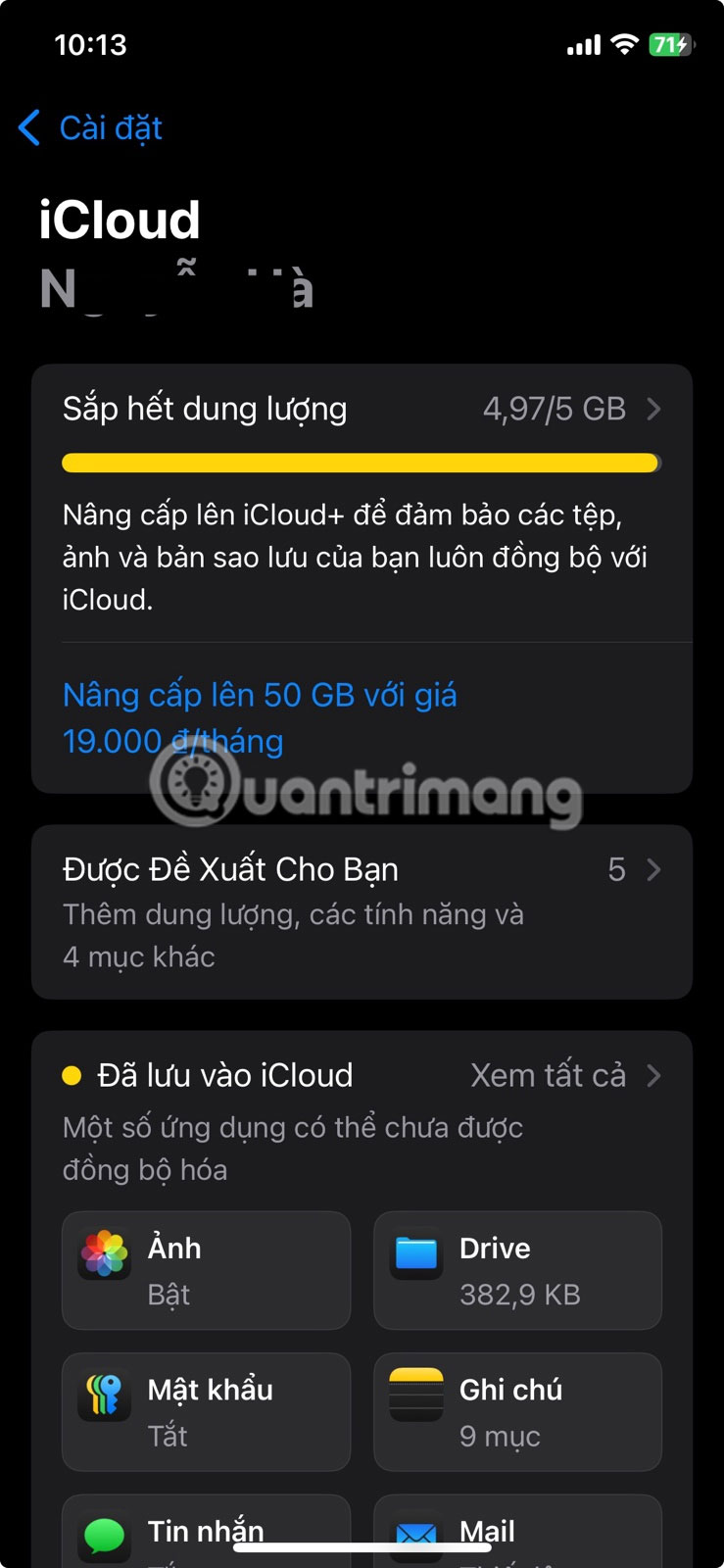
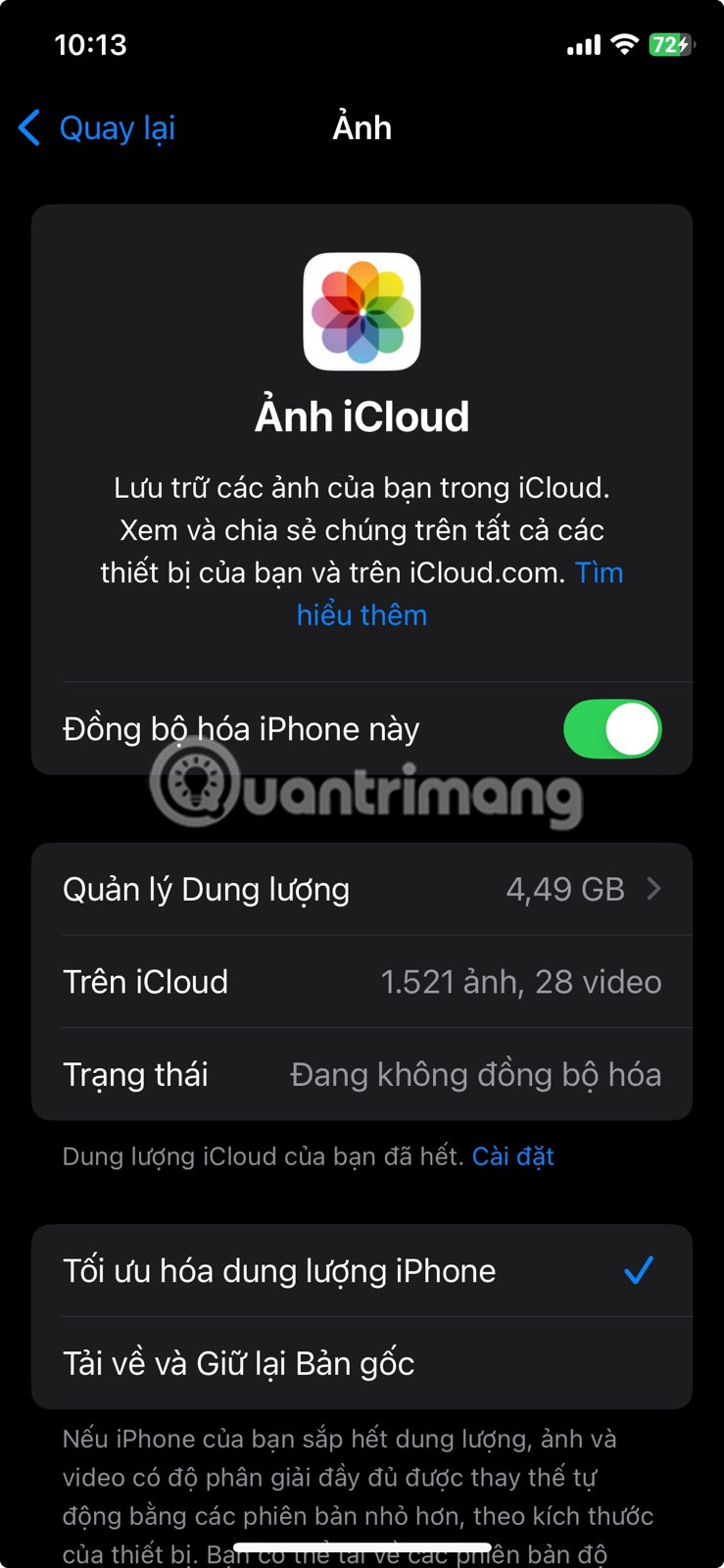
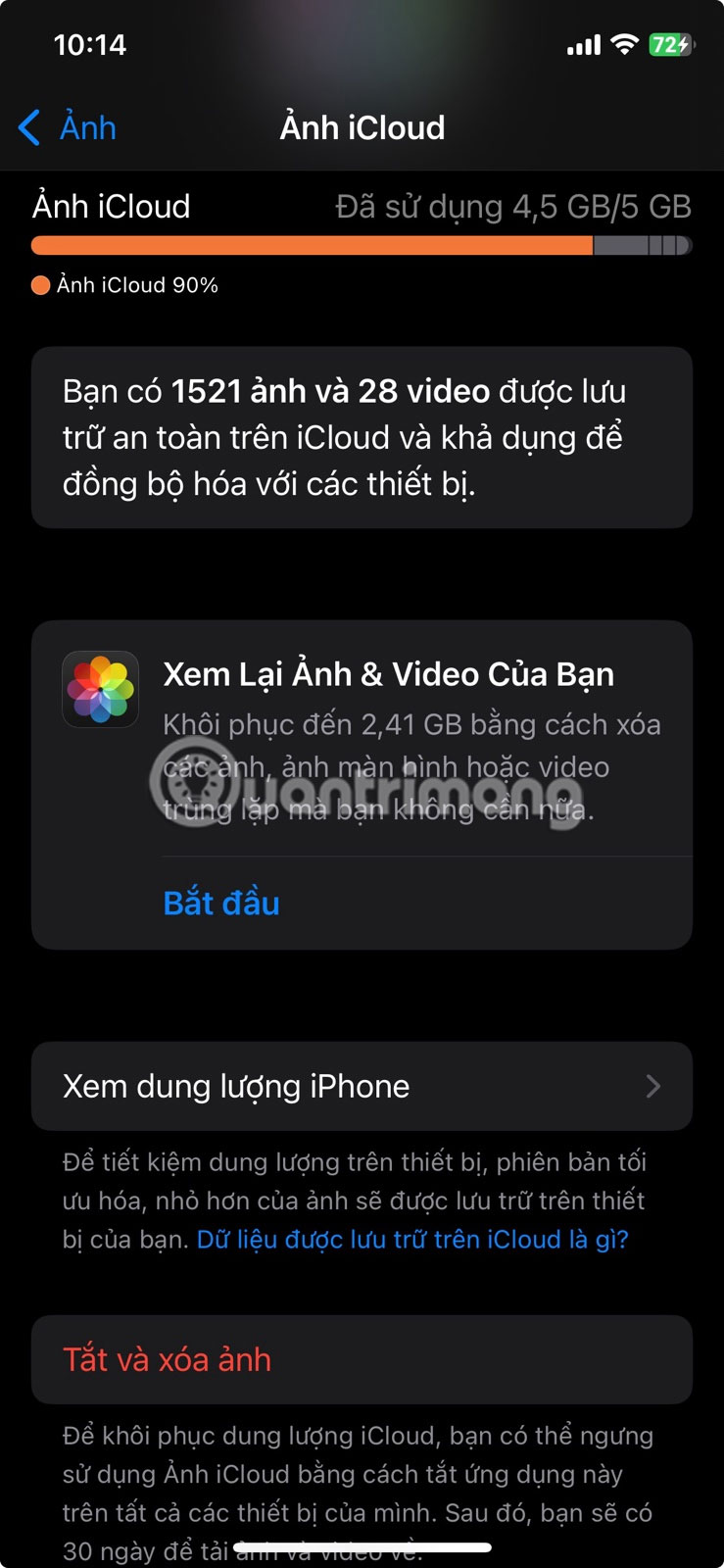
This setting does not directly reduce your iCloud usage, but it prevents your iPhone from filling up. It also ensures you do not have to delete photos to make room for new ones.
Tip : If you turn off iCloud Photos, download the original photos to your PC or phone first, otherwise you may lose access to full-resolution versions.
3. Manage iCloud Backups
Backing up your device is another sneaky storage hog. By default, iCloud backs up your iPhone or iPad every night when it is plugged in and on Wi-Fi. Over time, these backups can take up many space, especially if you have multiple devices or if you have old backups still sitting around.
open Settings > [Name/Profile] > iCloud > Manage Storage > Backup .
To easily delete old or unnecessary backups, selecting the device name associated with the backup.
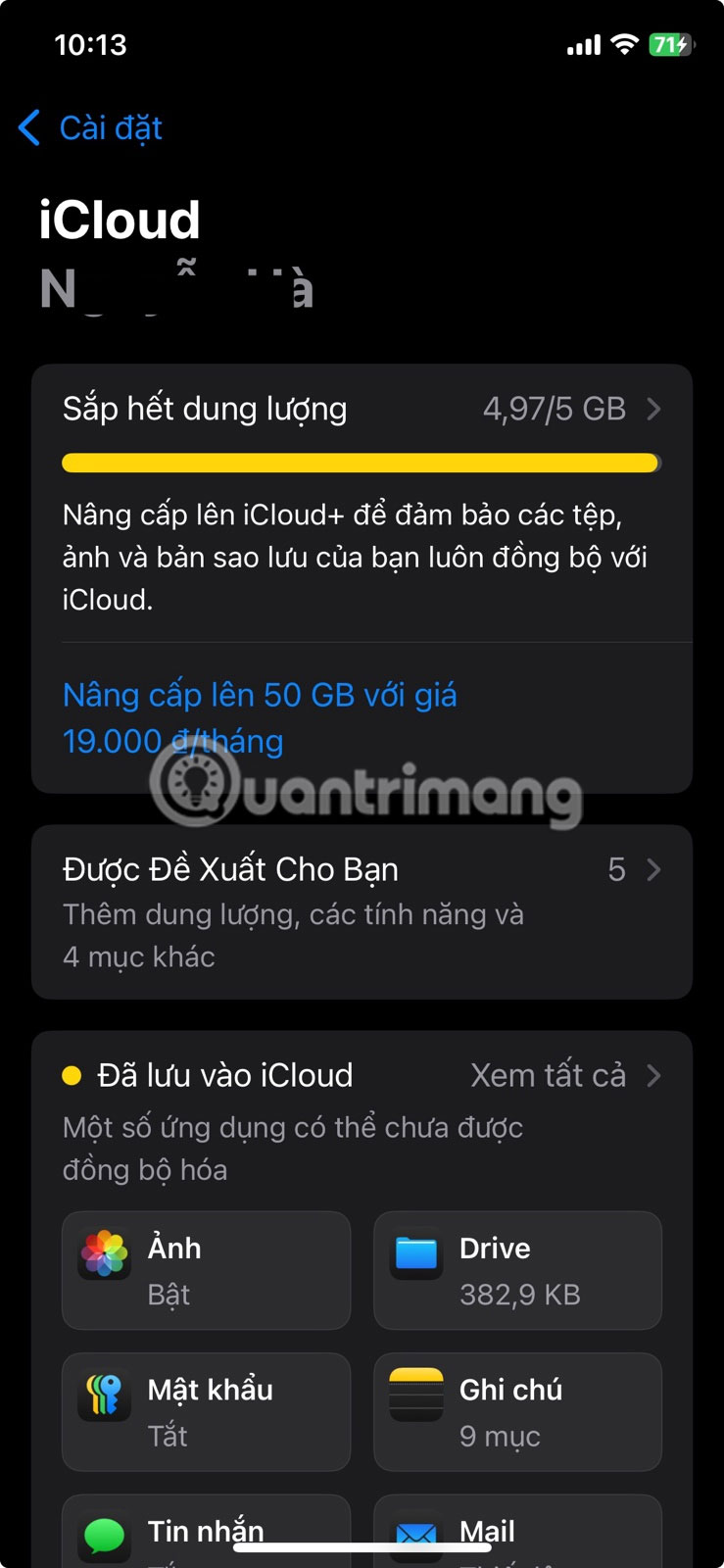
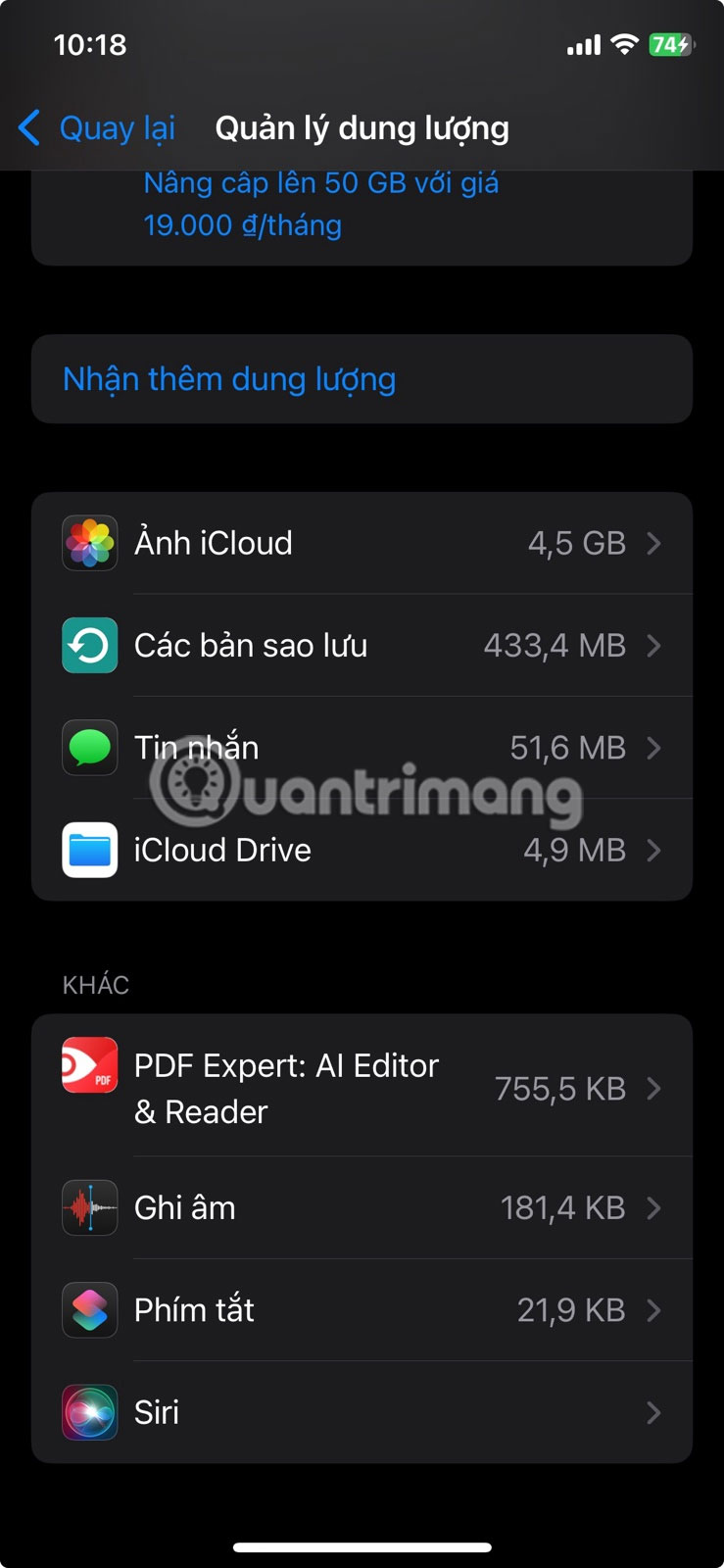
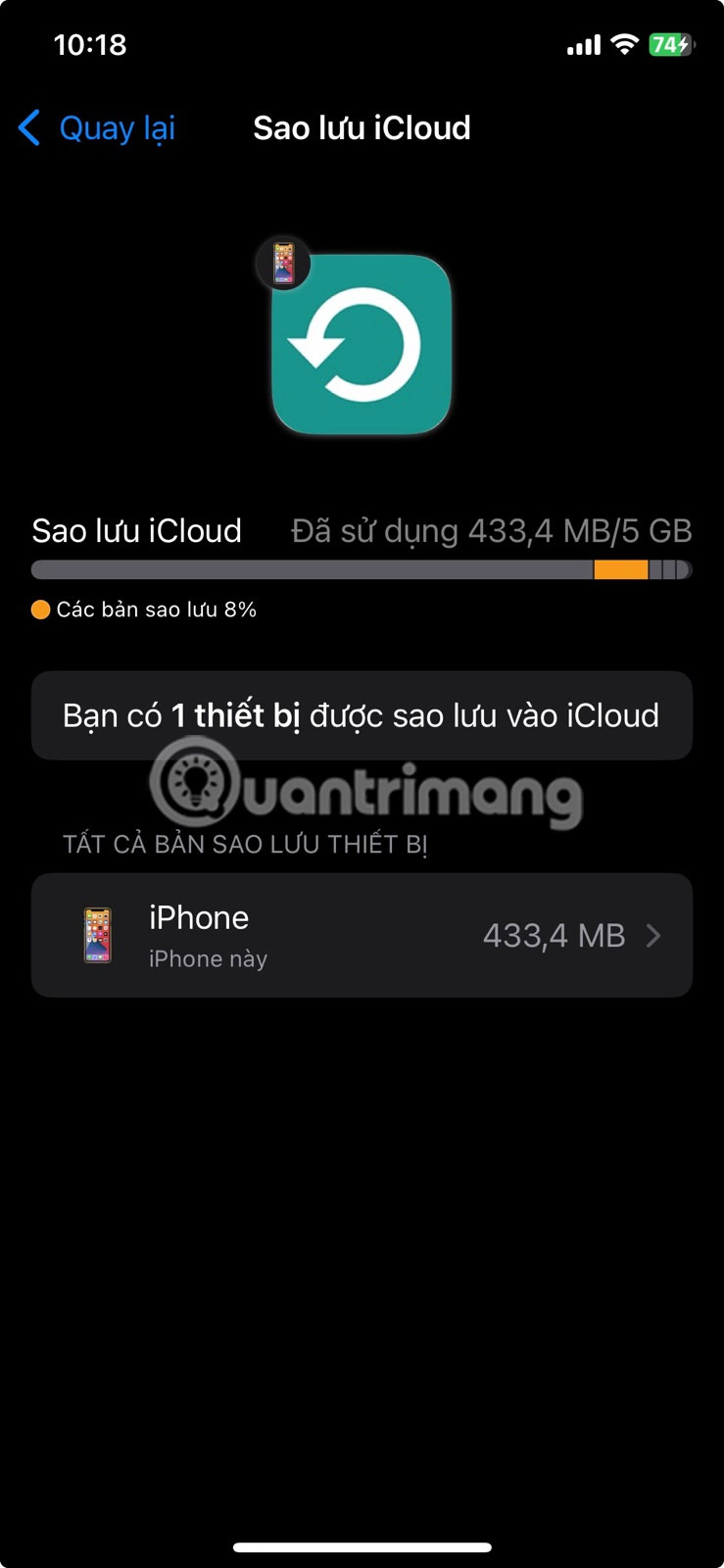
Check the size of each device backup. You may find backups for devices you no longer use, so delete them. To delete them, tap Turn Off and Delete from iCloud . Tap Turn Off and Delete to confirm.
It is best to also review the list of apps that are being backed up. Turn off backups for unnecessary apps, like streaming apps, games, and news apps that store data in the cloud or can be easily re-downloaded.
In the example case, this freed up almost 1 Gigabyte overnight. Back up only the data you need and do not waste space on things that can be easily replaced.
Tip : If you use WhatsApp, back up your chats to Google Drive (on Android) or your computer instead of iCloud. This keeps your iCloud backup smaller.
4. Review and Delete Other iCloud Data
iCloud isn't just for photos and backups. It also stores data from Mail, Messages, Notes, Voice Memos, and third-party apps. it is always important to see what else is taking up space, byte by byte.
open Settings > [Your Name/Photo] > iCloud > Saved to iCloud > See All . Scroll down the list of apps and see which ones are using iCloud to save their data.
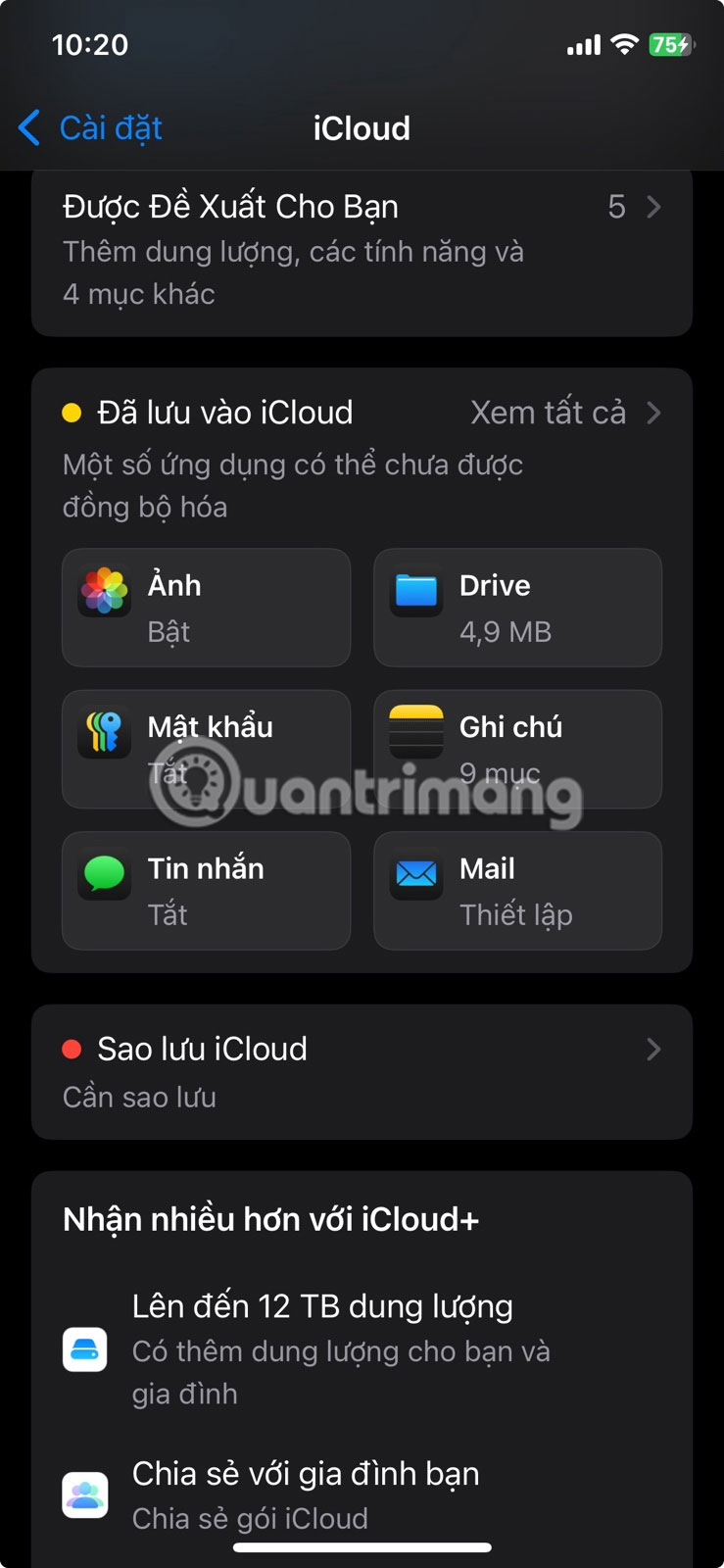
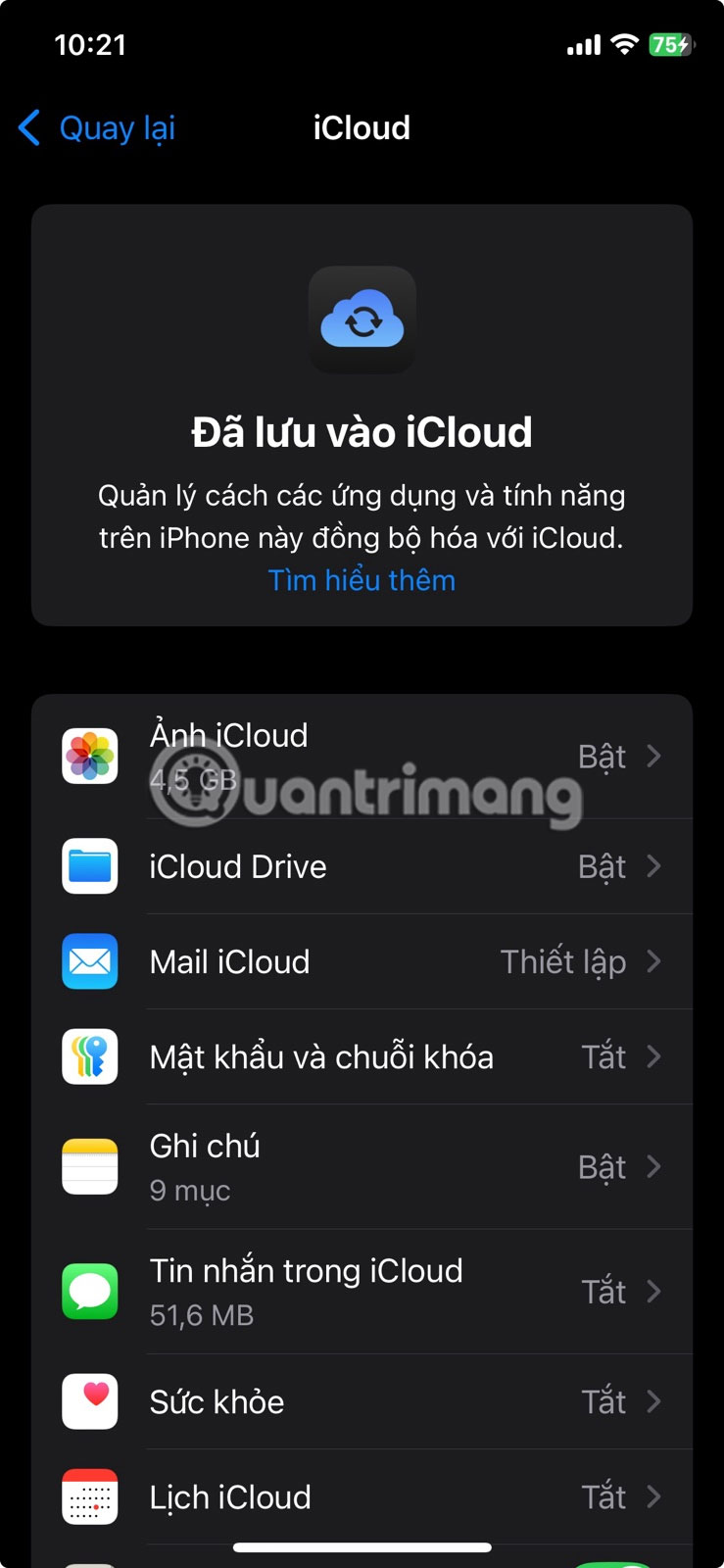
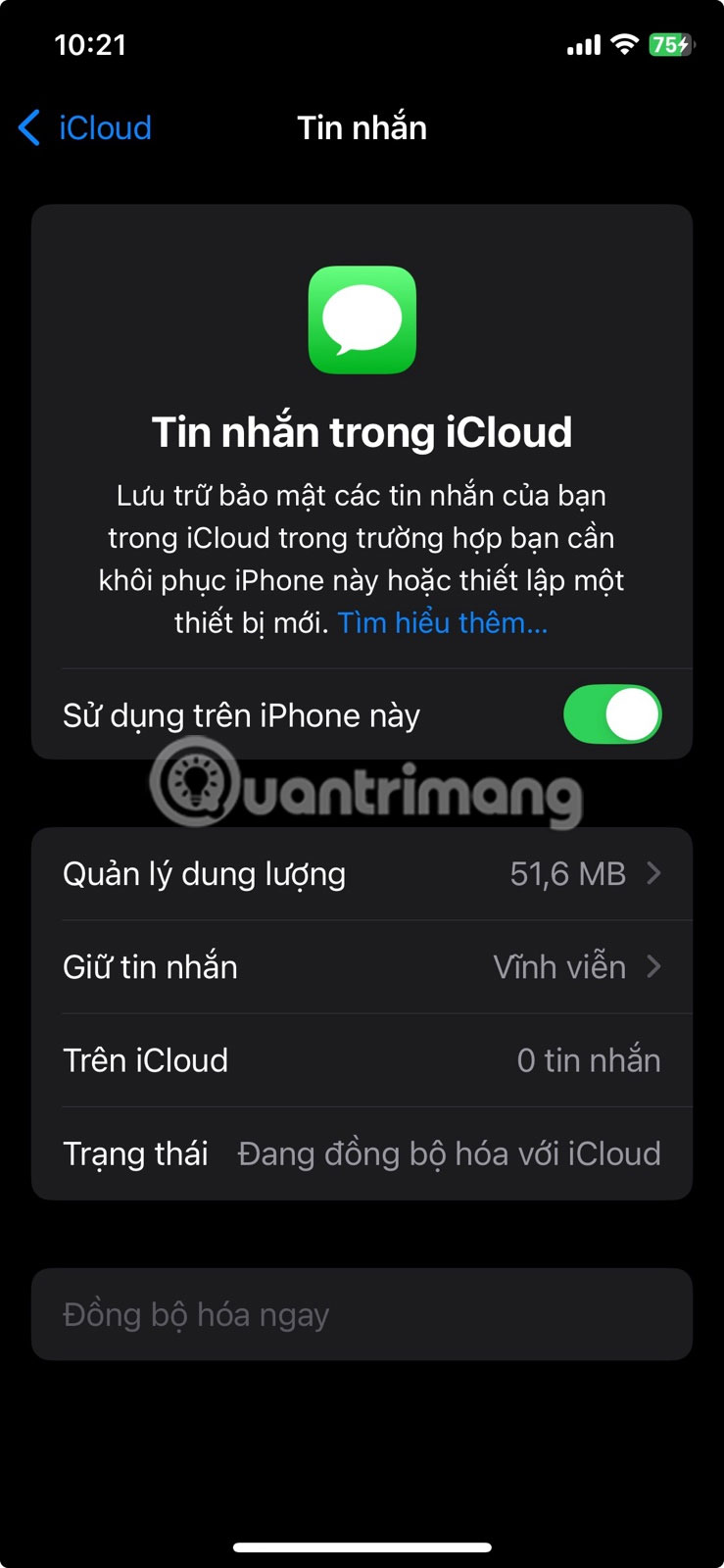
Here's what you need to do:
- Delete loud voice recordings that you have saved elsewhere.
- Open the Mail app, delete old attachments and spam.
- Review your Notes and delete anything that is outdated or unnecessary.
- For Messages, delete old chats that have lots of photos or videos. You can set messages to automatically delete after 30 days in Settings > Messages > Keep Messages .
- Look for folders that store copies of downloads from your browser, Instagram, and other apps. for instance, when you download a file in Chrome or a reel from Instagram.
Everyone's situation is different. But every little bit of cleanup helps. You can recover hundreds of megabytes just by deleting old files.
Tip : If you use iCloud Drive, move large files to your computer or another cloud service if you do not need constant access from every device.
5. Transfer Photos and Videos to External Storage
Some photos and videos are too precious to delete, but you do not need them in iCloud. For these, move them to an external storage device.
You can use the Photos app or File Explorer to import media content on Windows.
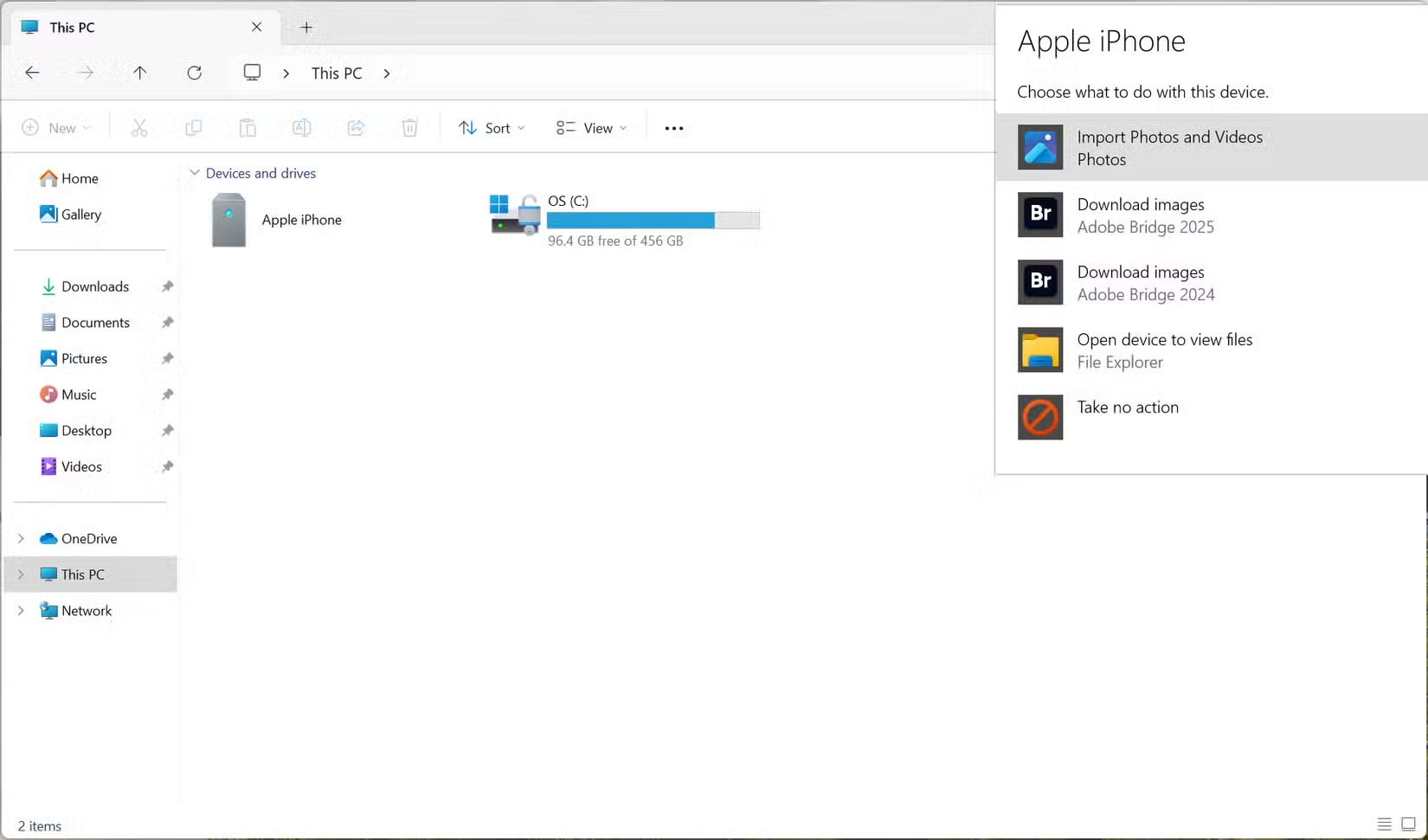
For cloud storage, upload your selected albums to Google Drive or Dropbox. If you have a Mac, connect your iPhone to your Mac and open the Image Capture app. This will help you quickly export your photos and videos to an external hard drive.
If you have a USB-C flash drive, the Files app on iOS makes it easy to move files directly from your iPhone. Even if there's no storage limit, keep a local backup just in case your photos and videos are memorable.
Once you've confirmed that your files are safely backed up, you can delete them from your iPhone and iCloud Photos. This cleanup frees up space immediately, but you still have all your memories stored elsewhere.
Tip : You can access iCloud from any device connected to the Internet and manage your storage.
6. Make Storage Management a Habit
The key to staying under the 5GB limit is regular maintenance. Set a recurring monthly reminder in the iOS Reminders app to:
- Review and delete unwanted photos and videos.
- Check iCloud backups and delete old backups.
- Delete attachments and large files from Mail, Notes, and Messages.
- Download photos and videos to external storage.
The Recommended for you screen in iCloud settings can help you discover large files and delete them to free up space.
You do not have to pay extra for iCloud storage to get your digital life organized. With a few simple habits—deleting what you do not need, optimizing your settings, trimming your backups, deleting old data, and storing precious memories elsewhere—you can stay under Apple's free 5GB limit.
Good luck!
FAQ
How were the ways to free up icloud storage without paying extra options evaluated?
The comparison focuses on practical features, ease of use, limitations, compatibility, and the type of user each option is most likely to help.
Which option is best for beginners?
Beginners should prioritize a clear interface, useful documentation, reliable support, and the core features needed for their first project.
Should I choose a free or paid option?
Start with a free option when it covers your needs. A paid plan may be worthwhile when you need advanced tools, commercial rights, collaboration, or professional support.
Related Articles
 6 iCloud+ Features You Should Be Using7 minutes read
 Clean up to Regain Storage Space for Icloud16 minutes read
 Cheap Backup Tips to Replace When You Run Out of iCloud Storage9 minutes read
 These ICloud Settings Are Taking up Your Storage: Here's How to Fix It!7 minutes read
 Which ICloud Storage Plan Is Right for You?8 minutes read
 Instructions on How to Delete Apps from ICloud on Any Device5 minutes read
Reader Comments 0
Sign in with email or Google to join the discussion.