Table of Contents
USB drives are indispensable personal storage devices for everyone, and setting a password for your USB drive is one way to enhance the security of your personal data in case you lose your USB drive or someone simply 'steals' it.
Not only computers, but even portable personal storage devices like USB drives need protection. Many software programs are available today that allow you to set passwords for USB drives , and users can rest assured about the security and safety of these programs. In the guide below, TipsMake introduces a tool that helps you set a password for your USB drive , protecting your USB drive and the data inside more securely than ever before.
Tips for setting a password for a USB drive on your computer.
nstructions on how to set a password for a USB drive
Step 1: To set a password for your USB drive, we will use a small, compact software called USB Security. First, download USB Security to your computer and plug in your USB drive to begin.
Step 2: After the USB Security download is complete, open the software. No installation is required; simply agree to the software's terms and conditions.
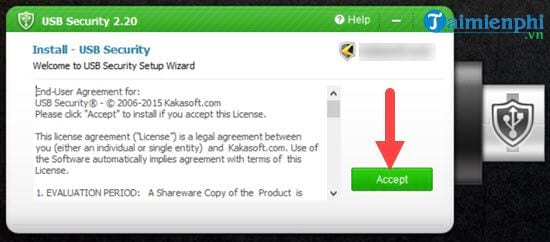
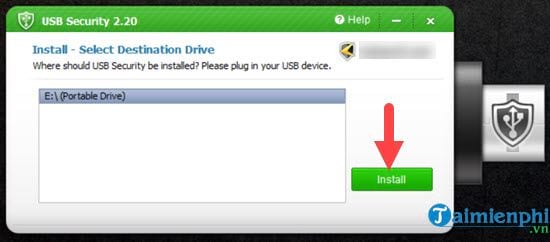
Step 3: Now, plug in your USB drive so that the list of USB drives appears in USB Security. Select the plugged-in USB drive and click Install to begin the process of setting a password for the USB drive.
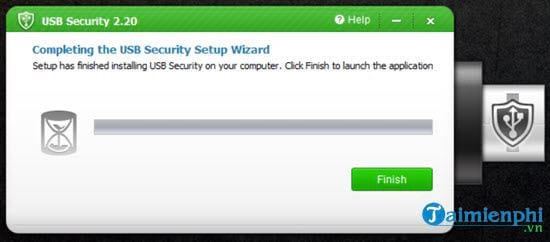
Step 4: Next, the software will launch the code generator; this process is completely automatic and will take you no more than 15 seconds .
Step 5: Next comes the main step: setting a password for the USB drive. Enter the password you want to set for the USB drive twice. The third line is a Password Hint, which is a hint to help you recover the password if you forget it. How you set this Password Hint is entirely up to you.
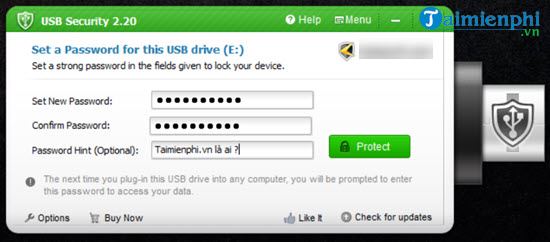
After entering the password, remember to click Protect to apply the password protection to the USB drive.
Wait a moment and you will see a message saying "USB Drive is Protected Successfully," meaning the USB drive has been password protected. When you open the USB drive, you will see that there are no files inside. This means you must enter the correct password for the files to reappear.
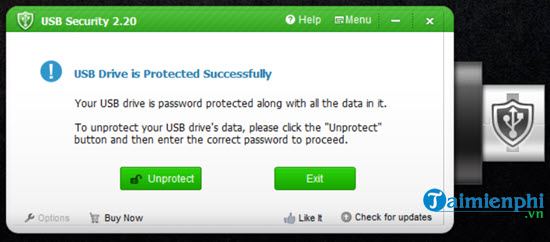
How to unlock a USB drive
Step 1: To unlock the password, you must plug in the USB drive. Inside, you will find a single file named USB Security. Click on it to enter the password.
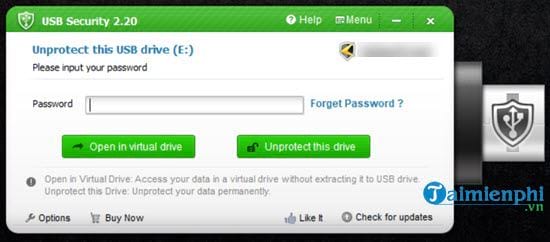
If the password is entered successfully, a message will appear saying "Unprotected Successfully ," and then the user simply needs to click "Explore" to see these files.
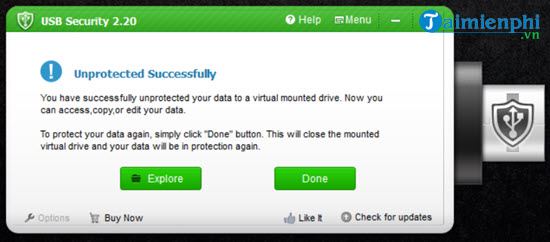
Above is how to set a password for your USB drive using USB Security, a compact software that helps you quickly protect your device. Hopefully, this detailed guide will help you set a password for your USB drive quickly.
Please note that setting a password for this USB drive is the highest level of security currently available. You don't need to install any additional software or tools to set passwords for folders and files, as this could lead to the permanent loss of your files.
Related Articles
 How to Secure Google Drive with Password, Face ID2 minutes read
 How to Set the Password for the Hard Drive from Bios // Uefi7 minutes read
 How to Secure Account Information on Drive Password3 minutes read
 Instructions on How to Set a Password for the Drive on7 minutes read
 Create Windows Password Reset Disk on Windows 7 with USB Flash6 minutes read
 Click: How to Bypass Windows 7 Password12 minutes read
Reader Comments 0
Sign in with email or Google to join the discussion.