Table of Contents
How can you access your computer when you've forgotten your password? It's simple! By creating a USB drive to bypass your forgotten password, you can crack any type of password without having to reinstall Windows.
There are many ways to create a USB drive to bypass a forgotten computer password , and TipsMake has previously guided you through several methods. However, there seem to be some methods that readers haven't been able to try. Therefore, this guide on creating a USB drive to bypass a forgotten computer password will present another method that you should try to see how effective it is in removing forgotten passwords.
Create a USB drive to bypass computer passwords when you forget them.
nstructions on creating a USB drive to bypass computer passwords when forgotten
Tools needed for this exercise:
First, you definitely need a USB drive with a minimum capacity of 4 GB, 8 GB is even better.
- The most popular version of DLC Boot is software that helps us create a USB drive to bypass computer passwords when we forget them.
- WinRAR is a file compression and decompression software; download WinRAR here.
- Please refer to the instructions for creating a USB drive using BLC Boot here first; this is a crucial step before you proceed with creating a USB drive to bypass your computer password if you forget it.
- Don't forget to learn how to access the BIOS, as this is crucial for creating a USB drive to bypass your computer password if you forget it. Furthermore, accessing the BIOS is applicable to many future situations.
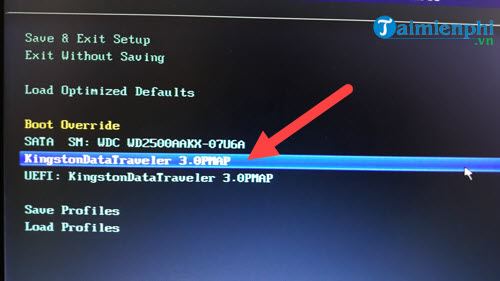
Step 1 : Once you've accessed the BIOS, simply select the USB drive name you just created with DLC Boot.
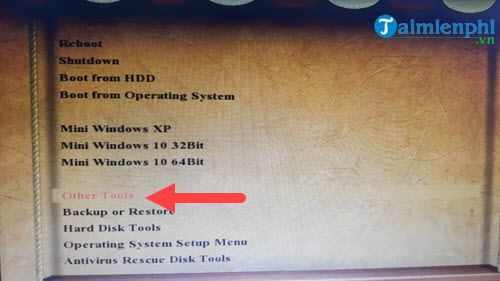
Step 2: When the DLC Boot interface appears, select "Other Tools" to access the locations containing the password cracking software.
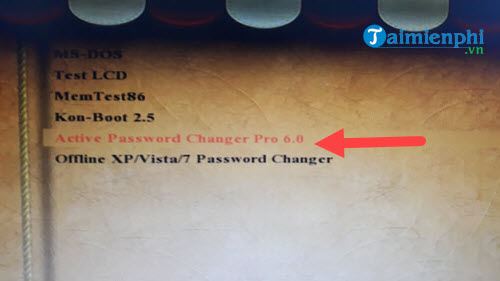
Step 3: Here we have three options: Kon-boot, Active Password Changer Pro, and Offline Password Changer. All three are password cracking software, and in this article, TipsMake will guide you on using Active Password Changer Pro to create a USB drive to crack your computer password when you forget it.
Step 4: Inside the Active Password Changer Pro interface , press 1 and then press Enter to continue.
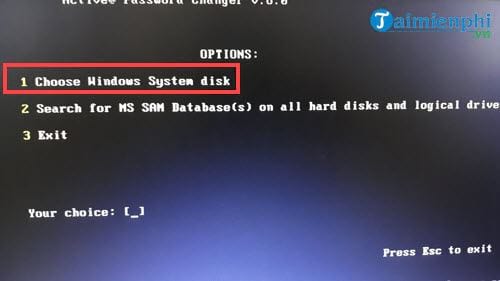
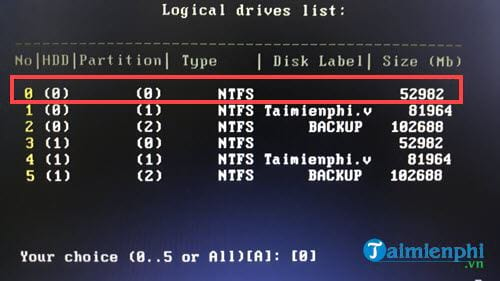
Step 5: Select drive number 0 , usually drive C containing the operating system, then press Enter to allow the system to scan for accounts.
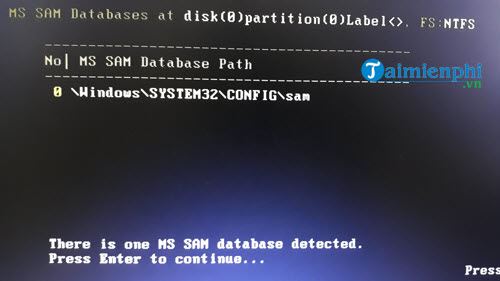
Step 6: After the scan is complete, press Enter to access drive C.
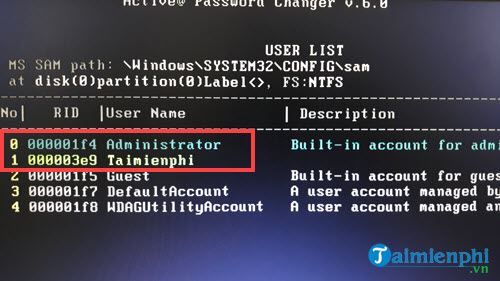
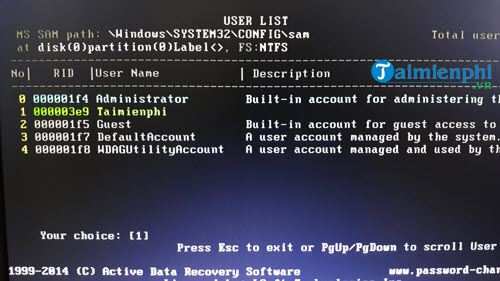
Step 7: An account type will appear; here, we select numbers 0 and 1 in turn to crack the currently used password.
Step 8: Use the navigation keys to find the "Clear this User's password" option and use the spacebar to check the box.
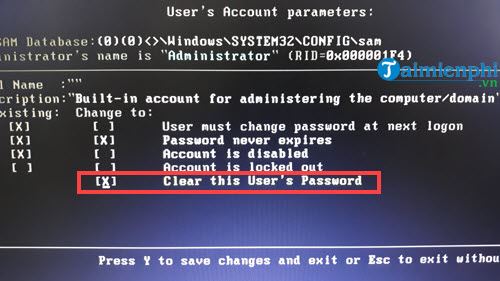
Step 9: Then press Y to save and press Enter to confirm saving the settings.
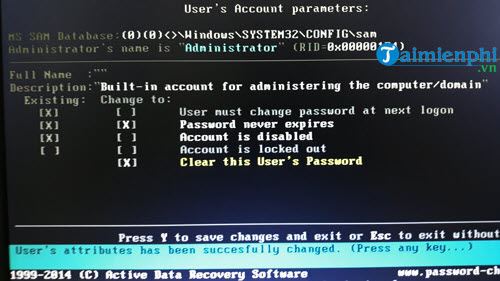
Step 10: Return to the previous screen and repeat the process with the accounts below to ensure the security of creating a USB drive to bypass computer passwords when forgotten.
Step 11: After completing all steps, press Esc repeatedly to return to the initial screen. Here, select 3 and press Enter to exit the software.
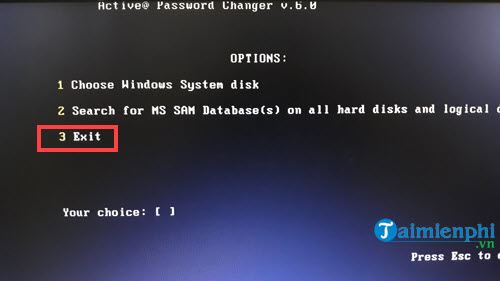
Finally, close the software and restart your computer.
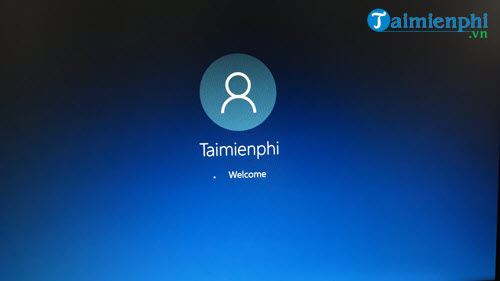
And then when you log in, you'll find that no password is required because you've already bypassed it.
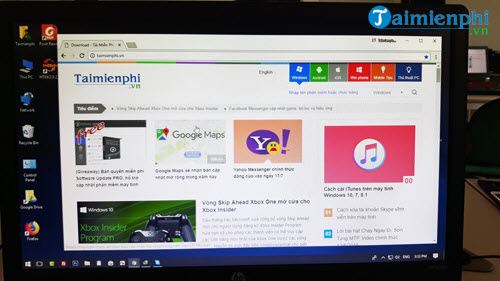
The above is how to create a USB drive to bypass a forgotten computer password, or in other words, to help you log into your computer when you've forgotten your password. Remember, this method of logging into a computer when you've forgotten your password will delete all your passwords, including those of other users, making it extremely convenient to use.
Through this, you've seen another use for using DLC Boot to create a USB drive to bypass computer passwords when you've forgotten them. There are many other uses for DLC Boot that we can explore in future articles on TipsMake. Don't miss any of the tutorial articles on TipsMake!
Related Articles
 Create Windows Password Reset Disk on Windows 7 with USB Flash6 minutes read
 How to View Saved Passwords on Chrome Browser?: Google Chrome10 minutes read
 Summary of How to Create Strong Passwords and Manage the Most14 minutes read
 How to Create Secure Passwords on Fastword3 minutes read
 Recover Passwords with Free Utilities (Part 1)5 minutes read
 Instructions for Changing Windows Passwords Without Having to3 minutes read
Reader Comments 0
Sign in with email or Google to join the discussion.