To lock USB ports and prevent other users from connecting USB devices to your computer, you can manually change some system settings; however, this is quite complicated.
USB Disabler Pro is designed to run discreetly in the background, helping users manage devices connected to their computer via USB ports. The software has a simple, user-friendly interface, allowing users to safely and effectively enable or disable USB ports on their computer as desired.
Instructions on how to lock USB ports using USB Disabler Pro
1. Install USB Disabler Pro
First, users need to download the latest version of the USB port locking software - USB Disabler Pro, which tipsmake has shared in the link below.
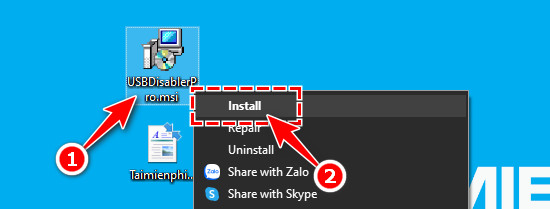
Step 1: Right-click on the downloaded USB Disabler Pro installation file and select Install .
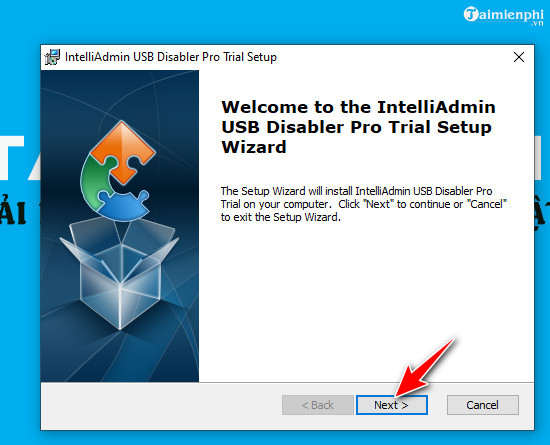
Step 2: A welcome window will appear; select Next .
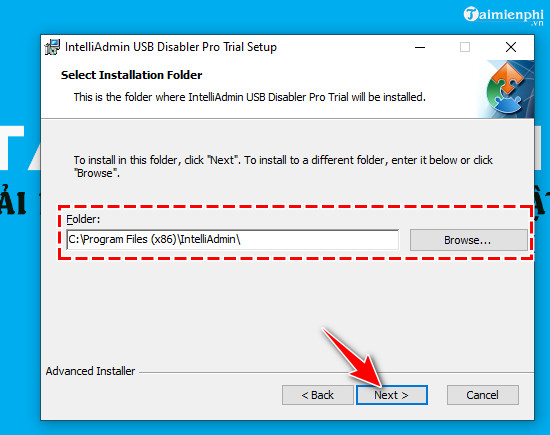
Step 3: Click Browse. to choose the location to save USB Disabler Pro. Or you can click Next to skip this step; the system will automatically set it to the publisher's default settings.
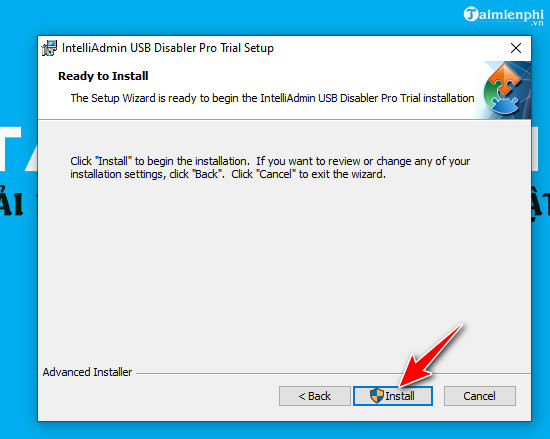
Step 4: Click Install to confirm the installation.
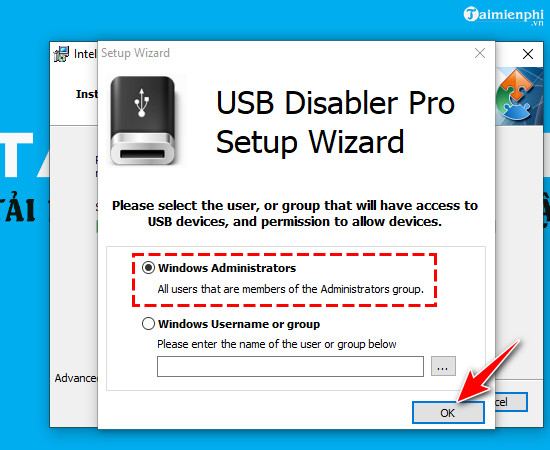
Step 5: A notification window will appear, asking you to set up permissions to connect the USB device to the computer:
- Windows Administrators : All users with administrator privileges.
- Windows Username of group : Only users whose names are in the list.
After completing the setup, select OK .
If you choose Windows Username of group , click the three dots to configure it. In this example, tipsmake chose Windows Administrators.
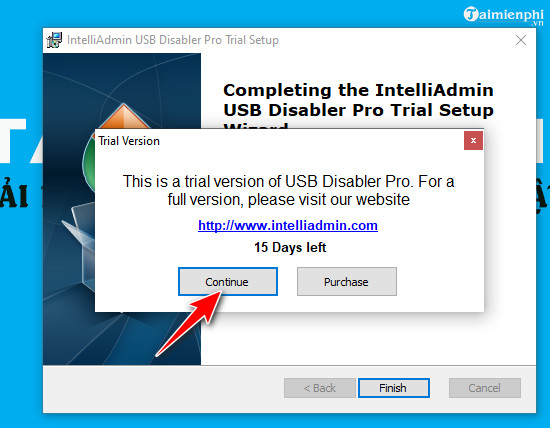
Step 6: The publisher allows users to use the software for free for 15 days. Click Continue to agree. If you want to purchase a license, click Purchase .
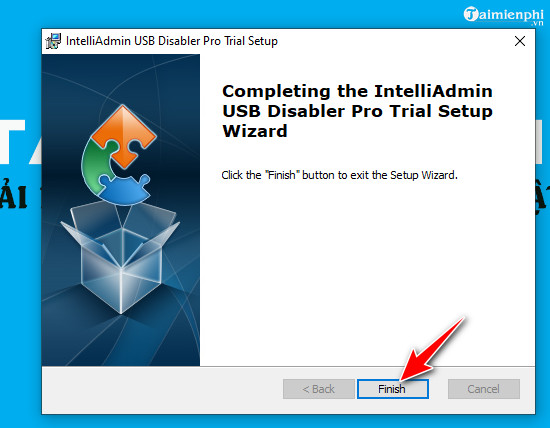
Step 7 : The USB Disabler Pro installation process is now complete. Click Finish to end.
After installation, the USB Disabler Pro software will automatically run in the System Tray as illustrated below.
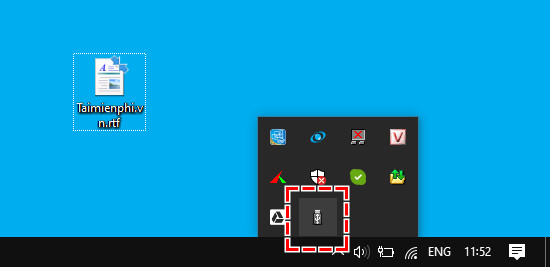
By default, when an unfamiliar USB device connects to your computer, USB Disabler Pro will automatically block it. To unblock or unblock that device, follow these steps.
2. How to block USB drives, lock USB ports
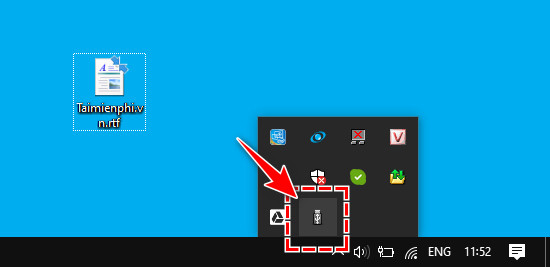
Step 1 : Click on the USB Disabler Pro icon at the bottom of the System Tray.
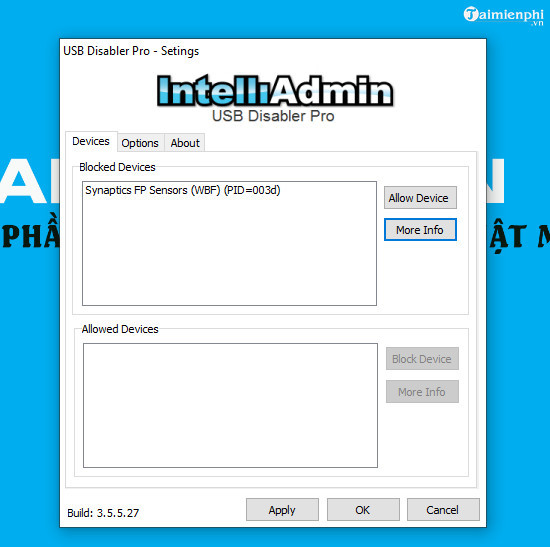
Step 2 : Select the Devices tab . Here you will see two sections: Blocked Devices and Allowed Devices .
To block the connection, select the USB device name in the Allow Devices section , then click the Block Device button . Alternatively, select the device name in the Blocked Devices section and click the Allow Device button to unlock it.
In summary, tipsmake has guided you on how to lock USB ports using USB Disabler Pro software. Because the tool runs automatically in the background and is lightweight, users don't need to perform many actions. However, to unlock all functions and use it long-term, users will need to use the paid version. Additionally, you can refer to many other methods of setting a password on your USB drive to protect the data stored on your USB.
Related Articles
 How to Lock USB Ports on Windows 7/8/104 minutes read
 16 Connection Ports Are Commonly Found on Computers and Their Functions20 minutes read
 How to Tell If Your Computer Has USB 2.0 Ports3 minutes read
 How to Disable USB Ports: Step-by-Step Guide6 minutes read
 Learn to Use Lesson 3 Computer - Basic Buttons and Ports on the Computer10 minutes read
 4 Ways to Automatically Lock Your Windows 11 Computer: Explained5 minutes read
Reader Comments 0
Sign in with email or Google to join the discussion.