Table of Contents
A USB drive can reset a Windows password only in a specific official case: it must be a password reset disk created in advance for the same local account. A normal USB drive, a Windows recovery drive, and a USB security key are different tools. If no reset disk exists, use the recovery method for the account type instead of third-party password-bypass media.
First identify the sign-in method
- Microsoft account: the username is usually an email address and the password is shared with Microsoft services.
- Local account: the account exists only on that PC.
- Windows Hello PIN: the PIN is device-specific and is not the same as the Microsoft account password.
- Work or school account: recovery may be controlled by the organization's administrator.
Select Sign-in options on the lock screen to make sure you are entering the password rather than a PIN. Also check the keyboard layout, Caps Lock, and Num Lock before resetting anything.
Use a password reset USB for a local account
This works only if you created the disk while you could still sign in to that local account. Insert the USB drive at the Windows sign-in screen, submit an incorrect password once, and select Reset password or Use a password reset disk. Follow the Password Reset Wizard, choose the correct USB drive, and set a new password.
Store the reset disk securely. Anyone who possesses it and can access the PC may be able to reset that local account's password. Microsoft's guide explains how to create a local-account password reset disk before it is needed.
If you did not create the USB in advance
Microsoft account
On the sign-in screen, select I forgot my password, or use Microsoft's account password recovery process from another device. You must verify ownership using the recovery information associated with the account. After changing the password online, connect the locked PC to the internet before trying the new password.
Local account
After an unsuccessful attempt, select Reset password and answer the security questions configured for that account. Microsoft documents the supported steps for resetting a local account password.
If another administrator account already exists on the same personal PC, that administrator can manage local users. However, an administrator changing another local user's password can make encrypted files, stored credentials, and some certificates inaccessible. Back up accessible data and understand the consequence before proceeding.
Windows Hello PIN
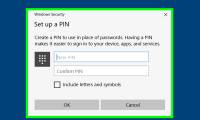
Select I forgot my PIN if that option appears, then verify the Microsoft account and create a new PIN. If it is unavailable, choose Sign-in options, sign in with the account password, and reset the PIN under Settings > Accounts > Sign-in options. See Microsoft's PIN reset instructions.
Work or school account
Use the organization's self-service recovery page if one is provided or contact its IT administrator. Do not use an offline password-removal utility on a managed computer.
A recovery USB is not a password reset disk
A Windows recovery drive can start troubleshooting or reinstall Windows, but it does not reveal an existing account password. Resetting or reinstalling the PC may remove applications, settings, and—depending on the option—personal files. BitLocker-protected drives can also require the recovery key. Treat a reset as a last resort and back up recoverable data first.
For routine password changes while you are signed in, follow the Windows password-change guide. A reputable password manager can reduce future lockouts, but its recovery code should be stored separately from the PC.
Why this guide does not recommend bootable bypass tools
Third-party boot media that removes or rewrites a Windows password operates outside the normal account-verification process. It may be outdated, unsafe, incompatible with modern encryption, or able to damage access to encrypted files and saved credentials. Use official recovery methods on a computer you own or are authorized to administer. If those methods fail, contact Microsoft, the device manufacturer, or the organization's IT team with proof of ownership.
Related Articles
 How to Reset Windows 7 Password: Clear Instructions4 minutes read
 How to Reset Admin Password on Windows with Sticky Keys5 minutes read
 How to Use Password Reset Disk to Reset Windows Password?3 minutes read
 How to Use a Password Reset Disk (Windows)4 minutes read
 How to Reset a Forgotten Password on Windows8 minutes read
 How to Fix the Error of Creating Password Reset Disk on Windows4 minutes read
Reader Comments 0
Sign in with email or Google to join the discussion.