Table of Contents
Checking a bootable USB drive is a crucial step before installing an operating system. In this article, Free Download will guide you on how to test a bootable USB drive on Windows 10 using BIOS, CMD, and software such as Rufus.
This guide shows you how to check if your USB bootable drive is working on Windows 10 using both manual and software methods. Ensure your USB drive is functioning correctly before installing the operating system.
Method 1: Using MobaLiveCD
The simplest way is to use MobaLiveCD . This Qemu system emulator software will run an ad-hoc virtual machine and attempt to boot from your bootable USB drive, allowing you to easily test bootable USB drives and ISO files.
Follow the steps below:
Step 1 : Download and install MobaLiveCD.
Download and install MobaLiveCD here: Download MobaLiveCD
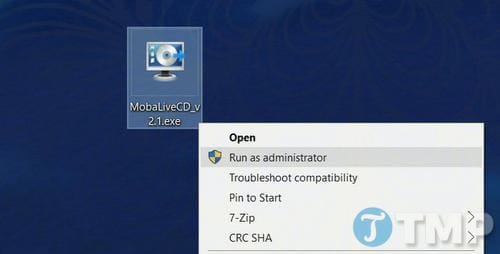
Step 2 : After downloading MobaLiveCD, right-click on the downloaded EXE file and select "Run as Administrator ". If you cannot run the program with administrator privileges, you will receive the error message ' Setup cannot copy the kqemu.sys file ' and will not be able to proceed with the next steps.
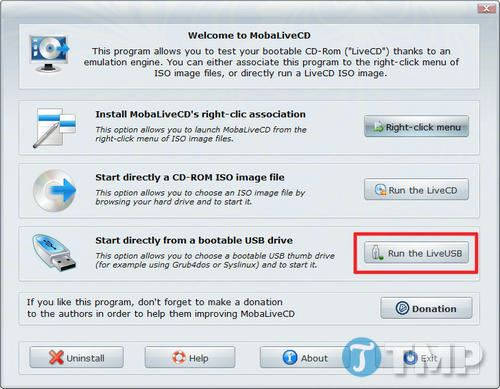
Step 3 : Click the "Run the LiveUSB" button in the bottom corner of the window.
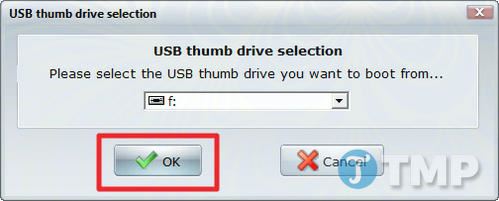
Step 4 : Select the USB drive you want to check for bootability from the menu. In the example above, Free Download selected drive F:/. If you are unsure of the drive letter you need to check, you can check in the Explorer window and find your USB drive in the sidebar.
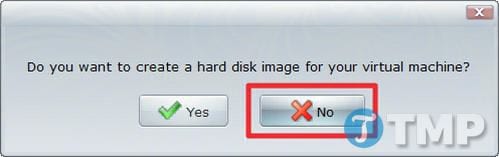
Step 5 : If prompted to create a hard drive on the virtual machine, click the "No" option marked with a red "X" next to it.
Step 6 : Next, a Command Prompt window will appear on the screen containing text as shown below. This means the virtual machine is trying to boot from the USB drive you selected in the previous step.
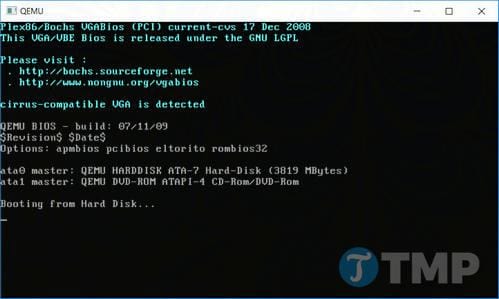
Step 7 : If you see the Windows logo, it means your USB drive is bootable. You can then click the X button in the upper right corner to close the window.
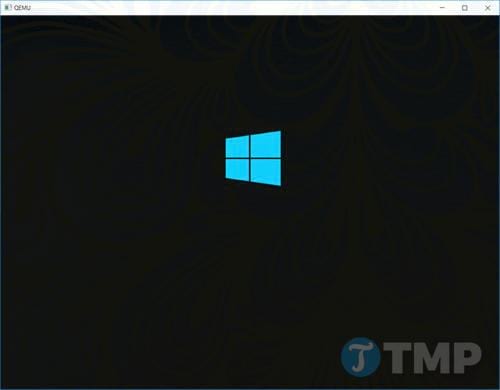
If the process freezes or hangs on the Command Prompt window, it means your USB drive is not bootable.
Method 2: Using Magic ISO Maker
Alternatively, you can also use the older method of using Magic ISO Maker to check the bootability of the disk image. Although this is not the best method, it is still a way to ensure that the image is bootable before you burn it to a USB drive.
Step 1 : Download and install Magic ISO Maker.
Download and install Magic ISO Maker here: Download Magic ISO Maker
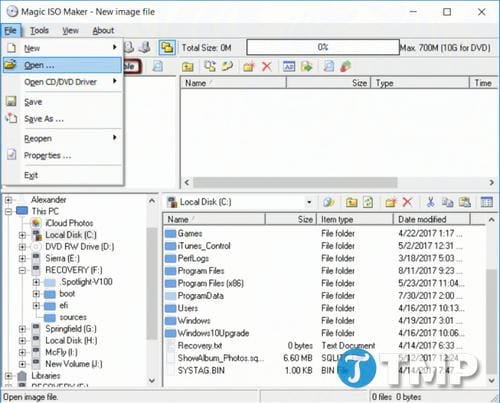
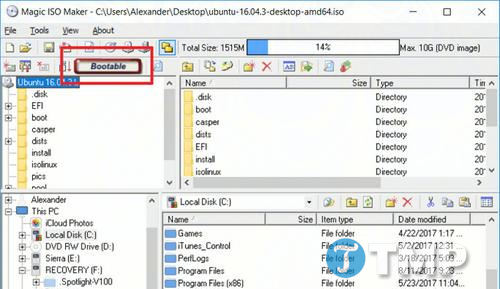
Step 2 : After downloading and installing Magic ISO Maker, open the tool and select Open… from the File menu .
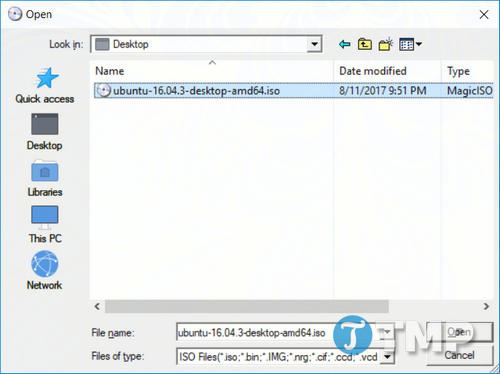
Step 3 : Select your ISO file from the menu.
Step 4 : Look at the menu bar. If you see "Bootable, " it means your ISO file is bootable after burning it to a CD or USB drive. If you don't see "Bootable," it means the ISO is not working.
The simplest way to check if a USB bootable drive is working on Windows 10 is to try booting from the USB. If you don't want to restart, you can use MobaLiveCD or Qemu Simple Boot to check directly on Windows.
Related Articles
 4 Tools to Create USB Boot Install Windows 105 minutes read
 Detailed Guide on Creating a Multi-Purpose Bootable USB Drive4 minutes read
 How to Create a Hiren's BootCD Bootable USB Drive for Windows Rescue4 minutes read
 Guide to Quickly Creating a Bootable USB Drive with Hiren's BootCD11 minutes read
 How to Quickly Create a UEFI Bootable USB Using Rufus3 minutes read
 How to Create a Bootable Windows 7 or Vista USB Drive7 minutes read
Reader Comments 0
Sign in with email or Google to join the discussion.