Table of Contents
This practical guide explains how to secure Google Drive with password, face id. Follow the steps in order, review the requirements first, and use the troubleshooting notes when a setting or option does not work as expected.
How to securing Google Drive with password, Face ID
Step 1:
At the interface of the Google Drive application, select the 3-dash icon on the left. Next, select Settings .

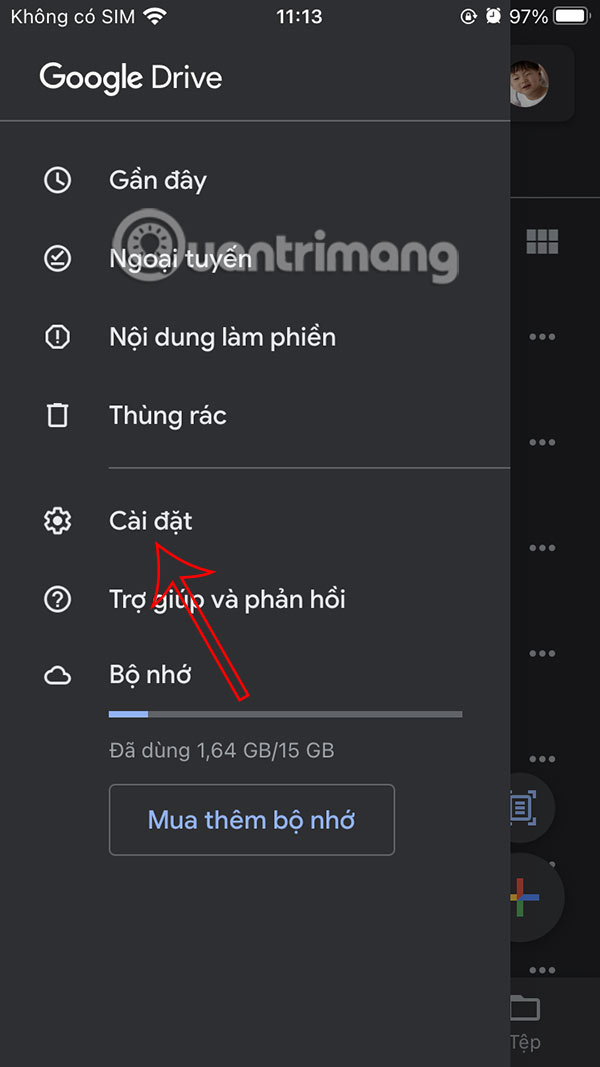
Step 2:
Switch to the application settings interface, select Privacy Screen to activate. Now you need to activate Privacy Screen .
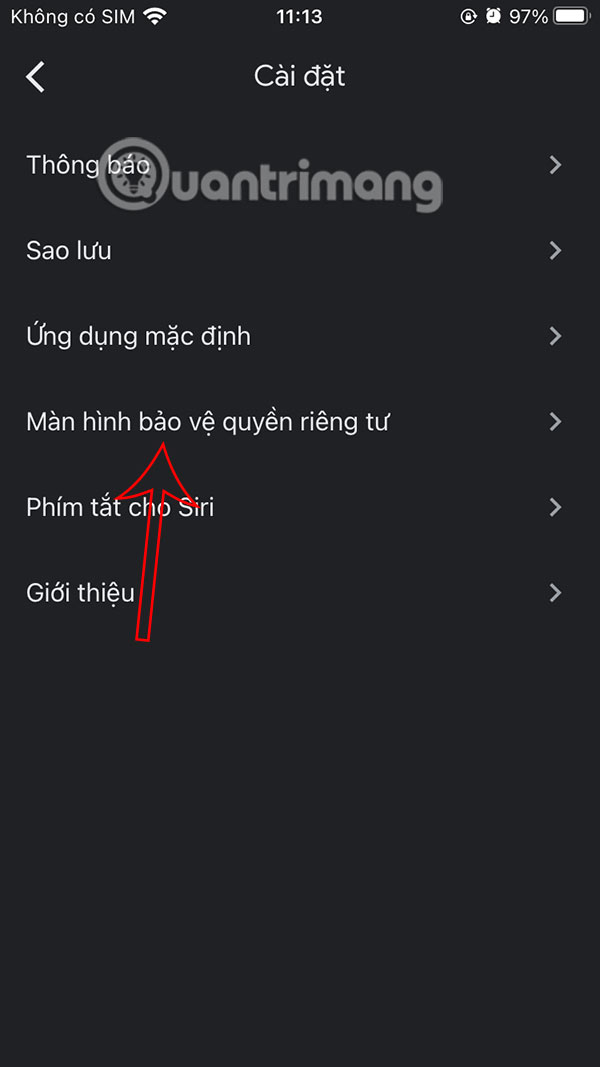

Step 3:
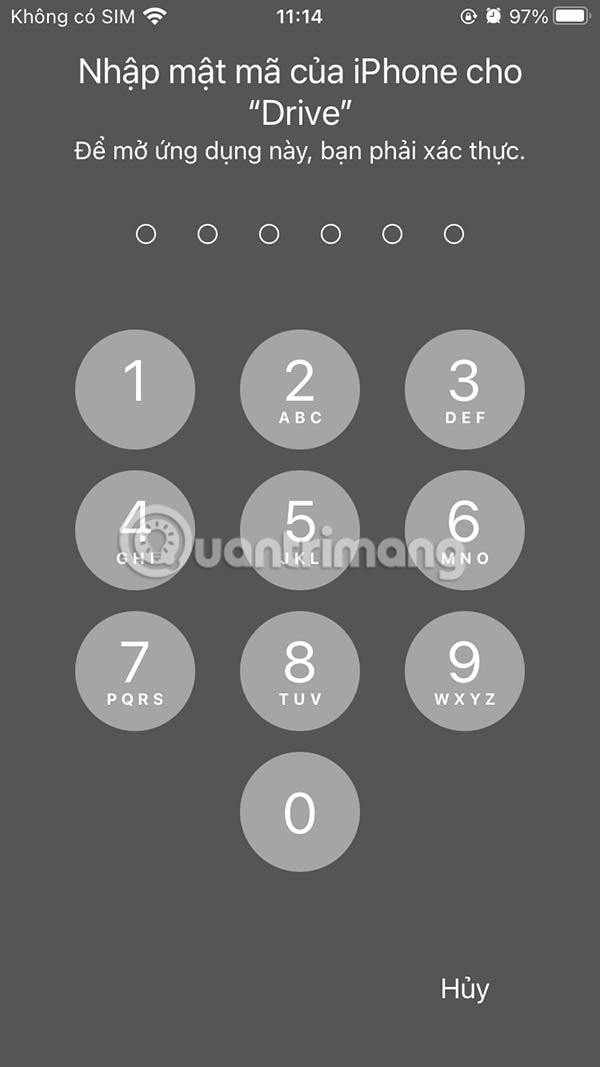
You will then be asked to enter your iPhone passcode to act as your Google Drive app passcode. If your iPhone uses FaceID or Touch ID, it will be used as the app security method.
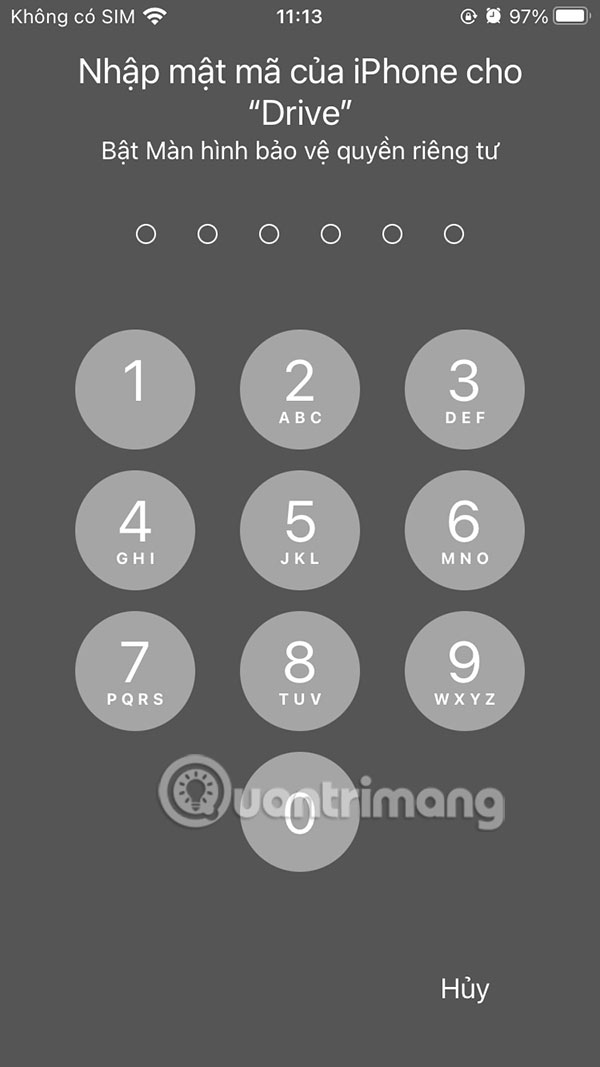
Step 4:
Next, you set up the Require Authentication section to adjust the time to lock the Google Drive application. You choose to lock immediately, or another time if you want.
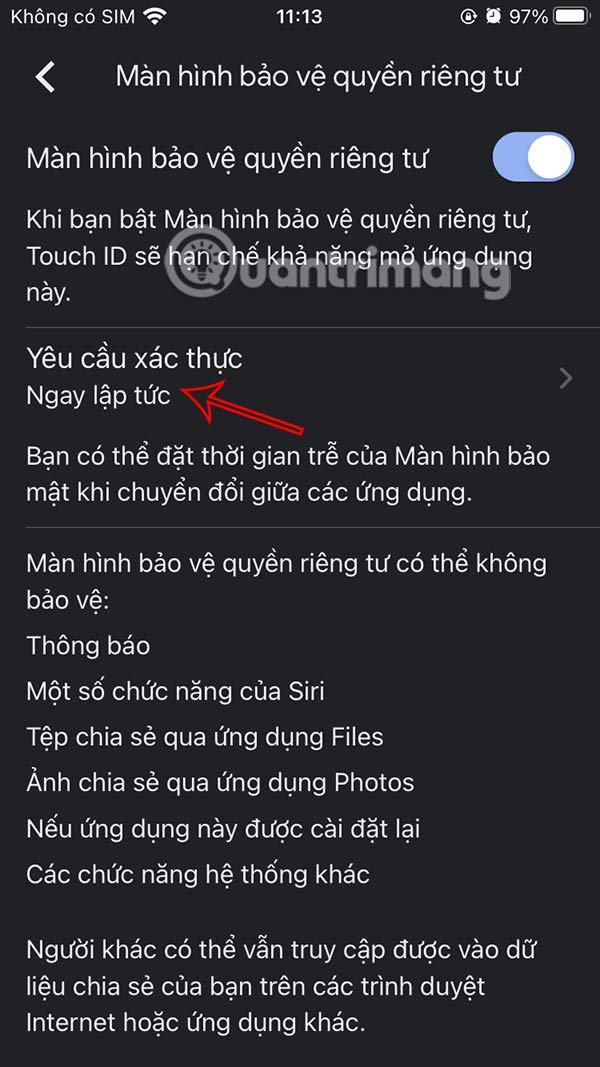

Step 5:
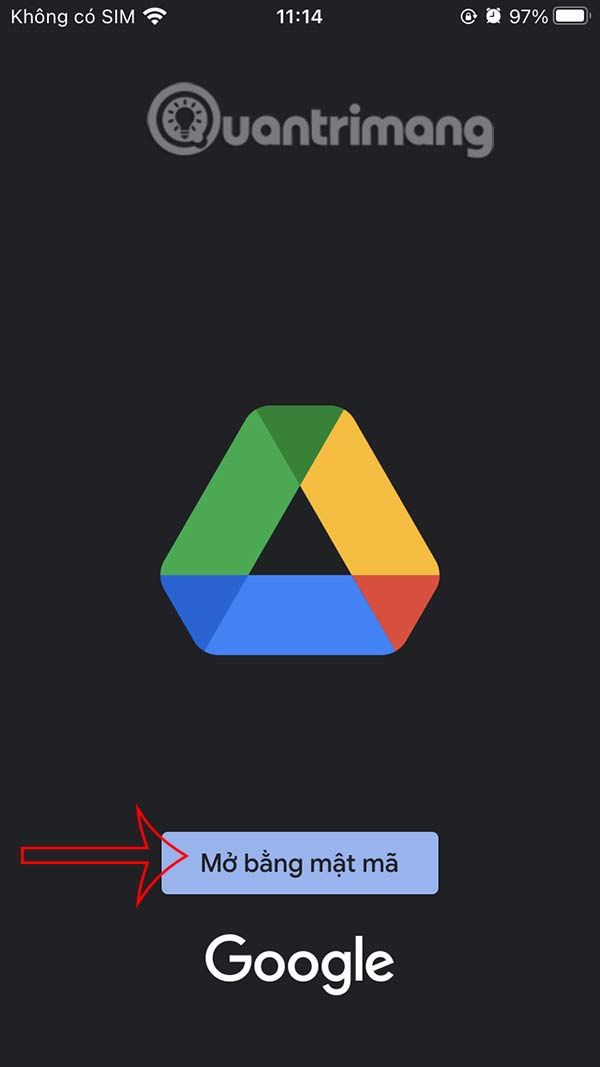
Now when you want to access the Google Drive application, you are required to enter the password or security method being used on your iPhone.
FAQ
How to securing Google Drive with password, Face ID?
At the interface of the Google Drive application, select the 3-dash icon on the left. Next, select Settings.
What does this guide cover?
This guide explains secure Google Drive with password, face id, including the main steps, important details, and practical considerations.
Who is this guide for?
It is designed for readers who want a clear, practical overview and a reliable process they can follow without unnecessary complexity.
Related Articles
 How to Secure Google Drive on iPhone with Face ID3 minutes read
 How to Secure Account Information on Drive Password3 minutes read
 How to Change Google Password on Computer, Phone3 minutes read
 Google Drive for iOS Updates the New Version That Supports Password2 minutes read
 6 Simple Steps to Make Your Passwords More Secure7 minutes read
 Google Drive 4,2021.46200, Google Drive Download and3 minutes read
Reader Comments 0
Sign in with email or Google to join the discussion.