Table of Contents
It's easy to copy data from USB drives or other portable storage devices by connecting the USB drive to your phone via OTG, a technology that has been integrated and launched on the market in recent years.
Connecting a USB device to your phone via OTG allows you to directly connect the two devices without going through complicated steps. For example, what if you have a USB drive containing data and want to copy it to your phone?
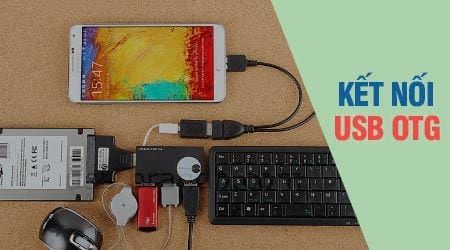
Normally, you would have to connect the USB drive to your computer and then connect your phone to the computer to copy data from the USB drive to your phone. But with connecting the USB drive to your phone via OTG, you can plug it directly into your phone; the phone will recognize your USB drive as a memory card, and you can easily copy data. This is much more convenient than connecting your phone to a computer in the usual way.
nstructions for connecting a USB device to a phone via OTG
What is OTG?
OTG stands for On The Go, a technology that allows users to connect their phones to peripheral devices such as USB drives, mice, keyboards, and many other handheld devices like fans and game controllers via an OTG cable or USB OTG itself.
The main features of OTG currently in use include:
- Read data from USB drives, hard drives, and portable hard drives.
- Connect a mouse and keyboard and use them like on a computer.
- Transfer data directly from phone to phone.
- Use with game controllers.
- Record audio when connected to an external microphone
. - Charge devices with low battery capacity.
What do I need to prepare to connect via OTG?
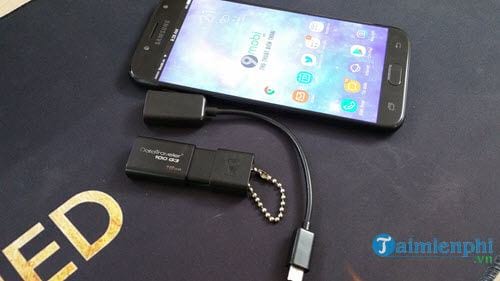
- A working USB drive of any capacity.
- An OTG cable for connecting an Android device.
- An Android phone .
Connect the USB to your phone via OTG.
Step 1: First, plug the micro USB connector into your phone.
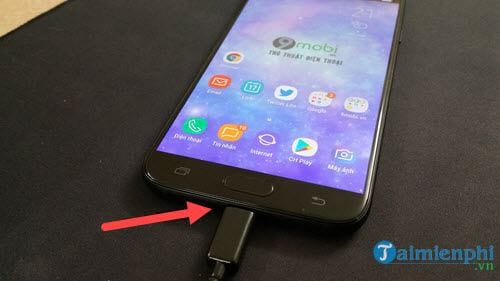
The other end plugs into a USB port to complete the USB connection to the phone via OTG.
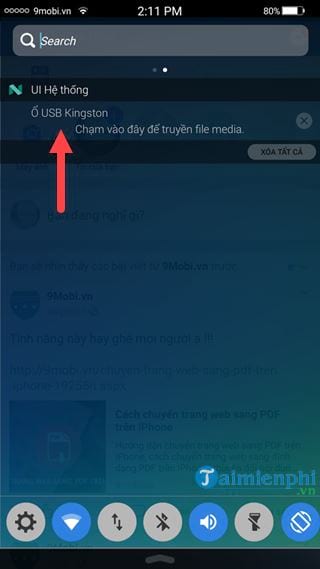
Step 2: Immediately check your phone's status bar; you will see a notification along the lines of "USB drive, device." connected to the phone, as shown in the image below.
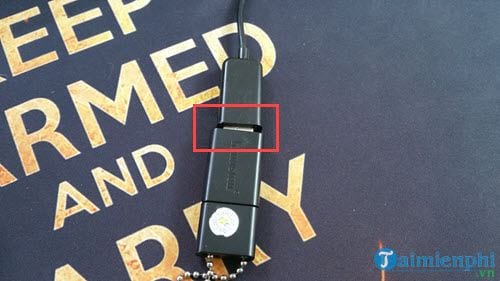
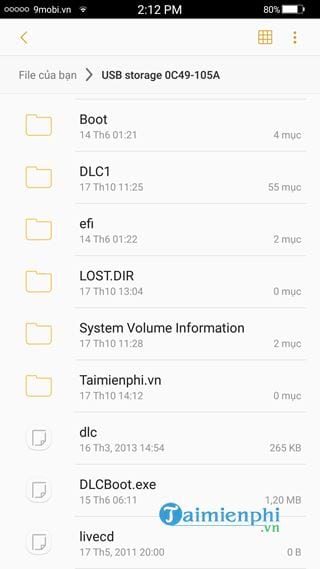
Step 3: When you click on it, you will be able to directly access the files on this USB drive.
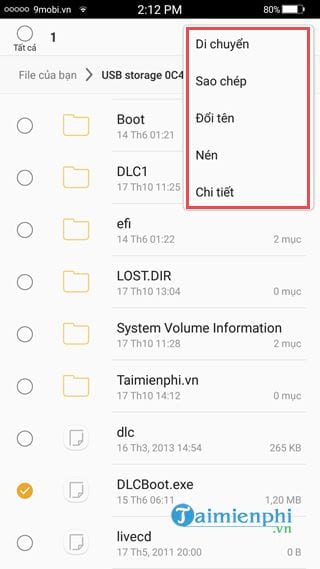
Looking at the features, we have the ability to move, copy, rename, and compress (RAR) files in detail.
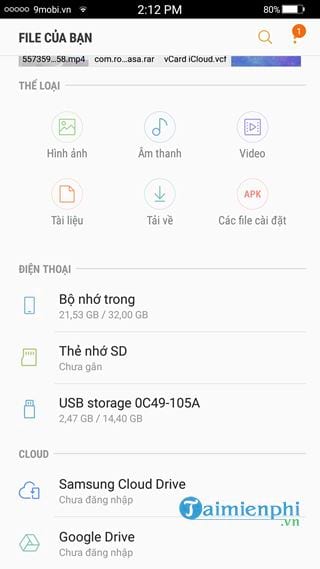
Step 4: When checking the external settings, you will see that your phone has an additional storage option: USB storage.
Step 5: The USB connection to your phone via OTG is now complete. Let's try copying a file from your phone to the USB drive with TipsMake.
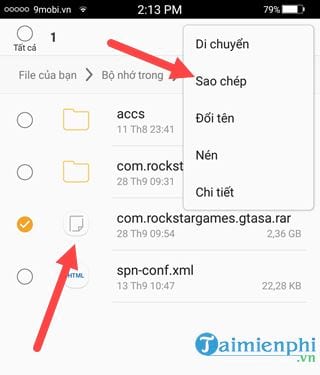
First, select the file by holding it down for a few seconds and then selecting copy.
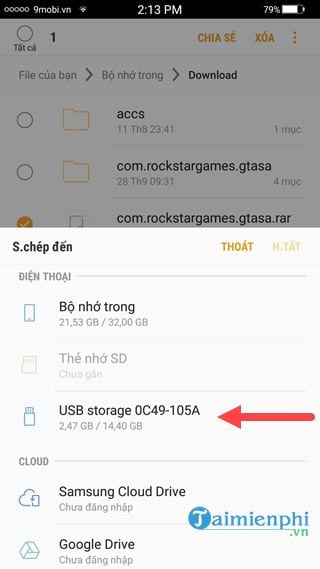
Step 6: Another menu will appear asking where you want to copy the files to; choose USB.
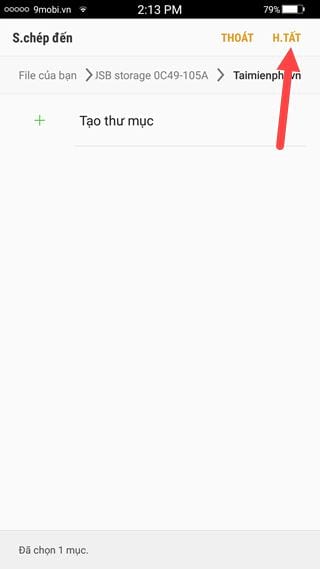
Step 7: Go into the required folder, and to paste the file, simply click the "Done" button.
This process is similar to regular file copying, and the speed depends on the size of the files being copied.
From the test above, you can see that connecting a USB device to your phone via OTG is just like connecting a USB device to a computer. You can perform all operations and transfer data quickly.
If you haven't had time to buy an OTG device yet, that's okay. Try accessing Android on your computer with AirDroid, a phone application that allows you to easily connect two devices. For specific details, please refer to the guide on how to access Android on your computer and follow the instructions.
Related Articles
 How to Connect USB to Android Phone?4 minutes read
 How to Add More USB Ports to Your Android Phone: Step-by-Step Guide5 minutes read
 Do These 5 Things to Get the Most Out of Your Phone's USB-C Port8 minutes read
 What Is USB OTG and Its 5 Great Functions on Android?9 minutes read
 Instructions for Using USB Flash Drive with Android Device9 minutes read
 Are There Ways to Connect Your Phone to a TV to Watch Videos?14 minutes read
Reader Comments 0
Sign in with email or Google to join the discussion.