It's quite common for a USB drive to appear empty when opened, even though data is still inside. This is because viruses have hidden your files and data on the USB drive.
The problem of a USB drive being infected with a virus, resulting in no data being displayed or the drive being inaccessible, is a common occurrence. Because USB drives are used to copy data between multiple computers, virus infections are very likely to happen. If you can open the USB but can't see the data, you need to find a way to show hidden files. If the USB won't open, you need to fix the virus infection immediately. If the USB can open and has storage space but the files aren't displayed, the methods for fixing a virus-infected USB won't work; you should try showing hidden files . Alternatively, you can also refer to the following methods for fixing a USB drive that appears empty even though data is still present.
Fix the issue where a USB drive shows empty even though data is still present:
Step 1: In My Computer, click Organize and select Folder and search options.
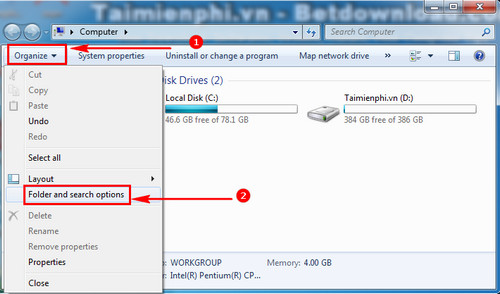
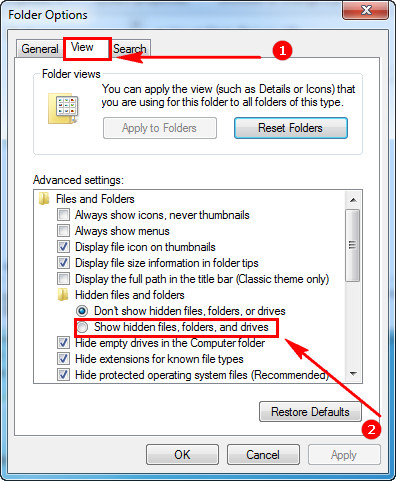
Step 2: In the Folder Options dialog box , select the View tab.
Next, switch to Show hidden files and folders.
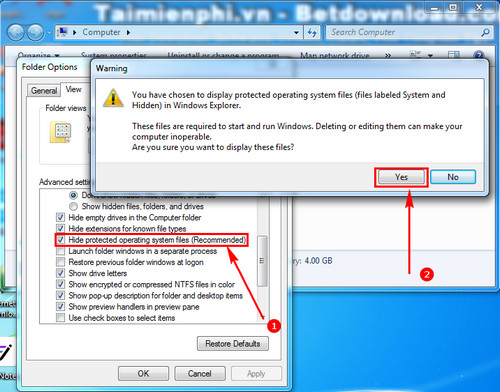
Step 3: Uncheck the box next to "Hide protected operating system files" to display files with system attributes. Click "Yes" when prompted.
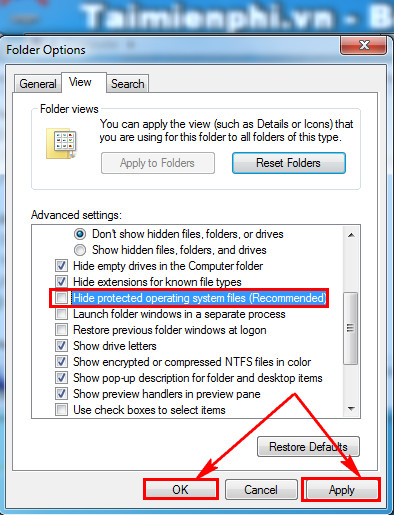
Step 4: After successfully unchecking the box, click Apply and OK to save the changes.
Step 5: Go back to My Computer, right-click on the USB drive and select Explorer.
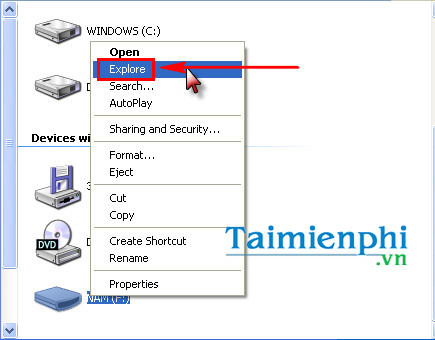
Once the files appear, remember to only copy the files you need. Do not copy folders or programs as they may be infected with viruses.
After fixing the issue of the USB showing as empty even though the data is still there and copying all the data to your computer, you need to format the USB to remove all viruses.
One common virus that can damage your USB drive is Autorun. To prevent this type of virus, you need to protect your USB drive from Autorun viruses. It's easy to protect your USB drive from Autorun viruses using the command prompt commands we've provided. We hope that TipsMake's sharing will help you remove all viruses from your USB drive.
Related Articles
 How to Delete Files on Mac - Empty Trash or Secure Empty Trash?6 minutes read
 Fix System Error: Complete Guide8 minutes read
 Delete All Empty Folders on Android with Just One Touch5 minutes read
 Warning Signs of Hard Drive Failure8 minutes read
 Delete Empty Data Cells in Excel 2007 or 2010: Instructions2 minutes read
 How to Merge a Hard Drive in Windows 10 Does Not Lose Data5 minutes read
Reader Comments 0
Sign in with email or Google to join the discussion.