The problem of a laptop not recognizing a USB device is a common one for computer users. There are many causes and specific solutions for this error.
USB drives are a common tool for sharing data between computers and laptops. However, errors can frequently occur, such as the computer failing to recognize the USB drive. This error can be caused by a virus infection, a faulty port, but most often it's due to the operating system. Therefore, in this article, tipsmake will guide you on how to fix the problem of your laptop not recognizing your USB drive , so you can proactively resolve the issue and avoid disrupting your current work.
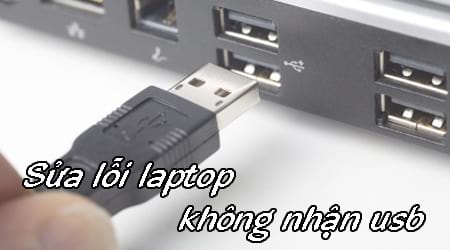
Tips for fixing the problem of a laptop not recognizing a USB device when plugged in.
1. Restart your computer.
Restarting your computer may seem simple, but it can be surprisingly effective in fixing the problem of your computer not recognizing a USB device . This is because some system components may have stopped working during use, and restarting your computer can help restore stability and resolve software conflicts. Therefore, no matter what the problem is, the first thing you should do is restart your device.
2. Clean the USB ports on your computer.
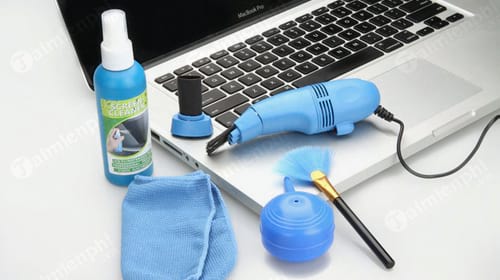
It's likely that after prolonged use, your computer's USB ports have accumulated a lot of dust, rust, etc., leading to poor contact. The solution is quite simple: clean the USB ports and try connecting the USB device through a different port or on a different computer to rule out the possibility of a faulty device.
3. Check if the USB port is locked.
It's possible you accidentally locked the USB port or someone deliberately played a prank on you. However, fixing this is quite simple with a few steps:
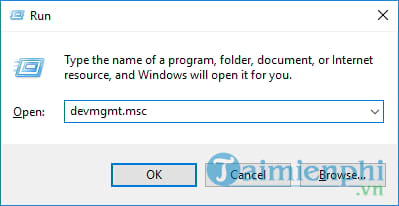
Step 1: Press the Windows + R key combinationto open the Run dialog box and type the command devmgmt.msc , then press Enter or OK.
Step 2: The Device Manager interface will appear. Double-click on Universal Serial Bus controller and you will see that the USB port is locked, similar to the image below.
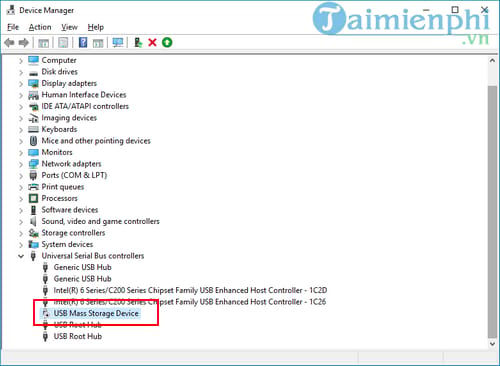
Step 3: On this interface, right-click on the USB Composite Device item and select Enable device.
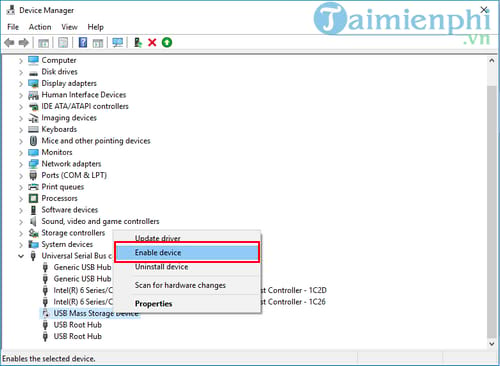
Additionally, readers can also refer to our previous guide on locking USB ports on Windows to perform the reverse action and unlock USB ports.
4. The computer is infected with a virus.
Viruses are a real disaster, especially if you lack computer experience. It's easy to get infected with malicious viruses that can destroy data or damage your operating system. and USB drives are particularly useful for rapid virus transmission.
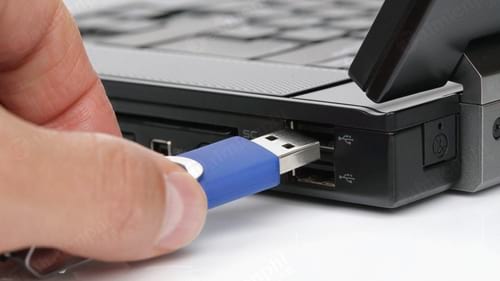
Therefore, you should equip your computer with antivirus software, even a free version, especially if you frequently use the internet. You can refer to the list of the best antivirus software for computers that tipsmake has previously shared to choose a suitable program. Additionally, in some cases where your computer's operating system has been damaged by a virus and you have already installed antivirus software to scan but it hasn't worked, the last option you should consider is reinstalling or ghosting Windows.
5. Your computer is missing or has faulty drivers.
The reasons why your computer might be missing or faulty drivers are quite common and many users have encountered them, such as not installing USB drivers after installing the operating system, or because the Ghost image has been modified to remove many components. To fix this, you can use DriverEasy software to scan and download drivers automatically.
In summary, the above are all the causes and solutions for the problem of a laptop not recognizing a USB device that you can refer to. If the above methods do not work for you, it is likely that your computer has a fault, such as a damaged USB port controller chip. To fix this, you need to take your computer to a reputable repair center so they can provide the most effective solution.
Related Articles
 How to Solve the Problem of Headphones Plugged into a Laptop6 minutes read
 6 Ways to Fix Laptop Not Recognizing Mouse7 minutes read
 Step: 7 Effective Ways to Fix Laptop Not Recognizing Headphones9 minutes read
 How to Fix the Laptop Battery Error 'Plugged in, Not Charging'5 minutes read
 How to Fix Laptop Not Recognizing Mouse: Step-by-Step Guide7 minutes read
 Fix Laptop Battery Plugged in Not Charging Error7 minutes read
Reader Comments 0
Sign in with email or Google to join the discussion.