Table of Contents
You can remove an old or unfamiliar device from your Apple Account on an iPhone or iPad by going to Settings > [your name], selecting the device, and tapping Remove from Account. Review the device details carefully before confirming so you do not disconnect a device you still use.
Apple now calls Apple ID an Apple Account. The sign-in details are the same, so older screens and instructions may still use the Apple ID name.
Remove a device on an iPhone or iPad
- Open Settings and tap your name at the top.
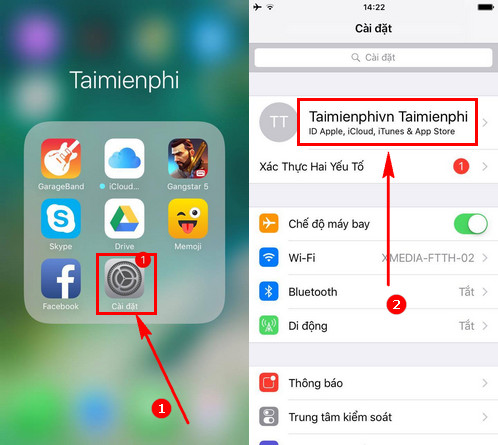
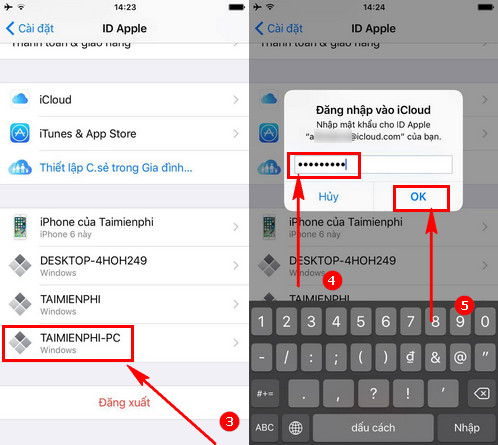
- Scroll down to the list of devices signed in with your account.
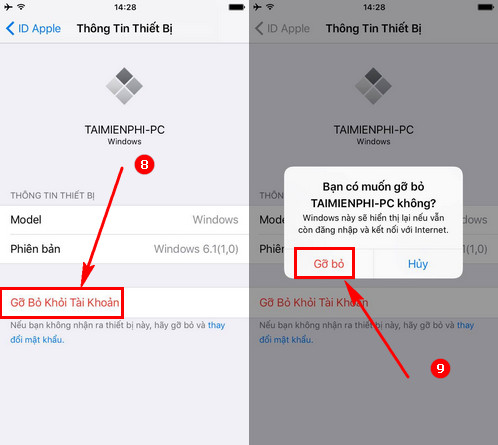
- Tap the device you want to review. Check its model, software version, serial number, and whether it is a trusted device where those details are shown.
- Tap Remove from Account, then confirm. You may be asked to authenticate.
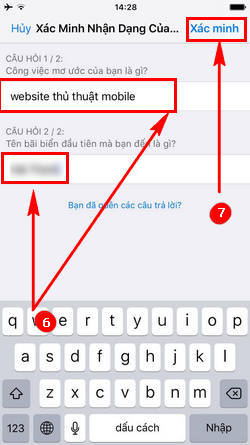
The following older screens show authentication prompts that could appear in earlier iOS versions. Current devices normally use the account password, device passcode, or two-factor authentication rather than the security-question flow shown here.
Remove a device on the web
- Go to account.apple.com and sign in.
- Open Devices.
- Select the device, choose Remove from account, and confirm.
Apple's current device-list instructions also cover removal from a Mac or Windows PC.
What removal does—and does not do
Removing a device from this list signs it out of services associated with the Apple Account and prevents it from receiving verification codes. If the device is still signed in and reconnects, it may reappear. On a device you own, sign out locally before selling, giving away, or recycling it.
The Apple Account device list is not identical to the list of devices associated with media purchases, and neither is the same as the Find My list. To prepare a sold device for a new owner or remove Activation Lock, follow the separate Find Devices procedure. Do not simply remove a lost or stolen device from Find My, because that can remove Activation Lock.
If you do not recognize a device
Remove it, then change your account password and review trusted phone numbers. Do not store the password in an unsecured note; use a password manager instead. For broader account cleanup, see how to change an Apple Account password and how to delete an Apple Account if you no longer need it.
Related Articles
 How to View and Delete Devices That Are Connected to Your AppleID Account3 minutes read
 How to Protect Your Icloud Account from Being Stolen13 minutes read
 How to Delete an Apple ID: Step-by-Step Guide13 minutes read
 How to Fix 'Connected Devices Platform User' Service Error Using Up RAM on6 minutes read
 How to Check Apple Account Login Devices3 minutes read
 How to View All Connected Storage Devices on Windows 103 minutes read
Reader Comments 0
Sign in with email or Google to join the discussion.