Table of Contents
Start by checking the Trash or Recycle Bin in the app that deleted the audio. If the file is not there, look for an existing cloud copy or backup. Recovery software is most useful when the audio was stored on a removable microSD card; it usually cannot scan modern Android internal storage through a normal USB connection.
Important: Stop recording, downloading, updating apps, or taking photos until you finish checking recovery options. New data can overwrite deleted content. Do not factory-reset the phone or install recovery software on the same storage you are trying to recover.
1. Check the file manager’s Trash
If you deleted the audio in Files by Google, open the app, tap the menu, choose Trash, select the file, and tap Restore. Files permanently deleted from Trash, or deleted through some cleanup suggestions, may not be recoverable there.
Other phone brands use a file manager called My Files, File Manager, or Files. Open its menu and look for Trash, Recycle Bin, or Recently Deleted. The available retention period and restore controls depend on the app and device.
2. Check the Voice Recorder app
If the missing item is a voice memo, open the same recorder app used to create it. Look in its list, Trash, or Recycle Bin. On supported Samsung Galaxy devices, for example, Voice Recorder files can be restored from the app’s Recycle Bin or from My Files.
Also check whether the recording was renamed, moved, hidden, or saved under a different folder. Common locations include Recordings, Music, Audio, Voice Recorder, and app-specific folders.
3. Look for an existing cloud copy
Check any service you deliberately used to upload or sync the file, such as Google Drive, OneDrive, Dropbox, a phone manufacturer’s cloud service, or the recorder app’s own account. Search by filename, extension, date, and folder, then check that service’s Trash.
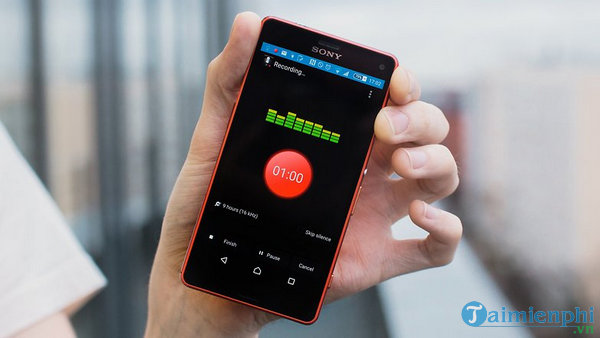
Android’s general Google device backup does not mean every arbitrary audio file in internal storage was uploaded to a browsable “Recent Backup” folder. Device backups mainly cover supported app data, settings, call history, and messages. An audio file is recoverable from the cloud only if the relevant app or service actually backed it up.
4. Check copies on other devices and messages
Search computers, tablets, old phones, USB drives, and previous transfer folders. If the audio was sent through email, messaging, a collaboration app, or social media, download the attachment again. Check music-library folders and any automatic computer backup you use.
5. Recover audio from a removable microSD card
If the deleted file was stored on a microSD card used as portable storage, turn off the phone and remove the card. Connect it directly to a computer with a card reader. Direct access gives recovery software a better chance to scan the card than a standard Android USB/MTP connection.
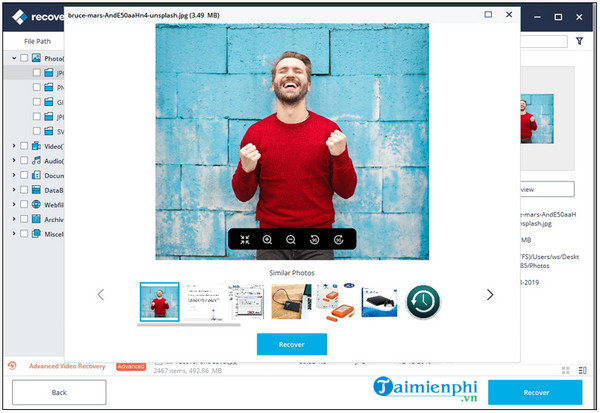
The screenshots below show the general Recoverit workflow, but other memory-card recovery tools use a similar process. Recovery is never guaranteed.
- Install the recovery program on the computer’s internal drive, not on the affected card.
- Select the microSD card under removable or external devices and start a scan.
- Filter results by audio type, filename, and date when possible.
- Preview recoverable files if the program supports audio preview.
- Save recovered files to the computer or another drive, never back to the scanned card.
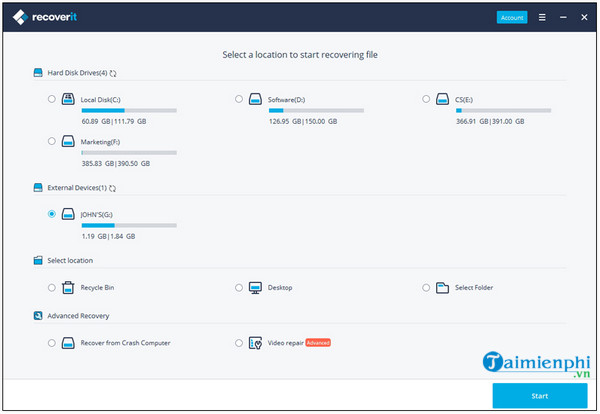
Allow the scan to finish. A deeper scan may find files that have lost their original filenames or folder structure.
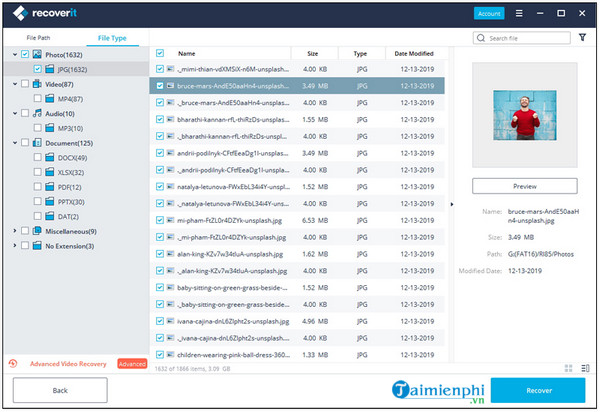
Select the required files, click Recover, and choose a safe destination on the computer.
What about Android internal storage?
Modern Android phones encrypt internal storage and expose files to computers through MTP rather than as a raw disk. That means ordinary desktop recovery programs often cannot perform the sector-level scan used for an SD card. If the file is absent from Trash and no backup exists, recovery may be impossible, especially after continued phone use.
Do not unlock the bootloader, root the phone, or factory-reset it solely for recovery; those actions can erase data or reduce the chance of success. If the audio is irreplaceable, stop using the device and consult a reputable mobile-data recovery specialist before experimenting.
Recovery order at a glance
| Where the audio was stored | Best first step |
|---|---|
| Files by Google or another file manager | Check that app’s Trash or Recycle Bin. |
| Voice Recorder | Check the recorder’s Recently Deleted or Recycle Bin. |
| Cloud service | Search files and check the service’s Trash. |
| Portable microSD card | Remove it, use a card reader, and scan it from a computer. |
| Encrypted internal storage | Check Trash and backups; avoid unsupported “deep scan” promises. |
Prevent the next loss
- Copy important recordings to a computer or cloud folder after each session.
- Verify that the backup contains the actual audio files, not only app settings.
- Use two independent copies for irreplaceable recordings.
- Test a restore occasionally so you know the backup works.
See Google’s instructions for restoring files from Files by Google Trash and Samsung’s guide to My Files and Voice Recorder recovery. For removable media, compare memory-card recovery tools and computer and memory-card recovery software.
Related Articles
 Trick to Recover Android Data Is Lost5 minutes read
 How to Recover Audio Files on iPhone5 minutes read
 How to Recover Deleted Files on Android Phones3 minutes read
 How to Safely and Effectively Recovery Data on Android8 minutes read
 Passes: How to Permanently Remove Files from Your Hard Drive2 minutes read
 Repair Realtek Hd Audio Manager Has Stopped Working5 minutes read
Reader Comments 0
Sign in with email or Google to join the discussion.