Table of Contents
One of the most frequently asked questions TipsMake receives is why there is no sound on my computer . This problem has several possible causes. If you've already ruled out simple issues like turning off the volume, unplugging the speaker jack, or a dead CMOS battery, then your audio driver is likely the problem.
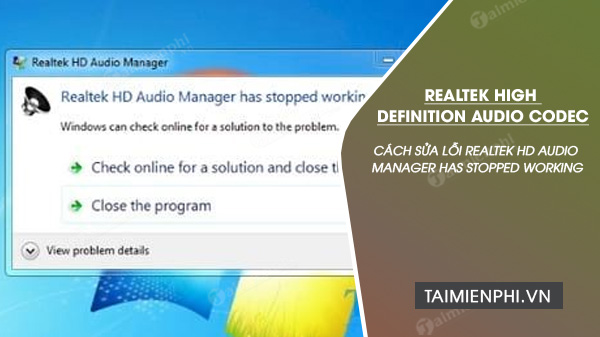
Instructions for fixing the "Realtek HD Audio Manager has stopped working" error.
To fix the problem of no sound on your computer , or the occasional "Realtek HD Audio Manager has stopped working" error during startup, what should you do? We would like to explain that the "Realtek HD Audio Manager has stopped working" error may occur due to an incompatible audio driver, the wrong 32-bit or 64-bit version, or conflicts with other supporting software. To fix the "Realtek HD Audio Manager has stopped working" error during computer or laptop startup, users need to thoroughly address the issue using the following methods.
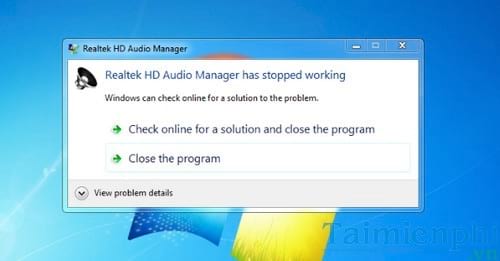
Fix the "Realtek HD Audio Manager has stopped working" error when starting your computer or laptop:
1. Uninstall the old Realtek HD Audio Manager.
The "Realtek HD Audio Manager has stopped working" error occurs in 90% of cases due to driver incompatibility or conflict. If the error persists after restarting your computer, you should uninstall the driver immediately.
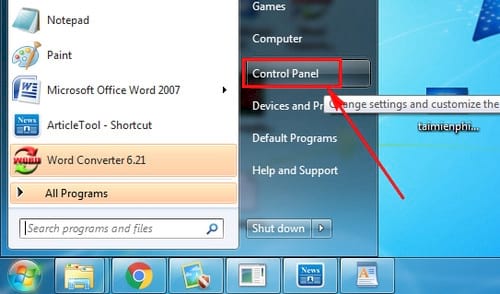
First, press Start (Windows key) and select Control Panel .
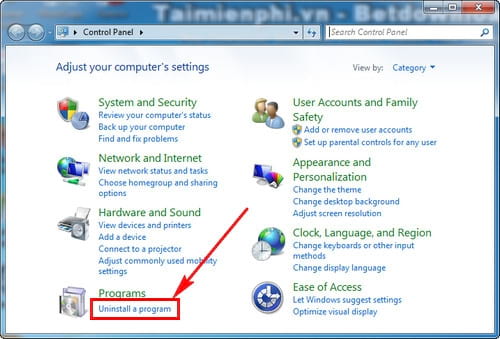
Next, in the Programs section , select Uninstall a program to access the application uninstaller on your computer.
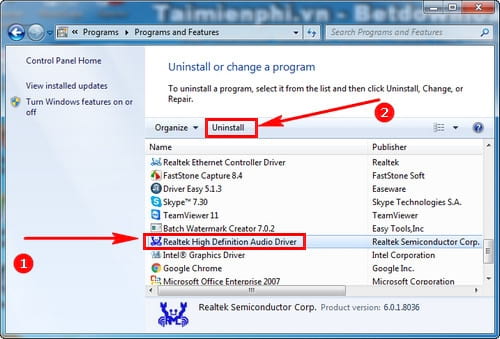
Here, you just need to select Realtek HD Audio Manager and click Uninstall, choosing to remove this application from your computer.
2. Update the Realtek HD Audio Manager driver using the software.
The quickest and most effective way to update your audio drivers is to use automatic driver search software. Download DriverEasy to your computer now.
After installing DriverEasy, the software will automatically update drivers successfully. Click the DriverEasy shortcut on your desktop to open the application.
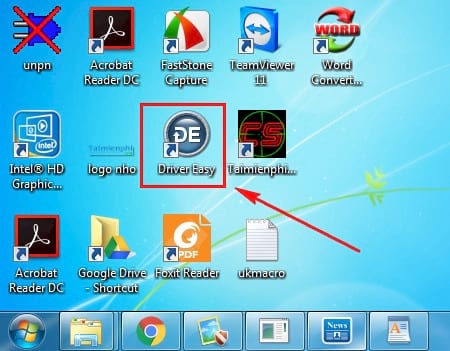
On the main DriverEasy interface, select Scan Now to have the software automatically scan and find missing or outdated drivers on your computer or laptop.

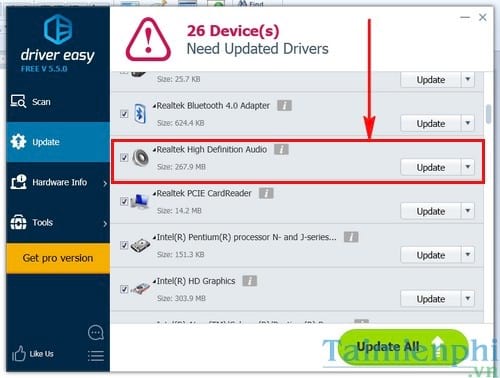
Finally, find Realtek HD Audio Manager and click Update to download the driver. Then, run the normal audio driver setup to fix the "Realtek HD Audio Manager has stopped working" error.
3. Update on your computer's home screen.
If you don't like using automatic driver update software, you can also visit the website of your laptop or PC manufacturer. The support sections of these websites usually offer driver downloads for your computer.
After seeing the device name, you can search Google using keywords:
Computer name _ audio driver . For example, if your laptop is a Lenovo Ideapad 100, you would search for: Lenovo Ideapad 100 audio driver .
You can also enter the version of Windows you are using for easier searching.
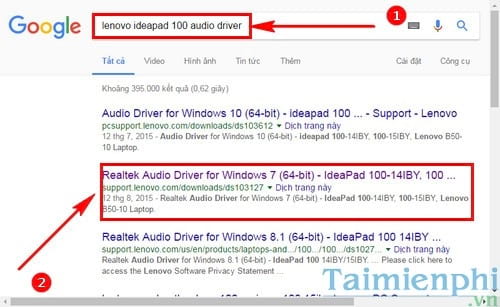
Finally, download the missing audio drivers from the manufacturer's website to use them.
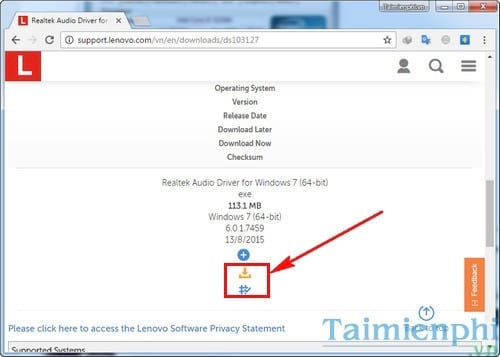
It's very easy to fix the "Realtek HD Audio Manager has stopped working" error when starting your computer or laptop, right?
Some users might not choose method 2 to fix the "Realtek HD Audio Manager has stopped working" error when starting their computer or laptop. This is because DriverEasy software often prompts users to update to the latest version. This is quite annoying if you're using an unlocked version of DriverEasy, and updating to the latest version significantly slows down driver download speeds. However, don't worry, TipsMake has other solutions to help you automatically find drivers on your computer. With 5 automatic driver finding software options , you can easily choose the one that best suits your needs to search for, update, and fix problematic drivers on your computer or laptop.
Related Articles
 How to Fix a Computer Error Without Realtek HD Audio Manager3 minutes read
 How to Update and Reinstall Realtek HD Audio Manager6 minutes read
 How to Fix the Realtek HD Audio Manager Missing Error in5 minutes read
 Can't Open Realtek HD Audio Manager Win 10 + 11, Quick Fix: What to Know7 minutes read
 Fix Install Realtek HD Audio Driver Failure, Error OxC0000374 on Windows 105 minutes read
 How to Fix Has Stopped Working Error on a Windows Computer3 minutes read
Reader Comments 0
Sign in with email or Google to join the discussion.