Table of Contents
Overview
This guide explains how to record ASUS laptop screen in clear, practical terms. It covers the key concepts, recommended steps, common limitations, and useful checks so you can make a better-informed decision.
Ways to record Asus laptop screens are becoming easier to use and optimize image quality better. In addition to Windows, even the Chrome browser has a utility to support this job. In the article, this guide explains through both ways, how to record Asus screens from available tools and free third-party tools.
How to rotate Asus laptop screen
The following ways to record Asus laptop screens are all built into Windows. Users almost do not need to install them but can use them right away, saving time and operations.
Screen recording Asus laptop Win 7
With Asus laptops using Windows 7 operating system, screen recording is not easy because there is no support tool available. Therefore, before downloading screen recording software, you should follow the steps below:
Step 1: Open Problem Steps Recorder software

On the Start menu bar, type the search keyword 'Problem Steps Recorder' to open the software.
Step 2: Start recording
The Problem Steps Recorder dialog box appears with options. Click Start Record or the Alt + A shortcut to begin recording. The timer in the right corner of the dialog box will start counting down to indicate that the recording is in progress.
Step 3: Stop recording, save video
Click Stop Record or Alt + O to stop recording then select Save to save. The file is saved as. Zip. You need to unzip to view the video in. mht format.
Asus Windows 10 Screen Recorder
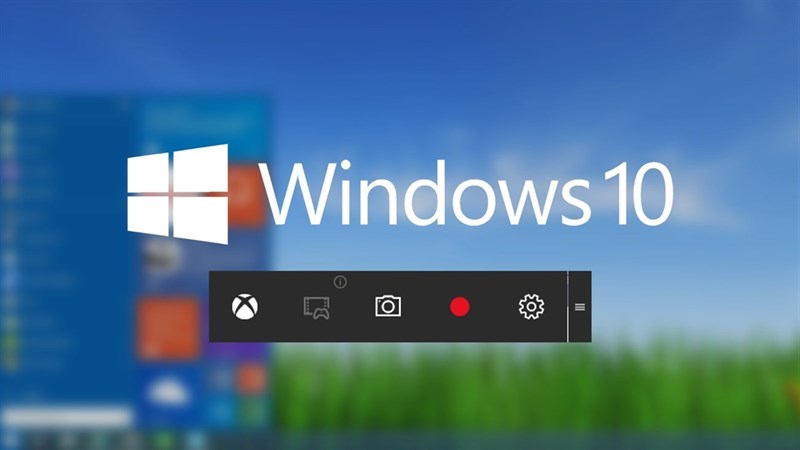
If you are using an Asus Windows 10 laptop, you can use the Game Bar tool. This tool has the feature of taking screenshots of your computer screen, recording videos of your computer screen including the game screen.
Step 1:
Press Windows + G to open this tool. Next, click the gear icon to customize the tool. Then open the editing content and click Edit more preferences in Windows Settings.
Step 2:
To record a video of your Asus laptop screen, press Windows + Alt + R. If you just want to take a screenshot, press Windows + Alt + Prtscn. To stop recording, press Windows + Alt + R. The video is saved in the Videos folder on your computer.
These are all the keyboard shortcuts for using the Game Bar. You can also change them by entering the key combination below.
Some software to record screen on asus laptop
OBS Studio
Compatible with Windows 10, 8.1, and 8 as well as macOS, OBS Studio packs many features into one program. Use the program's floating control panel to start and stop your recording. OBS Studio can record screen activity, computer audio, and then save it as an MP4 file.
Additionally, you can stream your video live or switch to Studio Mode to add cuts, fades, and other transitions to your video.
Free Cam
Free Cam is a very basic screen recorder. Designed for Windows 10, 8.1, and 7, it records screen activity and audio, then saves the recording as a WMV file. Click record new recording and then select the area of the screen you want to record, anywhere from a single window or application to the entire screen.
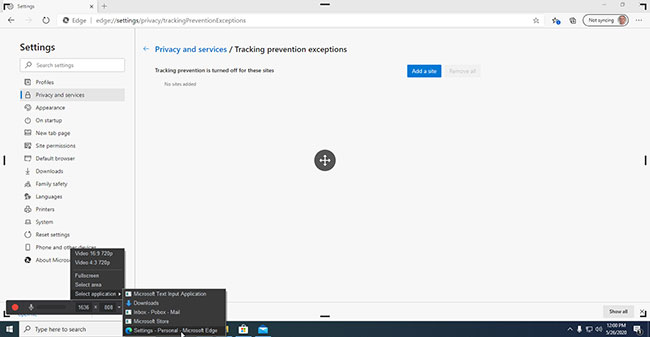
Click Record, perform your on-screen action, then press Esc when you're done. The recording will appear in a preview window that you can edit, save as a video file, or upload directly to YouTube.
Screen recording with FlashBack Express software
The next Asus screen recording software is FlashBack Express. This is free software. Users can use it on regular computers and macbooks, with a light capacity. With the paid pro version, you can edit on video.
The free version still has good image quality and unlimited recording time, helping users to record attractive game scenes during the game. FlashBack Express software also has the function of recording audio and recording webcam. The software interface is simple and there are many features for you to customize. The recording is saved, you can edit it accordingly and save it to your computer or share it on YouTube.
In the ways to record laptop screen just shared by this guide, you will have many options to choose from. In addition, you can also learn many other quality, free Asus laptop recording software. Don't forget to check out more simple tips at this guide. For any questions, please contact hotline: 19001903 for the best advice and support.
Key Takeaways
Use the guidance above as a practical reference for record ASUS laptop screen. Check compatibility, follow the steps carefully, and verify important details with official documentation when software, security, accounts, health, or purchases are involved.
FAQ
How do I record ASUS laptop screen?
Follow the steps in this guide in order, confirm each setting before continuing, and save, restart, or reconnect the device when the instructions require it.
What should I check before I begin?
Confirm the correct device, account access, software version, compatibility, and a current backup whenever the process could affect files, settings, or security.
What should I do if the process does not work?
Repeat the steps carefully, check for model or version differences, install available updates, and consult the manufacturer's official support documentation.
Related Articles
 How to Record Laptop Screen With Sound8 minutes read
 Record Laptop Win 10 Screen Without Software5 minutes read
 Review Asus Zenbook Pro Duo Ux581, a 2-screen Laptop from Asus40 minutes read
 How to Record Laptop Screen Win 10 with Sound9 minutes read
 How to Record Windows 11 Laptop Screen Videos7 minutes read
 How to Record Computer Screen and in Detail8 minutes read
Reader Comments 0
Sign in with email or Google to join the discussion.