Table of Contents
To permanently close a LinkedIn account, open Settings & Privacy > Account preferences > Account management > Close account, choose a reason, and confirm with your password. Before closing it, download any data you need and resolve Premium subscriptions, group ownership, or workplace licenses that may block the process.

Closing is different from signing out, uninstalling the app, hiding the public profile, or hibernating the account. LinkedIn can reopen most accounts closed for fewer than 14 days, but some data cannot be restored even then.
Choose the right option
| Goal | Best option |
|---|---|
| Take a temporary break and hide the profile | Hibernate the account |
| Stop search engines from showing selected profile details | Change public-profile visibility |
| Stop emails or app alerts | Change communication and notification settings |
| Remove a duplicate account | Use LinkedIn's duplicate-account merge or closure process |
| Delete the profile and account data | Close the account |
Before you close the account
Download a copy of your data
- On desktop, open Me > Settings & Privacy.
- Select Data privacy.
- Under How LinkedIn uses your data, choose Download your data.
- Select specific categories or a larger archive and request it.
- Download the archive from the message LinkedIn sends to the primary email address before closing the account.
LinkedIn's data download guide lists the current steps. A profile PDF is not a complete archive: it does not include all messages, account history, connections, settings, or inferred data.
Resolve subscriptions, licenses, and ownership
- Cancel LinkedIn Premium and confirm whether billing is handled by LinkedIn, Apple, Google, or another provider.
- Reassign or remove Recruiter, Sales Navigator, or Learning licenses managed by an employer.
- Pay any outstanding balance.
- Transfer ownership or administrator responsibilities for LinkedIn groups and company assets where required.
- Save receipts or purchase history you may need; LinkedIn says purchase history will no longer be available after closure.
If a close button is unavailable, LinkedIn normally lists the unresolved item. Complete it, refresh the settings page, and try again.
Delete a LinkedIn account on iPhone or Android
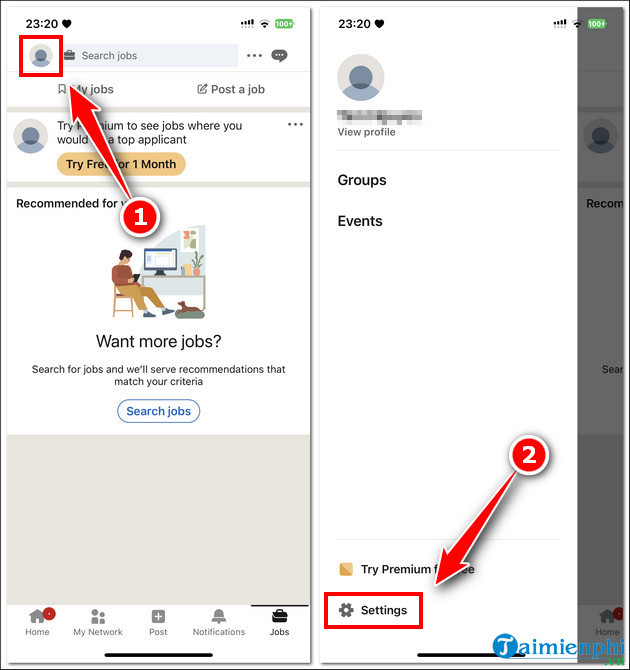
- Open the LinkedIn app and tap your profile picture.
- Tap Settings.
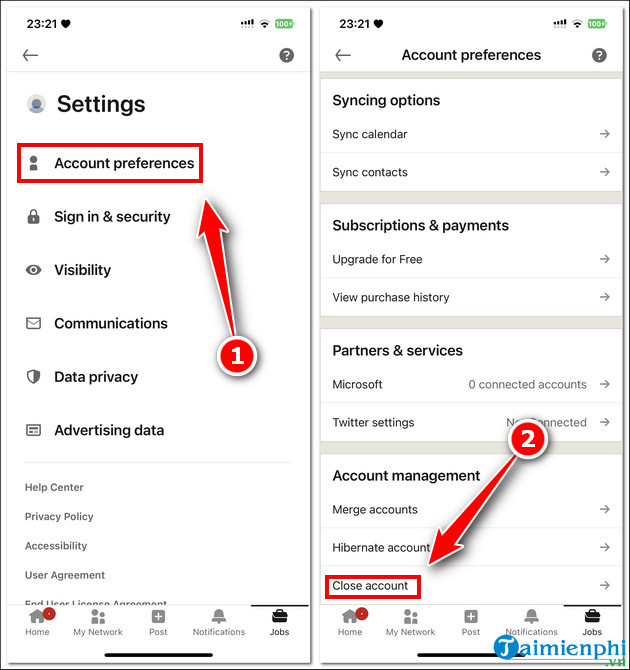
- Select Account preferences.
- Under Account management, tap Close account.
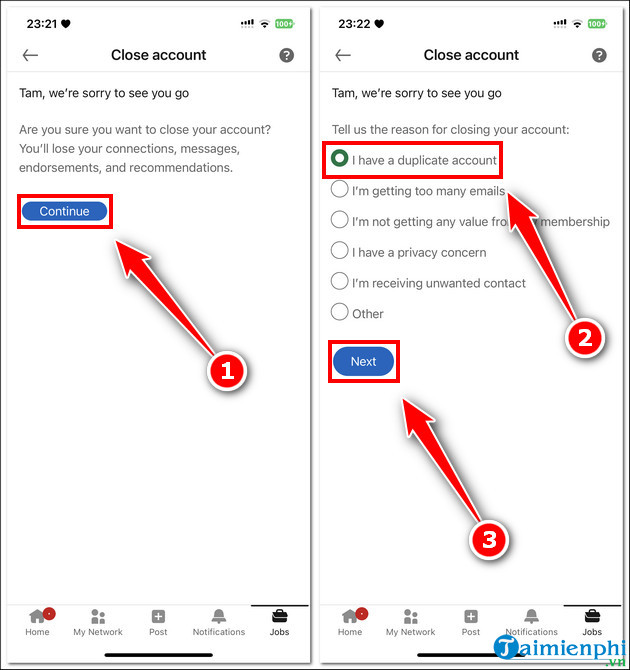
- Tap Continue.
- Select the reason for closing the account and tap Next.
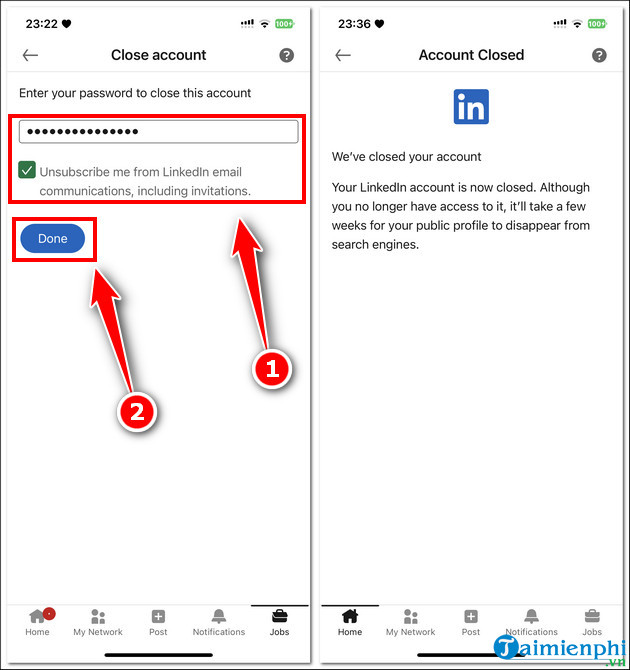
- Enter the account password and tap Done.
Uninstalling the mobile app does not close the account. If you signed in through Apple, Google, or another third-party identity service, review and unlink that connection separately after closure.
Delete a LinkedIn account on a computer
- Sign in at LinkedIn and select Me.
- Choose Settings & Privacy.
- Open Account preferences.
- Under Account management, select Close account.
- Choose Continue, select a reason, and proceed.
- Enter the password and confirm the closure.
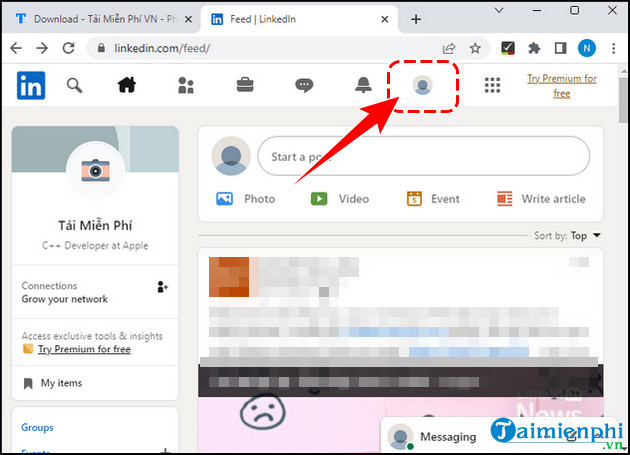
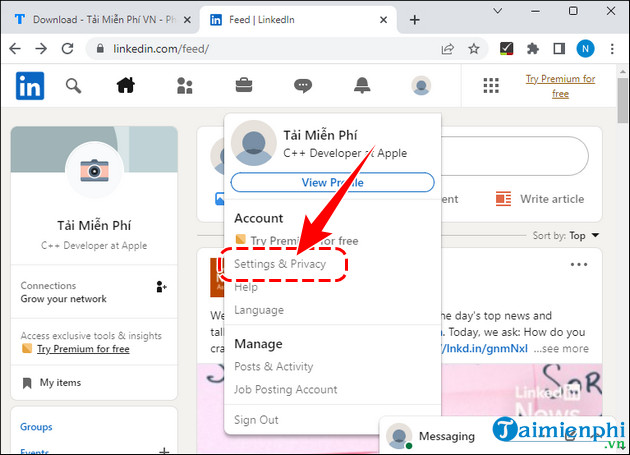
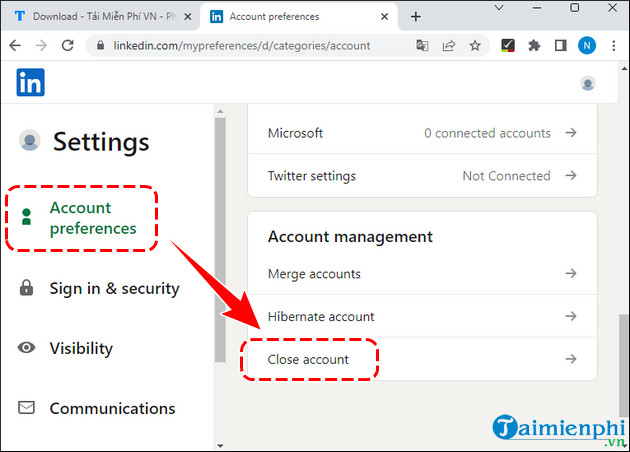
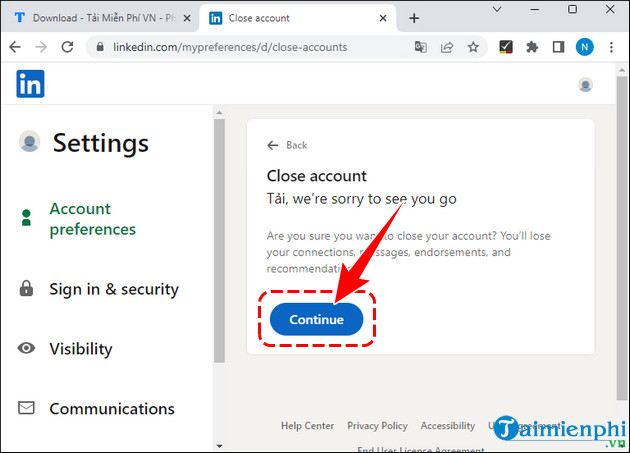
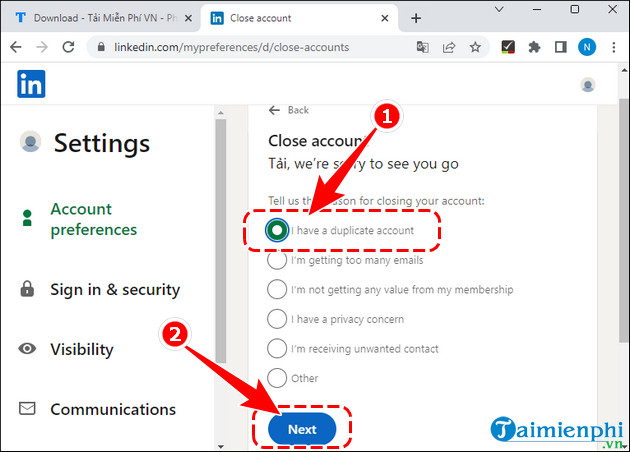
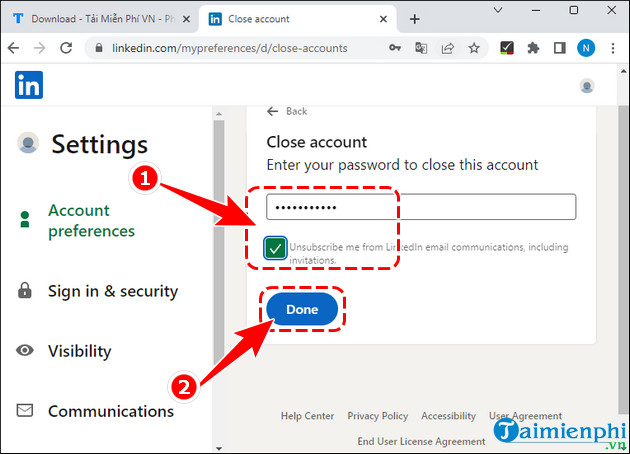
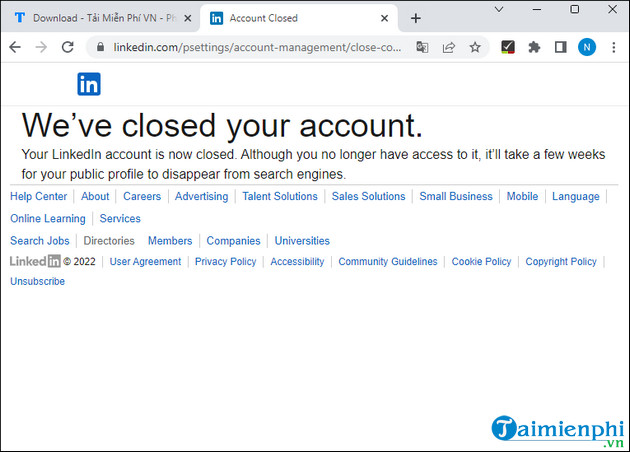
The authoritative sequence is maintained in LinkedIn's account closure help.
What happens after closure?
- The profile is no longer visible on LinkedIn.
- You lose access to connections, messages, recommendations, endorsements, saved jobs, and account history.
- Search engines may continue showing cached results for a while; LinkedIn cannot remove every cached copy instantly.
- Copies or references may remain where other members quoted, shared, or received content, subject to LinkedIn's policies and legal obligations.
- LinkedIn says it generally deletes account data within 30 days, with exceptions described in its privacy policy.
- Third-party services that previously received LinkedIn data may retain it under their own policies.
If privacy is the concern, also remove LinkedIn access from connected applications and ask those providers to delete any data they hold when appropriate.
Reopen an account within 14 days
LinkedIn says it can reopen most accounts closed fewer than 14 days ago:
- Go to the LinkedIn login page.
- Enter the email address and password for the closed account, or use the link in the closure email.
- Select Reactivate.
- Confirm reactivation from the email LinkedIn sends.
LinkedIn cannot reopen an account closed for more than 14 days. Even within the window, it cannot recover group memberships, followed people or companies, ignored and pending invitations, endorsements, or recommendations. See LinkedIn's reactivation guide for the current limits.
Temporarily hibernate instead
Hibernation hides the profile without permanently closing the account. LinkedIn says:
- The profile is not visible, including to connections.
- Messages, posts, comments, recommendations, and endorsements remain but may display as “A LinkedIn member.”
- The account cannot be reactivated during the first 24 hours.
- An active Premium subscription is cancelled, and Apple-billed subscriptions may need separate cancellation with Apple.
Go to Settings & Privacy > Account preferences > Account management > Hibernate account. Review LinkedIn's hibernation details before proceeding.
Handle a duplicate account correctly
Do not close an account with connections until you understand what LinkedIn can transfer. Its duplicate-account process may transfer connections and an email address, but it does not merge all profile data, recommendations, endorsements, or activity. Download the duplicate account's archive first and use LinkedIn's merge or close duplicate accounts workflow.
After resolving the duplicate, update your remaining account. TipsMake's guide to build a strong LinkedIn profile can help with that review.
If you cannot sign in to delete the account
- Use Forgot password? with an email address or phone number connected to the account.
- Check old work, school, and personal email addresses for LinkedIn messages.
- If the email account is inaccessible, follow LinkedIn's identity-verification recovery process.
- For an account taken over by someone else, report it as compromised before trying to close it.
- Do not pay an outsider to “delete” the profile or send them identity documents.
Store a replacement password safely if recovery is required; TipsMake's password manager comparison covers practical options.
Deletion checklist
- Data archive downloaded and opened
- Important contacts saved with permission
- Premium or app-store subscription cancelled
- Licenses and admin roles reassigned
- Duplicate-account options reviewed
- Public-profile visibility considered as a less permanent alternative
- Primary email account remains accessible during the 14-day reopening window
Close the account only after these items are complete. Creating a new profile later will not automatically restore the deleted profile's history or network.
Related Articles
 Steps to Delete Your Linkedin Account4 minutes read
 How to Permanently Delete Tik Tok Account on the Phone4 minutes read
 How to Permanently Delete a Facebook Account13 minutes read
 Instructions to Delete Snapchat Account Permanently4 minutes read
 Instructions for Creating a Linkedin Account: What Are Linkedin5 minutes read
 How to Permanently Delete a Facebook Account on a Computer5 minutes read
Reader Comments 0
Sign in with email or Google to join the discussion.