Table of Contents
You can create a GapoWork account with an email address or phone number, or activate an account from an invitation sent by your employer. The original consumer Gapo social network stopped operating in Vietnam in 2023, so its old app and sign-up screens should not be used for a new account.

Gapo and GapoWork are not the same service
| Service | Purpose | Can you create a new account? |
|---|---|---|
| Consumer Gapo social network | Public social profiles, posts, and connections | No dependable current sign-up path; the consumer version was discontinued |
| GapoWork | Digital workplace for organizations, teams, communication, and work management | Yes, through GapoWork or an organization invitation |
Do not install an archived Gapo APK from an unofficial download site. It may be outdated, unsupported, or modified. Start from the official GapoWork website or the verified GapoWork listing in Google Play or Apple's App Store.
Create a GapoWork account on the web
- Open the official GapoWork site on a desktop browser.
- Select Register or the option to try GapoWork.
- Enter an email address or mobile number you control and choose Continue.
- Enter the one-time code sent to that email address or phone.
- Create a strong, unique password if the registration flow asks for one.
- Complete the requested profile information.
- Create a workspace only if you are authorized to set up an organization; otherwise, join through your employer's invitation.
GapoWork's account registration documentation shows the current email-or-phone workflow. The interface may be in Vietnamese, and labels can vary after product updates.
Join an existing workplace by invitation
Most employees should not create an unrelated workspace. Ask the organization administrator to invite the email address or phone number you use for work.
- Open the invitation only after confirming it comes from your employer or the organization's known GapoWork domain.
- Verify that the organization name is correct.
- Enter the code sent to the invited email address or phone number.
- Create the required password or continue with the identity provider specified by the employer.
- Set a display name and basic profile details.
- Confirm that the correct teams, groups, and permissions appear before sharing work information.
GapoWork's onboarding article says administrators can add members by email or phone and that new members activate the invited account before completing their profile. Use the exact contact detail the administrator entered; a different email address may create a separate account.
Register in the mobile app
- Install GapoWork from Google Play or Apple's App Store and verify the publisher and app name.
- Open the app and select Register if your organization allows self-registration.
- Enter the email address or phone number associated with the workplace.
- Confirm the OTP and create a password if required.
- Join the organization from its invitation or organization identifier.
If the app asks for an organization name, member ID, Microsoft account, Google account, or company SSO, follow the method provided by your employer. Do not create multiple personal logins to bypass a missing invitation.
Create a new organization only when authorized
An owner or administrator setting up GapoWork for a business should use a work email address, accurately name the organization, and define who will control billing, membership, and data. Before inviting staff:
- Confirm the organization's approved use of GapoWork.
- Assign at least two trusted administrators where policy permits.
- Decide whether members sign in by email, phone, organization ID, Google, Microsoft, or SSO.
- Document offboarding, role changes, and data-retention responsibilities.
- Test an invitation with a small group before a company-wide rollout.
Use role-based access rather than sharing an administrator password. Never copy production employee data into a trial workspace without approval.
If registration does not work
- No OTP: Check spam, mobile signal, blocked short-code messages, and whether the address or number was typed correctly.
- Email or phone already exists: Try Forgot password instead of creating a duplicate account.
- Invitation says invalid or expired: Ask the administrator to confirm the invited address and send a new invitation.
- Wrong organization opens: Sign out and use the correct invitation or organization identifier.
- SSO error: Contact workplace IT; the password and access policy may be controlled by the employer's identity provider.
- Account disabled: Only the organization administrator may be able to restore membership.
If an existing GapoWork account cannot be accessed, follow TipsMake's guide to reset a GapoWork password.
Secure the account from the start
- Use a unique password and store it in a reputable password manager.
- Do not send login codes through team chat or email.
- Verify the workspace name before uploading files or discussing internal work.
- Use only the official app and domain supplied by the organization.
- Lock the phone or computer used for workplace access.
- Report an unexpected invitation or unfamiliar workspace to IT.
TipsMake's password manager comparison can help you avoid reusing credentials. For authentication apps, see these Google Authenticator alternatives.
Archived consumer Gapo interface
The screenshot below shows the discontinued consumer Gapo registration option. It is retained only to distinguish the old social-network app from GapoWork; it is not a current registration step.
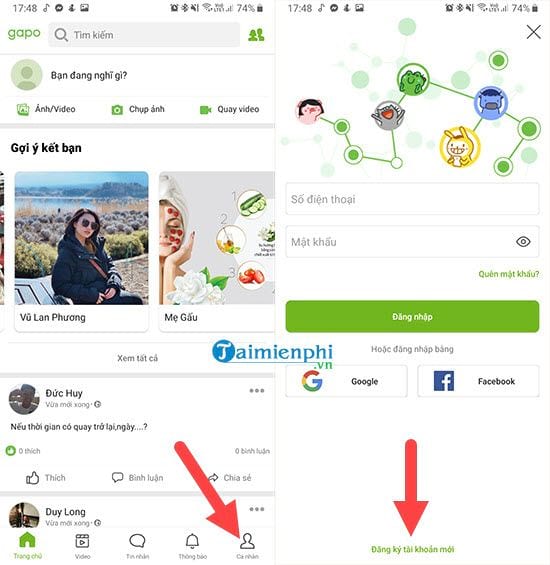
The former flow used a phone number, password, and verification code, then let users create a public profile and post content. Those instructions are obsolete. A current GapoWork account belongs to an organizational context and may be governed by the employer's access, retention, and security policies.
Check the account after activation
- Confirm the organization and your display name.
- Review which groups and files you can access.
- Update recovery contact details if the organization permits it.
- Check notification settings so important work alerts are visible without enabling unnecessary ones.
- Ask the administrator to correct permissions rather than creating another account.
A successful sign-up is not just reaching the home screen; it is joining the correct organization with the correct identity and least access needed for your role.
Related Articles
 How to Register for Gapo Social Network Account3 minutes read
 Instructions to Change Your Gapo Account Password2 minutes read
 How to Register ChatGPT, Register Chat GPT Easiest, Most Detailed3 minutes read
 How to Register for Fbang, Create an Fbang Account4 minutes read
 Create an Apple ID, Register an Apple ID Account for Less Than 36 minutes read
 How to Recover Your Forgotten Gapo Password5 minutes read
Reader Comments 0
Sign in with email or Google to join the discussion.