Table of Contents
To permanently delete Facebook, open Accounts Center > Personal details > Account ownership and control > Deactivation or deletion, select the correct profile, and choose Delete account. Download any data you want to keep before confirming.
Menu names can vary between Facebook versions. Older layouts may place the same control under Your Facebook information.
Before deleting the account
- Deletion is different from deactivation. Deactivation hides the profile temporarily and can usually be reversed; deletion starts permanent removal.
- Posts, photos, videos, and other profile content will be removed. Download a copy first if anything is needed later.
- Deleting Facebook also removes access to Messenger for that account. Messages already sent may remain visible in recipients' inboxes.
- Apps and websites that use Facebook Login may become inaccessible unless another sign-in method is added first.
- Pages or business assets controlled only by this account may need another administrator.
- Select the correct Facebook profile if Accounts Center contains multiple profiles.
Download your Facebook information first
In Accounts Center, open Your information and permissions > Download your information. Choose the profile, date range, data categories, format, and media quality. Wait for Facebook to prepare the archive and download it before starting deletion.
Also review apps using Facebook Login and change their sign-in method where possible.
Delete a Facebook account in the mobile app
Open Facebook, tap the Menu icon, and choose Settings & privacy > Settings.

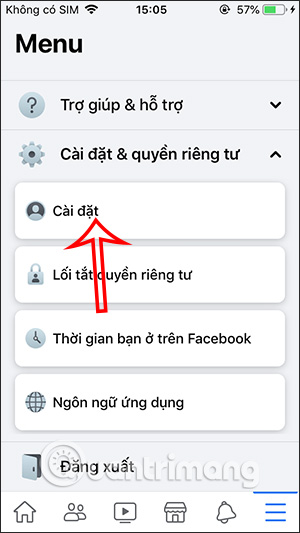
Open Accounts Center. Select Personal details > Account ownership and control > Deactivation or deletion. In an older app layout, look for Your Facebook information and then Deactivation and deletion.
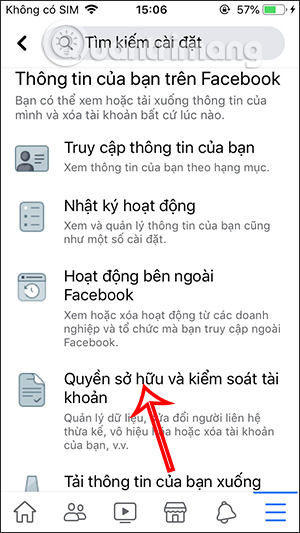
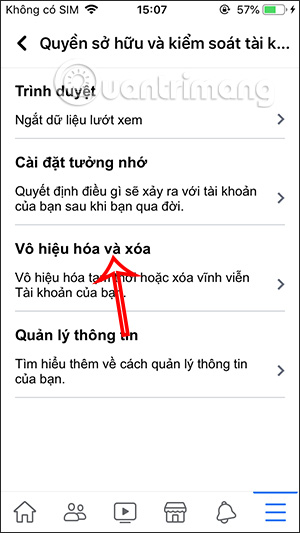
Select the Facebook profile, choose Delete account, and tap Continue. Review the effects of deletion and any options to download information or keep Messenger by deactivating instead.
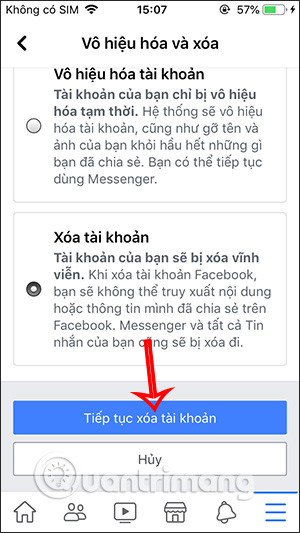
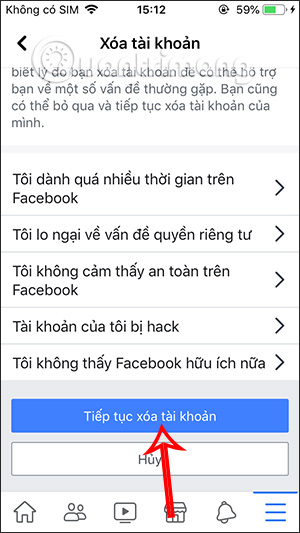
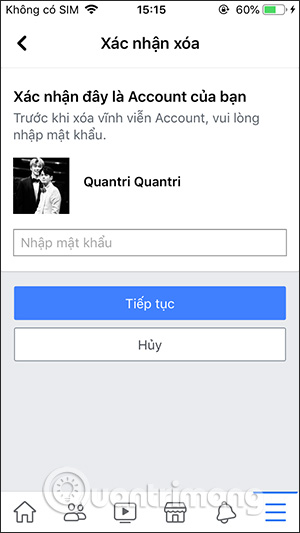
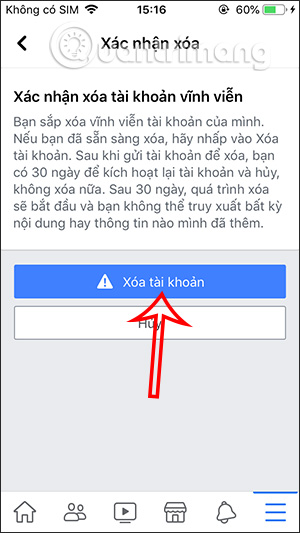
Complete Facebook's identity confirmation and select the final Delete account control only when you are ready.

Delete a Facebook account on a computer
Open Facebook, select your profile picture, and go to Settings & privacy > Settings.
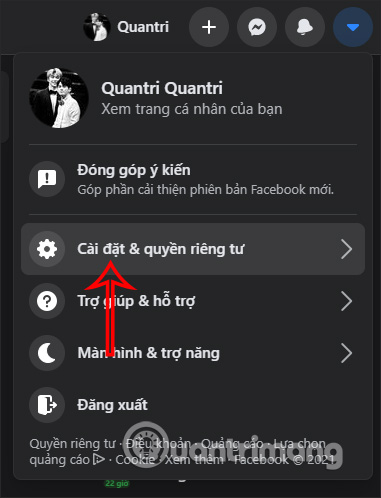
Open Accounts Center, then select Personal details > Account ownership and control > Deactivation or deletion. In the older layout, choose Your Facebook information > Deactivation and deletion.

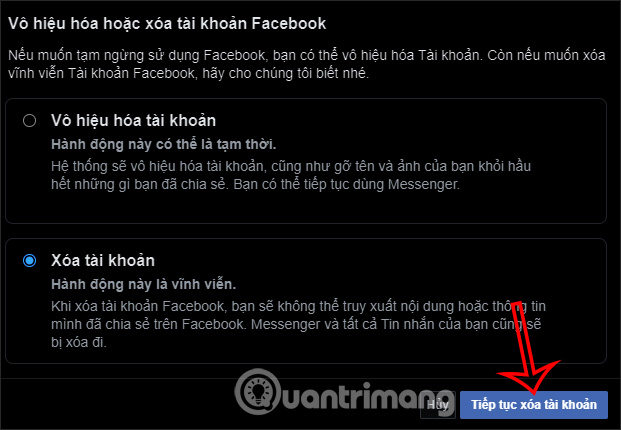
Select the correct profile, choose Delete account, and continue through the review screens.
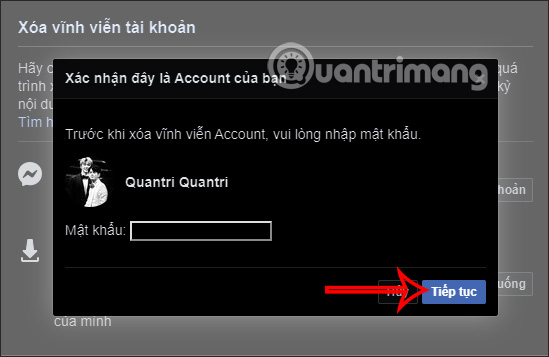
Complete the required identity confirmation, then confirm deletion.
Can deletion be canceled?
Facebook normally displays a cancellation window before permanent deletion. The confirmation screen is the authoritative source for the current deadline. Logging back in and choosing to cancel during that window may restore the account; after the deadline, recovery may no longer be possible.
Facebook may retain some information for legal, security, or backup purposes even after it is no longer visible to other users. Review the deletion notice shown for the account if the exact retention process matters.
If you only need a break
Choose Deactivate account instead of deletion. Deactivation is better when you may return later or want to preserve the account while temporarily hiding the profile. Read the Messenger and connected-account options on the confirmation screen before proceeding.
Related Articles
 How to Permanently Delete a Facebook Account on a Computer5 minutes read
 How to Delete Facebook Account6 minutes read
 How to Permanently Delete Tik Tok Account on the Phone4 minutes read
 Instructions for Temporarily Locking, Permanently Facebook Iphone /6 minutes read
 Instructions for Deleting Facebook Temporarily, Permanently on5 minutes read
 How to Delete a Facebook Account Permanently5 minutes read
Reader Comments 0
Sign in with email or Google to join the discussion.