Table of Contents
You can access Messenger from the official Android or iPhone app, the Messenger desktop app where available, or the official website in a computer browser. Sign in with the Facebook or Meta account credentials associated with Messenger and complete any security check shown by the official service.
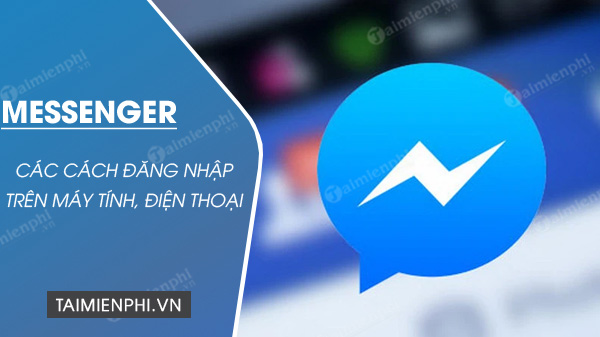
Log in to Messenger in a computer browser
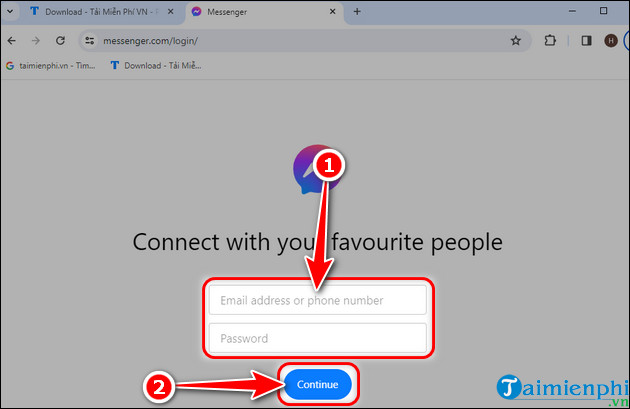
- Open the official Messenger website or reach Messenger through Facebook.
- Confirm that the address belongs to Facebook, Meta, or Messenger before entering credentials.
- Enter the email address or phone number associated with the account and the password.
- Complete two-factor authentication or another official security check if requested.
- Wait for the conversation list to load and confirm that the profile is the correct one.
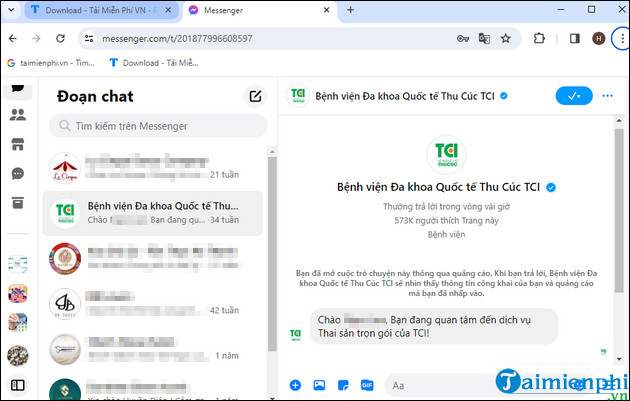
On a personal computer, the browser may offer to remember the session. Do not save a password or leave the account signed in on a shared, public, school, hotel, or library computer.
Log in with the Messenger mobile app
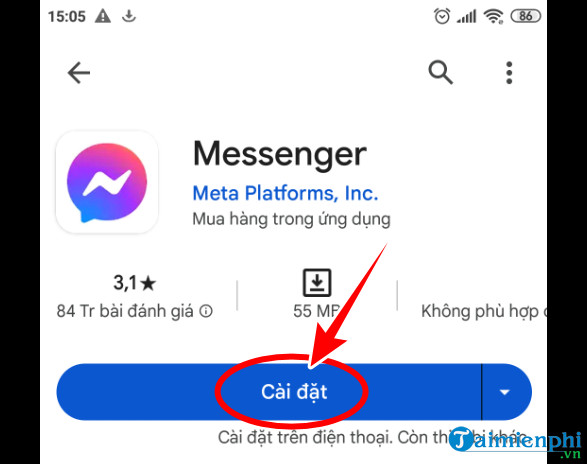
- Install Messenger from Google Play or Apple's App Store.
- Open the app and select the account shown, or choose the option to sign in to another account.
- Enter the credentials for the account associated with Messenger.
- Complete the requested verification.
- Review notification, contact, microphone, camera, and photo permissions individually; allow only the access you need.
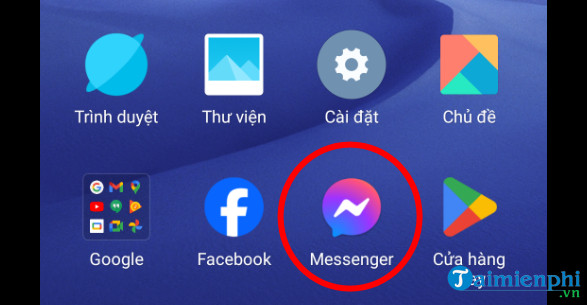
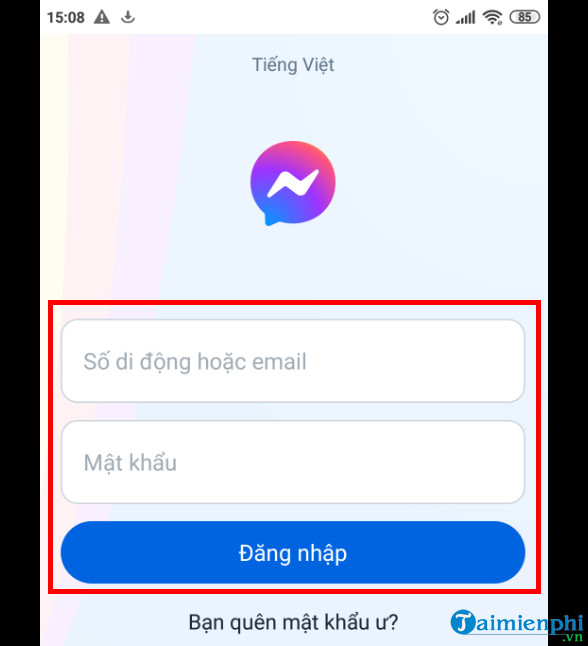
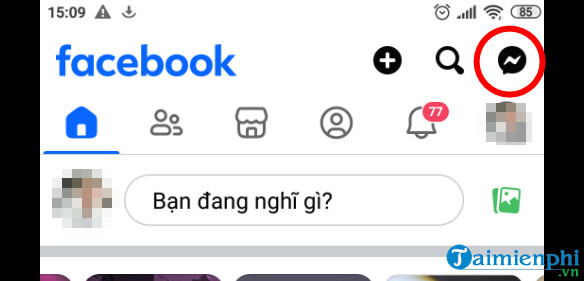
If the Facebook app is already signed in, Messenger may offer that profile. Check the name and profile photo before continuing, especially on a device used by more than one person.
For installation details, see TipsMake's guide to installing Facebook Messenger.
Use Messenger in a mobile browser
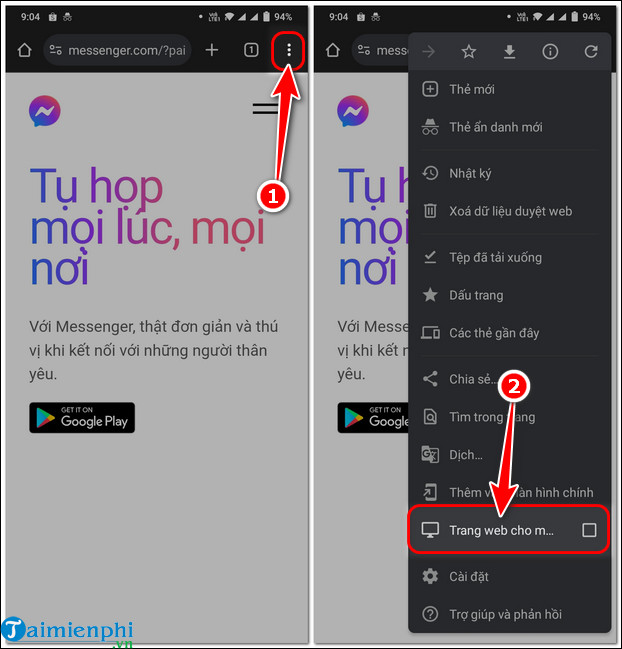
The mobile website may open Messenger in the Facebook site, redirect to the app, or provide a limited browser experience. If the ordinary mobile page does not expose the conversation controls, use the official Messenger app. Requesting the desktop site can work in some browsers but is not a reliable substitute on every phone.
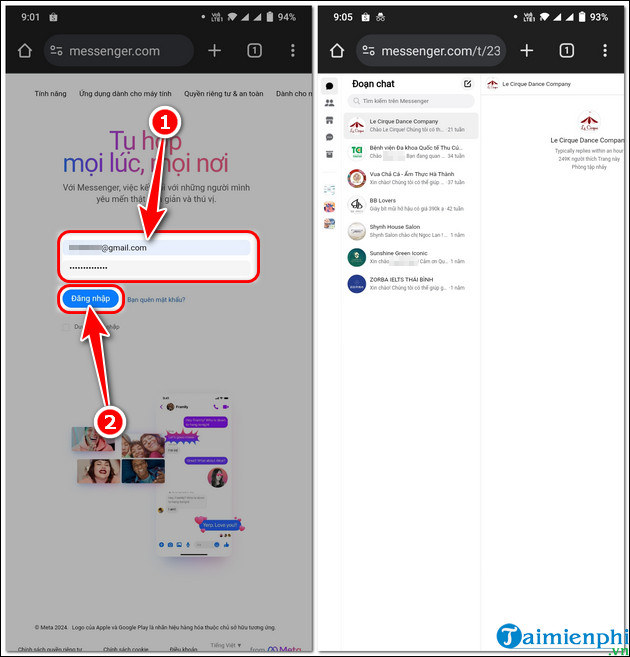
Switch between Messenger accounts
In the Messenger app, tap the profile or menu control and look for account switching or adding another account. Add only accounts you own or are authorized to use. On a shared device, remove the account from the switcher when you finish rather than only closing the app.
On a computer, use separate browser profiles for different authorized accounts when possible. This reduces accidental messages from the wrong identity and keeps cookies, saved logins, and notifications separate.
If you forgot the password
Select Forgot password? on the official sign-in screen. Use a recovery email address, phone number, or other method offered by Facebook. Never send a login code or recovery link to a person claiming to be support.
If you no longer control the listed recovery method, follow the official account-recovery prompts. Do not create a replacement account until you understand whether the original can be recovered and whether important Page or business access is attached to it.
Fix common Messenger login problems
- Wrong password: Check the account identifier and reset the password through the official flow.
- Code never arrives: Confirm the destination, connection, time settings, and blocked-message folders; request a new code only after the retry timer permits it.
- Login loop: Update the app or browser, restart the device, and try the official website once.
- Account disabled or suspended: Use the review option attached to the Facebook account decision.
- App opens the wrong profile: Cancel, switch Facebook or Messenger accounts, and verify the name before continuing.
- Messages do not load after login: Check the network, restart Messenger, and confirm that the account is not restricted.
Keep Messenger login secure
- Use a unique password and enable two-factor authentication.
- Review active sessions and sign out devices you do not recognize.
- Do not scan an unsolicited QR code to “verify” Messenger.
- Do not install unofficial Messenger APKs, extensions, or desktop wrappers.
- Hide notification previews if private messages appear on the lock screen.
- Sign out and remove the account from shared devices.
If official recovery or support is needed, use TipsMake's guide to contacting Facebook support. More messaging instructions are available in the social-network section.
Related Articles
 How to Unblock Messenger on Phone, Computer4 minutes read
 Only with Messenger Tips, You'll Know Where the Phone Owner Is4 minutes read
 How to Change Messenger Color on Phone, Computer4 minutes read
 Instructions on Sending Files via Messenger on Your Phone and Computer6 minutes read
 How to Unarchive Messenger Chats on Mobile and Desktop9 minutes read
 Have You Experienced 'My Day' on the Messenger App?: Messenger Day5 minutes read
Reader Comments 0
Sign in with email or Google to join the discussion.