Table of Contents
You can send many document types through Messenger, including PDFs, Word files, spreadsheets, and text files. On Android and a computer, attach the file from inside the chat. On an iPhone, sharing the file from Apple’s Files app is often the most reliable method.
Messenger’s available buttons, accepted formats, and size limits can change. If a file is rejected, compress it or share a view-only link from a trusted cloud-storage service instead.
Send a file in Messenger on Android
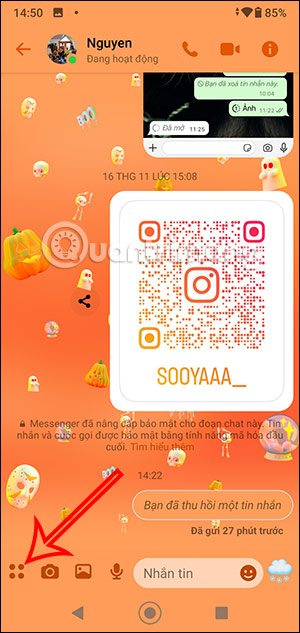
Step 1: Open the conversation. Tap the plus, four-dot, or circular attachment button beside the message box, then choose File. If File is not visible, expand the menu or update Messenger.
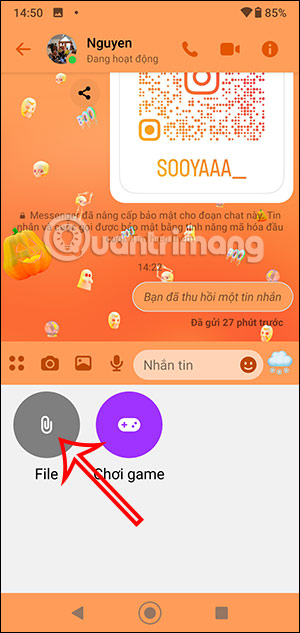
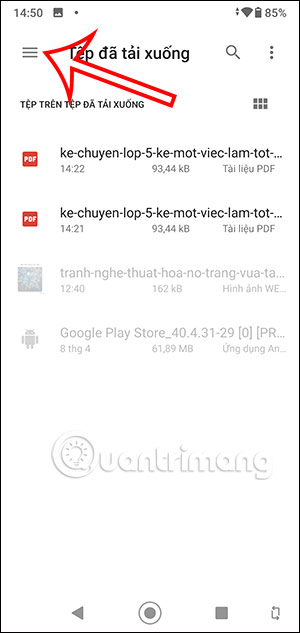
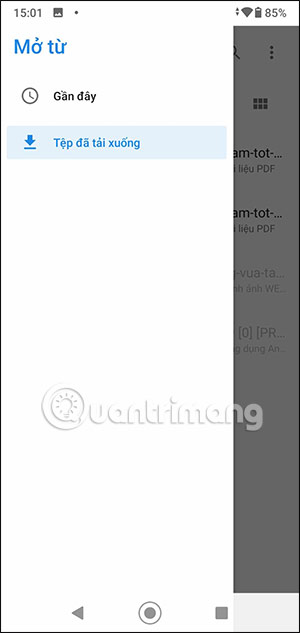
Step 2: Android’s file picker opens. Use the menu to browse Downloads, Documents, recent files, local storage, or a connected cloud provider. Tap the intended file and confirm the upload.
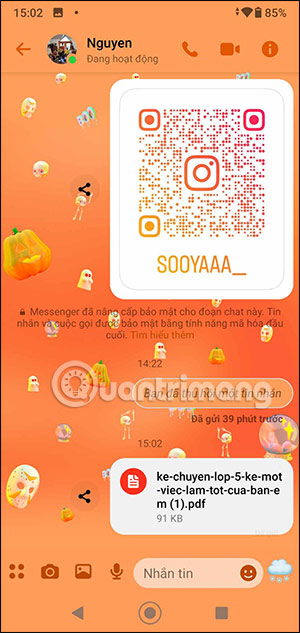
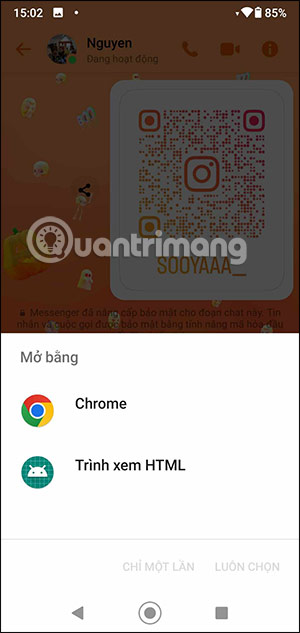
Step 3: Wait until the file appears in the chat with a successful status. The recipient can tap it and choose an installed app that supports the format. A browser or download manager may handle some files.
Send a file from Messenger on a computer
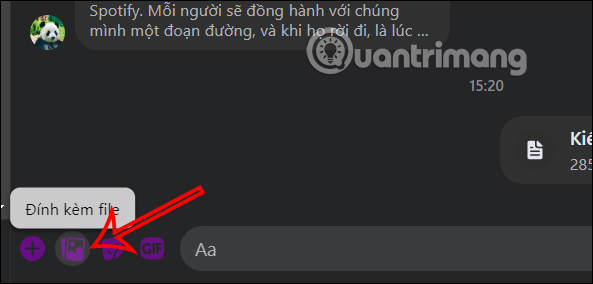
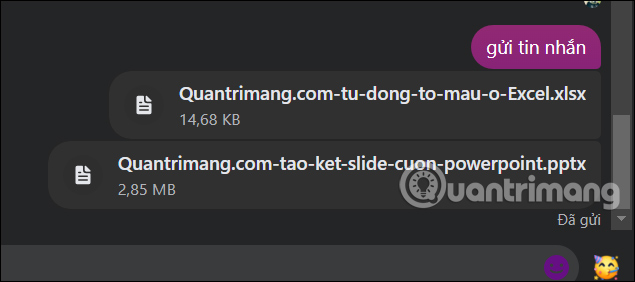
Step 1: Open Messenger on the web or in the desktop app, select the conversation, and click the Attach files or paperclip icon.
Step 2: Find the file in the system picker, select it, and click Open. Check the filename before sending; you can add a separate explanatory message if needed.
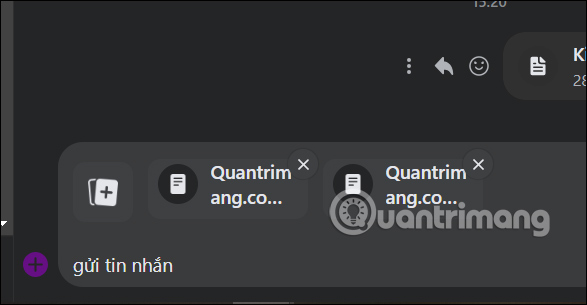
Step 3: Send the message and keep the tab or app open until the upload finishes. The attachment should then appear as a downloadable item in the conversation.
Send a file in Messenger on iPhone or iPad
Step 1: Open Apple’s Files app and locate the document. Open it and tap Share, or touch and hold the file and choose Share.
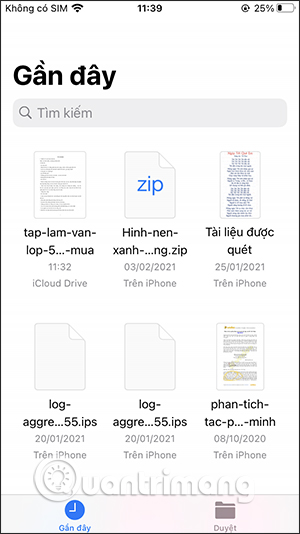
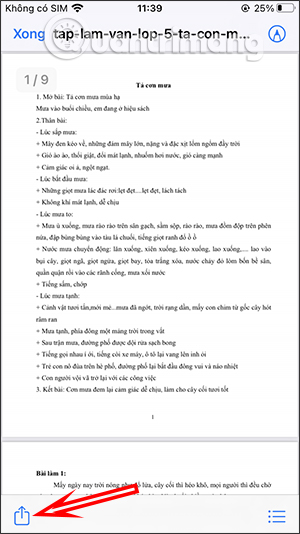
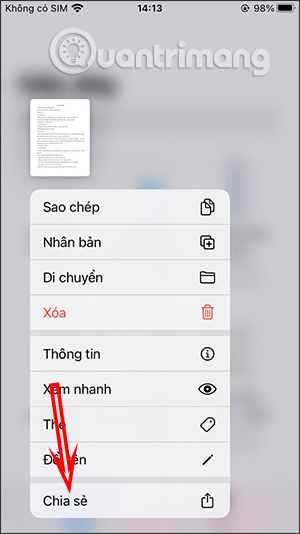
Step 2: Choose Messenger in the share sheet. If it is hidden, scroll through the apps, tap More, and enable Messenger. Select the correct conversation or search for the recipient, then tap Send.
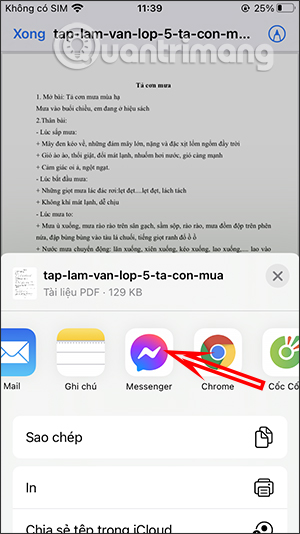
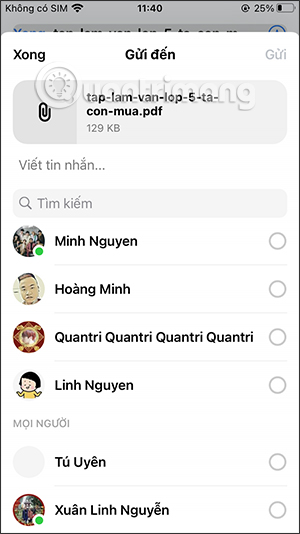
Step 3: Open the conversation in Messenger and confirm that the attachment was delivered.
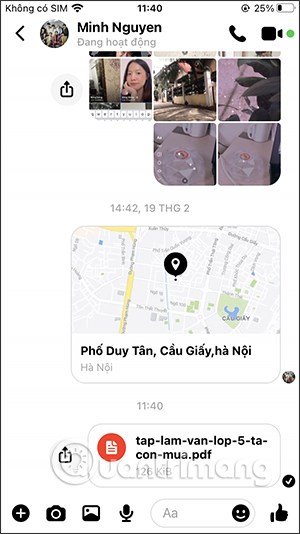
If Messenger will not send the file
- No File button: use the phone’s Files app and its Share command, or try Messenger on a computer.
- Unsupported format: place related files in a ZIP archive, provided the recipient expects it and can open it safely.
- File too large: reduce its size or upload it to a trusted cloud service and send a link with appropriate access permissions.
- Upload stalls: check the connection, reopen Messenger, and retry only after confirming the first copy was not delivered.
- Recipient cannot open it: ask which format and app they support; PDF is usually suitable for documents that should not be edited.
Share files safely
Verify the recipient and filename before sending confidential material. Messenger is not a substitute for an organization’s approved secure file-transfer system. Do not open unexpected executable files, archives, or documents that request macros, even when they appear to come from a familiar account.
Related Articles
 Tips for Sending RAR Files via Facebook Messenger on Your3 minutes read
 How to Sending Photos That Can Only Be Viewed Once on Messenger4 minutes read
 Only with Messenger Tips, You'll Know Where the Phone Owner Is4 minutes read
 Messenger Can Send Files Up to 100MB: What to Know4 minutes read
 How to Unblock Messenger on Phone, Computer4 minutes read
 How to Change Messenger Color on Phone, Computer4 minutes read
Reader Comments 0
Sign in with email or Google to join the discussion.