Table of Contents
Learning how to change messenger color on phone, computer doesn't have to be complicated. This updated guide presents a clear workflow, practical checks, and troubleshooting advice you can use while completing the process.
Key Takeaways
- Follow the steps to change color on messenger phone.
- Explore instructions to change messenger color on computer.
- Follow the recommended steps in order to avoid common mistakes with change messenger color on phone, computer.
How to Change Color on Messenger Phone
Step 1:
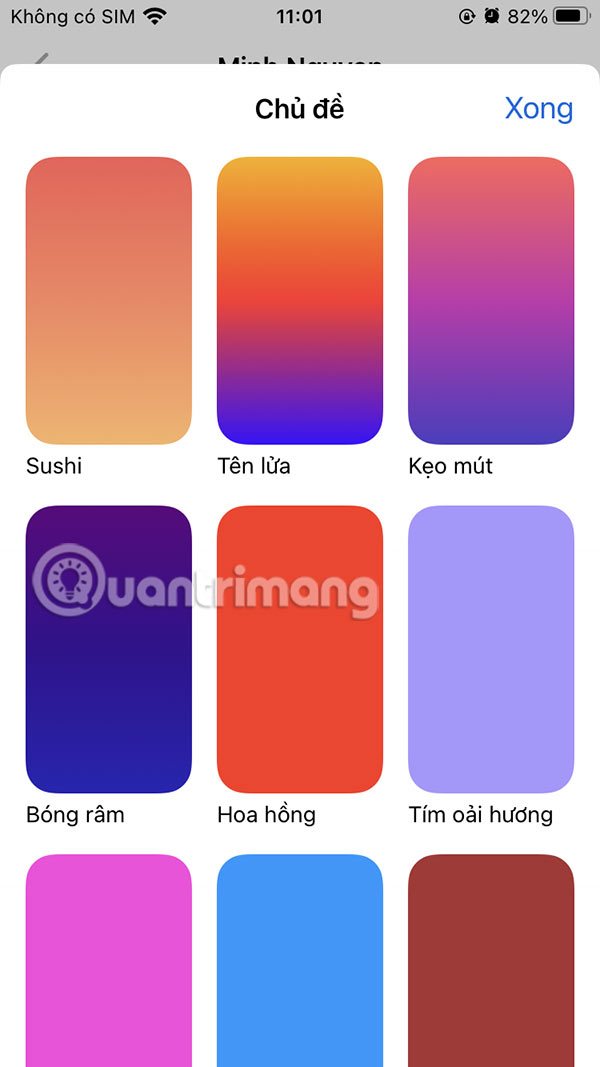
On the Messenger interface, users select the chat to change the chat box color. Next, select the Theme section to make changes.


Step 2:
Display different themes, you scroll down below to see the monochrome color for us to choose. You select the color you want to change on Messenger to preview the message frame color display. Select the Select button to install if you like it.

Step 3:
Go back to the Messenger interface and you will see the Messenger message frame color has been implemented.


Instructions to Change Messenger Color on Computer
Step 1:
You access Messenger on your computer and select the drop-down arrow icon to open the customization for the messaging interface. Next, you select Change theme to do it.

Step 2:
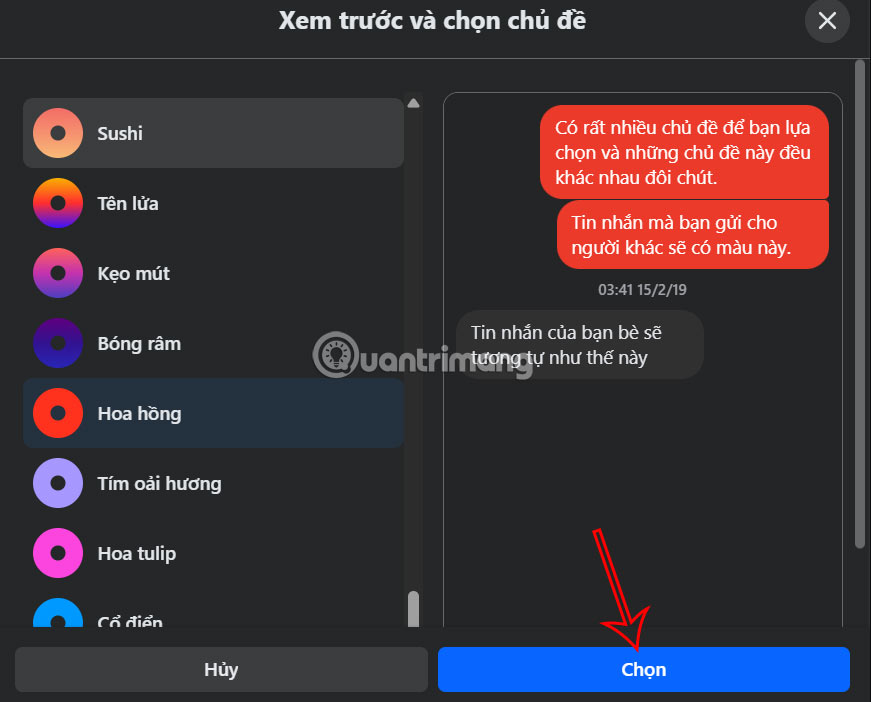
The theme options interface for the chat interface on Messenger appears. Scroll down and you will see the monochrome color option to choose for the chat interface on Messenger computer.

Step 3:
You choose the color you want to use and right next to it, the chat box will be displayed for you to preview. Click Select below to save if you like it.
Final Thoughts
The most reliable way to handle change messenger color on phone, computer is to follow the process in order, verify each important setting, and test the result before moving on. Use the guidance above as a practical reference, then adjust the details for your device, software version, or specific goal.
FAQ
What should I check before I change messenger color on phone, computer?
Use the latest available software, confirm that your device meets the requirements, and make sure you have the necessary permissions, account access, or backup before changing anything.
Why might I be unable to change messenger color on phone, computer?
Common causes include outdated software, missing permissions, incompatible settings, incomplete setup steps, or a temporary network problem. Recheck the process from the beginning and restart the app or device if needed.
Is it safe to change messenger color on phone, computer?
It is generally safe when you use official tools, review every permission, and back up important data before making system-level or account-level changes.
Related Articles
 Instructions for Changing Emoji Color on Messenger: Complete Overview5 minutes read
 Transform Color Chat Window Facebook Messenger: Mauf Messenger6 minutes read
 How to Change Chat Box Color on ChatGPT3 minutes read
 It Is Possible to Change the Gradient Color Frame of Chat in the Facebook Messenger Application3 minutes read
 How to Change the Color of Messages in Messenger4 minutes read
 Messenger Returns to the Old Interface After Only a Few Hours of Testing the New Interface4 minutes read
Reader Comments 0
Sign in with email or Google to join the discussion.