Table of Contents
Archiving a Messenger chat removes it from your main Chats list without deleting the conversation. It affects only your inbox view—the other participants can still see their copy of the chat and can send new messages.
To restore an archived conversation, open Messenger's Archive or Archived chats section and choose Unarchive. The exact menu icon may vary slightly by app version.
Archive a Messenger chat
On Android or iPhone
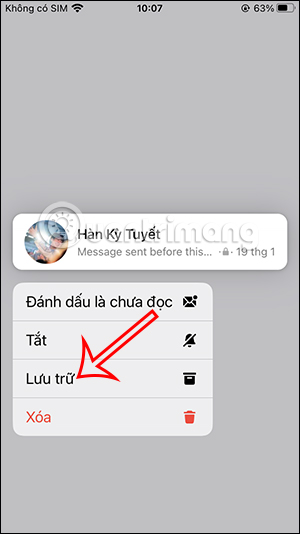
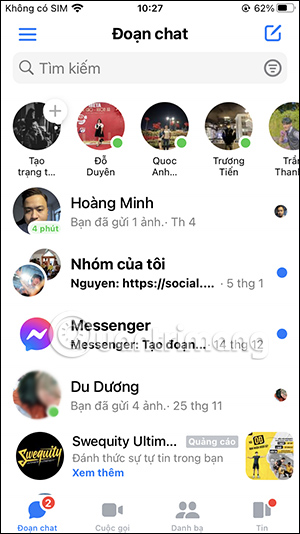
- Open Messenger and display the Chats list.
- Touch and hold the conversation you want to hide.
- Tap Archive.
On a computer
In Messenger's conversation list, move the pointer over the chat, select the three-dot Options button, and choose Archive chat.

The conversation disappears from the normal Chats list, but its messages remain available in the archive.
Unarchive a Messenger chat on a phone
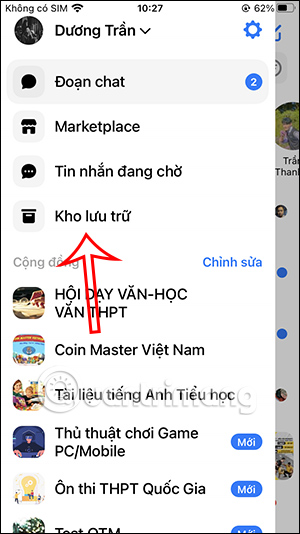
- Open the Messenger app.
- Tap the Menu button, shown as three horizontal lines in many versions.
- Select Archive.
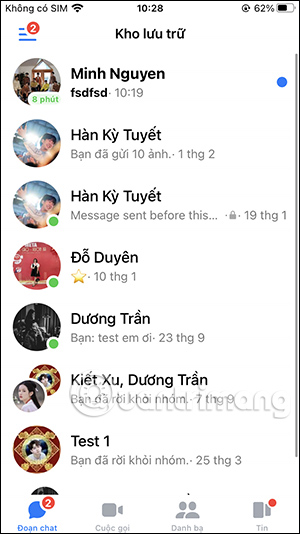
- Find the conversation you want to return to the inbox.
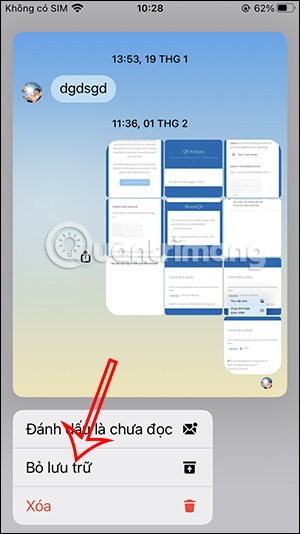
- Touch and hold the chat, then tap Unarchive.
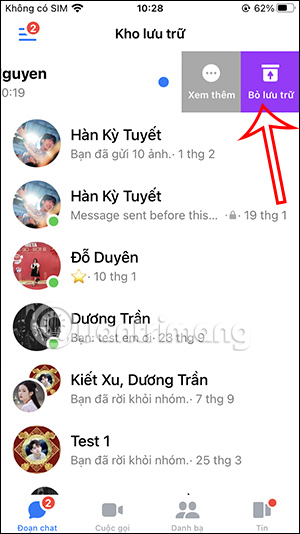
Some Messenger versions also show conversation actions when you swipe left. If Unarchive appears there, you can use it instead of touching and holding.
Restore a chat by sending a message
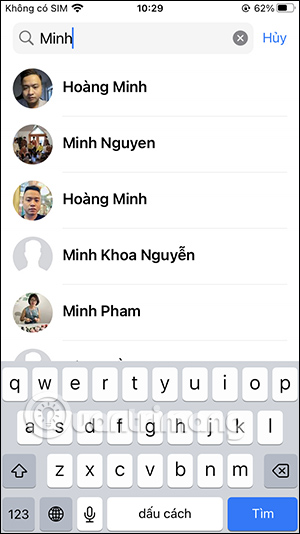
You can search for the person's name, open the archived conversation, and send a new message. The active conversation should return to the main Chats list.
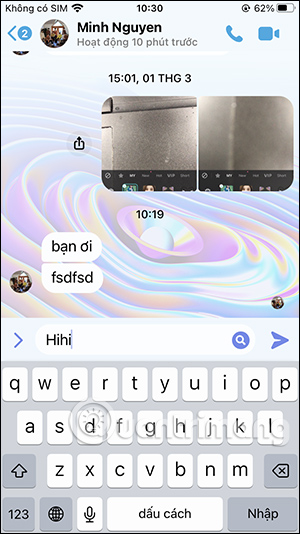
Use the explicit Unarchive action if you do not want to send a message.
Unarchive a Messenger chat on a computer
- Open Messenger on the web or the Messenger area in Facebook.
- Open the main options menu and select Archived chats.
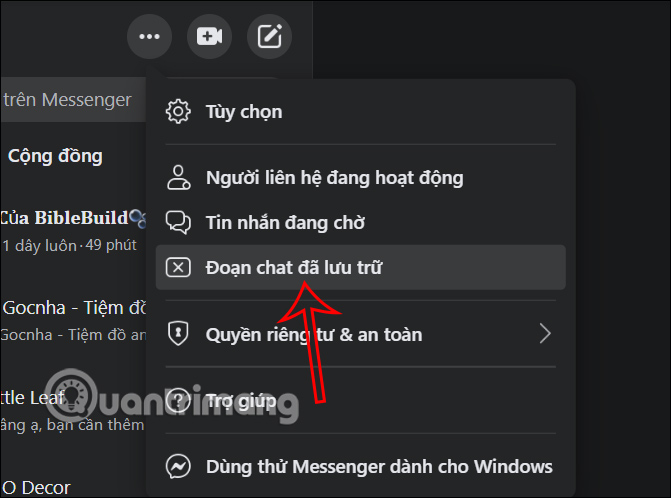
- Move the pointer over the conversation.
- Click the three-dot Options button.
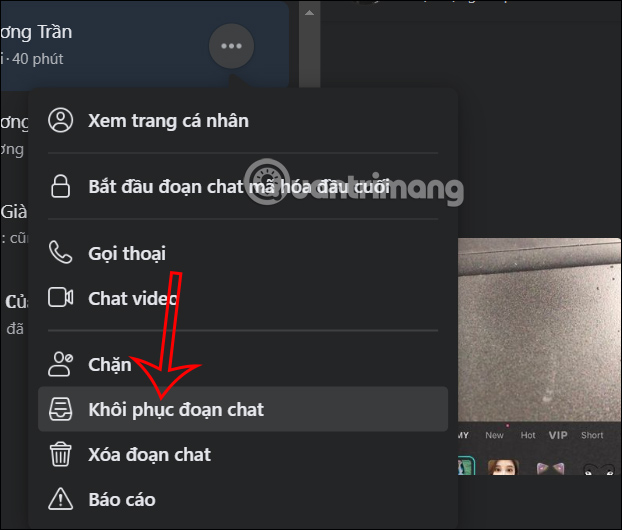
- Select Unarchive chat.
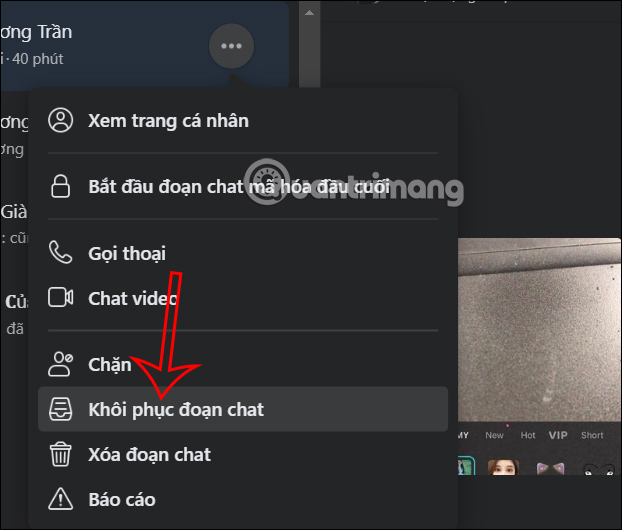
The conversation will return to the regular chat list.
Archive, delete, mute, and restrict are different
- Archive hides the chat from the main list while retaining its message history.
- Delete removes the conversation from your account and is not the correct option if you may need the history later.
- Mute keeps the chat in place but stops selected notifications.
- Restrict changes how messages and interactions from that person are handled; it is not simply an archive folder.
If the archived chat is missing
- Use Messenger search and try the person's name, group name, or a word from the conversation.
- Confirm that you are signed in to the same Facebook account that archived the chat.
- Check Message requests and Spam if the conversation was never in your normal inbox.
- If you selected Delete rather than Archive, the chat will not appear in Archived chats.
- Update or restart Messenger if the Archive menu does not load, then check from the web version.
Unarchiving changes only where the conversation appears. It does not notify other participants that you moved the chat back to your inbox.
Related Articles
 How to Unarchive Messenger Messages4 minutes read
 How to Fix Messenger on a Computer Stops Working?3 minutes read
 How to Fix Some Common Errors on Facebook Messenger5 minutes read
 Facebook Message Statistics Show Who Sends the Most Messages on Facebook9 minutes read
 Only with Messenger Tips, You'll Know Where the Phone Owner Is4 minutes read
 How to Stop Receiving Messages from Strangers on Messenger7 minutes read
Reader Comments 0
Sign in with email or Google to join the discussion.