Table of Contents
This updated guide explains how to install/uninstall wireless display on Windows 11 with clear steps, practical tips, and useful context. The Wireless Display feature in Windows 11 lets you connect and mirror your smartphone screen to your PC. This is a useful utility for viewing content from your phone or tablet on a larger screen.
In Windows 11, Wireless Display is an optional feature and requires a Miracast-compatible PC to work. Since it is an optional feature, you will have to install it to get started with Miracast. Today's article will show you two ways to install Wireless Display in Windows 11 to help mirror your Android phone screen to your PC.
How to Enable Wireless Display Using Settings
You can install Wireless Display as an optional feature from the Settings panel. Before doing so, ensure to check if your PC is Miracast compatible. If so, follow the steps below to install Wireless Display.
To set up Wireless Display:
1. Press Win + I to open Settings.
2. Open the Apps tab in the left pane.
3. Next, scroll down and select the Optional features option.
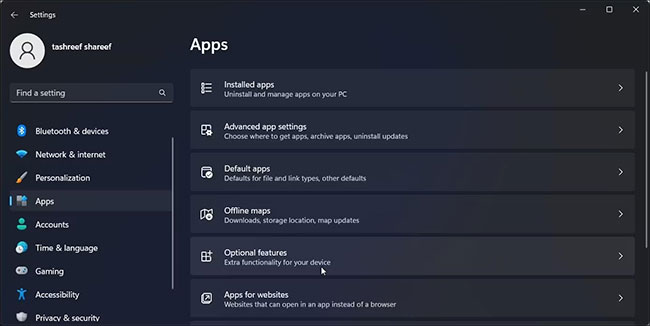
4. choose View features for Add an optional feature .
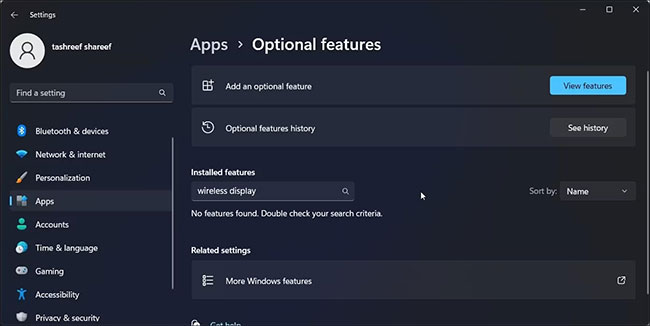
5. In the Add an optional feature dialog box, type wireless display.
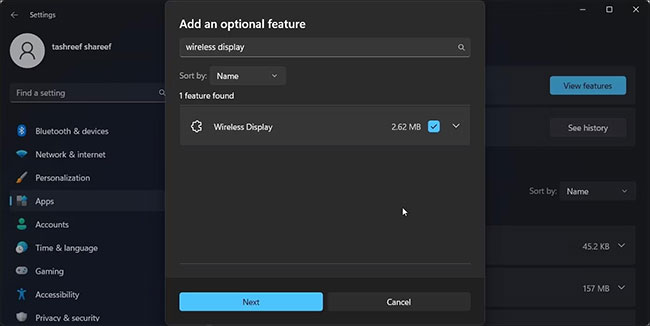
6. Select Wireless Display from the search results and choose Next.
7. choose Install , then wait for Windows to download and install the application.
After installation, restart your PC. After restarting, open Windows Search ( Win + S ) and type Wireless Display. Now you can connect your smartphone or tablet to your PC and project your screen wirelessly.
How to Install Wireless Display Using Command Prompt
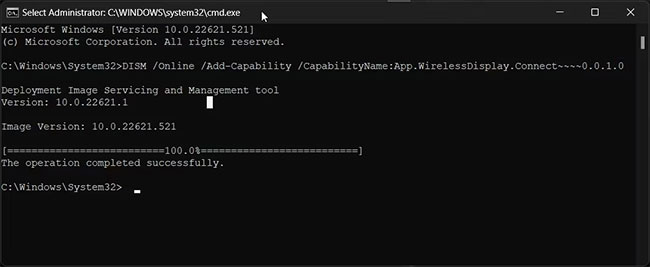
You can install Wireless Display using Command Prompt. To install the application, you can use the Features on Demand(FODs) command in the command line utility.
To install Wireless Display using Command Prompt:
1. Press the Win key and type cmd.
2. From the search results, right-choose Command Prompt and select Run as administrator.
3. In the Command Prompt window, type these command and press Enter:
DISM /Online /Add-Capability /CapabilityName:App.WirelessDisplay.Connect~~~~0.0.1.04. Windows will download and install the Wireless Display application. This process may take a while, so wait until the progress bar reaches 100%.
5. Once you see the success message, close the Command Prompt window and restart your PC.
How to Project Screen Using Wireless Display
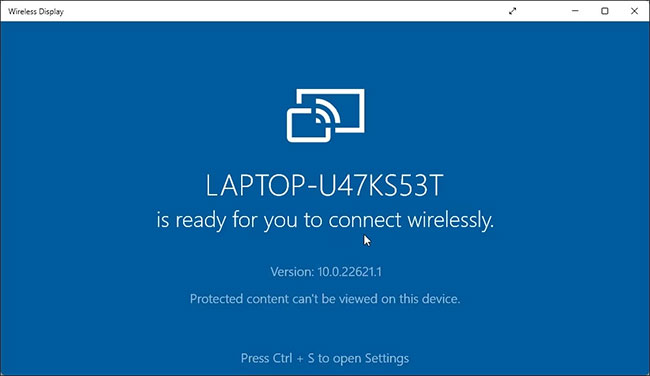
Now that you have successfully set up Wireless Display, you can start projecting your smartphone or other compatible devices to your screen.
To use Wireless Display:
1. Connect your Android phone and Windows PC to the same WiFi network.
2. Next, press the Win key and type wireless display.
3. From the search results, choose Wireless Display to open the application.
4. On your Android phone, scan for wireless displays. for instance, on a Samsung Galaxy device, open Smart View and select your PC from the list of available devices.
You can configure additional projection settings on your PC so that Wireless Display is always available. This way, you can project from your Android phone even if the Wireless Display app isn't open on your PC.
To keep Wireless Display available:
1. Press Win + I to open Settings.
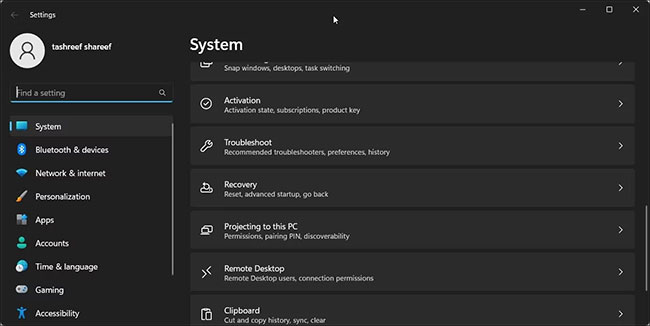
2. With the System tab selected, scroll down and choose Projecting to this PC .

3. Next, select Some Windows and Android devices can project to this PC when you say it is OK and select Available everywhere.
Now, if you try to mirror your Android phone screen to your PC, Windows will automatically launch the Wireless Display app and start mirroring the screen.
How to Uninstall Wireless Display in Windows 11
You can uninstall Wireless Display from Settings. Similarly, Command Prompt is another reliable option to uninstall apps in a jiffy.
Let's look at two ways to uninstall Wireless Display in Windows 11.
Using Settings:
1. Press Win + I to open Settings.
2. open Apps > Optional features .
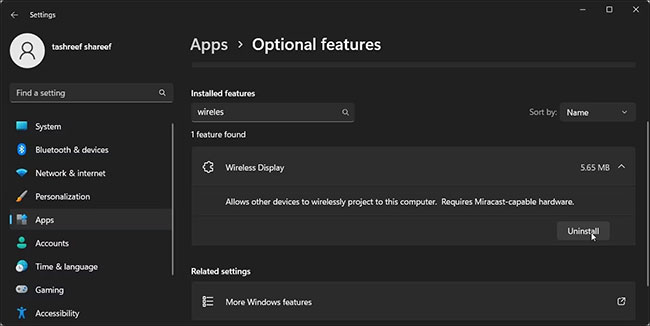
3. Type Wireless Display into the Installed features search bar.
4. choose Wireless Display and then select Uninstall.
Using Command Prompt:
1. Open Command Prompt with admin rights.
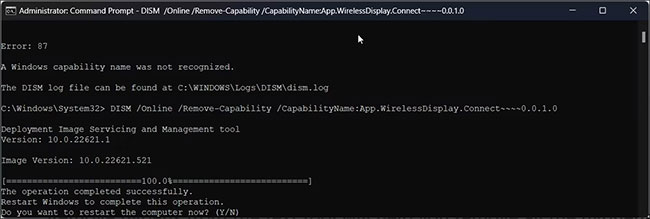
2. In the Command Prompt window, type these command and press Enter:
DISM /Online /Remove-Capability /CapabilityName:App.WirelessDisplay.Connect~~~~0.0.1.03. Wait for the app to uninstall. Then restart your PC to apply the changes.
The Wireless Display app makes it easy to view your Android screen on your Windows PC. It also saves you the hassle of installing third-party screen mirroring apps that often require a subscription.
Unfortunately, you cannot use Wireless Display to mirror your iPhone screen to your PC. because of Apple's ecosystem, you'll have to rely on third-party apps to mirror your iPhone screen to your Windows computer.
FAQ
What should I prepare before I install/uninstall wireless display on windows 11?
Review the requirements and options in the guide first. Having the correct device, app version, account access, or materials ready helps prevent avoidable errors.
How long does it take to install/uninstall wireless display on windows 11?
The time depends on the task and your setup. Most basic steps can be completed quickly, while downloads, updates, scans, or troubleshooting may take longer.
What should I do if the steps do not work?
Repeat the instructions in order, confirm that your software or device is supported, and check permissions, connectivity, and available updates before trying again.
Related Articles
 How to Project a Laptop Screen on a TV Using Wi-Fi Display /8 minutes read
 Router: How to Set up a Wireless Network in Windows Xp3 minutes read
 Toshiba's New Laptop Connects Wirelessly to the TV3 minutes read
 Wireless LAN Technologies and Microsoft Windows18 minutes read
 The Difference Between Wireless and True Wireless Headphones8 minutes read
 Wireless Connection: Set up Wireless Network2 minutes read
Reader Comments 0
Sign in with email or Google to join the discussion.