Table of Contents
Windows 11 has quietly added a layer of artificial intelligence that is very useful for users. Below are some of the available AI features on Windows 11 that you shouldn't miss.
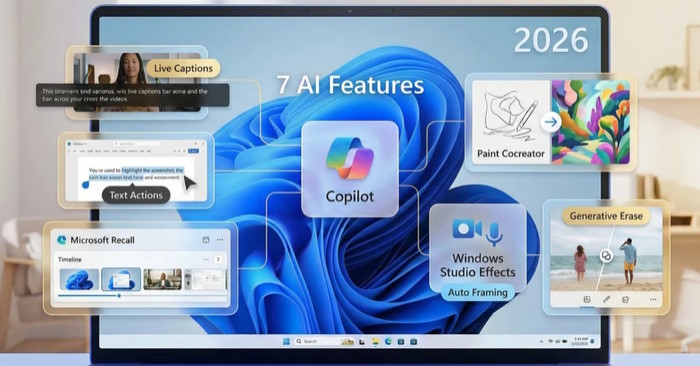
Microsoft has clearly positioned artificial intelligence (AI) as the cornerstone of Windows' future, and the Windows 11 AI 2026 update marks a significant milestone in that transition. Modern Windows PCs—especially Copilot+ PCs—are now equipped with neural processing units (NPUs) that accelerate AI tasks directly on the device. This shift enables faster, more efficient operating system performance and stronger security by allowing more AI features to run locally instead of relying entirely on cloud servers.
As a result, enhanced capabilities like Windows Copilot, AI Explorer, and Microsoft Recall run more smoothly, are more responsive, and remain available even with limited internet connectivity. Windows 11 is no longer just an operating system—it has become a productivity platform powered by AI that anticipates user needs and minimizes the difficulties of everyday work.
AI Assistant - Copilot
Copilot is at the heart of the Windows 11 AI experience. Think of it as a system-level assistant that can answer questions, summarize documents, create texts, suggest ideas, and even guide you through tasks. You can ask it to compose emails, summarize PDFs, plan projects, or explain complex topics. It can do all of this without opening separate applications.
In addition to writing and research, Copilot can also help manage your PC. You can ask it to adjust settings, help troubleshoot problems, or show you the appropriate system controls. With recent updates, Copilot can interact with voice commands using the 'Hey Copilot' wake command, making it more like a conversation tool than a search engine.
Copilot Vision enhances support by analyzing what users are viewing. When you share your screen or a specific app, Copilot can offer suggestions, explain what you're seeing, or provide step-by-step instructions for performing a task.
This is especially useful when learning new software, reviewing presentations, or troubleshooting installations. This feature can even highlight specific click locations within applications, turning your computer into a live tutor rather than just a passive assistant.
Live subtitles and real-time translation
Accessibility is a great advantage of AI, and the Live Caption feature clearly demonstrates that.
This feature can record any audio from your computer, whether it's a YouTube video, podcast, or live video call, and convert it into text at the top of your screen in real time. This is a necessary feature for anyone with hearing impairment, but it's also great for watching videos in a quiet office without headphones.
The real magic lies in its translation feature. Windows can now translate spoken audio from dozens of languages into your chosen language instantly. If you're calling a Spanish-speaking colleague, Windows can display English subtitles as they speak. It breaks down language barriers and makes the global digital world smaller and more interconnected.
Extract text from screenshots
One of the most underrated tools in Windows 11 is the AI-powered Snipping Tool. Now, it has added Text Actions, which uses optical character recognition (OCR) to identify text in any screenshot. If you're viewing a screenshot of a historical document or a video slide, you can capture the text and copy it instantly to paste into a Word document or email. This saves a lot of time for students and researchers.
This tool also includes a Redact feature that automatically finds and hides sensitive information, such as email addresses or phone numbers, before you share screenshots with others. This is a smart, simple way to manage information that previously required manual input or the use of specialized PDF editors.
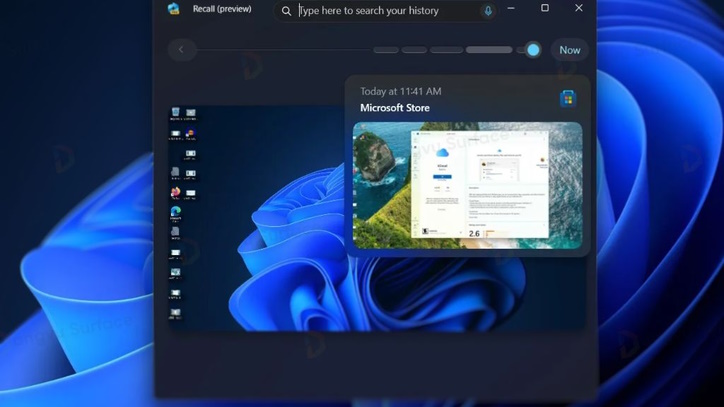
Microsoft Recall
Recall is perhaps one of Windows 11's most ambitious AI features, and also its most personalized. Available on Copilot+ computers, it acts as a searchable memory for everything that appears on your screen. It periodically captures snapshots of user activity and indexes them, so you can later search for things like "the article I read Thursday morning" or "the chart I did last week".
Of course, Microsoft has also integrated significant controls. Everything stays on your device; nothing is sent to Microsoft's servers. You can pause Recall, delete screenshots, exclude specific apps, and protect access with Windows Hello biometric verification. This feature is turned off by default. Essentially, Recall provides the PC with image memory, and gives the user full control over what it remembers.
Paint Creator: Doodle freely with AI
With Cocreator (powered by DALL-E), you can describe what you want to draw, and the AI will generate various art styles for you to choose from. You can start with a sketch and let the AI " fill in the blanks." It will transform a simple doodle into a professional digital painting. This is a great tool for brainstorming visuals or creating unique artwork for a project.
Windows Studio Effects
If you frequently participate in video calls, Windows Studio effects might be the most instantly effective AI feature on this list. It's a suite of tools that works silently in the background to help you see and hear better on camera, without the need for ring lights or high-end microphones.
This AI feature automatically frames your image, keeping you centered even while moving, while Portrait Lighting brightens your face in dark rooms. Eye Contact subtly adjusts your gaze so you appear to be looking directly at the camera instead of slightly to the side—a small adjustment that makes video calls much more personal. Voice Focus filters out background noise to ensure your voice is clear and crisp.
Related Articles
 8 Windows Features You Wish You Knew About Sooner: Practical Guide7 minutes read
 7 Windows 11 Features That Should Be Used More Often5 minutes read
 8 Features You May Not Know Even Though You Have Used Windows7 minutes read
 8 New Features Users Want to See in Windows 127 minutes read
 Windows 10 Redstone 4: New Features and Changes Are Waiting for You?13 minutes read
 Bring 7 Old Windows Features Back to Windows 109 minutes read
Reader Comments 0
Sign in with email or Google to join the discussion.