Table of Contents
A Wi-Fi outage does not automatically mean the router is broken. The fault can be the internet service, modem, router's WAN connection, wireless radio, Ethernet cable, power adapter, or one client device. Testing those layers in order avoids an unnecessary factory reset or replacement.
Start with the scope of the problem
- One device fails: troubleshoot that device's Wi-Fi profile, adapter, or driver.
- All Wi-Fi devices fail but wired devices work: focus on the router's wireless settings, radios, antennas, and placement.
- Wired and wireless devices both lose internet: check the modem/ONT, router WAN port, provider status, and cables.
- The network name disappears and router lights are off: check power, the adapter, outlet, and hardware condition.
Connecting one computer by Ethernet to a router's LAN port is a useful test, but it does not prove the entire router is healthy. If possible, compare a router LAN connection with a direct modem or ONT connection only when the provider supports it and you understand how to reconnect the equipment afterward.
1. Read the status lights and check power
Look for power, internet/WAN, Wi-Fi, and LAN indicators. Their exact colors and patterns vary by model, so use the manual rather than assuming red or blinking always means the same thing.
- Test the wall outlet with another device.
- Reseat the router's power plug and confirm the supplied adapter is firmly connected.
- Do not substitute a power adapter unless its voltage, polarity, connector, and current rating are compatible.
- If you smell burning, hear crackling, see swelling or melted plastic, or find liquid damage, unplug the device safely and stop using it.
2. Restart, not factory-reset
A restart keeps the Wi-Fi name, password, and internet settings. Turn the router off with its power control or unplug its power cable, wait briefly, and power it on again. If the setup has a separate modem or optical network terminal, restart that first and wait until it reconnects to the provider before starting the router.
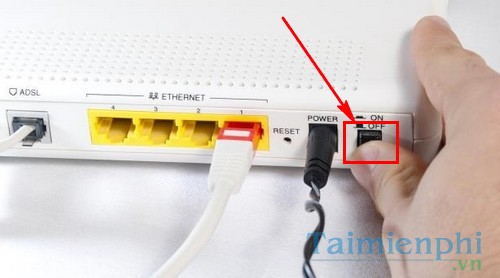
You do not need to recreate the network name or password after a normal restart. If settings disappear, the device may have been factory-reset, its storage may be failing, or the configuration was never saved correctly.
3. Check heat and ventilation
Routers become warm in normal use, but obstructed ventilation can cause instability or shorten component life. Place the unit upright or in the orientation specified by the manufacturer, keep vents clear, and do not stack it on another hot device.
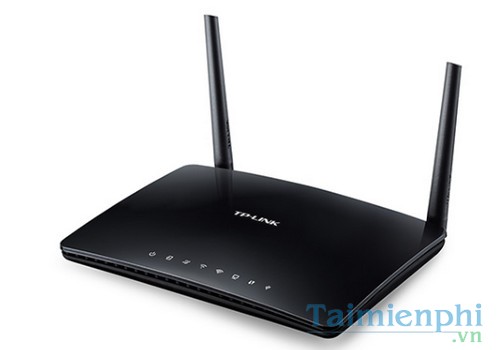
If the enclosure is unusually hot, power the router off and let it cool in a ventilated location. Do not open the case. Repeated shutdowns after improving airflow can indicate a failing adapter or internal component.
4. Inspect and isolate the cables
Reseat the internet cable at both the modem/ONT and router WAN port. Reseat a test computer's Ethernet cable at the router LAN port. Look for broken locking tabs, sharp bends, crushed sections, damaged connectors, and link lights that never appear.
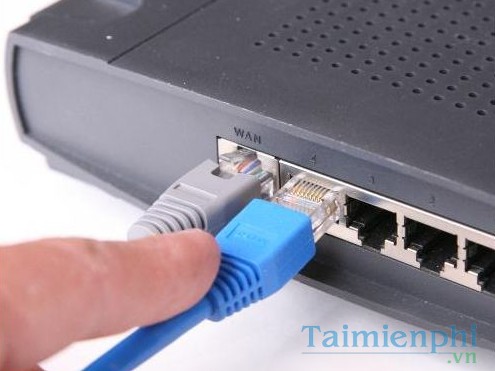
Replace one cable at a time with a known-good cable so the result identifies the fault. TipsMake's Ethernet setup guide can help verify a wired test.
5. Test Wi-Fi range and router placement
Stand near the router and test both 2.4GHz and 5GHz network names when they are separate. If the connection works nearby but fails in another room, the router may be healthy and the problem may be coverage or interference.
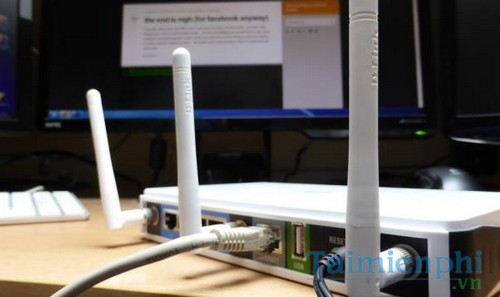
- Place the router in an open, elevated, central position.
- Keep it away from large metal objects, enclosed cabinets, and sources of radio interference.
- Attach all supplied external antennas and position them as the manual recommends.
- Use 2.4GHz for longer range and 5GHz or 6GHz for compatible devices closer to the access point.
- For a large or difficult layout, consider a correctly placed access point or mesh system instead of adding repeaters at the edge of coverage.
6. Check the management page and firmware
If you can open the router's local administration page, verify that:
- the WAN interface has an address and reports a connection;
- the 2.4GHz and 5GHz radios are enabled;
- the Wi-Fi network is not hidden unintentionally;
- DHCP is enabled for a typical home network;
- access-control, schedules, or parental-control rules are not blocking the test device;
- the installed firmware is intended for the exact model and hardware revision.
Use the administrator credentials printed on the label or created during setup; do not assume every router uses admin/admin. Install firmware only from the manufacturer's official support page, back up the configuration first, and do not interrupt power during an update.
7. Factory-reset only as a last resort
A factory reset erases the Wi-Fi name and password, administrator credentials, internet connection details, port forwards, parental controls, and other custom settings. Provider-supplied equipment can also lose settings needed to get online.
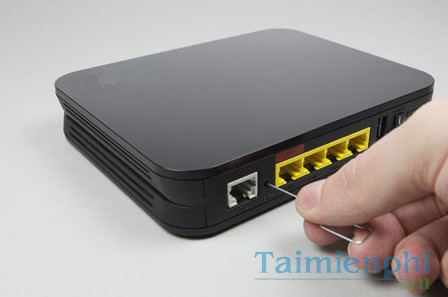
Before resetting, save a configuration backup and record provider details if you can. Follow the exact model manual for the button location and hold time; a five-second press is not universal. TipsMake's router and modem reset guide explains the difference between reset options.
Signs that replacement or repair is justified
- The router will not power on with a verified compatible adapter and working outlet.
- It repeatedly reboots after a factory reset and current official firmware.
- LAN ports fail with multiple known-good cables and devices.
- The radio disappears on every client even after configuration is restored.
- There is physical damage, burning odor, swelling, or liquid exposure.
- The model no longer receives security updates and cannot provide a suitable encryption mode.
Before buying new hardware, confirm that the provider line and modem/ONT are healthy. If the router works but unknown devices keep joining, replacement may not be necessary—change the Wi-Fi password, use modern encryption, and review TipsMake's guide to preventing unauthorized Wi-Fi access.
Related Articles
 11 Best Long-range Wi-Fi Routers 201816 minutes read
 7 Best 802. 11g Wireless Broadband Routers7 minutes read
 How to Secure the D-link Wireless Router9 minutes read
 How to Set Up a Wireless Router: Clear Instructions12 minutes read
 Expand Home Network: Expand Home Wi-Fi Network5 minutes read
 Why Should the Wi-Fi Transmitter Be Turned Off for 10 Seconds4 minutes read
Reader Comments 0
Sign in with email or Google to join the discussion.