Table of Contents
To install Snagit safely, download it from TechSmith or the Microsoft Store, run the installer as an administrator, and sign in with the TechSmith account linked to your subscription. The current Windows release is intended for supported Windows 10 and Windows 11 systems; check the requirements for your specific release before installing.
Before you install Snagit
- Confirm that your version of Windows meets the current Snagit system requirements.
- Use an administrator account, or ask your IT administrator to install the application.
- Close Snagit Capture and Snagit Editor if an older version is running.
- Back up important captures before changing or removing an existing installation.
Download the installer only from TechSmith, the Microsoft Store, or the download area associated with your TechSmith account. Avoid repackaged installers, cracks, and keys sold by unverified websites.
Install the current Windows version
The installer design can change between releases, so the wording on your screen may differ slightly from these screenshots.
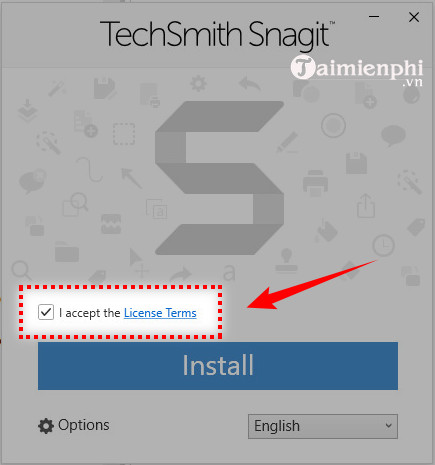
1. Open the installer and accept the license
Locate the downloaded snagit.exe file—usually in the Downloads folder—and double-click it. Select a language if prompted, read the license terms, and accept them to continue.
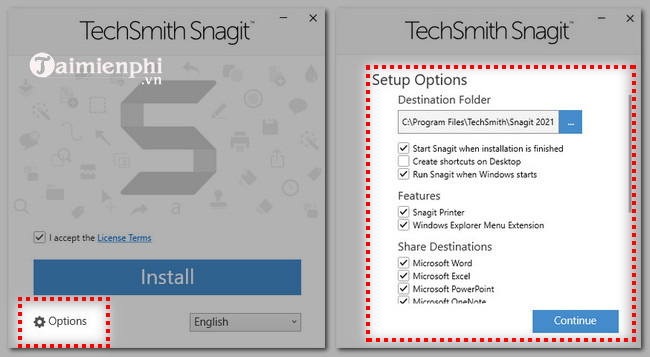
2. Review optional settings
Select Options only if you need to change the installation folder, shortcuts, or supported share destinations. Most people can keep the defaults.
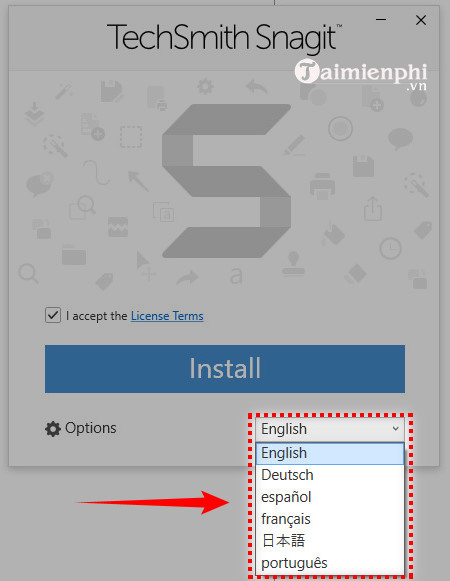
3. Start the installation
Choose the installer language, then click Install.
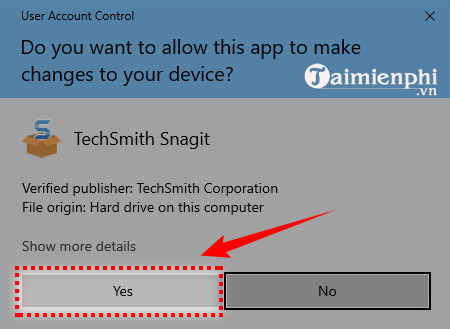
If Windows User Account Control asks for permission, check that the verified publisher is TechSmith before selecting Yes.
4. Wait for setup to finish
Leave the installer open while it copies the required files.
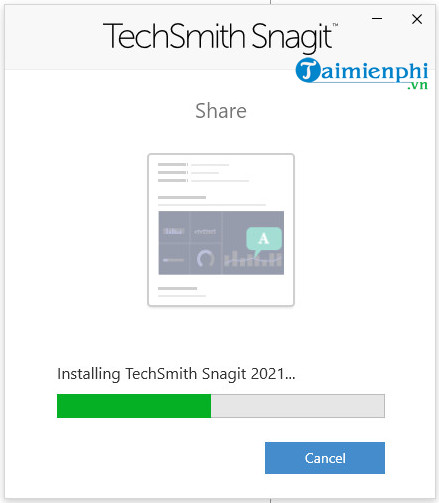
When setup completes, click Continue or launch Snagit from the Start menu.
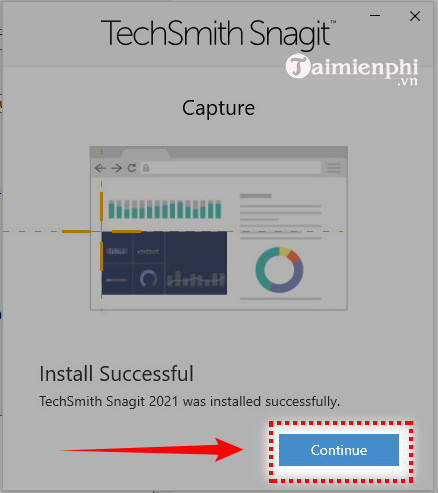
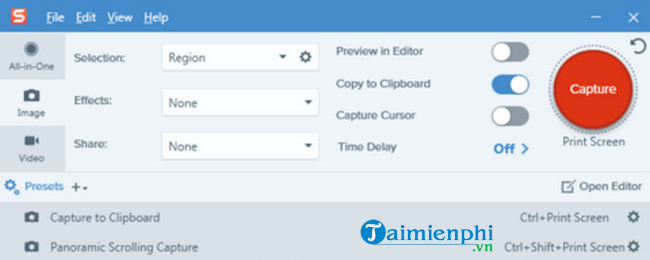
Activate Snagit or start the trial
For an individual subscription, open Snagit and sign in with the TechSmith account used for the purchase. Current individual subscriptions normally activate through the account rather than a manually entered software key. Organizations and some legacy licenses may still use a key; enter it only in the activation screen inside Snagit.
TechSmith currently describes the trial as fully functional for 15 days. Trial terms can change, so verify them on the official Snagit activation page. Do not buy a key from an unknown reseller simply because an old installer requests one.
Make a test capture
- Open Snagit Capture.
- Select Image or All-in-One, depending on the interface shown.
- Click Capture, then drag over a region or select a window.
- Check the result in Snagit Editor and save it to a known folder.
For more capture modes, see the TipsMake guide to taking screenshots with Snagit. If you only need an occasional image, Windows also includes Snipping Tool.
Installing Snagit 11 or another legacy version
The following screenshots show the older Snagit 11 setup wizard. Use this section only if you own a matching license and have obtained the installer from your TechSmith account. A legacy release may not be compatible with a current version of Windows and may no longer receive security or compatibility fixes.
1. Start the old setup wizard
Double-click the installer and select Next on the Welcome screen.
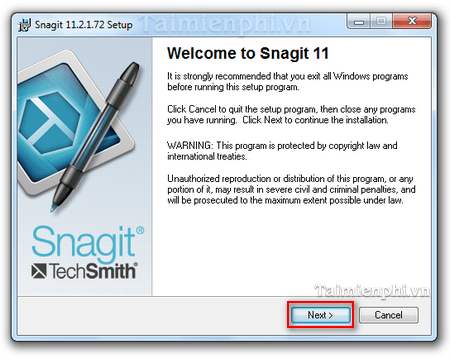
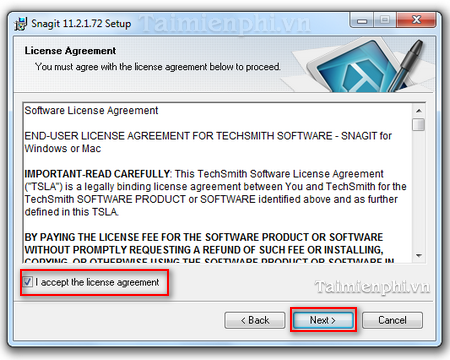
2. Accept the license terms
Read the agreement, select the acceptance option, and click Next.
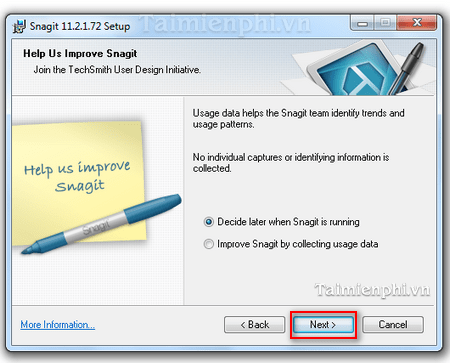
3. Choose diagnostic-data settings
The installer may ask whether it can send usage data to TechSmith. Choose the setting that matches your privacy preference, then continue.
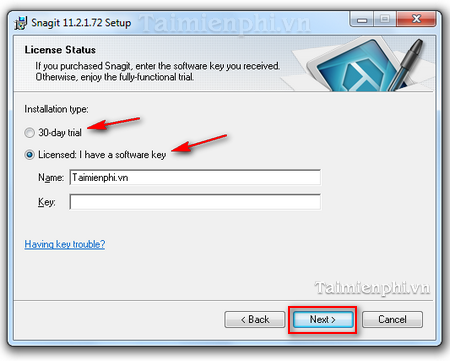
4. Select a license option
Enter a valid key if you have one, or choose the trial option displayed by that legacy installer. The 30-day period shown in this old screen applies to that release and does not describe the current Snagit trial.
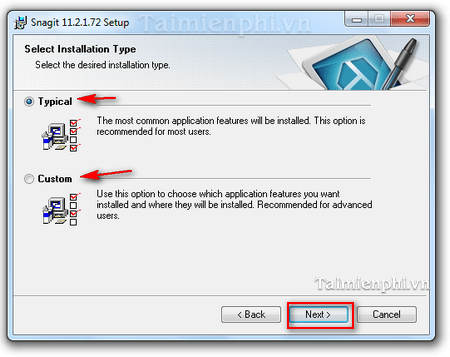
5. Choose the installation type
Typical is appropriate for most users. Choose Custom only if you need to control installed components or the destination folder, then click Install.
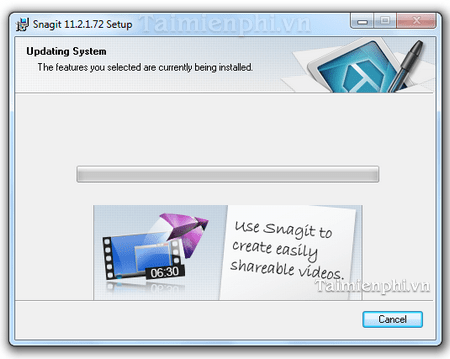
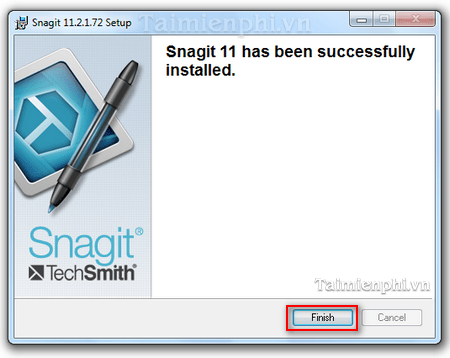
Select Finish after setup completes.
If you need a legacy installer, use TechSmith's official previous-version download instructions.
Common installation problems
- Setup says Snagit is already installed: If the wizard offers Modify, Repair, or Remove, that version is already present. Cancel unless you intentionally want one of those maintenance actions.
- “Setup Blocked” appears: Close both Snagit Capture and Snagit Editor, including their notification-area icons, then run the installer again.
- The new version does not replace the old one: TechSmith allows multiple major versions to coexist. Test the new release first, then uninstall the old version if you no longer need it.
- Snagit still shows trial mode: Confirm that you signed in with the account that owns the subscription. If your organization supplied a key, verify that it matches the installed version.
- Installation requires administrator approval: On a managed computer, ask IT rather than trying to bypass the restriction.
Protect sensitive information in captures
A screenshot can reveal passwords, account numbers, private messages, browser tabs, or security tokens. Review and redact the image before sharing it, and confirm the destination before using Snagit's email, cloud, or collaboration integrations.
Related Articles
 How to Taking Screenshots with Snagit: Step-by-Step Guide14 minutes read
 How to Use Snagit to Easily Capture Screenshots, Record Videos, and Edit Them3 minutes read
 Snagit - Snagit Download and Installation Guide4 minutes read
 Snagit - Take Screenshots Extremely Fast: Key Facts5 minutes read
 Camtasia and Snagit: A Practical Guide5 minutes read
 How to Take Screenshots on a Windows 10 Computer8 minutes read
Reader Comments 0
Sign in with email or Google to join the discussion.