Table of Contents
PhotoShine 5.5 is a legacy Windows collage editor that places photos into decorative templates. It is not Photoshop, despite the incorrect keyword in the original article, and it should not be presented as a current or actively maintained photo editor.
A maintained official download and support channel could not be confirmed. This guide therefore does not provide a download link. Follow it only if you already have an installer from a source you trust and can verify. For a new installation on a primary computer, a maintained collage or photo-editing app is the safer choice.
Before running an old installer
- Check the source. Avoid “full,” “cracked,” “portable,” or repackaged editions and sites that require a separate download manager.
- Inspect the filename and properties. Right-click the installer, select Properties, and check the Details and Digital Signatures tabs. A valid signature can identify a publisher, but the absence of a signature does not prove safety.
- Scan the file. In File Explorer, right-click the installer and choose Scan with Microsoft Defender (on Windows 11, it may be under Show more options).
- Back up important files. Legacy installers may not have been tested on current Windows releases.
- Do not disable security features. If SmartScreen or antivirus blocks the installer and you cannot independently verify the source, stop.
Microsoft explains that Defender SmartScreen evaluates downloaded apps and sites, while the Windows Security app can scan a specific file or folder.
System compatibility
The old claim that PhotoShine merely requires “Windows 95 or later” is not a useful compatibility statement today. PhotoShine 5.5 was built for older Windows environments, and successful installation on Windows 10 or Windows 11 is not guaranteed.
Before proceeding:
- Confirm that the installer is a Windows executable and not a renamed archive.
- Make sure you have enough disk space for the program, its templates, and exported images.
- Use a standard Windows account where possible; approve administrator elevation only after verifying the publisher and purpose.
- If the computer is managed by an employer or school, ask the administrator before installing unsupported software.
Install PhotoShine with the setup wizard
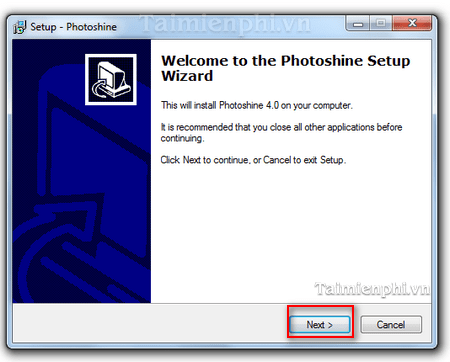
The screenshots below show a typical older PhotoShine installer. Exact text may differ between builds.
1. Start the installer
Close other programs, double-click the verified setup file, and review any Windows security prompt. Confirm that the displayed app and publisher match the file you intended to run.
When the PhotoShine Setup Wizard opens, select Next.
2. Choose the installation folder
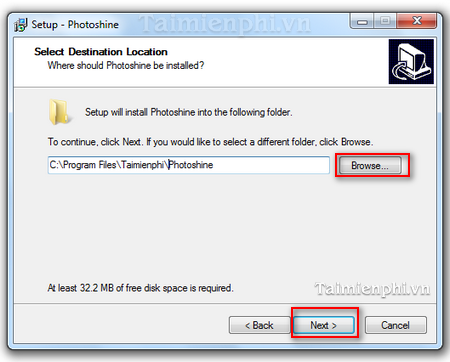
The wizard shows the destination folder. The default under Program Files is normally appropriate. Choose Browse only if you have a specific reason to use another local folder; do not install the application inside Documents, Downloads, a cloud-sync folder, or removable media.
Select Next after checking the path.
3. Select shortcuts
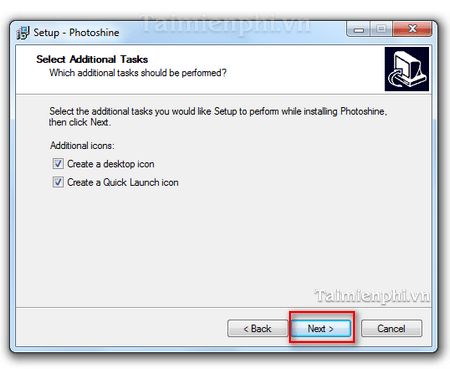
The Select Additional Tasks page may offer a desktop shortcut and a Quick Launch icon. Quick Launch belongs to much older Windows interfaces and may have no effect on Windows 10 or 11. Select only the shortcut you want, then choose Next.
4. Review and install
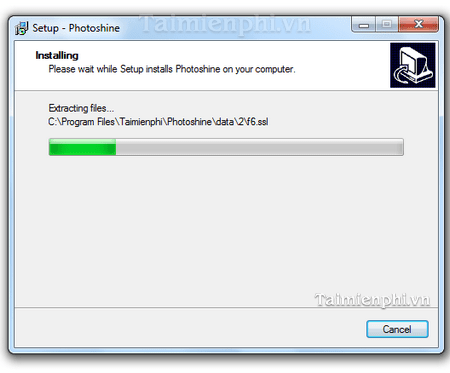
Check the destination and selected tasks on the summary page. If they are correct, choose Install. If the installer offers unrelated software, browser changes, extensions, or system cleaners, decline those additions or cancel the setup.
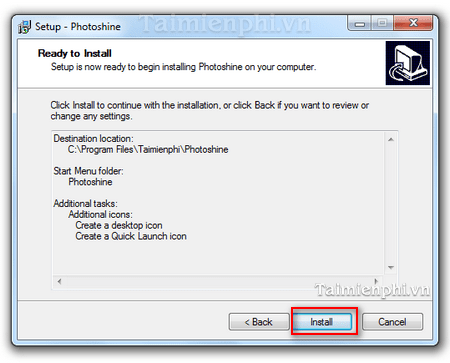
Wait for the file copy to finish. Do not approve unexpected network, driver, or firewall prompts; a simple offline collage editor should not need a device driver.
5. Finish and test
Select Finish. Open PhotoShine from the Start menu, load a copy of a non-sensitive JPG image, apply one template, and export the result to a test folder. Keep your original photos unchanged until you have confirmed how the program handles saving and overwriting.
If PhotoShine will not open
- Restart Windows once after installation.
- Right-click the PhotoShine shortcut and choose Properties > Compatibility.
- Run the Windows Program Compatibility Troubleshooter instead of guessing several settings at once.
- Try the recommended settings, test the app, and save the configuration only if it works.
- If it still crashes or displays incorrectly, uninstall it rather than disabling Windows security controls.
Microsoft’s current guide explains how to run the Program Compatibility Troubleshooter in Windows 10 and 11.
Common installation problems
| Problem | Safer response |
|---|---|
| SmartScreen says the app is unrecognized | Verify the source and signature. Do not click “Run anyway” merely to finish the tutorial. |
| Setup asks for unrelated software | Decline the bundle or cancel the installer. |
| The app requires an old Windows component | Do not download random DLL files. Use compatibility troubleshooting or a maintained alternative. |
| Text or controls are too small | Try Windows high-DPI compatibility settings for the app. |
| The program saves only limited formats | Export a test image first and keep the original file. |
| Antivirus detects malware | Quarantine the file and stop. Do not add an exclusion for an unverified legacy installer. |
What PhotoShine can do
PhotoShine is primarily a template-based collage tool. It can place a photo inside themed frames or scenes and apply basic visual effects. It is not a full layer-based editor, RAW processor, or modern asset-management system. Claims about a specific number of templates vary between editions and old download listings, so this guide does not repeat an unverified count.
Consider a maintained alternative
If your goal is simply to make a collage or add a frame, a current app is more likely to support modern image formats, high-resolution displays, security updates, and current Windows versions. TipsMake compares current collage apps for computers and phones and lists free photo editors for computers.
Keep PhotoShine only when you need its specific legacy templates and have a verified installer. Otherwise, migrating the task to maintained software is safer and easier to support.
Related Articles
 Collage Photos into Frames with Photoshine3 minutes read
 How to Change the Default Browser on Windows 113 minutes read
 Detailed Instructions on How to Install Windows 7 for Beginners4 minutes read
 A Simple, , and Safe Guide to Installing Windows on a Laptop, Perfect for Beginners15 minutes read
 Mechanical Keyboard Construction15 minutes read
 How to Install Windows 10 Using a Bootable USB Drive - a Guide from a to Z10 minutes read
Reader Comments 0
Sign in with email or Google to join the discussion.