Table of Contents
Quick Overview
Frozen Taskbar : Follow this practical guide to fix Frozen Taskbar Effectively, including Why is the taskbar frozen and Simple and effective ways to fix frozen taskbar.
The taskbar is an important component of the Windows operating system that provides quick and convenient access to applications. If the taskbar freezes, it will affect the user experience. You can't even operate or use the computer. So what causes the computer's taskbar to freeze? And are there simple and quick ways to fix a frozen taskbar ? This guide will answer all your questions.
Why is the taskbar frozen?
Overloaded system resources: If your computer is running multiple heavy applications or is overloaded with resources, the taskbar may freeze. This usually happens when the RAM and CPU are running at high levels.
Software Errors: Some applications or extensions can cause conflicts or errors on the taskbar. If a software is incompatible or crashes, it can cause the taskbar to become slow or unresponsive.
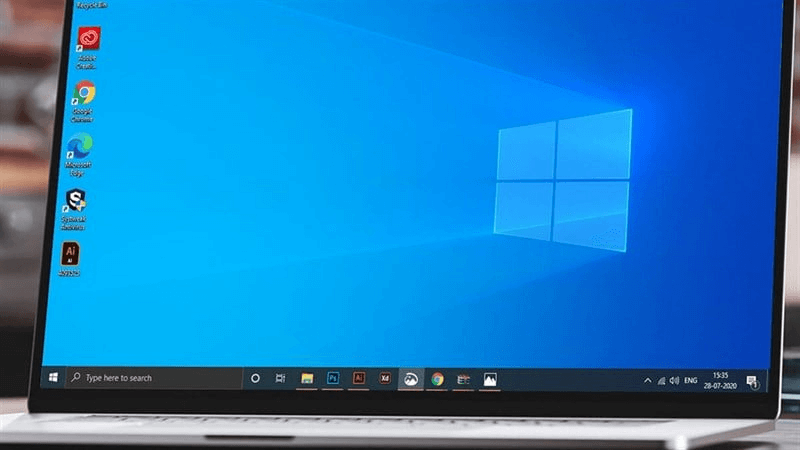
Virus or malware: A computer infected with a virus or malware can also cause the taskbar to freeze . Malicious programs can take up system resources and cause the taskbar to function unreliably.
Update your operating system: Sometimes, when installing or updating a new operating system, the taskbar can get stuck. Incompatibility between software and the operating system can cause the taskbar to become hidden or not work properly.
Hardware error: In some cases, the frozen taskbar problem can come from hardware errors, such as a damaged or full hard drive,.
Simple and effective ways to fix frozen taskbar
the editorial team has listed some common frozen taskbar errors today, please refer to them in the section below.
Restart your computer
This is a simple and effective method to fix the frozen taskbar . When you restart your laptop , it will reset the system to its original state, which will free up resources and fix temporary software problems.
To restart your computer, follow these steps:
Step 1: Click the "Start" or "Menu" button on the taskbar or press the key combination "Ctrl + Alt + Delete".
Step 2: Select the "Restart" option from the menu that appears.
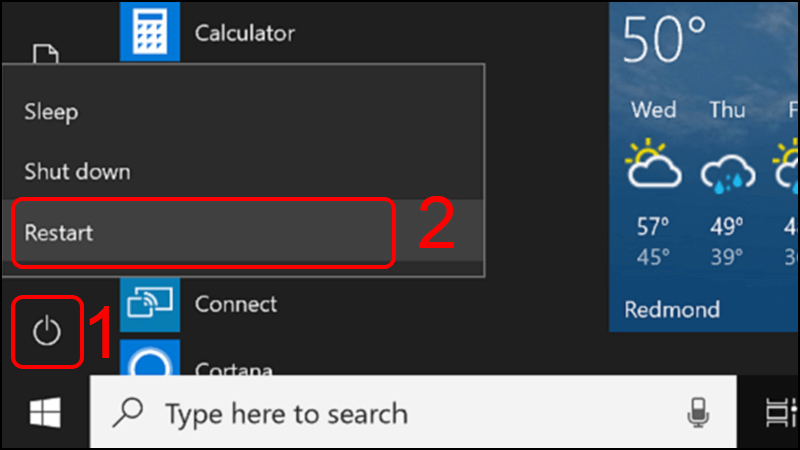
Step 3: The computer will begin the reboot process. Wait until it completes.
After your computer restarts, check to see if the taskbar is working properly. In most cases, restarting your computer will resolve minor issues with a frozen taskbar.
Restart Windows Explorer application
Windows Explorer is a file management and system browser application in the Windows operating system. This is also Among the reasons why the taskbar freezes . Restarting Windows Explorer is also a way to fix the frozen taskbar win 10, frozen taskbar win 11.
Here's how to restart Windows Explorer:
Step 1: Press the key combination "Ctrl + Shift + Esc" to open Task Manager.
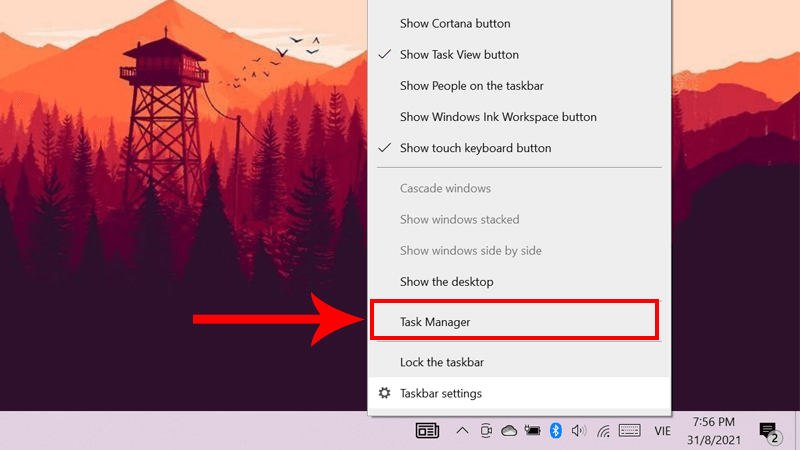
Step 2: Right-click on the "Windows Explorer" process and select "Restart".
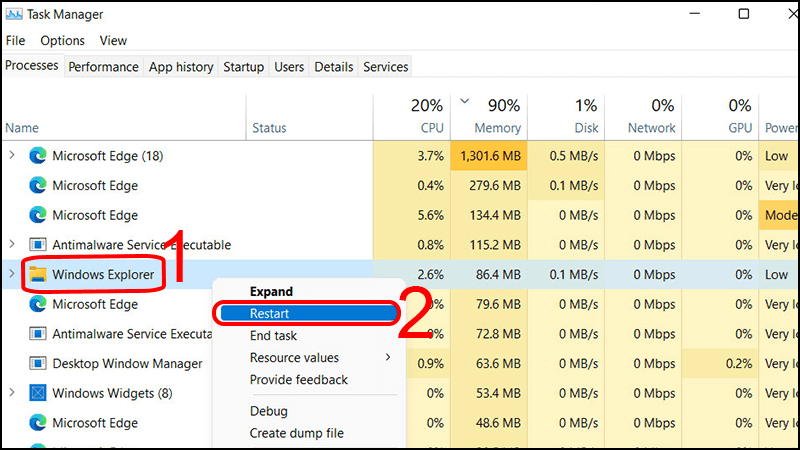
After restarting Windows Explorer, the taskbar will reload and should work normally again.
Reset Taskbar
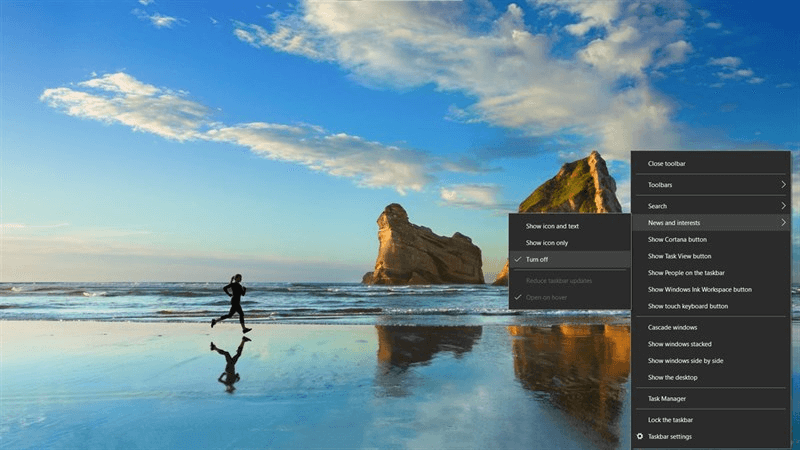
This is a recently updated tool of Windows 10. Although it is still in the process of completion and not yet stable, it is considered quite good and useful. If the taskbar is frozen in Windows 10 , try turning off this tool.
Step 1: Right-click on the Taskbar, then select the path below to fix the frozen taskbar error.
Step 2: Select News and Interests, then select Turn Off
Restart Application Identity Service
Application Identity Service is Among the Windows system services. You can restart Application Identity Service to see if it helps to fix the frozen taskbar issue.
To restart the Application Identity Service, follow these steps:
Step 1: Press the key combination "Win + R" to open the Run dialog box.
Step 2: Type "services. msc" and press Enter to open the Services window.
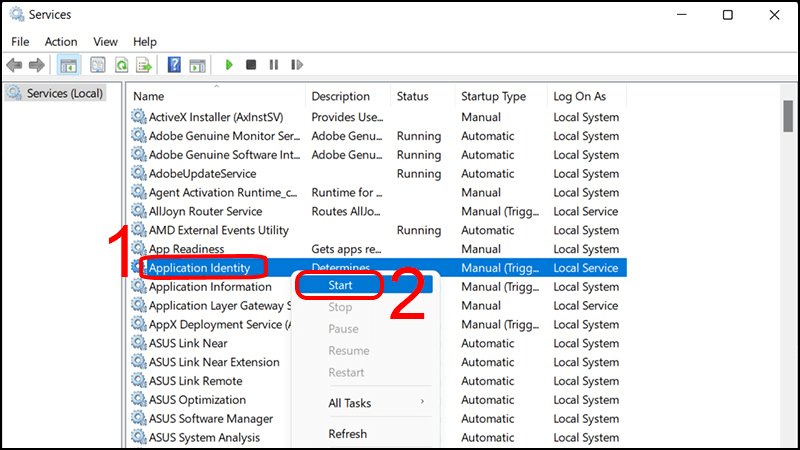
Step 3: Find and double-click "Application Identity".
Step 4: Then click the "Start" button to restart the service.
Using the Troubleshooter tool
Troubleshooter is a tool that automatically detects and attempts to fix Windows errors for you. Here's how to use Troubleshooter to fix a frozen taskbar:
Step 1: Press the key combination "Win + I" or click the Windows icon in the bottom left corner of the screen to open Settings.
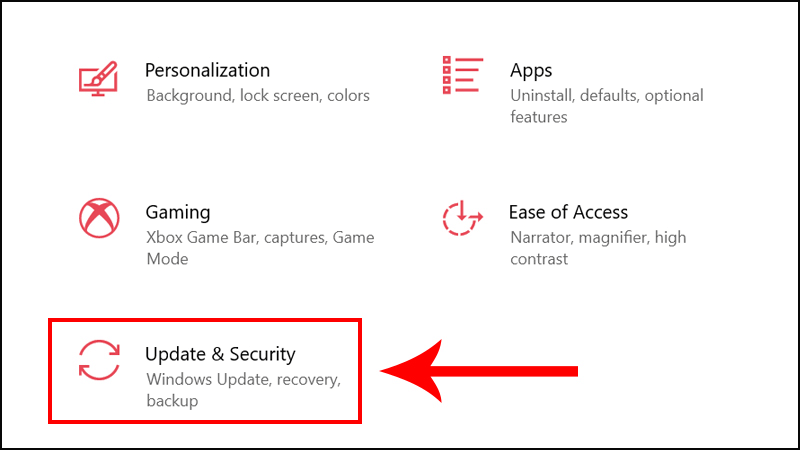
Step 2: In the Settings window, select "Update & Security"
Step 3: Here, select Troubleshoot, in the 'Windows Store Apps' section click the "Run the troubleshooter" button.
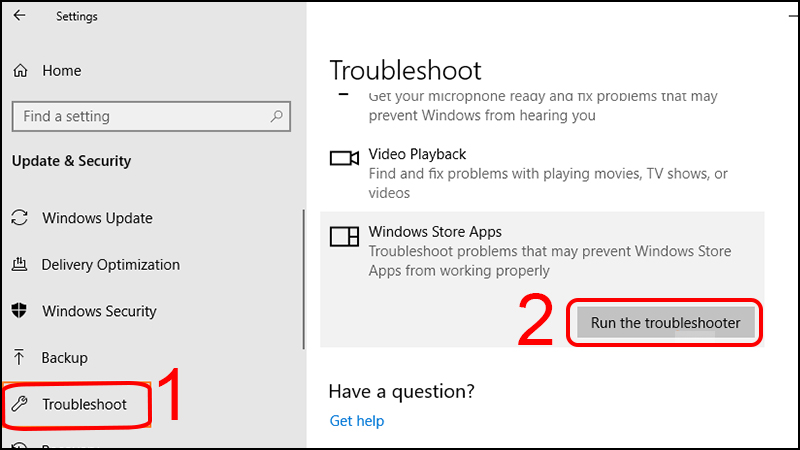
Step 4: Wait for the Troubleshooter to complete its checking and fixing process.
The Troubleshooter will attempt to find and fix problems related to the taskbar. If any problems are detected, follow the on-screen instructions to fix them.
Once the repair process is complete, check if the taskbar is working properly.
Try Resetting Windows
If you use the above methods and still have the frozen taskbar error, then Reset Windows. This is the last way, erase everything and return the computer to its original state.
However, before doing this, make sure you have backed up all your important data. Because when going through this process, your previous files, applications or settings will be permanently deleted. So remember to save them.
Here are the steps to Reset Windows
Step 1: Open Windows settings by pressing the key combination "Win + I".
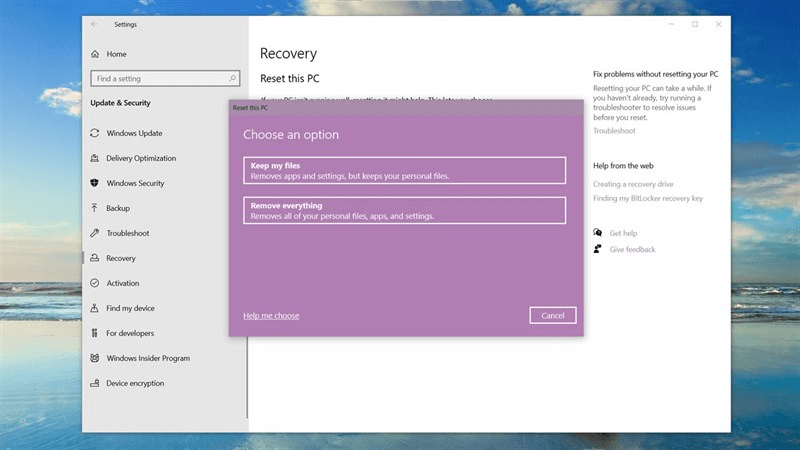
Step 2: Select "Update & Security", then select "Recovery"
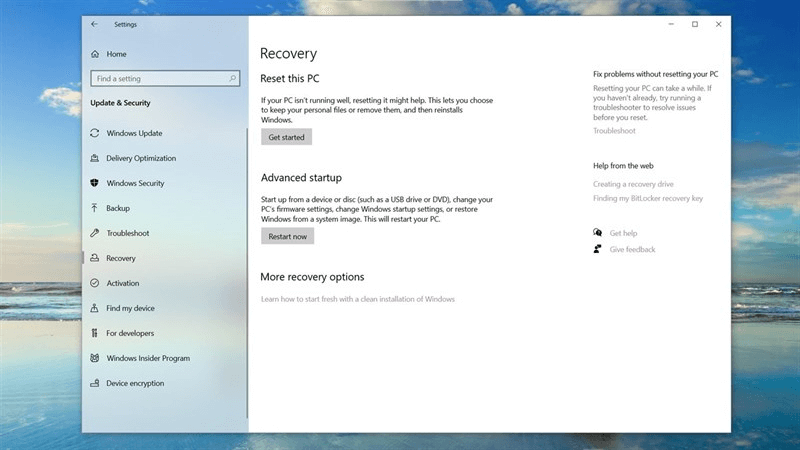
Step 3: Under the "Reset this PC" section, click the "Get started" button. Two options will appear: "Keep my files" or "Remove everything".
- If you select "Keep my files": Windows will reset the system and remove installed applications, but keep your personal files.
- If you select "Remove everything": Windows will delete all files and settings, returning the operating system to its original state.
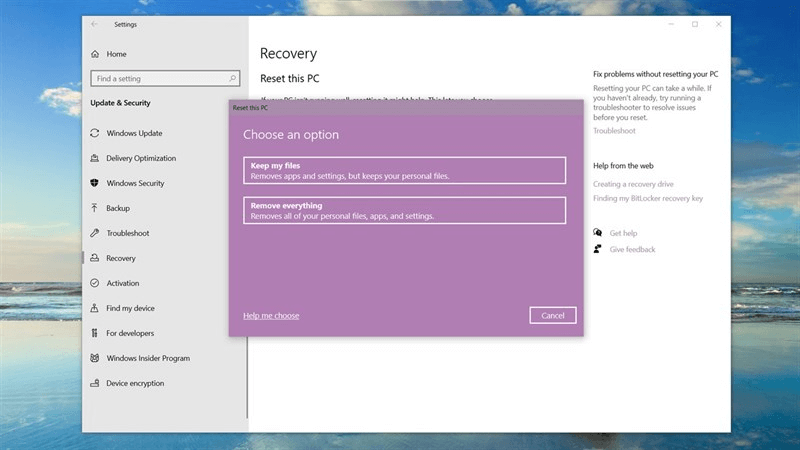
Step 4: Confirm the request and wait for the reset process to complete.
Above are the shares of about the causes and how to fix the frozen taskbar error. Hopefully that information will help you fix this situation quickly. For any questions, please contact Hotline 1900.1903 immediately for free advice from the consulting team.
FAQ About Frozen Taskbar
What should you prepare before you fix Frozen Taskbar Effectively?
If the taskbar is frozen in Windows 10, try turning off this tool
What should you do if fix Frozen Taskbar Effectively does not work?
You can restart Application Identity Service to see if it helps to fix the frozen taskbar issue
How can you get better results when working with Frozen Taskbar?
And are there simple and quick ways to fix a frozen taskbar?
Related Articles
 5 Extremely Effective Ways to Fix the Frozen Taskbar Error4 minutes read
 What to Do When the Windows Taskbar Is Frozen, Unusable?5 minutes read
 How to Fix the Windows 10 Taskbar Crashes Error4 minutes read
 6 Ways to Fix the Taskbar Not Working: Top Picks and Buying Guide8 minutes read
 Some Tips to Customize Taskbar on Windows 10 Effectively15 minutes read
 Download Frozen Wallpapers for Computers, Phones3 minutes read
Reader Comments 0
Sign in with email or Google to join the discussion.