Table of Contents
The Windows 11 Taskbar has a surprising number of features that many people overlook. You can pin files and folders for quick access, force quit apps directly from the Taskbar, manage which icons appear in the system tray, and much more.
At first glance, the Windows 11 Taskbar doesn't have much in the way of functionality, especially compared to previous versions. You can't resize it, move it around, or customize it the way you used to. Sure, third-party apps like Windhawk can help fix these Taskbar annoyances, but before you try them, you should take a closer look at what the Taskbar has to offer.
The Windows 11 Taskbar has a surprising number of features that many people overlook. You can pin files and folders for quick access, force quit apps directly from the Taskbar, manage which icons appear in the system tray, and much more.
5. Pin files, folders, etc.
Keep important things at hand
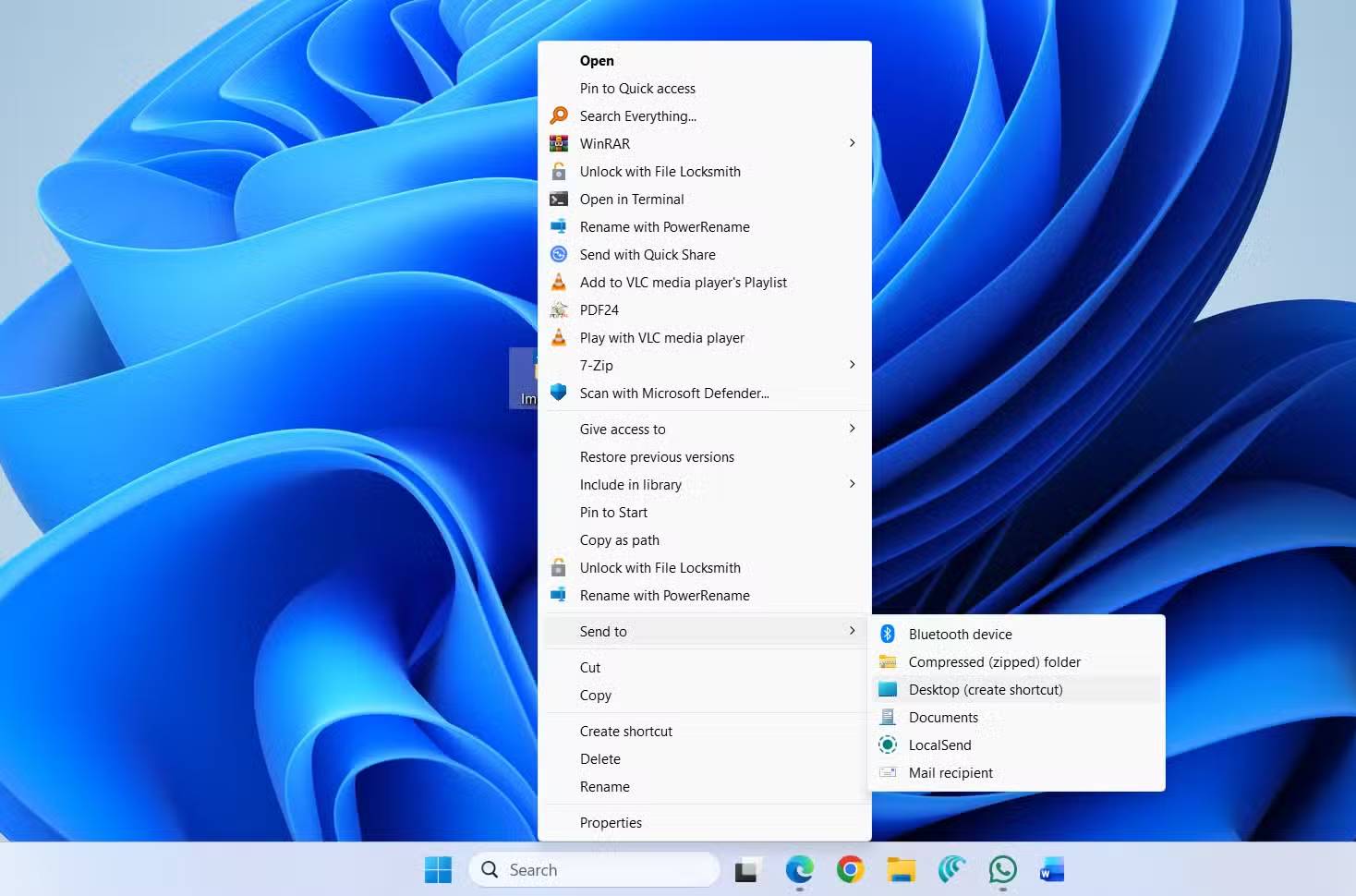
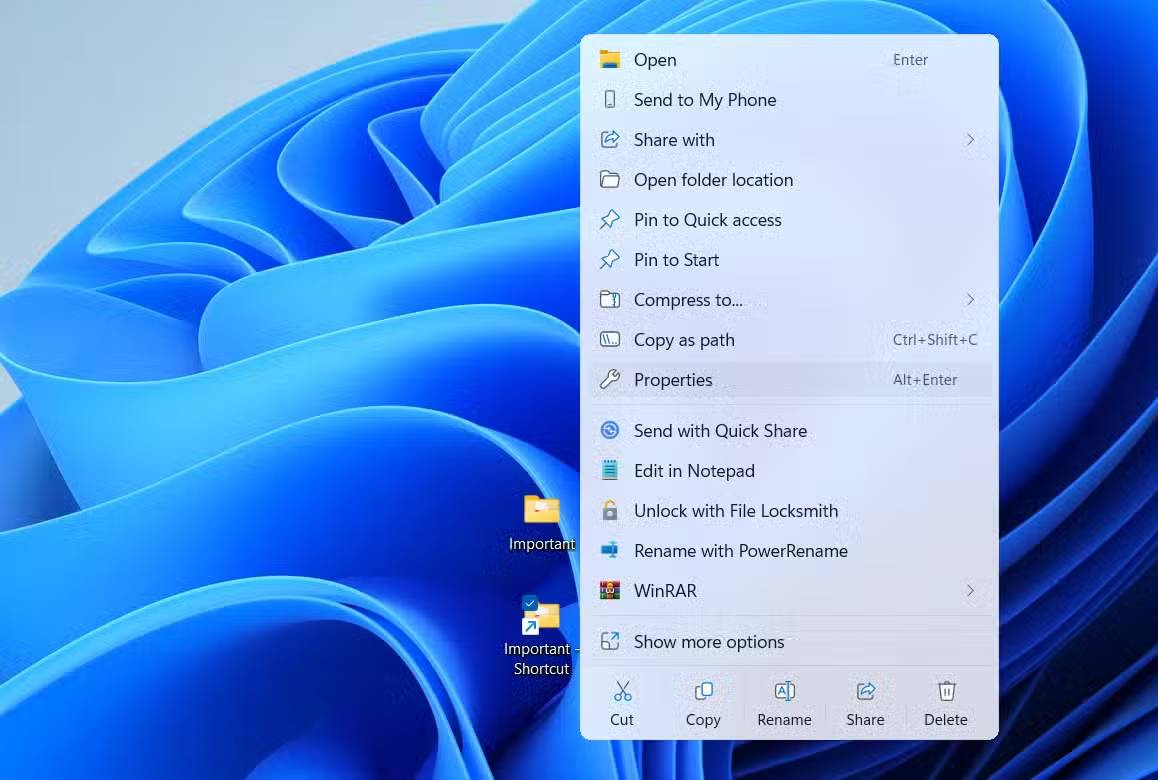
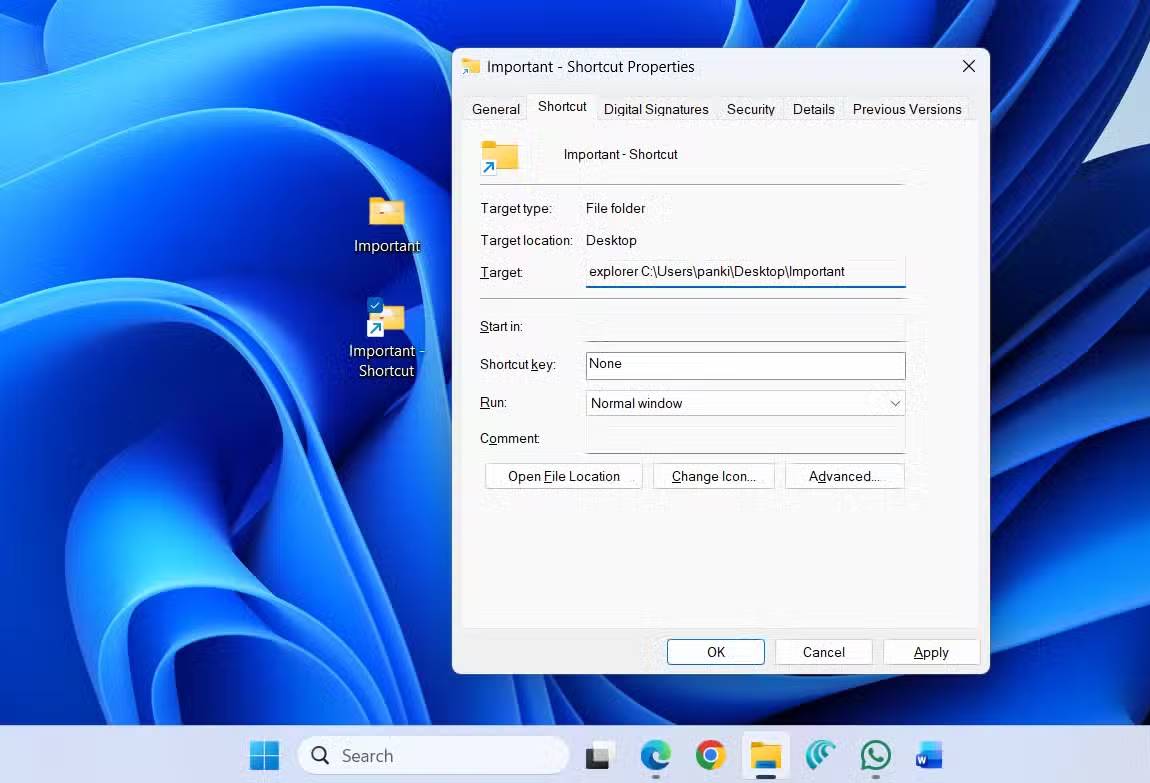
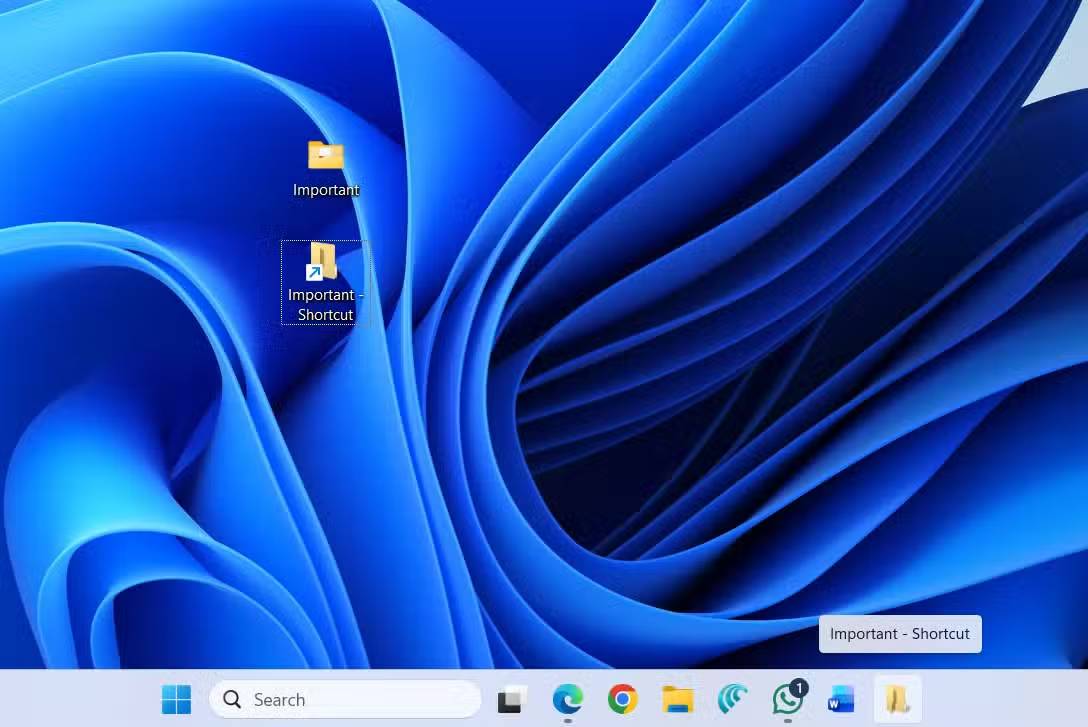
To pin a file or folder to the Taskbar, right-click it and select Show more options > Send to > Desktop (create shortcut) . Then, right-click the desktop shortcut you created and select Properties . Go to the Shortcut Tab and type Explorer Followed by a space before the Target Path. Finally, press Apply .
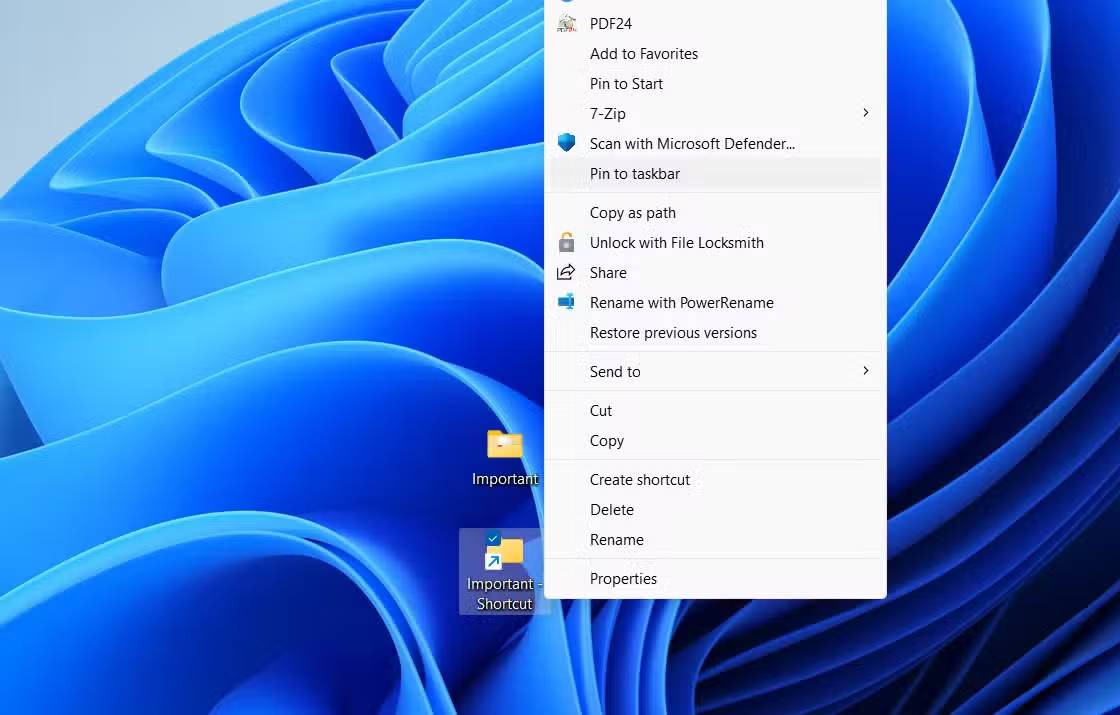
After doing this, your file or folder will have a File Explorer icon. You can change the icon to something else to simplify identify. Once done, right-click the file or folder and select Show more options > Pin to taskbar .
4. Manage hidden icons
Keep only the icons you really need
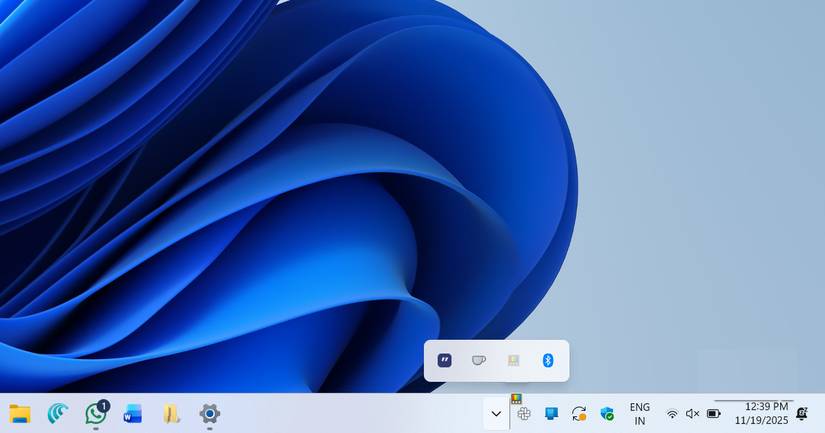
The system tray can easily become a dumping ground for apps that are deliberately hiding there. If your Taskbar is looking cluttered, or you're tired of digging around for the little arrow on the right, Windows 11 gives you an easy way to manage hidden icons.
Click the arrow to open a flyout window containing hidden icons, then drag any icon onto the Taskbar to keep it visible. Or drag icons off the Taskbar to hide them. It's a quick way to promote the tools you need every day and push everything else into the background.
3. Force quit frozen applications and programs
End misbehaving programs with just one click
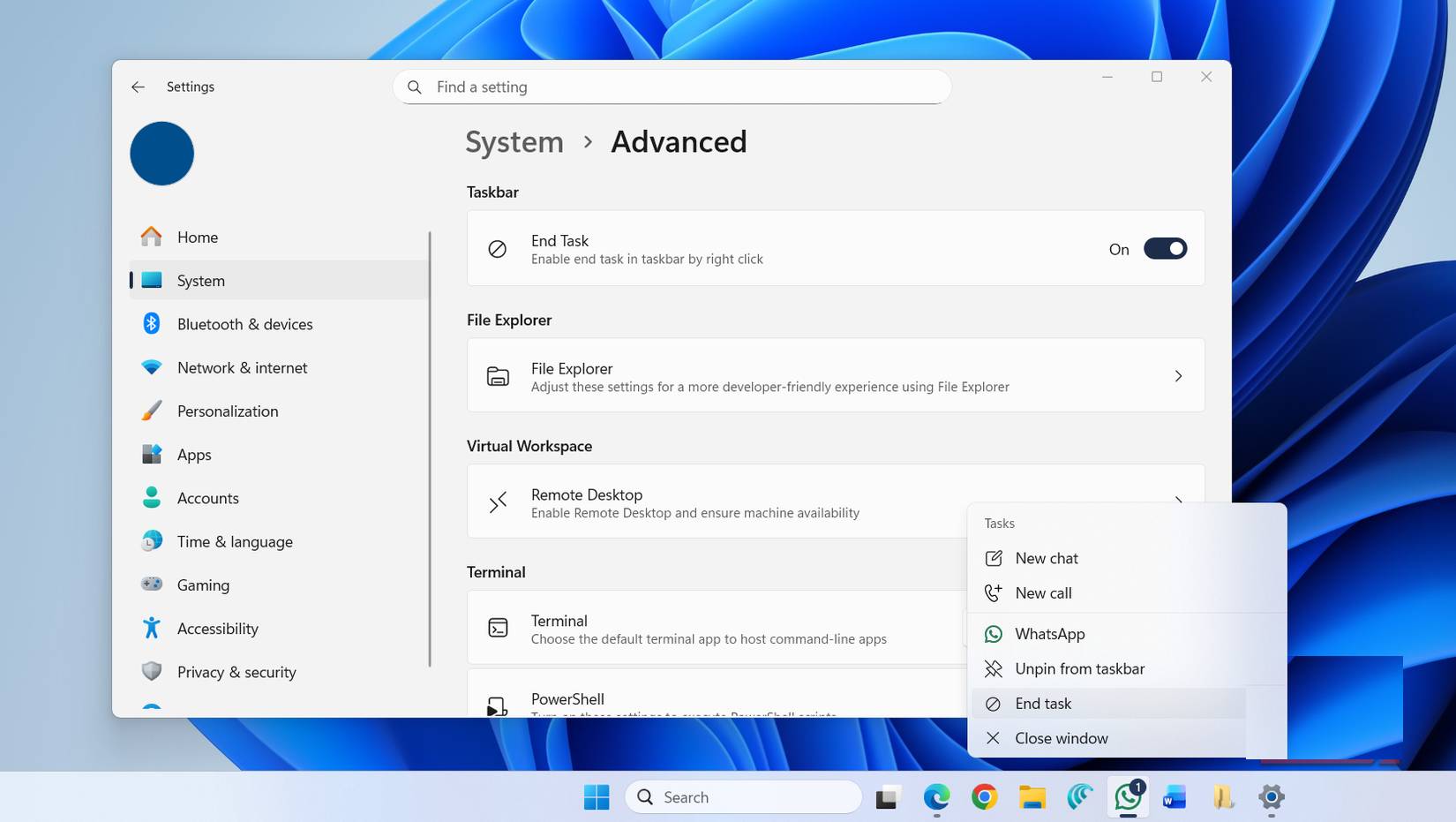
Windows 11 has a hidden trick that lets you force quit apps right from the Taskbar.
Press Win + I To open the Settings app, go to System > Advanced And turn on the End Task Button. Once done, you will see the new End task Option when you right-click on the app icon on the Taskbar. You can then use this option any time you want to force close an app on your PC.
2. Hold down the Ctrl or Shift key while clicking on the icon on the Taskbar
Control applications faster with key combinations
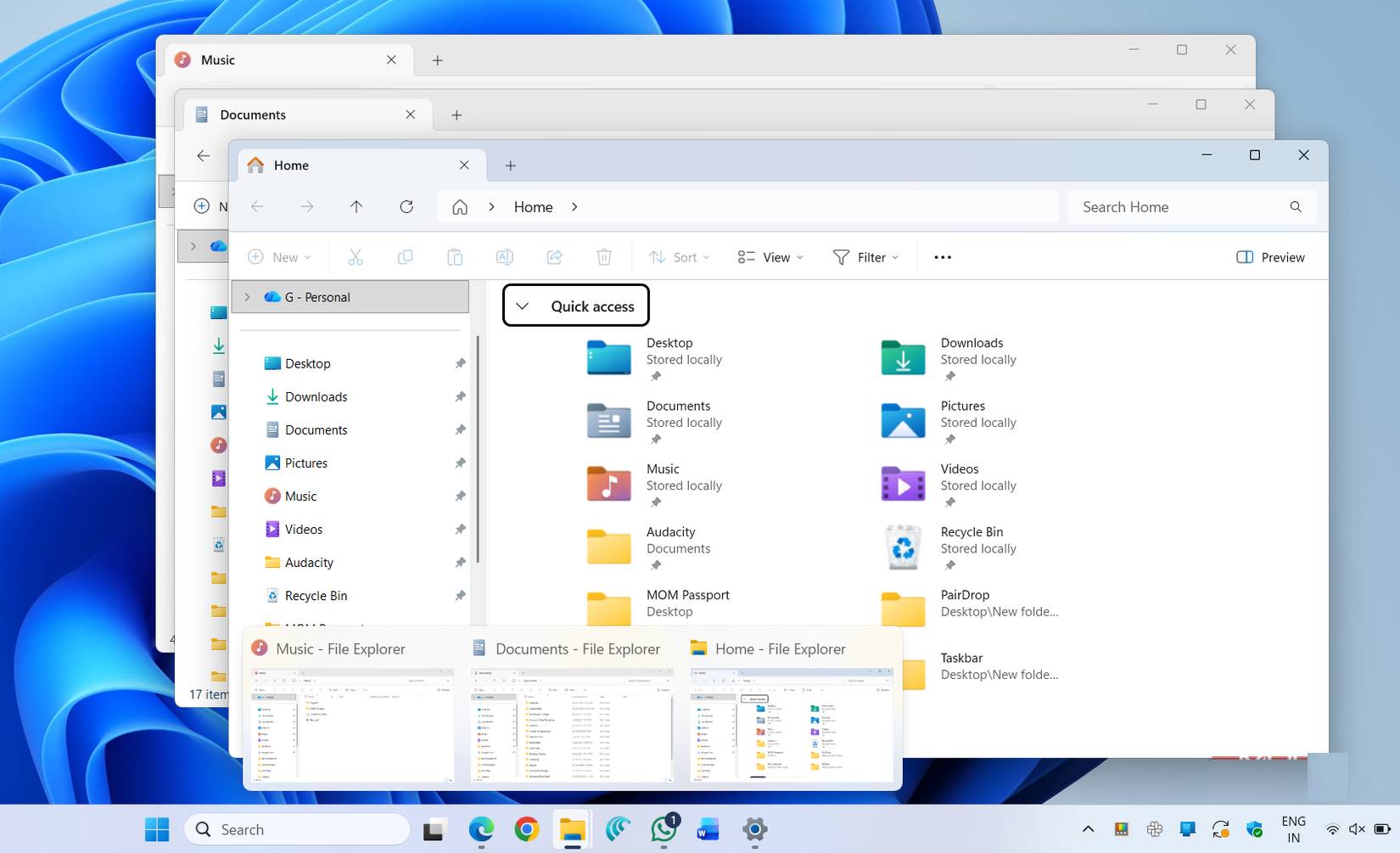
If you hold down the Ctrl Key and click on the application's Taskbar icon, you can cycle through all of its open windows. This is handy when you have dozens of browser windows open on your desktop and want to quickly cycle through them.
Finally, holding both Ctrl And Shift At the same time while clicking an icon lets you open a pinned application on the Taskbar with admin rights. So if you have Command Prompt or any other application that requires admin rights, this shortcut can be useful.
1. Using jump list
Get back to what you were doing
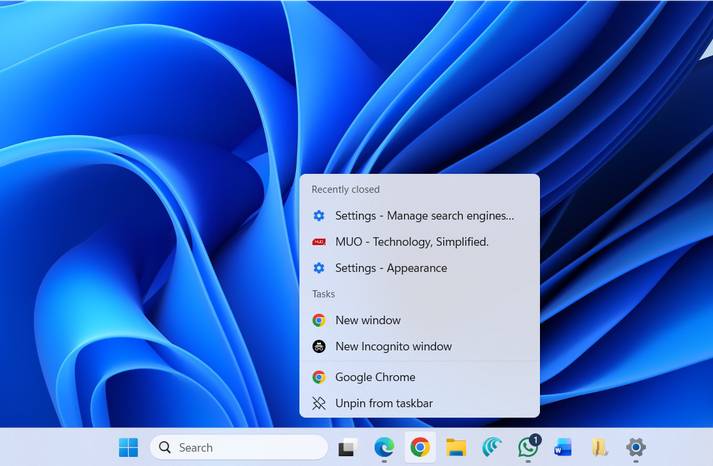
Right-click any application on the Taskbar and you'll see a customizable menu tailored to that program. For browsers, you'll see your most visited websites, recently closed applications, and a shortcut to open a private window. For File Explorer, you'll see recently accessed folders along with anything you've pinned to Quick Access. And if you've pinned an Office application, it'll show recently opened documents.
Other apps have their own variations, but the idea is the same. It lets you jump right back to the file or location you were working on. It's a small feature that can save you many time.
FAQ
What should you know about the options in this guide?
In practical terms, the Windows 11 Taskbar has a surprising number of features that many people overlook. You can pin files and folders for quick access, force quit apps directly from the Taskbar, manage which icons appear in the system tray, and.
Which option is the best choice?
The best choice depends on your priorities, compatibility, budget, and the specific features discussed in the comparison.
What should you compare before deciding?
Compare core features, limitations, ease of use, compatibility, and long-term value before making a decision.
Related Articles
 How to Fix Windows 10 Taskbar Is Not Hidden When Zooming in on6 minutes read
 How to Customize the Taskbar in Windows: Step-by-Step Guide15 minutes read
 Search and Activate Hidden Features in Windows 10 with Mach2 Tool9 minutes read
 Fix Taskbar Not Hidden in Windows Remote Desktop Session4 minutes read
 How to Fix Frozen Taskbar Effectively8 minutes read
 Microsoft Brings Back a Cool Feature for the Windows 11 Taskbar: Key Facts4 minutes read
Reader Comments 0
Sign in with email or Google to join the discussion.