Table of Contents
This guide provides a clear, practical overview of "Essential Mods That Make Windows 11 More Useful". It organizes the most useful details, explains important considerations, and highlights the steps or choices that matter most.
8. Fences
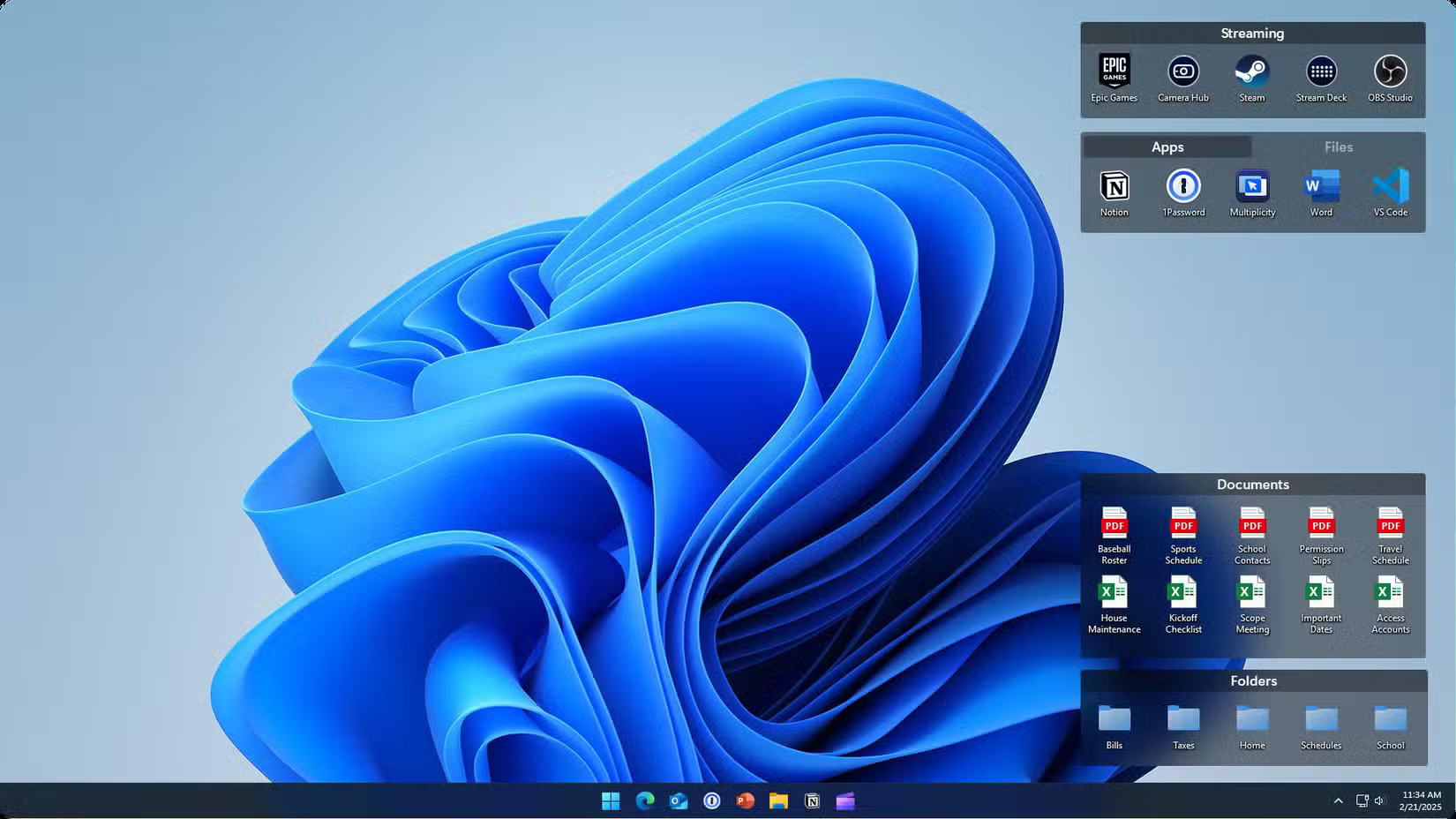
A cluttered desktop can slow you down and make your computer feel overwhelming to use. While organizing files into folders is a good start, there's an even better solution that can improve desktop organization.
Fences is a desktop organization tool that creates attractively designed and labeled containers on your desktop where you can group related files, folders, and shortcuts. You can create a Current Projects fence for active work files, a Tools fence for frequently used applications, and a Downloads fence that automatically records new downloads.
While Fences offers a 30-day free trial, it's a premium app that costs $29.99 for a lifetime license, $9.99/year for one device, or $19.99/year for up to 5 devices.
7. Start11
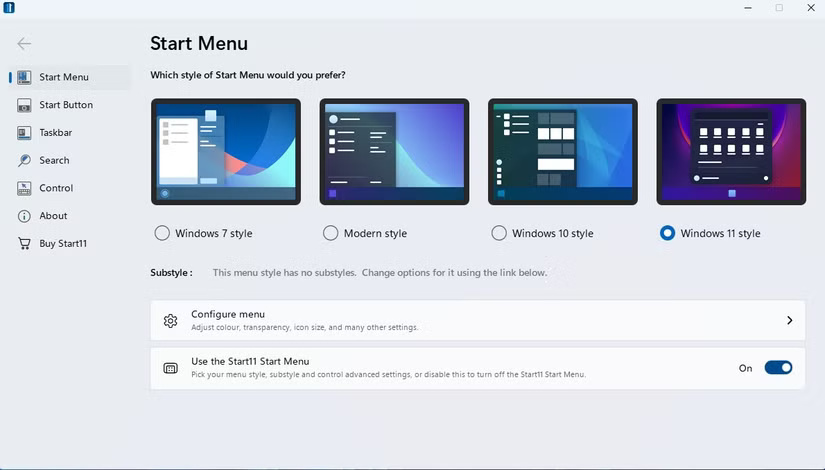
Start11 turns Windows 11's beautiful but sluggish Start menu into something that actually works the way you want it to. Click Start and it opens instantly, without any half-second delays that interrupt your workflow. Searching is just as fast: Type in any file name and it appears instantly, instead of being buried under Bing results and web clutter.
Start11 comes from Stardock, the same team behind Fences. Like the company's screen organizer, it offers a 30-day trial before requiring a license: $7.49/year for one device or $11.24/year for up to five devices.
6. Windhawk
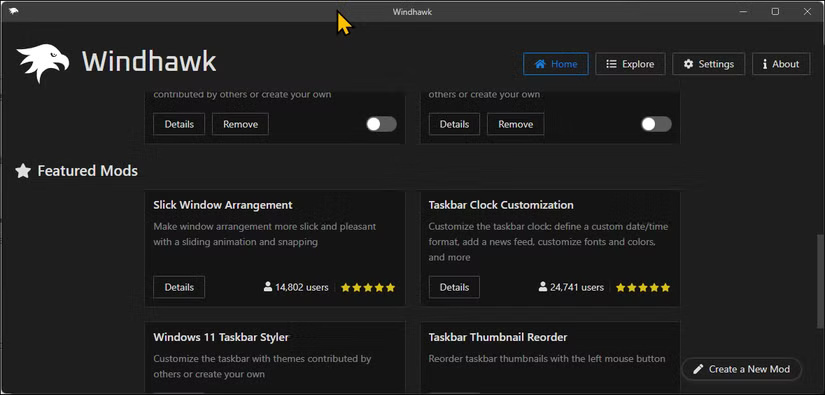
Windhawk is a free, open-source tool that acts like an app store for modifying Windows. With one-click installation, these mods fix minor annoyances of Windows 11 while improving quality of life.
Some of our favorite Windhawk mods include classic taskbar labels (so you can see which Word documents are open), middle-click to close the taskbar, and the ability to disable Windows 11's context menu entirely in favor of the classic context menu. The browser tab scrolling mod is another clever trick — hover over Google Chrome or Microsoft Edge on the taskbar and scroll through tabs with the mouse wheel.
5. WinToys
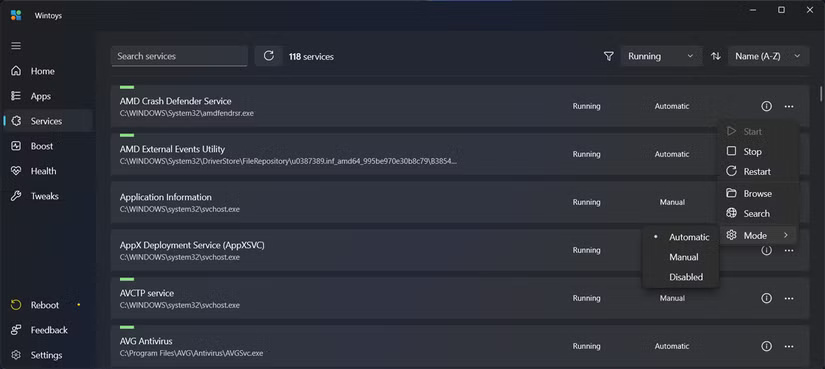
Windows has hundreds of settings scattered across the Control Panel, the Settings app, and the registry/Group Policy. WinToys consolidates them into one neat interface. Instead of having to navigate through countless menus to find the privacy toggle, you can change all the settings you need from a centralized control panel.
4. PowerToys
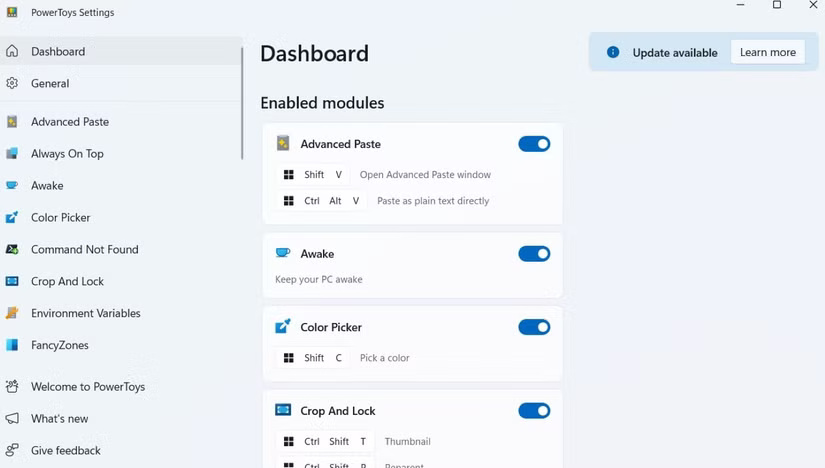
Microsoft's PowerToys is more of an apology for Windows 11's missing features. While PowerToys includes a hidden suite of productivity tools, some of the most prominent ones are the most important to Windows 11.
Among the standout features, Awake prevents your system from going to sleep during important tasks like downloading large files or exporting long videos. FancyZones takes window management to the next level with customizable desktop layouts where you can define specific zones for different applications and snap windows into place with a simple drag.
3. Ditto
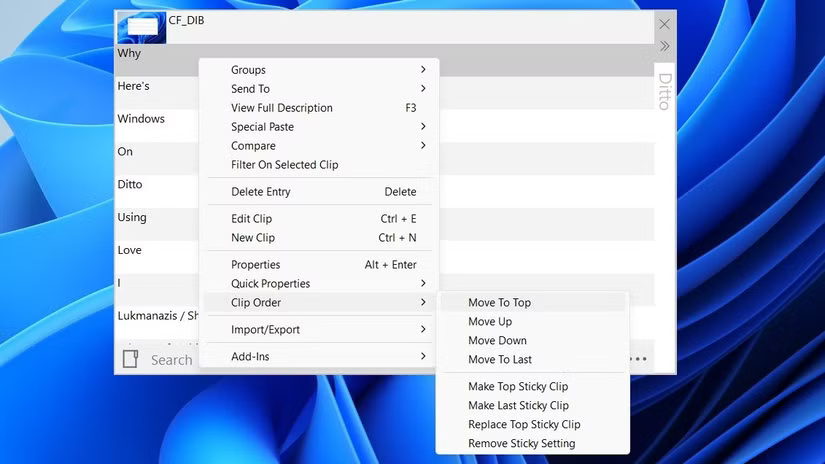
Windows 11 has a clipboard history feature that lets you access up to the last 25 copied items (using Win + V ), but it's pretty limited. Many people have switched to Ditto instead, which remembers everything (text, images, and files) without any arbitrary limits. It even saves your clipboard history after a system reboot.
2. Rainmeter
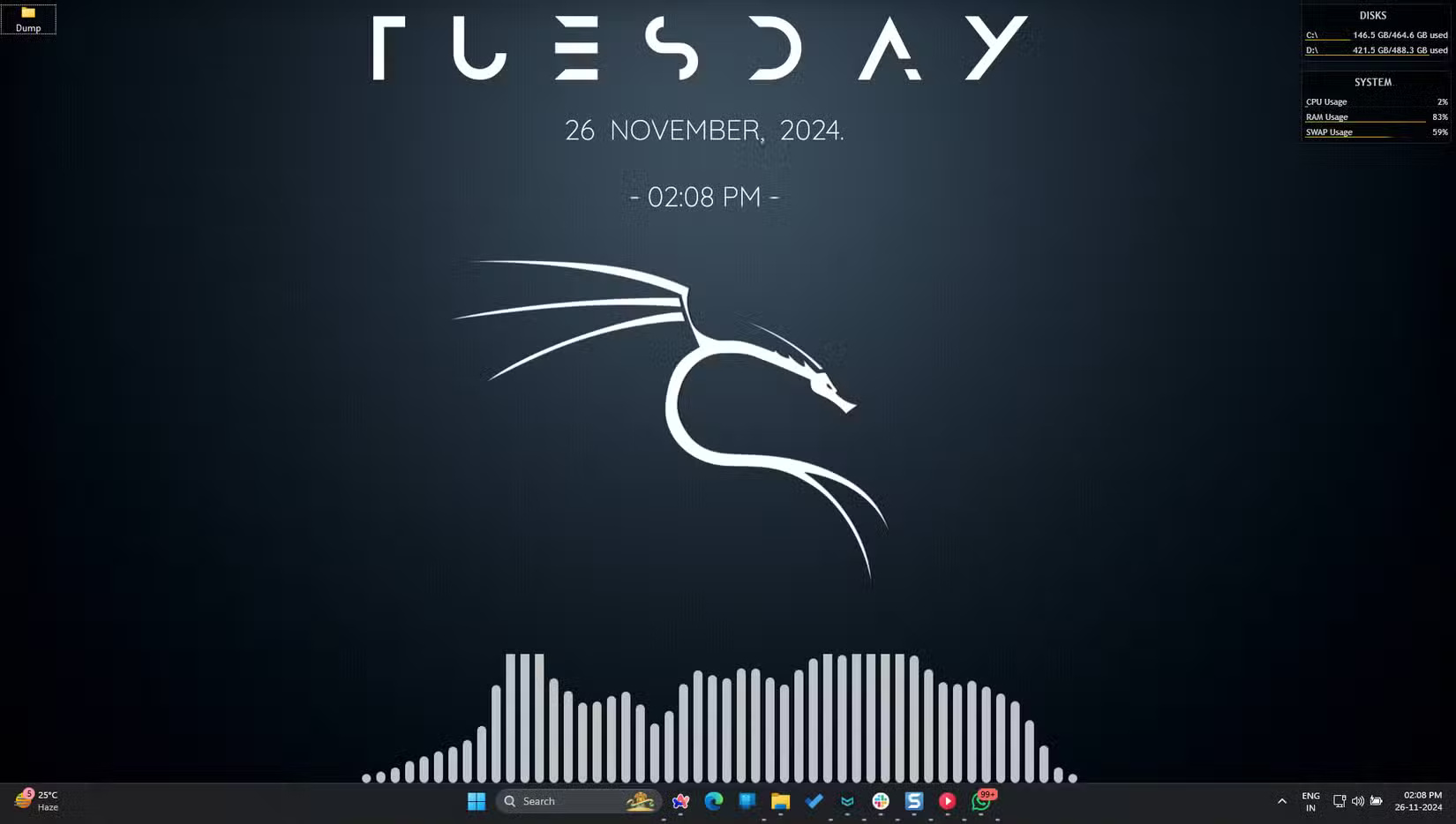
Rainmeter turns your desktop from a static wallpaper to an information dashboard. Yes, it can be complex, but start with pre-built interfaces that everyone can access.
If Rainmeter seems too complicated, there are still other great desktop customization tools worth exploring. The community shares thousands of themes, so you don't have to code anything yourself.
1. Monitor
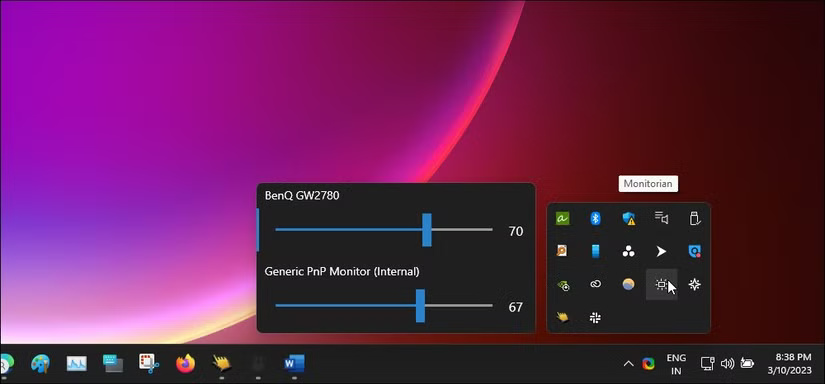
Monitorian allows you to control the brightness of your external monitor with hotkeys or your mouse. No more reaching behind your monitor for tiny buttons.
The free version handles most needs perfectly: You get brightness control, a large slider for easy adjustment, and auto-start with Windows. The app displays the adjusted brightness percentage and maintains your screen layout.
FAQ
What should you know about 8. Fences?
A cluttered desktop can slow you down and make your computer feel overwhelming to use. While organizing files into folders is a good start, there's an even better solution that can improve desktop organization.
What should you know about 7. Start11?
Start11 turns Windows 11's beautiful but sluggish Start menu into something that actually works the way you want it to. Click Start and it opens instantly, without any half-second delays that interrupt your workflow. Searching is just as fast: Type in any file name and it appears instantly, instead of being buried under Bing.
What should you know about 6. Windhawk?
Windhawk is a free, open-source tool that acts like an app store for modifying Windows. With one-click installation, these mods fix minor annoyances of Windows 11 while improving quality of life.
What should you know about 5. WinToys?
Windows has hundreds of settings scattered across the Control Panel, the Settings app, and the registry/Group Policy. WinToys consolidates them into one neat interface. Instead of having to navigate through countless menus to find the privacy toggle, you can change all the settings you need from a centralized control panel.
Related Articles
 How to Install Mods for Minecraft: Step-by-Step Guide12 minutes read
 How to Install Minecraft PE Mods: Practical Guide8 minutes read
 Summary of the Best Minecraft Mods6 minutes read
 TOP the Most Interesting Mods for the Sims 44 minutes read
 The Best Minecraft Mods for Cave Exploration Fans: Explained6 minutes read
 TOP 10 Best Graphics Mods for GTA San Andreas9 minutes read
Reader Comments 0
Sign in with email or Google to join the discussion.