Table of Contents
Windows cannot make an internet plan faster than the provider delivers, but it can help you find and remove local bottlenecks. Start by measuring the connection, then check Wi-Fi signal, background transfers, adapter drivers, and router performance. Avoid registry “speed hacks,” disabling security updates, or changing TCP values without a diagnosed reason.

Windows 10 note: standard support ended on October 14, 2025. These networking checks still apply, but use Windows 11 or an eligible Windows 10 Extended Security Updates path for ongoing security fixes.
1. Measure the right thing
Run several tests at different times and record:
- Download speed: affects large downloads and high-resolution streaming.
- Upload speed: matters for video calls, cloud backups, and sending files.
- Latency: affects game responsiveness and real-time calls.
- Packet loss and jitter: can cause stutter even when the headline speed is high.
Compare the same PC over Wi-Fi and Ethernet, then compare another device in the same location. Pause large downloads and VPNs during the baseline test. TipsMake's network utility collection includes an internet speed test.
2. Check whether Wi-Fi is the bottleneck
If Ethernet is fast but Wi-Fi is slow, move closer to the router, attach the PC's antennas, and test the other frequency band. A crowded 2.4GHz network may improve on 5GHz near the router, while 2.4GHz can work better through walls. Reposition the router in an open, elevated, central location and keep it away from large metal objects or interference sources.
Update the Wi-Fi driver from the PC or adapter manufacturer's official support site. If the problem affects only one Windows device, follow TipsMake's Windows Wi-Fi troubleshooting guide.
3. Find programs using bandwidth
Open Task Manager with Ctrl + Shift + Esc, select Processes, and sort by the Network column. Pause an active cloud backup, game download, video stream, or file synchronization if it is competing with a call or game.
For a broader view, open Settings > Network & internet > Data usage. Review usage by app rather than disabling every background process. A background service may be necessary for security, notifications, storage synchronization, or device management.
4. Configure Delivery Optimization
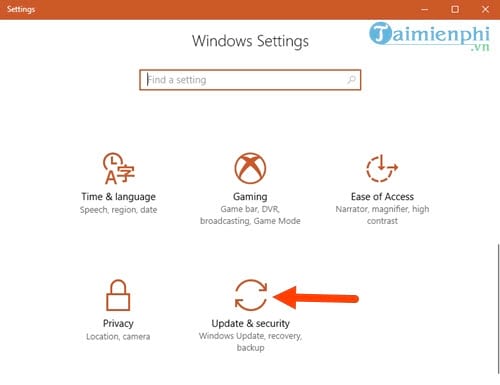
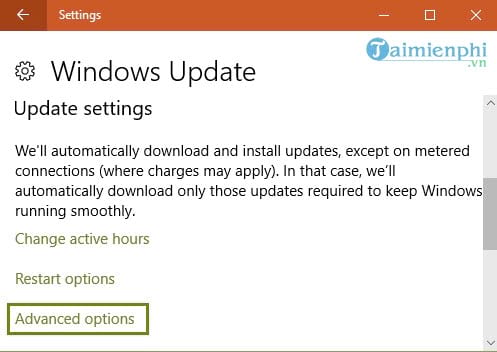
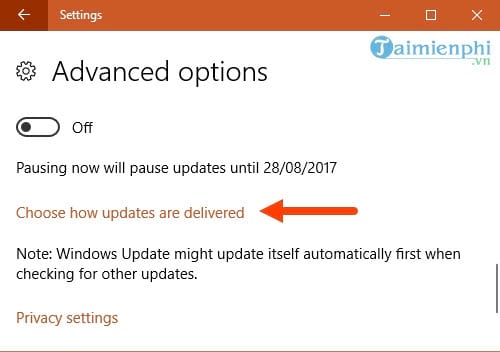
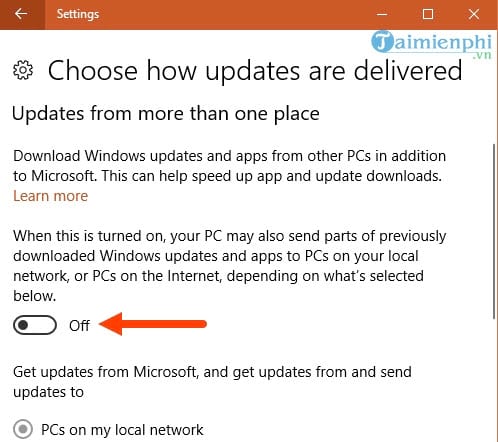
Windows Delivery Optimization can obtain update files from Microsoft and other PCs and can upload pieces to other devices. On Windows 11, open Settings > Windows Update > Advanced options > Delivery Optimization. On Windows 10, the path begins at Settings > Update & Security > Delivery Optimization.
- Choose whether downloads can come from other devices.
- If sharing is enabled, prefer devices on the local network when that matches your needs.
- Open Advanced options to limit background and foreground download bandwidth and cap upload use.
Microsoft's Delivery Optimization guide documents the available limits.
The following screens show the older Windows 10 path previously called “Choose how updates are delivered.”
5. Limit background apps selectively
In older Windows 10 builds, Settings > Privacy > Background apps provided a master list. Current Windows versions manage supported apps individually under Settings > Apps > Installed apps > the app's Advanced options > Background app permissions.
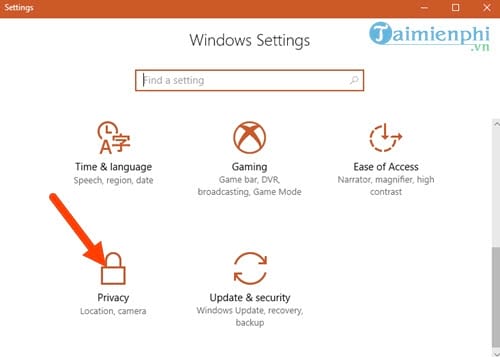
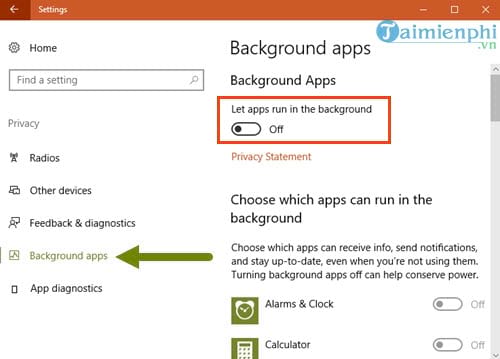
Restrict an app only when usage data shows that it transfers data unnecessarily. Closing a browser tab, pausing a game launcher, or scheduling a cloud backup is usually more effective than turning off all background activity.
6. Do not disable the Windows Update service
Old guides sometimes open services.msc and set Windows Update to Disabled. That can prevent security fixes, driver improvements, and reliability updates, and it does not raise the connection's maximum speed.
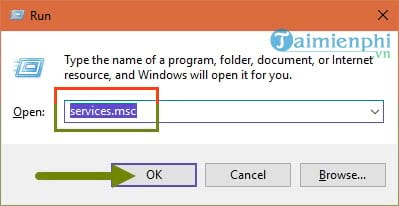
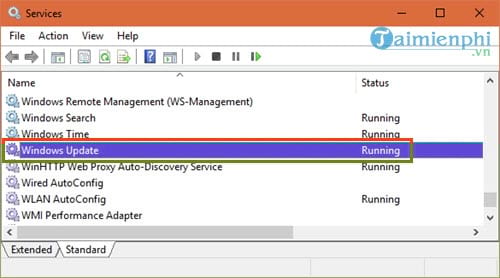
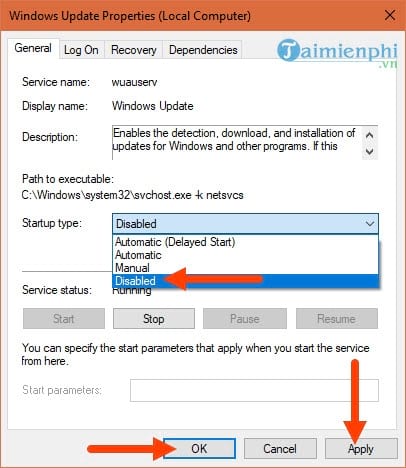
Leave the service configuration alone. Use Active hours, pause controls offered by Settings, Delivery Optimization limits, or a metered connection when appropriate. Resume updates after the time-sensitive activity is over.
7. Understand what changing DNS can improve
DNS converts site names into addresses. A reliable resolver can improve the time before a site begins loading or fix failed name lookups, but it does not increase the bandwidth of a download already in progress. Change DNS only after testing shows that name resolution is slow or failing.
In current Windows, open the connected Wi-Fi or Ethernet network in Settings > Network & internet, select Edit beside DNS server assignment, choose Manual, and enter a trusted provider's documented addresses. Record the original setting and return to Automatic (DHCP) if the change does not help.
The screens below show the older Control Panel route: open the connection, select Properties, then open Internet Protocol Version 4 (TCP/IPv4).
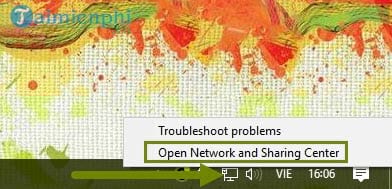
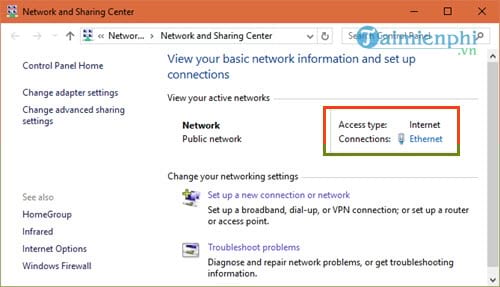
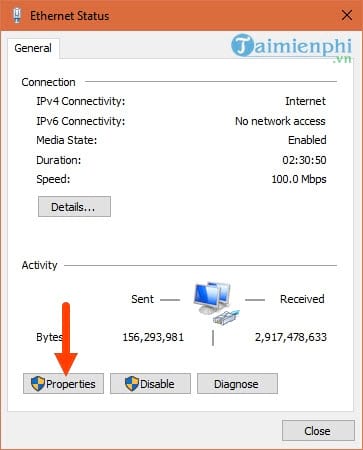
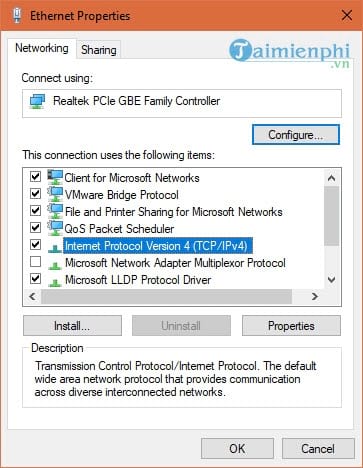
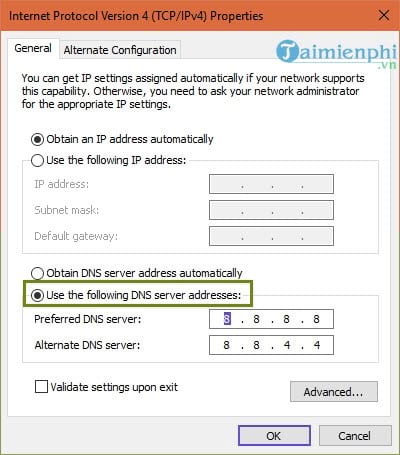
TipsMake compares several public DNS services and their security features. Use the provider's current official address rather than copying an unexplained number from a forum.
8. OneNote is not an internet-speed problem by itself
Uninstalling OneNote does not generally make the network faster. Its synchronization can use bandwidth while a large notebook is updating, just as any cloud app can. Check Task Manager or pause synchronization if it is actually the active user.
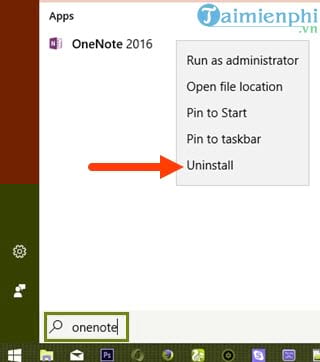
Uninstall an app only because you no longer need it, not because a generic list claims it always slows the internet.
9. Restart and update network hardware
Restart the modem and router without pressing their factory Reset buttons. Check cables and provider status, then install router firmware only from the manufacturer's official site for the exact model and hardware version. If every device slows down at the same time, the cause is unlikely to be a single Windows PC.
10. Improve gaming and calls by reducing latency
- Use Ethernet when practical.
- Pause uploads, backups, and downloads on all household devices.
- Choose a nearby game or service region.
- Avoid a VPN unless it is required; it usually adds another network path.
- Enable router QoS only if you understand its bandwidth settings and can test the result.
If Ethernet remains much slower than the subscribed service on multiple devices, verify cable and port link speed and contact the provider. For a stable wired setup, see TipsMake's Ethernet guide.
Related Articles
 Internet Acceleration 20% Faster in Windows3 minutes read
 Top Software to Increase Wi-Fi Speed, Network Speed6 minutes read
 Top 5 Software to Increase Game FPS for Windows 10, 115 minutes read
 How to Speed Up Your Internet on a Mac14 minutes read
 8 Ways to Speed up Bluestacks to Play Android Games Faster5 minutes read
 Speed up Internet Connection on Windows 10 Computers5 minutes read
Reader Comments 0
Sign in with email or Google to join the discussion.