Table of Contents
Learn how to use Clean Master on a computer with clear steps, practical tips, and troubleshooting guidance for common issues.
Step-by-Step Instructions
Instructions on using Clean Master software to clean up and speed up your computer.
Requirements: - A computer with Clean Master installed - If you haven't installed the software, download Clean Master here:
For detailed instructions on how to install the software, please refer to this link:
Clean Master consists of two main parts:
1 - Left menu : This menu contains software features such as: Junk Clean, PC Boot, Security Check (Privac), and other tools.
2 - Right side : where the actions are displayed when the user activates the feature.
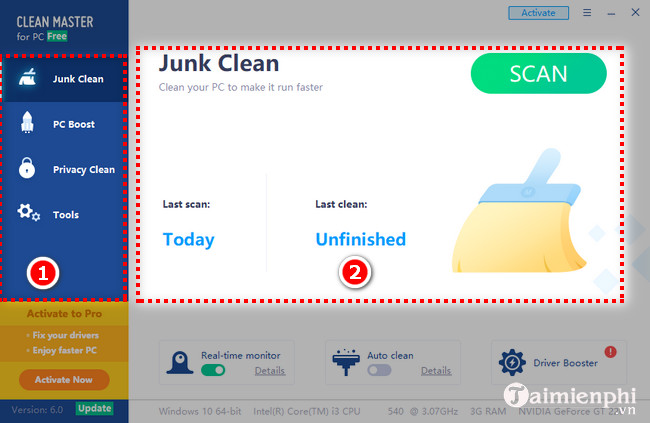
1. Junk Clean - Cleans up the system, deletes junk files.
To clean up junk files, in the Junk Clean section, click Scan to scan all files currently on your computer.
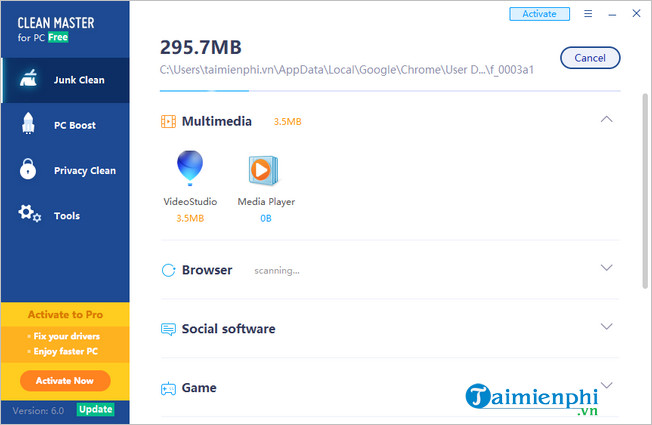
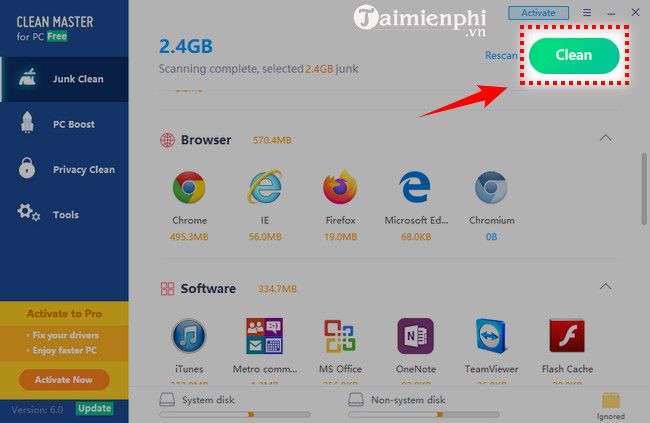
The files that take up the most space on a computer are those in Windows, followed by junk files from browsers, then from software, multimedia, and so on.
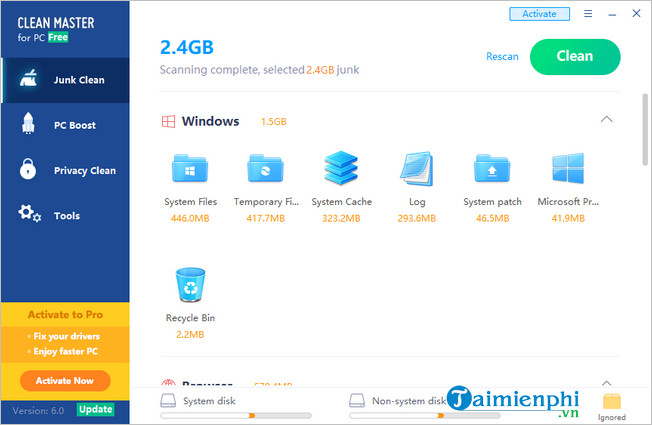
Each category will show the amount of junk files occupying on the system. click each category if you want to see details of how much space they are using. Click Clean to delete the junk files.
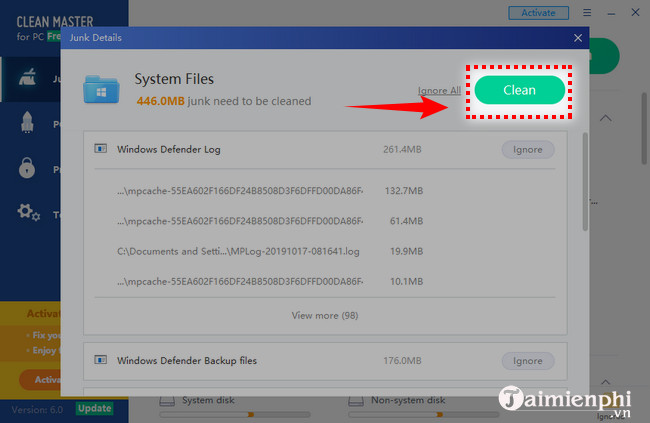
Alternatively, you can click Clean to delete all junk files on your system.
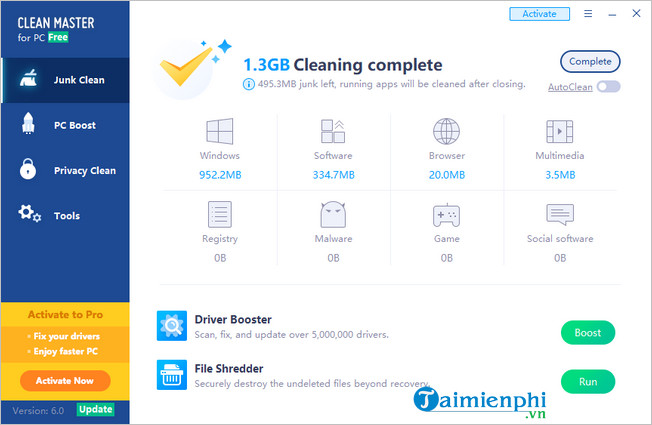
After the cleanup is complete, the software will display the amount of files that have been cleaned, along with details of the amount of space deleted for each item such as Windows, software, browser, games, etc.
2. PC Boost - Speed up your computer
To speed up your computer, click the PC Boot option. Then click the Scan button to proceed.
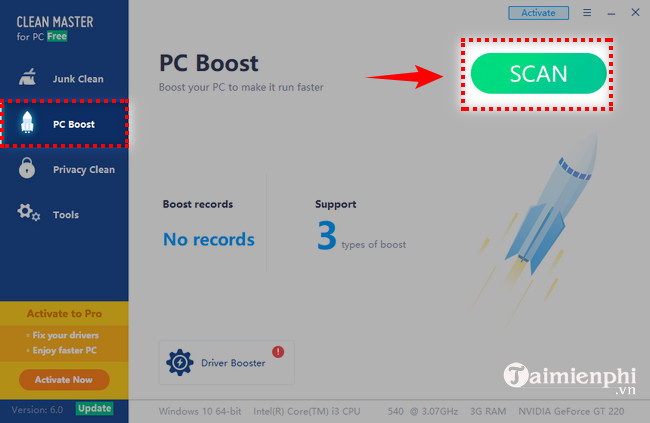
Similar to the Junk Clean section, you can click each item to see the applications that Clean Master has detected and list which applications need to be "freed".
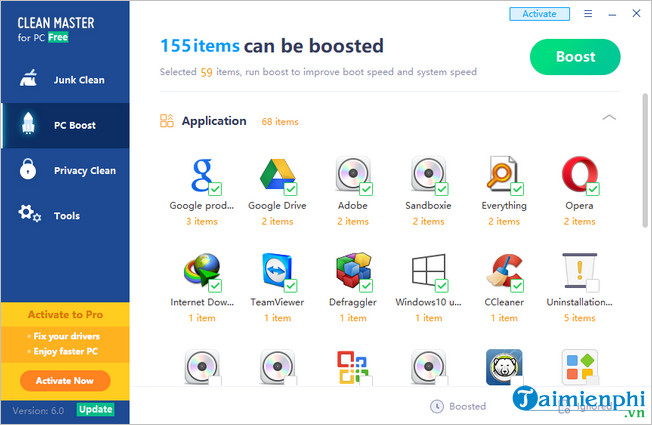
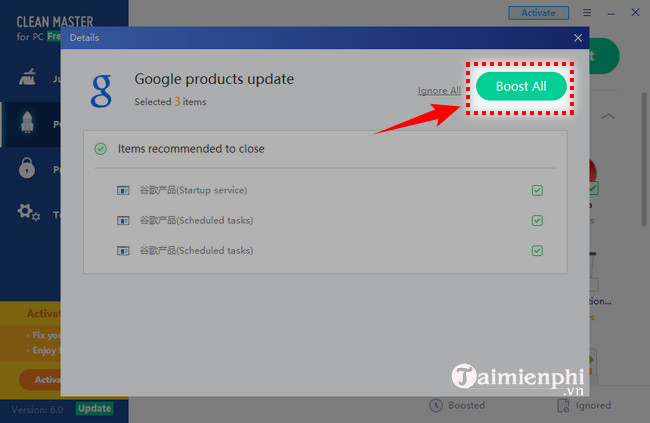
Select the plugins that are running in the background of the application, then click Boost All to disable them.
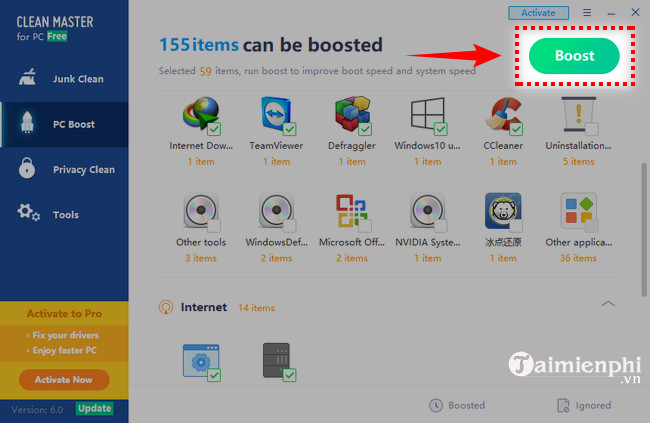
Alternatively, you can click the Boost button to speed up your computer's overall performance.
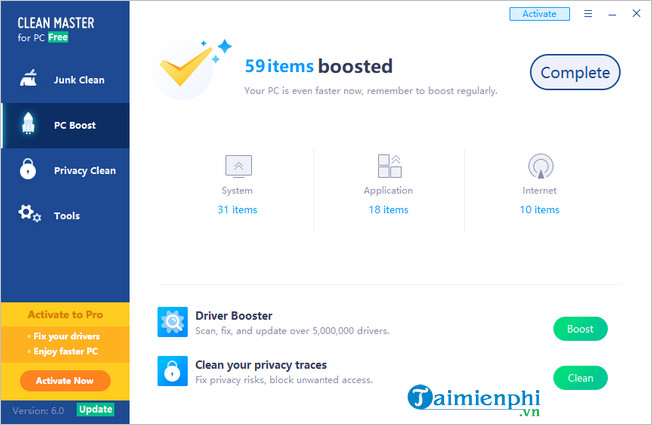
Once the boosting process is complete, the software will display a list of applications that have been boosted to increase speed, including applications, system files, etc.
3. Privacy Clean - System Security
To do this, go to the Privacy Clean menu and click the Scan button to start the system check.
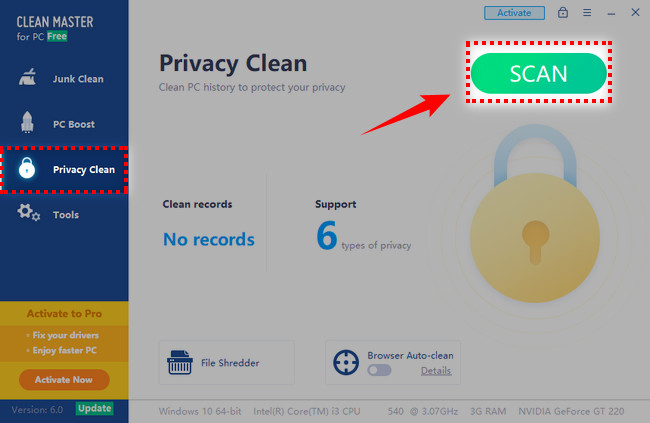
Once the cleaning process is complete, it shows you information about your website visits, first-time app usage, saved app activity logs, etc. Click Clean to clean up all activity logs.
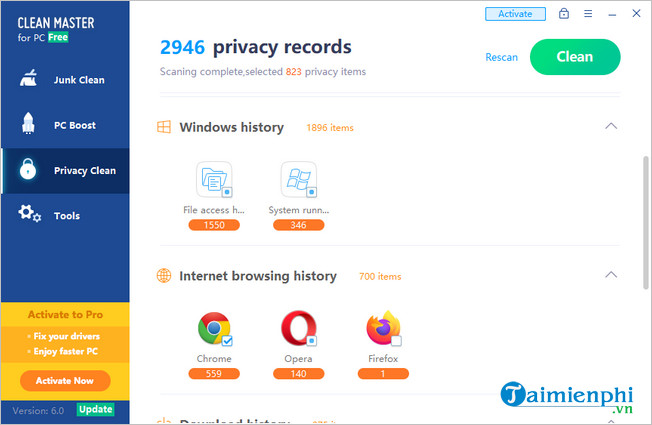
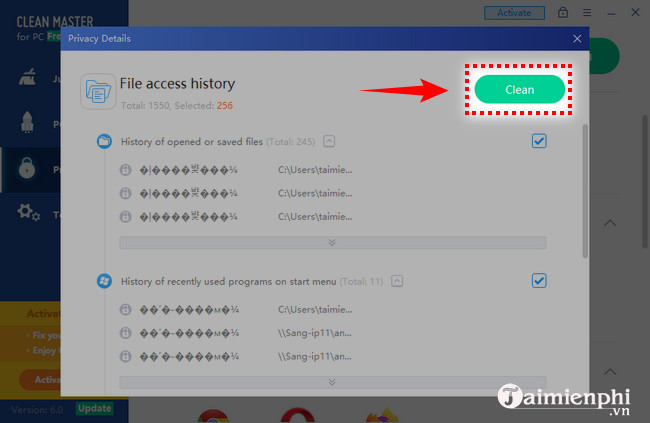
Alternatively, you can select a specific application or software whose access logs you want to delete; simply click each application and then click Clean.
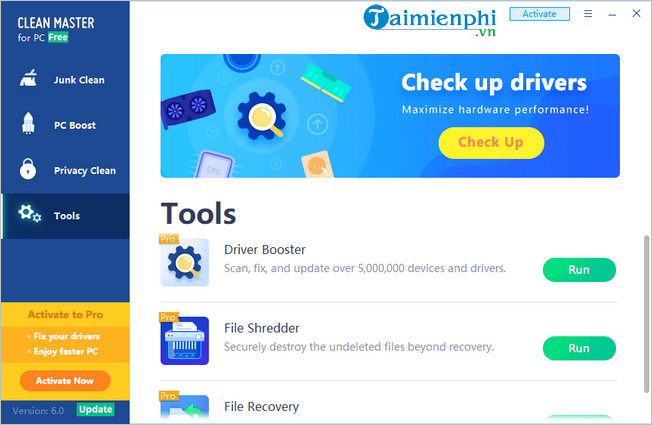
4. Tools - Tools for drivers, file deletion, and data recovery.
Note: These are advanced tools, so you need to pay to use them.
click the Tools menu and you will see 3 tools, including:
- Driver Booster : Scans, repairs, and updates drivers for over 5,000,000 devices.
- File Shredder : Securely destroys files that were not deleted during the recovery process.
- File Recovery: Supports all file formats and easily recovers lost data.
*Driver Booster:
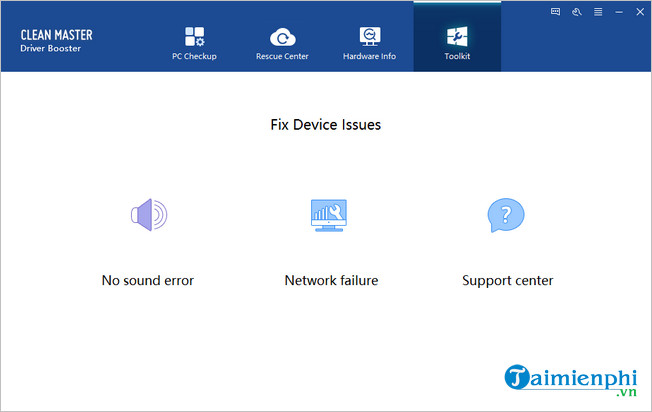
Clicking the Run button in Driver Booster will open a new window containing tools such as: PC Checkup, Rescue Center, Hardware Info, Toolkit, and File Shredder.
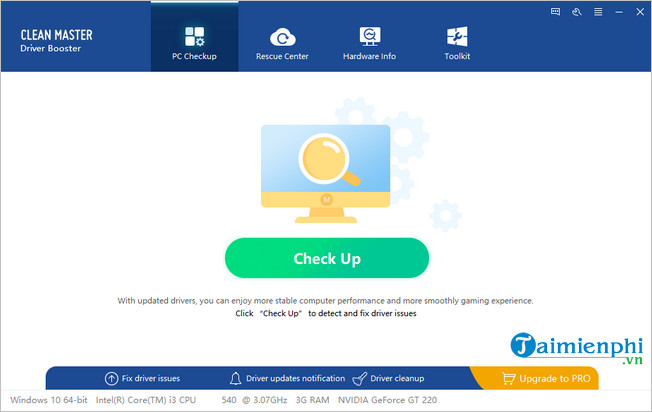
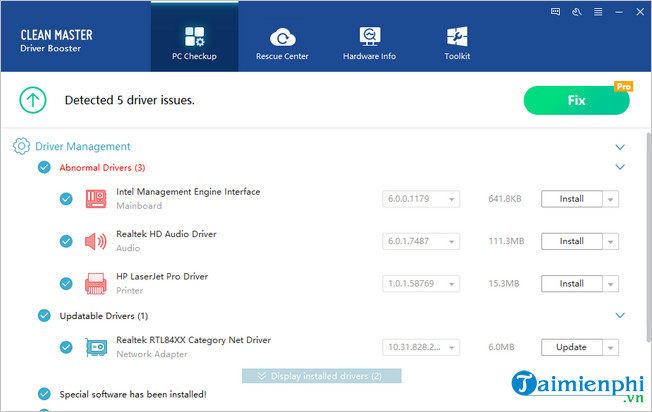
- PC Checkup : helps manage and update the latest drivers.
Simply click Check Up , and the software will search for missing or outdated drivers. Then click Install to have Clean Master automatically install the drivers for you.
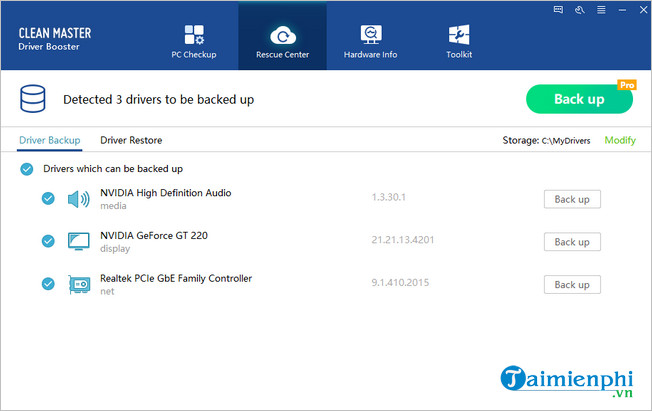
- Rescue Center: This helps back up the drivers currently on your computer. click Back up to back up your existing drivers. This will allow you to restore the drivers for each hardware component whenever they encounter problems.
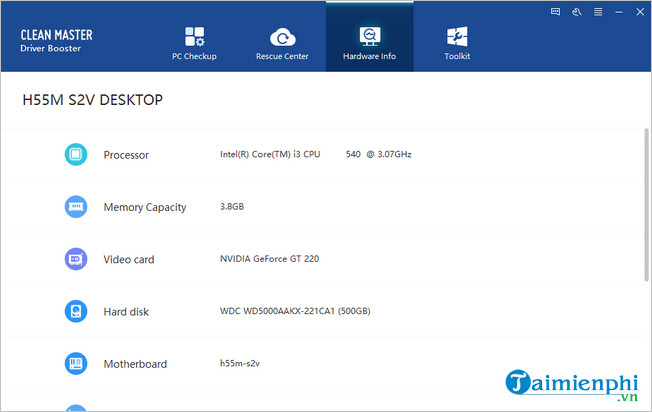
- Hardware Info: This section lets you see all of your computer's hardware, including RAM capacity, CPU name, hard drive capacity and name, etc.
- Toolkit: lets you check for audio and connection problems on your computer.
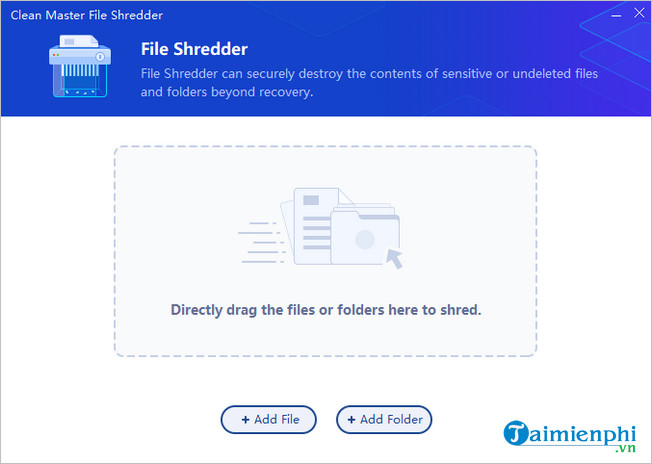
File Shredder
This lets you securely delete files that haven't been permanently removed during the recovery process. Simply drag and drop the files/folders into the application, and the software will securely delete them.
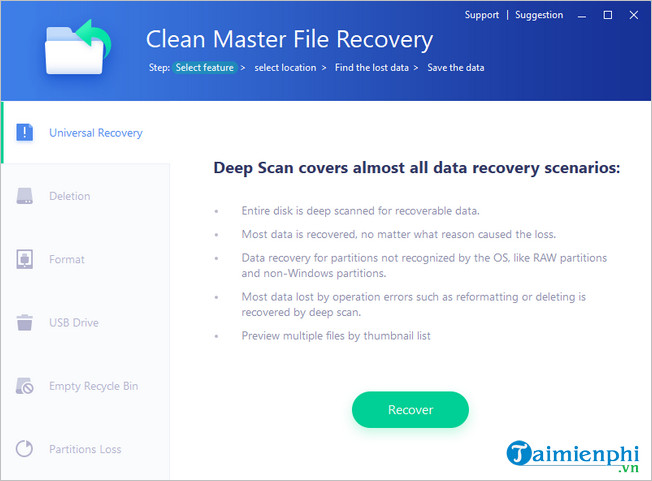
File Recovery
Clicking on this item will open a new window containing tools such as:
+ Universal Recovery : Deep Scan covers almost all data recovery scenarios.
+ Deletion : Recovers permanently deleted files and folders.
+ Format : Restores the file after reformatting.
+ USB Drive : Recover data from external storage devices such as USB drives and external hard drives.
+ Empty Recycle Bin : Restore files and folders from the Recycle Bin.
+ Partitions Loss : Recover data from partitions or from a single partitioned disk.
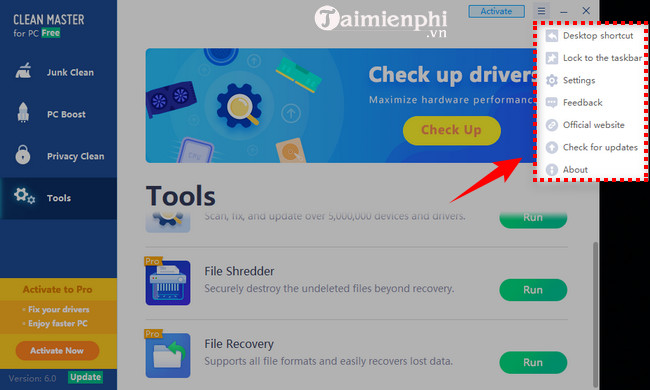
Additionally, there are a few other minor options in the application settings such as: creating a shortcut for the software on the desktop, pinning it to the taskbar, selecting the language, setting up automatic scanning, and checking for new versions.
With This guide, you can easily use Clean Master to speed up your computer. No more stuttering, lagging, or slow performance, and you can comfortably work and play on your computer. TipsMake hopes that Clean Master will be a protector for your computer. If you encounter any difficulties during the process, don't hesitate to comment below; the TipsMake technical team will assist you.
On your computer, you can use CCleaner software to clean up and delete junk files and web browser memory. Importantly, CCleaner also helps to uninstall previously installed software.
- Download app: CCleaner
FAQ
How can you use Clean Master on a computer?
Learn how to use Clean Master on a computer with clear steps, practical tips, and troubleshooting guidance for common issues.
Do the steps or features vary by device or software version?
They can. Menu names, available settings, and compatibility may differ by device, region, account type, or software version, so check the options shown on your own screen.
What should you do if the recommended method does not work?
Repeat the steps in order, confirm that the requirements are met, and restart the relevant app or device when appropriate. Also check for updates and review any error message before trying again.
Related Articles
 How to Use Clean Master to Clean up, Speed up Windows6 minutes read
 How to Install Clean Master, a Computer System Cleaning Software3 minutes read
 Clean Master - Tool to Quickly Remove Junk Files: Complete Overview8 minutes read
 How to Clean Junk Files and Speed up Windows with Clean Master4 minutes read
 List of Chinese Applications Should Be Removed Immediately from2 minutes read
 Increase Hair with a Clean Master: Complete Guide and Key Details3 minutes read
Reader Comments 0
Sign in with email or Google to join the discussion.