Table of Contents
PrivaZer scans Windows computers and storage devices for temporary files, browser traces, old file references, and other data that may no longer be needed. It can free disk space and reduce recoverable activity traces, but cleanup results depend on what is stored on the device.

Before cleaning: download PrivaZer from its official website, back up important files, and create a restore point when the program offers that option. Run a scan without automatic cleaning the first time so you can review every category.
Scan a computer or storage device
Open PrivaZer. Select Scan in-depth only when you need a broad review; a focused scan is faster and easier to verify.
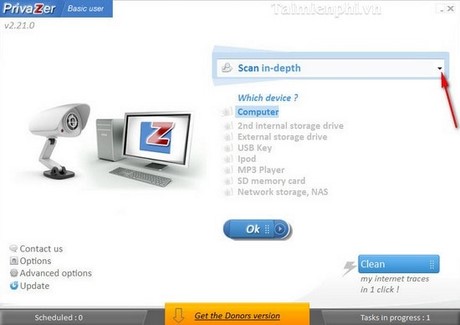
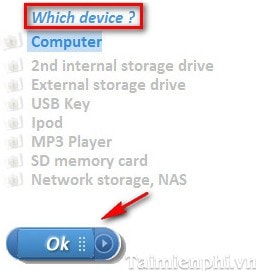
Under Which device?, choose the computer, internal drive, external drive, or USB device you intend to inspect, then select OK.
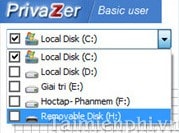
Select the correct drive. Confirm its drive letter, capacity, and contents before continuing.
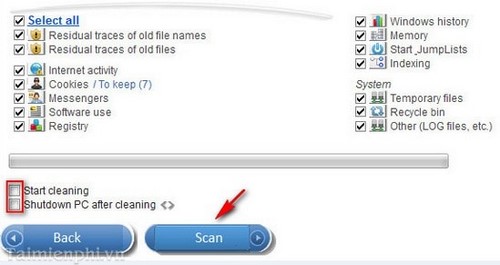
Choose the categories to scan. Leave Start cleaning disabled on the first run; this gives you a chance to inspect the results before anything is removed. Select Scan.
Review the scan results
An in-depth scan can take time, especially on a large hard drive or when many categories are selected. Avoid using the drive heavily while the scan is running.
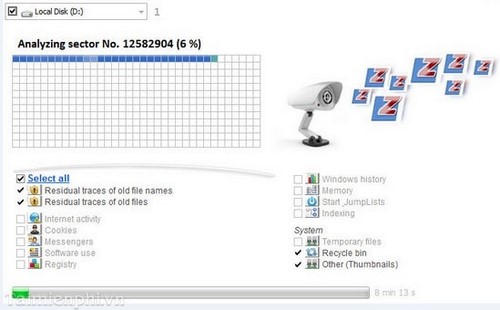
When the scan finishes, expand each category and check what PrivaZer proposes to remove. Pay particular attention to browser cookies and saved sessions, download history, recent-file lists, application caches, Windows update files, and free-space cleanup.
Keep any item you do not recognize. Deleting cookies can sign you out of websites, clearing caches can make apps rebuild data, and removing recovery or installation files can limit rollback options.
Clean the selected items
After reviewing the results, select only the categories you want and click Clean.
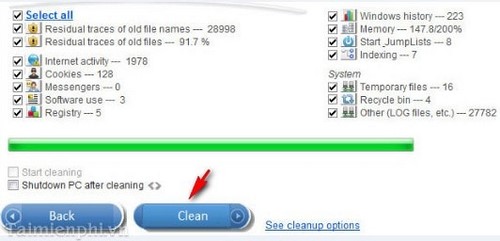
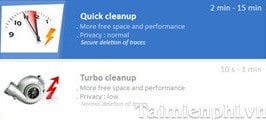
Choose the deletion mode. A normal cleanup is appropriate for routine temporary files. Secure overwriting is slower and intended for specific privacy needs; it is not necessary for every cleanup.
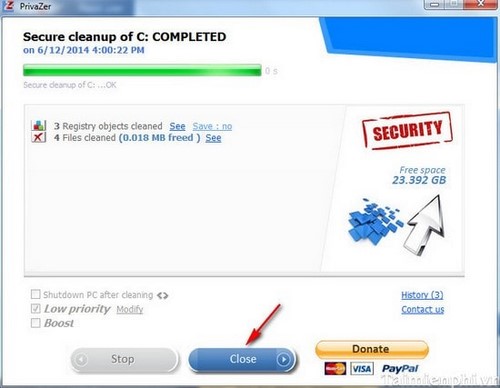
Wait for the task to finish, review the summary, and close the program.
Important cleanup limits
Free-space wiping can be lengthy, and repeated overwriting is not a routine maintenance step for an SSD. Use the storage-aware option recommended by the program and the device manufacturer. Never securely wipe a drive that may contain files you need to recover.
Cleaning temporary data may recover storage space, but it does not guarantee a faster PC. If the goal is simply to remove Windows temporary files, the built-in approach may be enough: see how to clear temporary files in Windows 10. The overview of older Windows tools that remain useful also covers Disk Cleanup and modern cleanup alternatives.
Related Articles
 Computer Protection: How to Use Iobit Advanced Systemcare7 minutes read
 Clean up Your Computer System with Privazer3 minutes read
 Free Up Hard Drive Space Automatically on Windows 10 with Disk7 minutes read
 What Is a Junk File?7 minutes read
 25 Free File Shredder Software Deletes Security Data for Computers21 minutes read
 How to Use Trend Cleaner to Clean Up Windows 107 minutes read
Reader Comments 0
Sign in with email or Google to join the discussion.