Table of Contents
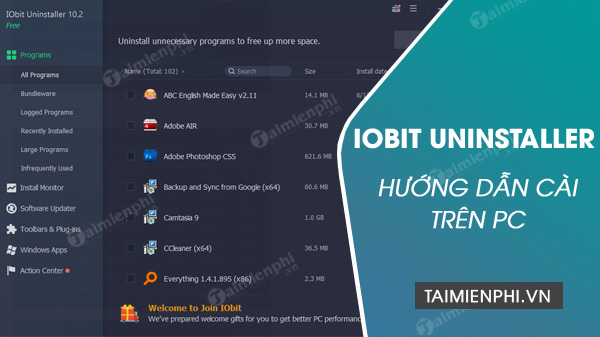
IObit Uninstaller is a Windows utility for removing desktop programs, Windows apps, and some leftover files after an uninstall. Windows already includes its own uninstall tools, so install a third-party uninstaller only if you need features such as leftover scanning or forced removal.
Before installing
- Download the installer from IObit's official website rather than a third-party download mirror.
- Confirm that the publisher shown by Windows is IObit before approving the installer.
- Close other installers and save your work.
- Create a restore point or backup if you plan to use forced removal on system-level software.
The supported Windows versions, installer size, and product interface can change. Check the current requirements on the official download page instead of relying on an old version number.
Install IObit Uninstaller
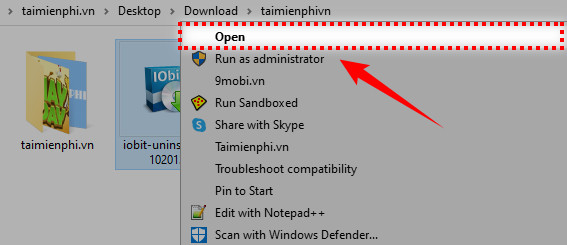
Download the current installer and double-click the downloaded iobituninstaller.exe file.
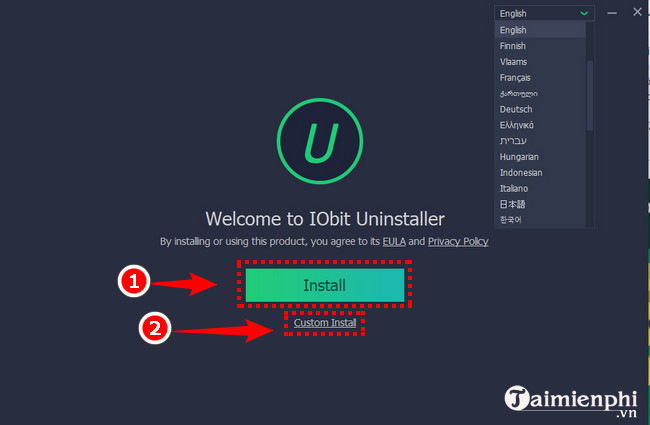
When the setup window opens, choose Custom Install if you want to review the installation folder, shortcuts, and other options. The wording may differ in newer releases.
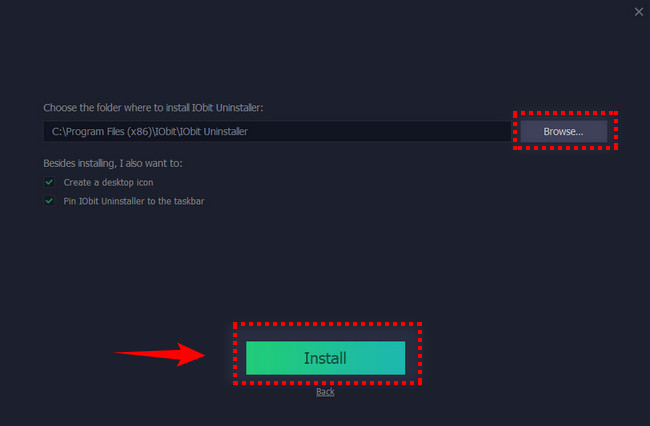
Review the destination folder and shortcut choices, then select Install.
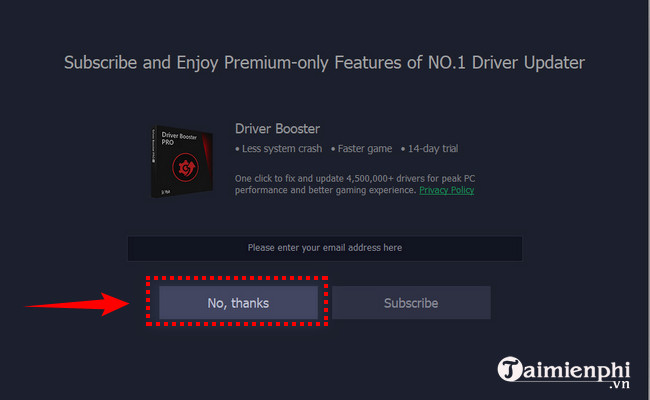
Read each setup screen. If an optional product, browser change, newsletter, or trial is offered, decline it unless you specifically want it. The screenshot below shows an older offer; current offers may be different.

Wait while setup copies the program files.

Review any email-subscription or update prompt before continuing. A marketing subscription is not required to use the program.
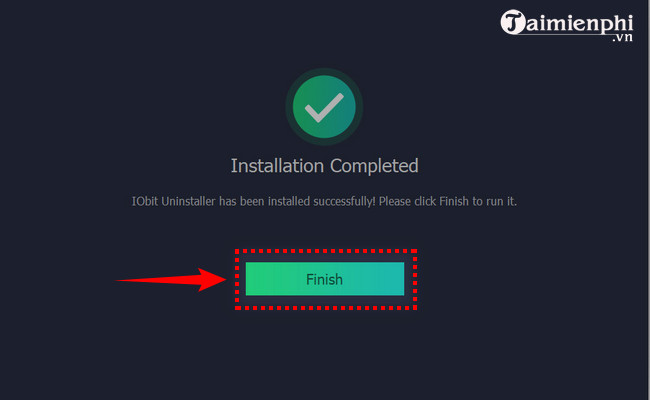
Select Finish to close setup and open IObit Uninstaller.
Use the program cautiously
Start with the normal uninstall option. Review the proposed leftover files and Registry entries before deleting them, especially when removing drivers, security software, hardware utilities, or shared development tools. A leftover scan can match files used by more than one application.
Do not treat an uninstaller as a general speed booster. Removing an unused program can free disk space and may reduce background activity, but it does not guarantee a faster computer.
Try Windows' built-in uninstall option first
On Windows 11, you can right-click an app in Start and select Uninstall, or use Settings > Apps > Installed apps. See three ways to remove apps in Windows 11. For older Control Panel workflows, follow the guide to uninstalling a program in Windows.
Related Articles
 Iobit Uninstaller - Iobit Uninstaller Download and4 minutes read
 Iobit Uninstaller - Software to Uninstall Applications on PC5 minutes read
 How to Use IObit Uninstaller to Completely Remove Software on Windows: Practical5 minutes read
 Offer Iobit Uninstaller 7 Pro, the Software to Remove Computer4 minutes read
 10+ Best Free Software Uninstaller Tools21 minutes read
 5 Best Alternatives to Revo Uninstaller8 minutes read
Reader Comments 0
Sign in with email or Google to join the discussion.