Table of Contents
The Ultimate Performance power plan is designed to reduce some power-management delays on compatible Windows 10 systems. It can be useful for a desktop or workstation running sustained, latency-sensitive workloads, but it does not automatically make every PC faster.
Before you enable it: expect higher power consumption, more heat, and potentially more fan noise. On a laptop, battery life can fall noticeably. Modern Standby devices and some manufacturer-managed PCs may not expose the traditional power-plan choices shown in this guide.
What Ultimate Performance changes
The plan favors responsiveness over energy savings by adjusting power-policy settings. It does not overclock the processor or graphics card, add memory, or fix a slow storage drive. Performance gains may be small or unnoticeable when hardware already boosts correctly under the Balanced plan.
Add the Ultimate Performance plan
Right-click Start and open Windows PowerShell (Admin) or Command Prompt (Admin). Approve the administrator prompt.
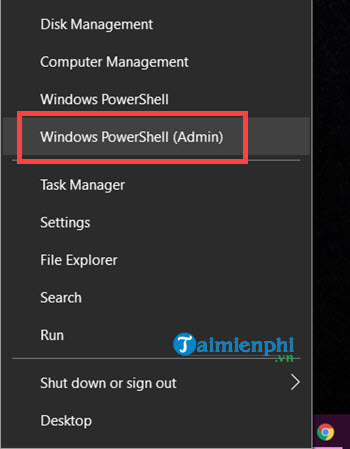
Run this command:
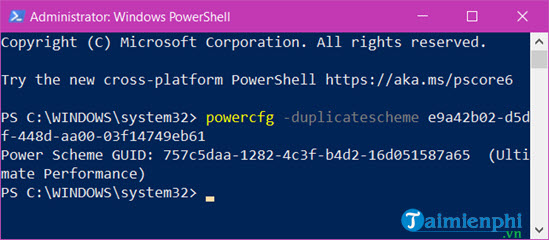
powercfg -duplicatescheme e9a42b02-d5df-448d-aa00-03f14749eb61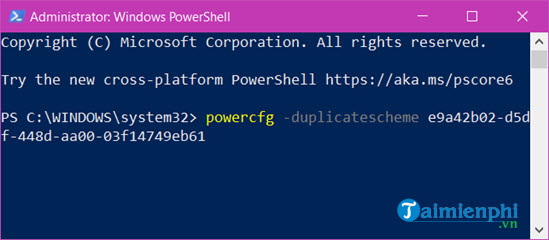
Confirm that the command returns a new Power Scheme GUID. This means Windows created a copy of the Ultimate Performance scheme.
Select Ultimate Performance in Power Options
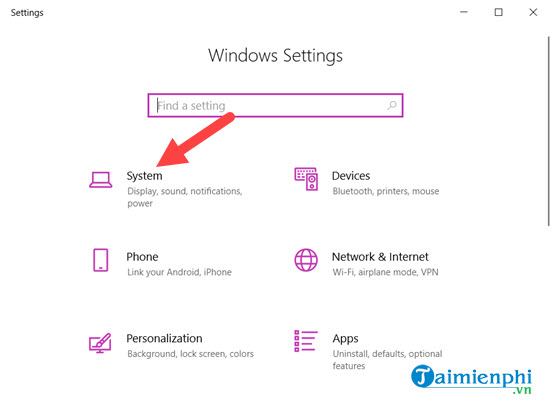
Press Windows + I and open System.
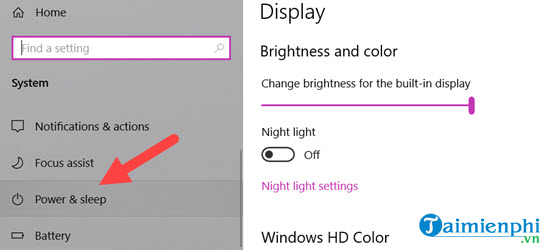
Select Power & sleep.
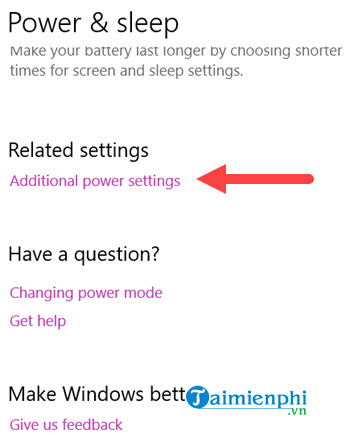
Under Related settings, select Additional power settings to open Control Panel's Power Options.
Expand Show additional plans, then select Ultimate Performance.
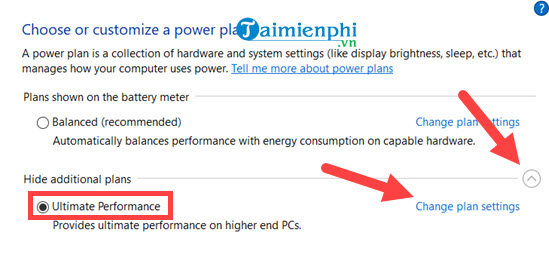
Choose Change plan settings if you need to adjust display and sleep behavior.
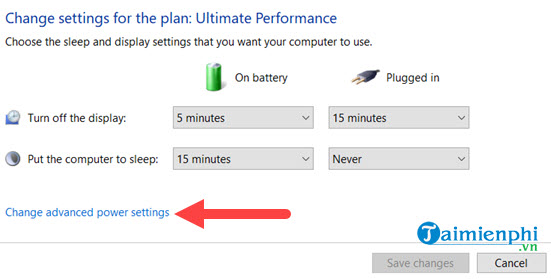
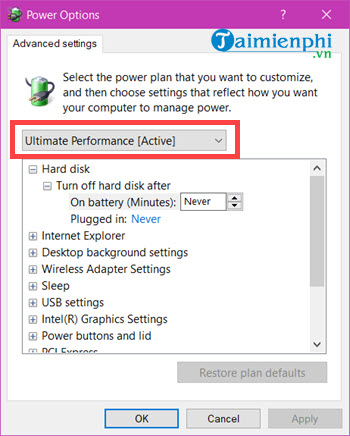
Open Change advanced power settings to review the individual settings. Change only options you understand.
If the plan does not appear
Restart Power Options after running the command and check Show additional plans. If only Balanced remains available, the device may use Modern Standby or manufacturer-specific power management. Do not disable firmware power controls simply to force this plan to appear.
Switch back when you no longer need it
Select Balanced in Power Options to restore the normal balance between performance and energy use. For broader improvements, see the Windows 10 optimization checklist. Laptop users can instead customize a power plan for better battery life.
Use a repeatable workload to compare the plans. If completion time and responsiveness do not improve, Balanced is usually the more practical choice.
Related Articles
 How to Enable Ultimate Performance to Optimize Performance on11 minutes read
 How to Improve Windows 10 Performance and Speed Up Your System10 minutes read
 Which Upgrade Will Improve Your Computer's Performance the Most?14 minutes read
 12 Tips to Speed up Your Computer Comprehensively9 minutes read
 How to Enable Performance Optimization in Windows 107 minutes read
 Speed up Computers: 8 Simple Ways to Speed up Windows 76 minutes read
Reader Comments 0
Sign in with email or Google to join the discussion.