Table of Contents
Files in the Windows Recycle Bin are not permanently deleted yet. You can restore them to their original folders or drag them to a new location. If the Recycle Bin has already been emptied, stop using the affected drive as much as possible and use a backup or recovery tool instead.

Restore files to their original locations
Double-click the Recycle Bin icon on the desktop.
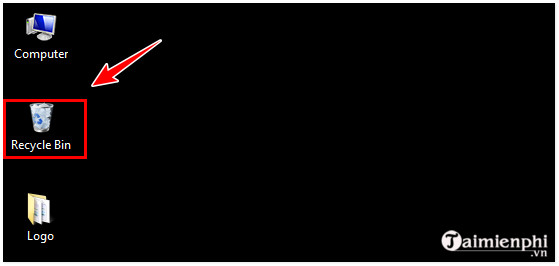
Select the files or folders to restore. Hold Ctrl while clicking separate items, use Shift to select a continuous range, or press Ctrl + A to select everything.
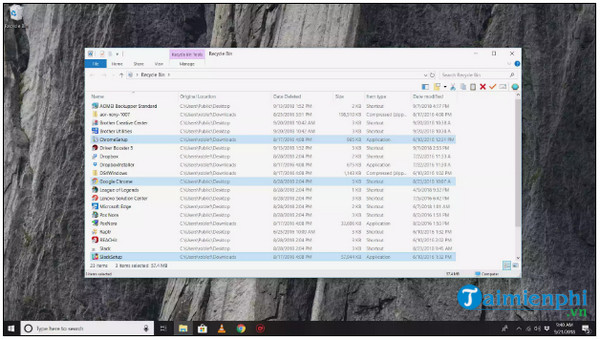
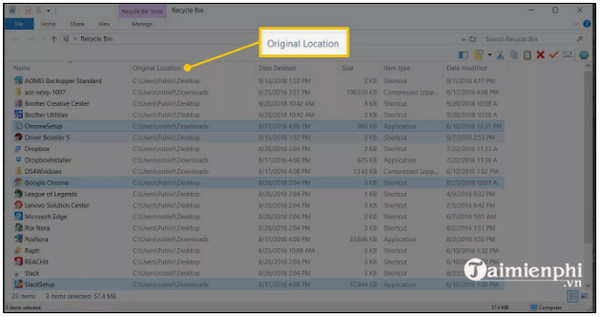
Check the Original Location column so you know where Windows will return each item.
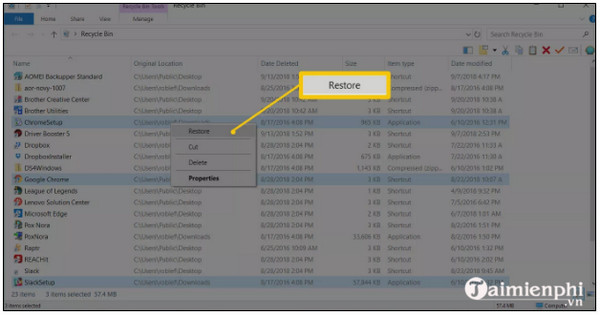
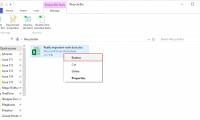
Right-click the selection and choose Restore. Windows returns each item to its original folder.
To place a file somewhere else, drag it from the Recycle Bin to the desktop or another folder. Large files or a large selection may take longer to restore.
Show a missing Recycle Bin icon
In Windows 10 or Windows 11, open Settings > Personalization > Themes > Desktop icon settings, enable Recycle Bin, and select OK.
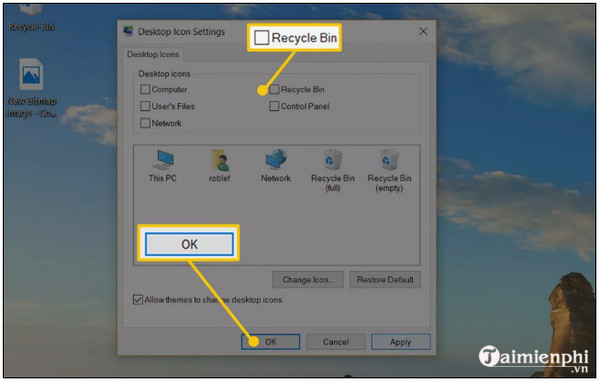
On Windows 7 or 8, open Personalization or the desktop-icon settings in Control Panel and enable Recycle Bin.
Turn on delete confirmation
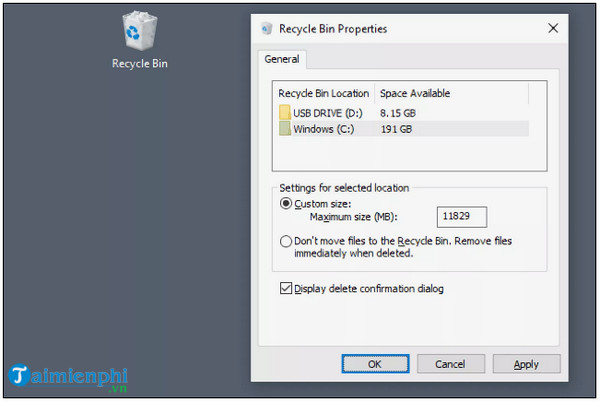
Right-click the Recycle Bin, select Properties, enable Display delete confirmation dialog, and select OK. Also verify that Don't move files to the Recycle Bin is not selected if you want deleted items to remain recoverable there.
If the Recycle Bin is empty
Check File History, OneDrive, another cloud backup, or an external backup first. Avoid installing recovery software on the same drive because new data can overwrite deleted content. If no backup exists, review data-recovery software options. To avoid emptying the Recycle Bin accidentally during maintenance, also review what Windows cleanup commands remove before running them.
Related Articles
 4 Ways to Recover Files from Recycle Bin in Windows 108 minutes read
 How to Restore the Recycle Bin Icon Lost in Windows 105 minutes read
 5 Recycle Bin Settings on Windows 11 You Should Know7 minutes read
 How to Recover Deleted Files Permanently in the Trash3 minutes read
 Click: How to Recover Deleted Files in Windows 75 minutes read
 How to Recover Deleted Photos on Windows, Mac, Android, and iPhone8 minutes read
Reader Comments 0
Sign in with email or Google to join the discussion.