Table of Contents
The simplest and most commonly used way to speed up a computer is to restart it .
In today's digital world, knowing how to speed up Windows 7, 8, 10, and 11 computers for smoother performance plays a crucial role in optimizing work efficiency and user experience. Understanding these methods helps us maximize the use of our devices and create a smooth and efficient work environment. Let's explore office computing skills with 15 ways to speed up your computer for smoother operation.
Restart your computer
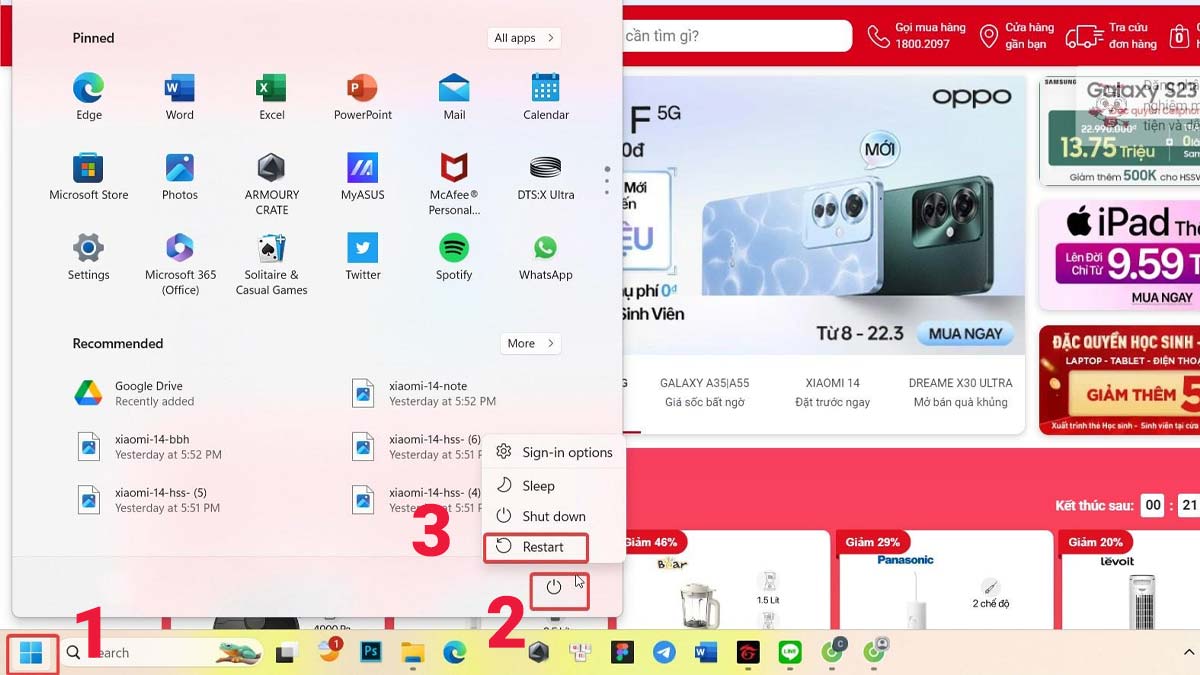
The simplest and most commonly used way to speed up a computer is to restart it . However, restarting doesn't just refresh the system; it also closes background windows and applications, saving memory and making the computer run more smoothly. For Windows, you just need to perform a few simple steps: click the Windows icon, select Power, and then select Restart.
Turn off background applications
Background applications are often the cause of a slow computer. These applications automatically run to update data and display notifications, even when you're not using them.
To speed up your computer and make it run smoother by closing background applications, you can do the following:
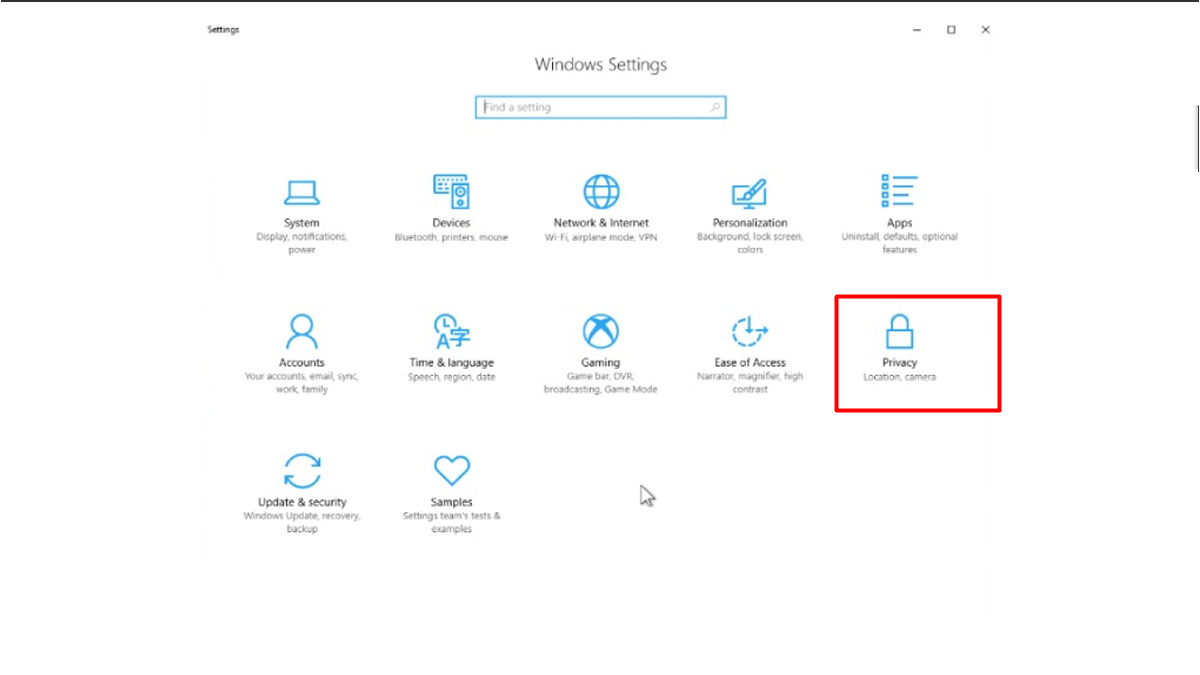
Step 1: Open Settings, then tap Privacy.
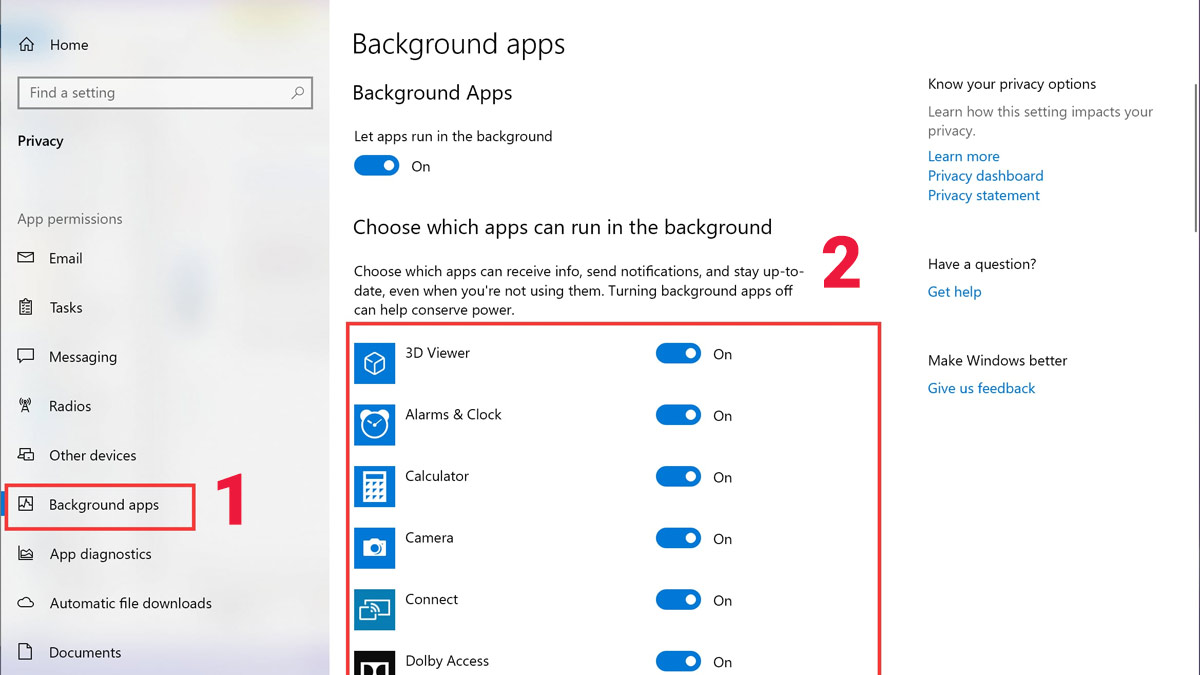
Step 2: Select the Background apps section, and click the On/Off button under 'Let apps run in the background' to turn off all background apps, or you can select a few apps to turn off according to your needs.
Restrict certain applications from running simultaneously at startup
When you start Windows, several installed applications automatically open at the same time, causing the computer to take a long time to complete the process. To speed up your laptop , you can prevent programs from starting with Windows with the following simple steps:
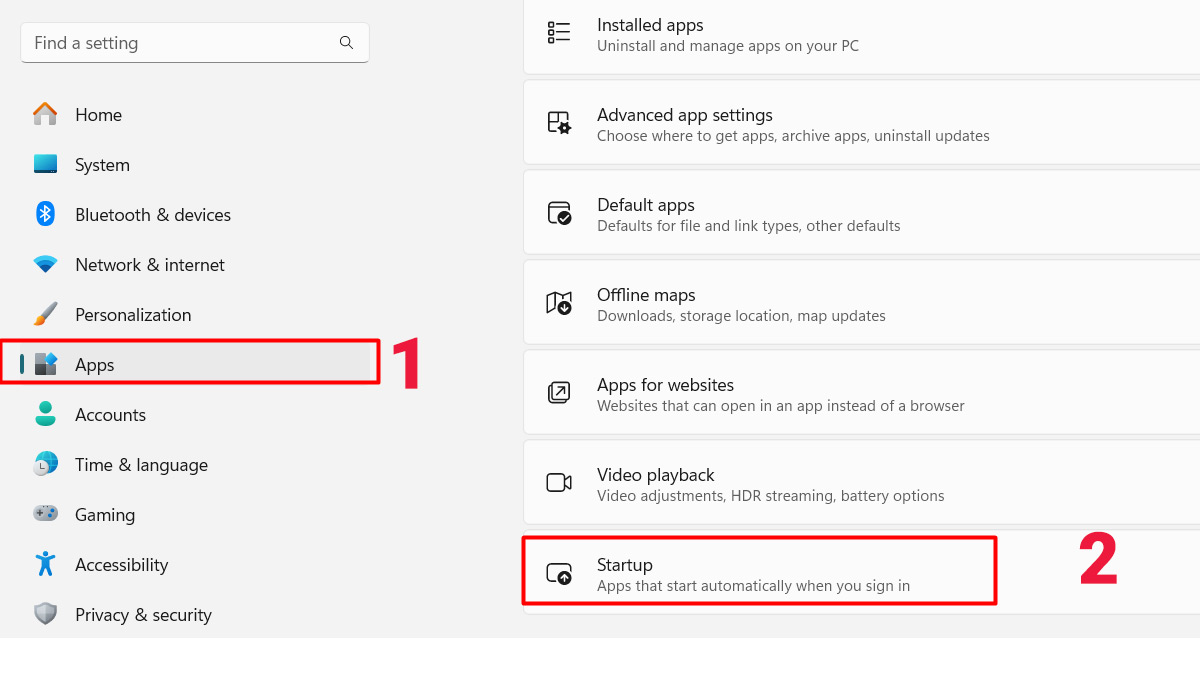
First, go to Settings, then to Apps, and then to Startup. Finally, right-click on the On/Off button to enable or disable the applications you want to run at startup.
Enable the fast startup feature
The simplest way to speed up your Windows 7, 8, 10, or 11 computer is to enable the fast startup feature. Simply press the Win + X key combination, then select Power Options, and finally click Choose what the power button does.
Speed up computer boot time
In a computer, the boot process is the initialization of the system to begin the operating system's operation when you start your computer. To speed up your computer and make your PC or laptop run smoother, you can follow these steps:
Step 1: First, type the keyword 'System Configuration' into the search bar and select System Configuration.
Step 2: Click on the Boot tab, enter '3' in the Timeout field. Then select Advanced options, and continue by selecting '4' in the Number of processors section. Click OK to complete the installation.
Add more virtual RAM to your laptop
Virtual RAM, or Virtual Memory, is a portion of the hard drive used by the operating system to simulate physical RAM. By allocating more virtual RAM, software can have more memory space to operate more stably and efficiently.
Here's how to speed up your computer by expanding virtual RAM; you can follow these steps:
Step 1: Open the Control Panel on your computer and select System, then select Advanced system settings.
Step 2: In the new window that appears, select Settings under Advanced. Continue selecting Advanced and click the Change… button.
Step 3: Uncheck the box labeled "Automatically manage paging file size for all drives." Then, enter the amount of virtual RAM you want to allocate in the "Custom size" field. For example: 4096 MB (4 GB) with a maximum of 7168 MB (7 GB). Select "Set" and then "OK" to complete.
Stop or delete unnecessary applications
During work, some users often open multiple unnecessary software programs simultaneously. While this may seem harmless, in reality, those applications are still running and slowing down your laptop.
Below are ways to speed up your Windows 7, 8, 10, and 11 computer by disabling/removing unnecessary applications.
Step 1: Right-click on the Taskbar and select Task Manager.
Step 2: Here, you will see a list of applications running on your computer. Select and end unnecessary applications by clicking on them and selecting "End task".
Increase RAM capacity
This is the most effective way to speed up your computer and increase its performance. You can upgrade to a new, higher-capacity RAM module and install it in your computer. Before buying, be sure to check your computer's RAM compatibility to choose the right type by following these steps:
Step 1: Right-click on the Taskbar and select Task Manager. Then, click on Performance. There, you will see an overview of your RAM usage, allowing you to decide whether or not you need to upgrade your RAM.
Step 2: Next, check what type of RAM you are using. You can search for your laptop model online or use CPU-Z to check your machine's information.
Step 3: After checking, you can purchase a new RAM stick that matches your computer's specifications to upgrade your computer's RAM capacity.
Upgrade to an SSD or add storage
Upgrading to an SSD is a way to speed up your computer for smoother performance. The first step is to determine the right type of SSD for your computer. Next, choose an SSD with the appropriate capacity and read/write speeds (See also "What is an SSD?" for a clearer understanding of the SSD definition).
Before upgrading, back up important data from your current hard drive. Then, remove the old hard drive and replace it with a new SSD. Reinstall the operating system and applications afterward, and once complete, your computer will run more smoothly with enhanced performance from the new SSD.
Turn off visual effects
While using high-definition visual effects can create an enjoyable experience, it also consumes resources and slows down your computer. Turning off unnecessary visual effects is a way to speed up your Windows 7, 8, 10, and 11 computer.
To turn off visual effects, you can follow these steps:
Step 1: Open and select Control Panel, then select System, and then select Advanced system settings.
Step 2: In the Advanced section, click on Settings. In the Visual Effects tab, select Adjust for best performance. You can also select Custom to adjust the visual effects of the elements as desired.
Choose an appropriate Windows power mode
Adjusting battery consumption settings is a common way to speed up your computer when it's slow or lagging. To adjust battery consumption options, you can follow these steps:
Step 1: Open and search for Control Panel, then select Hardware and Sound.
Step 2: Select Power Options and then choose Create a Power Plan.
Step 3: Next, choose a power level that matches your laptop's workload.
This process is quite simple and can be performed on any operating system, helping you optimize your computer for faster and more efficient performance.
Review System Restore disk usage
System Restore can help recover Windows after a faulty driver, update, or configuration change. If restore points use too much space, open System Protection settings and reduce the allocated disk space instead of disabling the feature without a recovery plan.
Clean up junk files on your laptop or PC
One way to speed up the performance of your Windows 7, 8, 10, or 11 computer is to delete temporary files and unused data from your hard drive. Cleaning up your hard drive not only increases storage space but also makes searching for data easier and faster.
To speed up your computer by cleaning up your hard drive, you can use the Disk Cleanup feature by following these steps:
Step 1: Right-click on the drive you want to clean up and select Properties.
Step 2: Next, select the Disk Cleanup option. Check the boxes next to the files you want to delete.
Step 3: Click OK and then select Delete Files to complete the cleanup process.
Keep your computer from overheating
During use, your computer often generates heat from its internal components, causing it to overheat and affecting its performance. Using a laptop stand or ensuring proper ventilation around the PC helps dissipate heat more effectively, allowing the computer to cool down more easily and optimize its performance.
Use antivirus software
One way to speed up your computer and make it run smoothly is to use antivirus software. If your computer is infected with a virus, it will cause delays and often freeze. Therefore, you should equip yourself with reputable and highly secure antivirus software to help your computer run smoothly and better protect your data.
In summary, speeding up your Windows 7, 8, 10, and 11 computer is not just a need, but a crucial part of optimizing performance and user experience. These 15 methods can help your computer run more stably and efficiently. Apply these techniques and feel the difference in your computer's performance starting now.
We offer you a wide selection of laptops with powerful performance and diverse options. From laptops with powerful Intel and AMD processors to top-of-the-line gaming laptops and convenient features. Discover the most popular laptop models at [website name].
Related Articles
 Tips to Play the Game Smoother, Not Jerking Lag on the8 minutes read
 How to Make Minecraft Smoother: Step-by-Step Guide11 minutes read
 What Should I Do to Make My New Laptop Run Smoother?6 minutes read
 How to Improve Windows 10 Performance and Speed Up Your System10 minutes read
 Simple Ways to Speed up Old Smart Tvs: Make Your TV Run Fast and Smooth Like6 minutes read
 How to Speed up BlueStacks, Make BlueStacks Run Smoother5 minutes read
Reader Comments 0
Sign in with email or Google to join the discussion.