Table of Contents
A slow laptop is easiest to fix when you identify the constrained resource first. Open Task Manager on Windows or Activity Monitor on macOS and check CPU, memory, disk, and network activity while the slowdown is happening. Then apply the relevant fix instead of installing a generic “speed booster.”
Start with a quick diagnosis
| Symptom | Likely area to check | First action |
|---|---|---|
| Slow immediately after sign-in | Startup apps, updates, synchronization | Wait for updates to finish and disable unnecessary startup items. |
| Apps reload or freeze during multitasking | Memory pressure | Close the largest memory users and check installed RAM. |
| Everything pauses while disk usage reaches 100% | Storage activity or failing drive | Find the process using the disk and check drive health. |
| Fast at first, slow after several minutes | Heat or power limits | Check temperatures, vents, fan behavior, and power mode. |
| Only websites or cloud apps are slow | Network, browser, DNS, or VPN | Test another site and connection before changing the laptop. |
1. Restart and let maintenance finish
A restart clears stuck processes and applies pending updates. After signing in, allow a few minutes for Windows Update, Spotlight indexing, cloud synchronization, or antivirus scans to settle before judging performance.
If the laptop is slow only during an update or first-time indexing, repeated forced shutdowns can prolong the work or damage files.
2. Find the process using resources
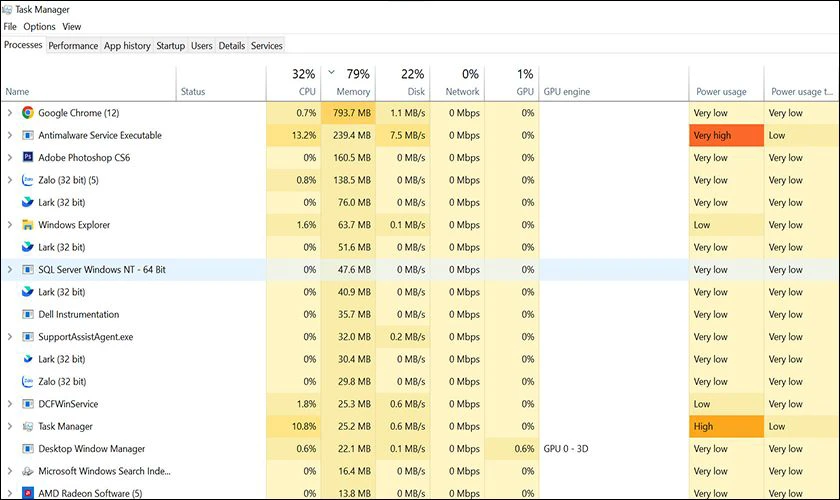
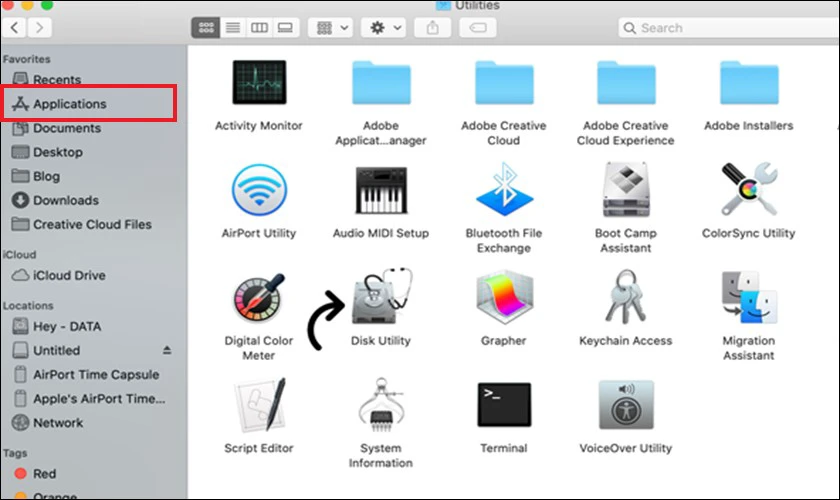
On Windows, press Ctrl+Shift+Esc and sort the Processes tab by CPU, Memory, or Disk. On macOS, open Activity Monitor and use its CPU, Memory, Energy, and Disk views.
Close an ordinary app only after saving its work. Do not end an unfamiliar system process merely because it is near the top; first identify what it does. A resource spike during an export or update is normal, while a process that stays high when the computer is idle deserves investigation.
3. Disable unnecessary startup apps
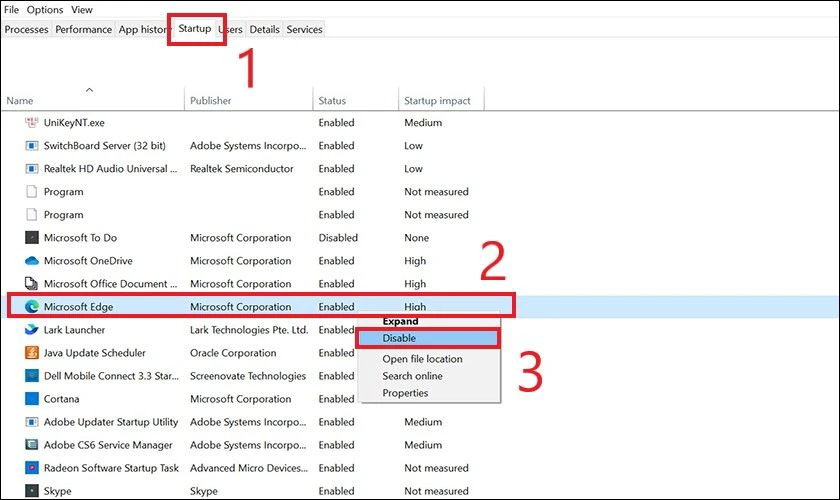
On Windows, open Task Manager > Startup apps, or go to Settings > Apps > Startup. Disable game launchers, optional updaters, chat clients, and other programs you do not need at every sign-in. Keep security software, touchpad tools, audio components, and hardware utilities you depend on.
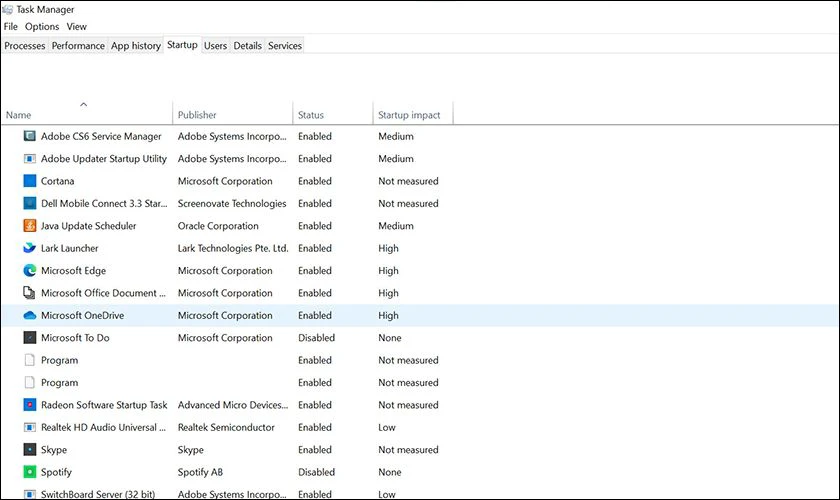
On macOS, use System Settings > General > Login Items & Extensions. Disabling startup does not uninstall the app; you can still open it manually. TipsMake has a focused guide to reducing startup and background apps.
4. Free storage space safely
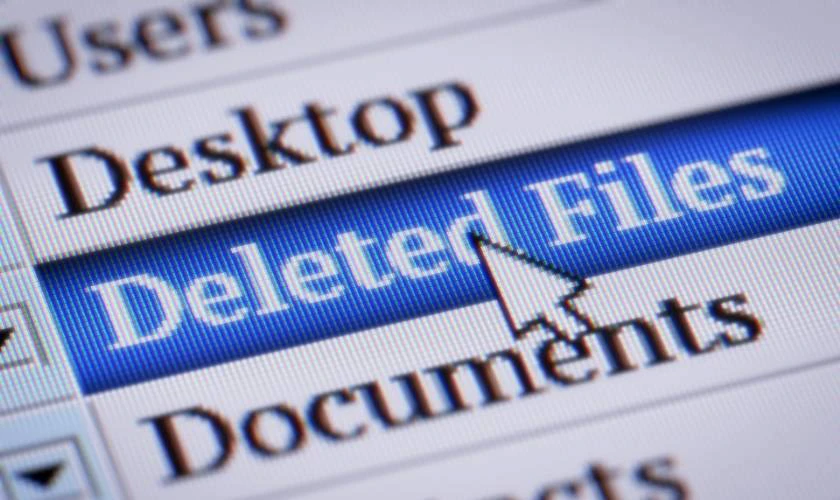
A nearly full system drive leaves less room for updates, temporary files, application caches, and virtual memory. On Windows, open Settings > System > Storage and review Temporary files and Cleanup recommendations. On macOS, open System Settings > General > Storage.
- Empty the Recycle Bin or Trash after confirming the contents.
- Move large personal files to a verified backup or external drive.
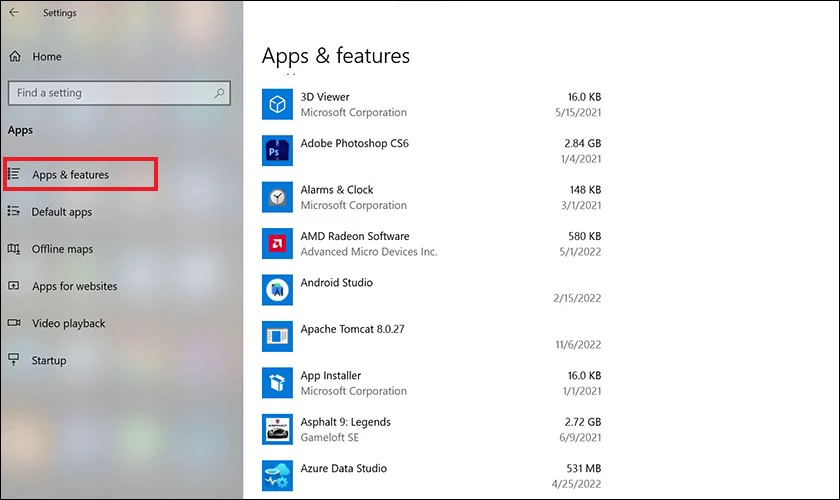
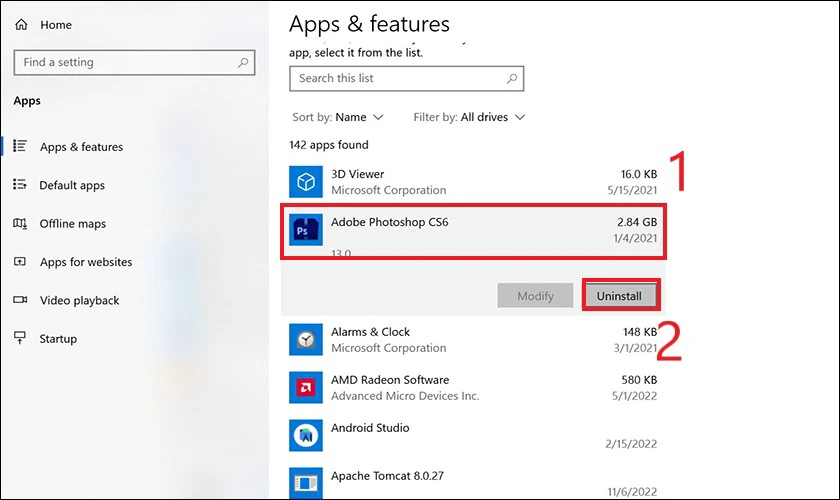
- Uninstall games and applications you no longer use.
- Do not manually delete unknown files from Windows, Program Files, System, or Library folders.
5. Check memory pressure
High RAM use is not automatically a problem; modern systems use available memory as cache. Look for slow app switching, heavy paging, or a consistently high Memory Pressure graph. Close unused browser tabs, virtual machines, creative projects, and background tools before considering hardware.
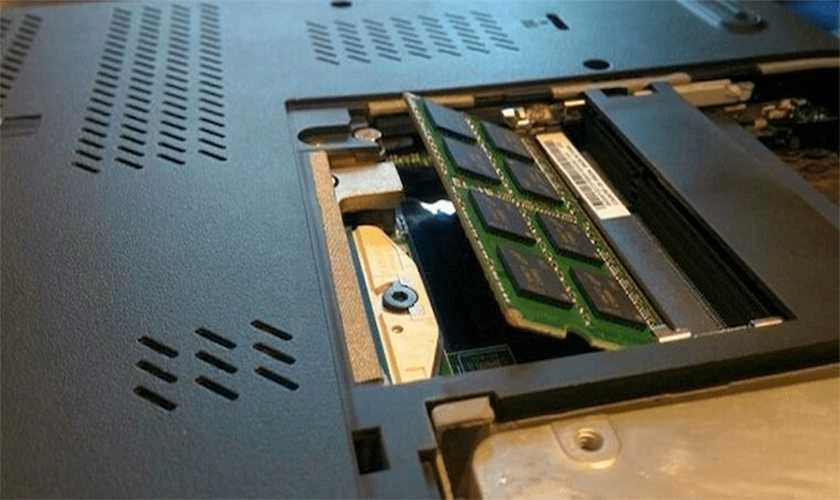
If the workload regularly exceeds installed memory and the laptop has upgradeable SO-DIMM slots, more RAM can help. Many modern laptops have soldered memory, so confirm compatibility in the service manual. Use the detailed laptop RAM upgrade guide before opening the chassis.
6. Check heat and airflow
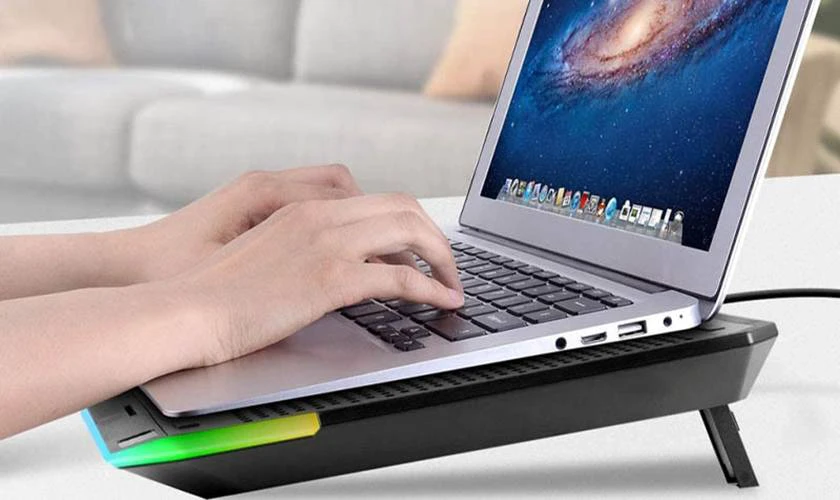
A laptop may reduce processor and graphics speed when it becomes too hot. Use it on a hard, flat surface, keep vents unobstructed, and remove external dust without pushing debris deeper into the machine.
A cooling pad can improve airflow for some designs, but it cannot repair a failed fan, dried thermal material, or blocked internal heatsink. Stop using the laptop and seek service if a fan grinds, the chassis swells, there is a burning smell, or the computer shuts down from heat.
7. Review power mode
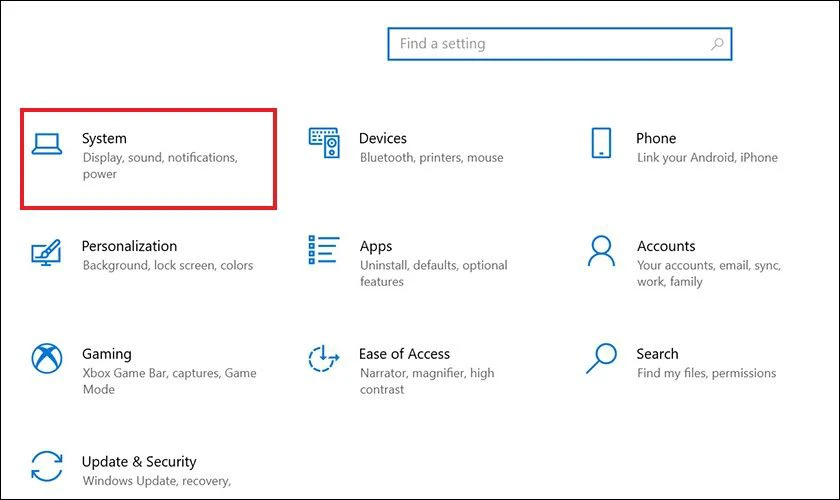
Battery-saving modes deliberately limit performance. On Windows, open Settings > System > Power & battery and choose a balanced mode for normal work; use the highest-performance option only when connected to power and extra heat or fan noise is acceptable.
On macOS, review System Settings > Battery. Low Power Mode is useful for endurance, not maximum sustained performance. A worn or failing battery can also cause unusual power behavior and should be inspected if it is swollen.
8. Update the operating system and trusted drivers
Install supported security and reliability updates, then restart. On Windows, use Settings > Windows Update. On macOS, use System Settings > General > Software Update.
For graphics, chipset, Wi-Fi, and storage drivers, prefer Windows Update, the laptop manufacturer, or the component maker. Avoid third-party “driver updater” utilities that install poorly matched packages.
9. Scan for malware without running multiple antivirus engines
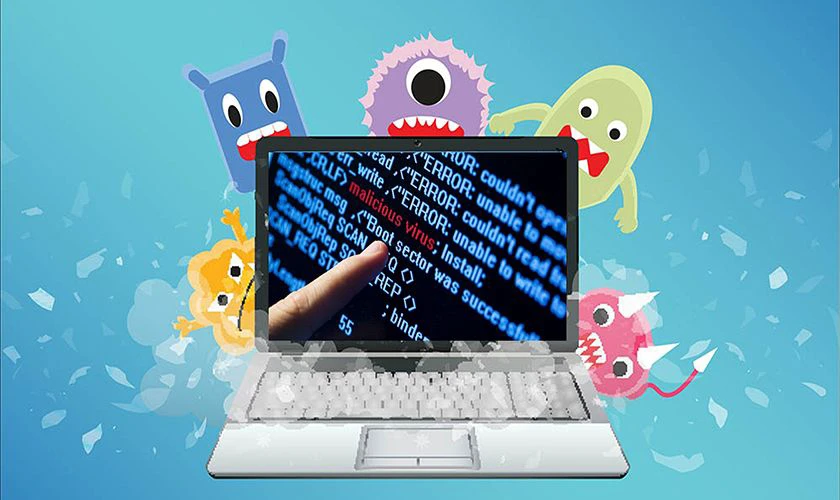
Unexpected pop-ups, browser redirects, unknown startup items, and unexplained CPU or network use can indicate unwanted software. On Windows, open Windows Security > Virus & threat protection, update protection, and run a scan. On macOS, remove suspicious profiles, extensions, and software and keep macOS current.
Do not run several real-time antivirus products simultaneously; their filters can conflict and consume resources. A scan should come from a reputable security tool, not a pop-up claiming the computer is infected.
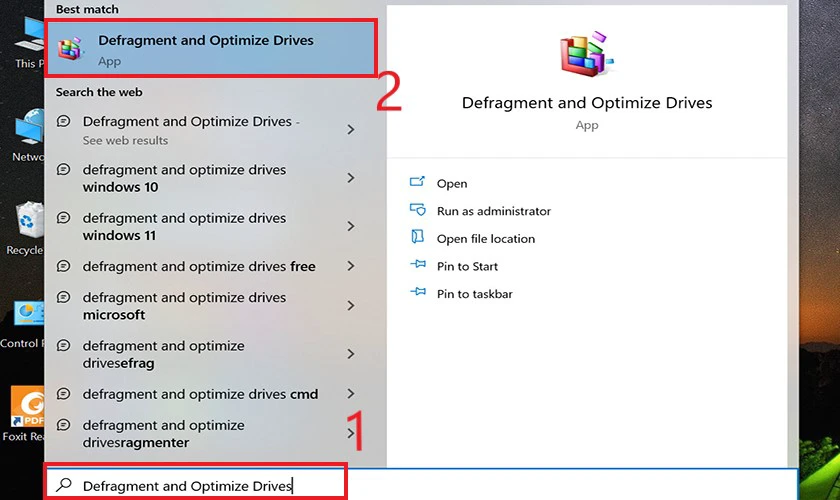
10. Optimize the drive correctly
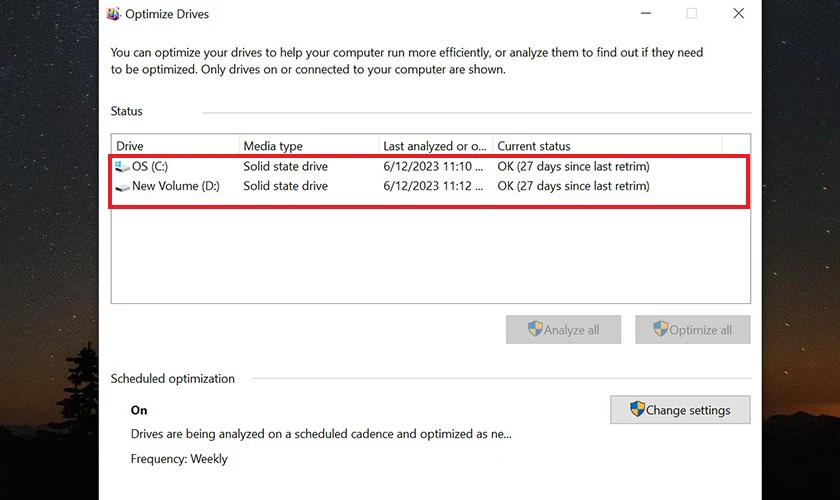
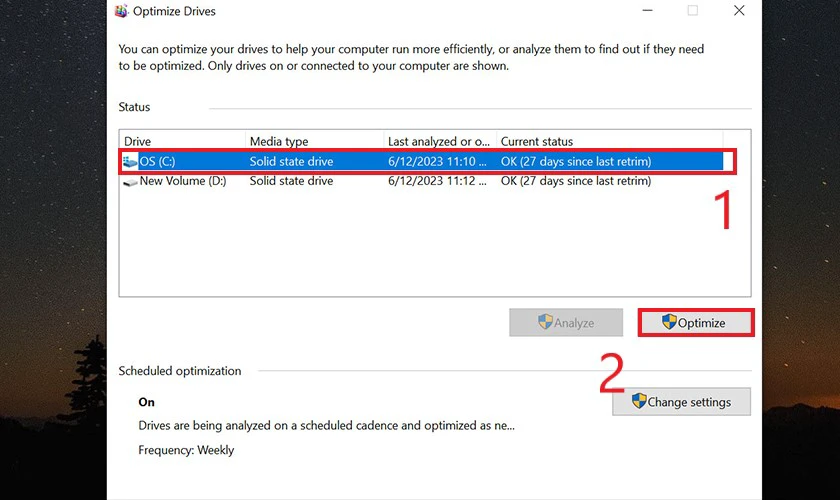
Windows' Defragment and Optimize Drives tool recognizes drive type and schedules the appropriate optimization. Traditional hard drives may be defragmented; SSDs should receive TRIM-related optimization rather than manual repeated defragmentation.
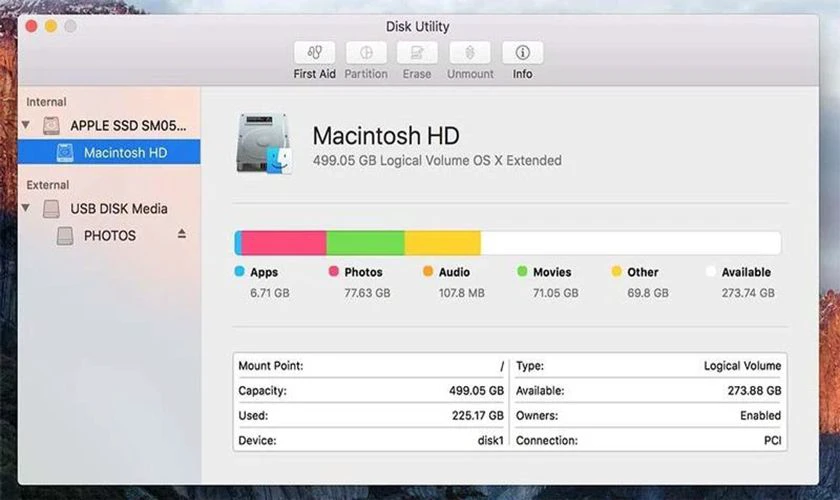
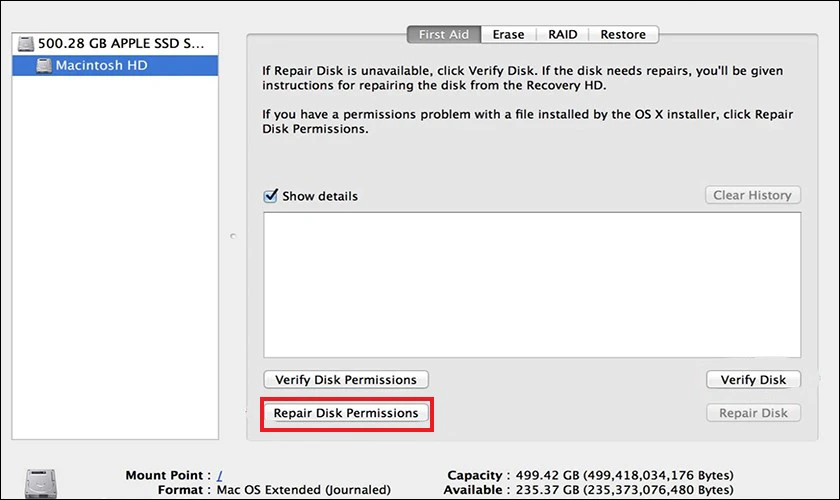
macOS manages SSD optimization automatically. Disk Utility's First Aid checks file-system structures but is not a routine speed booster. Back up important files before repair operations, especially if the drive shows errors.
11. Consider an SSD upgrade for an HDD-based laptop
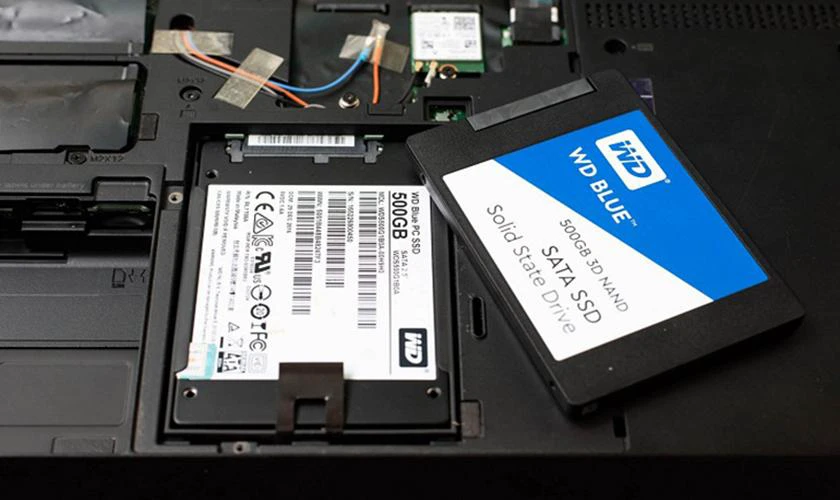
If the laptop still boots from a mechanical hard drive, a compatible SSD can greatly improve startup, app launch, and file-access responsiveness. It will not make the processor faster or fix insufficient RAM, but it removes a common storage bottleneck.
Before buying, confirm the required size and interface—such as 2.5-inch SATA or a specific M.2 standard—plus firmware support and physical access. Make a verified backup, plan how Windows or macOS will be migrated, and use professional service if the procedure is beyond your experience.
12. Reduce visual effects only on marginal hardware
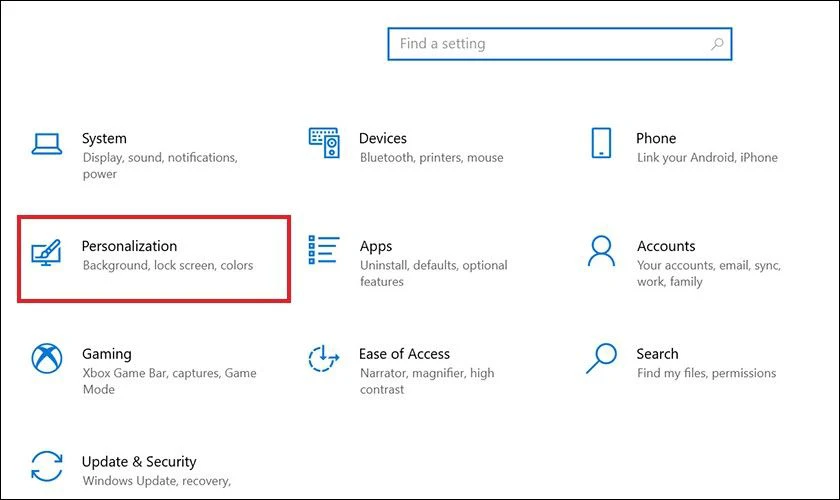
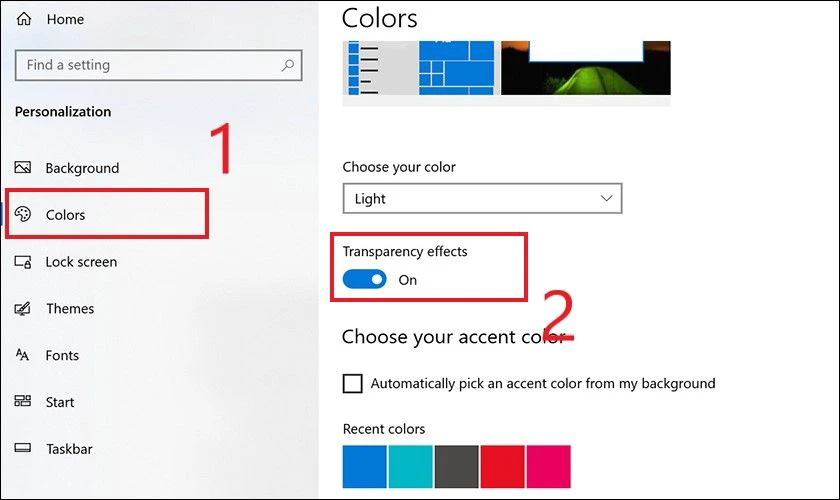
On older Windows laptops, search for Adjust the appearance and performance of Windows and reduce animations or transparency. On macOS, System Settings > Accessibility > Display includes Reduce motion and Reduce transparency.
This can make the interface feel more responsive, but it will not fix high disk activity, overheating, malware, or a failing component.
What not to do
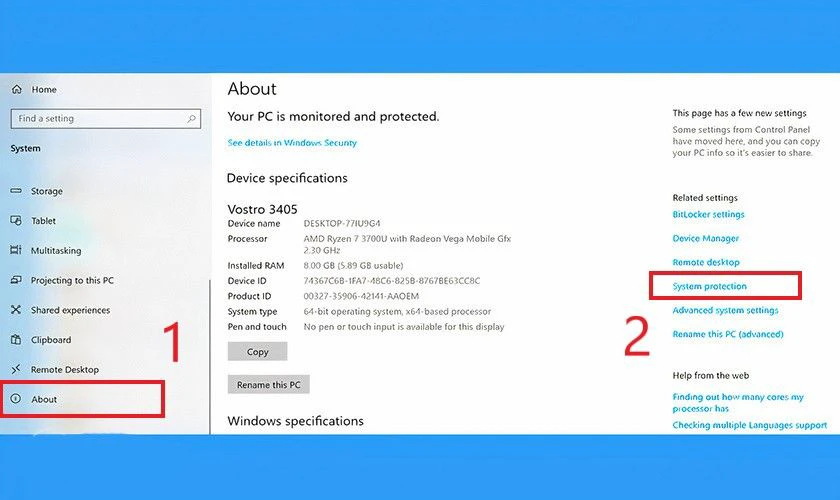
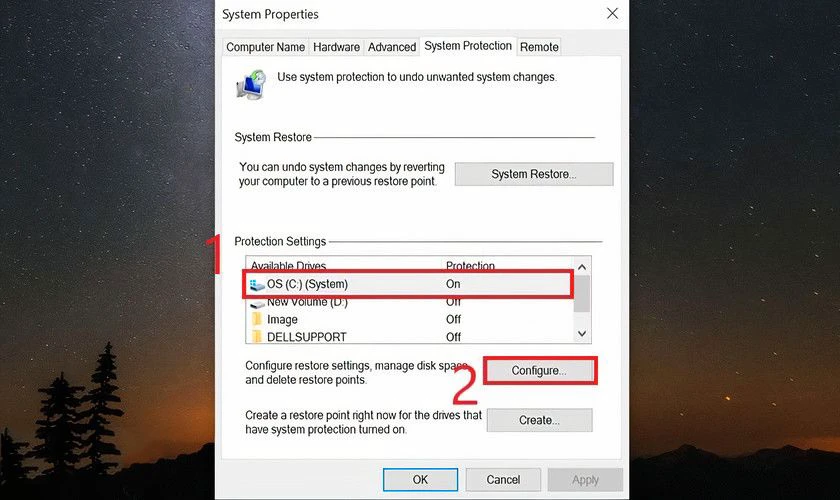
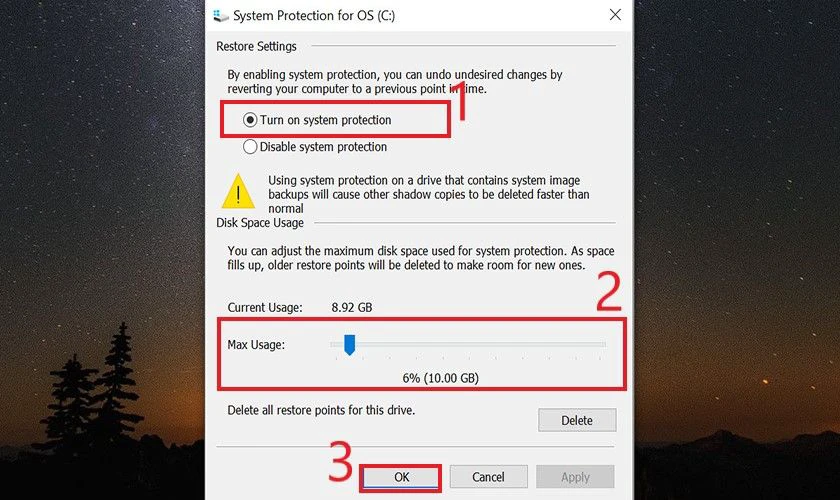
- Do not disable System Restore merely to gain speed. Restore points can be valuable after a bad driver or update.
- Do not use registry cleaners. They rarely provide measurable performance gains and can remove necessary entries.
- Do not disable random Windows services. Dependencies are not always obvious, and an update may need them later.
- Do not manually defragment an SSD repeatedly.
- Do not download “RAM cleaner” or one-click optimizer apps from advertisements.
If the laptop is still slow
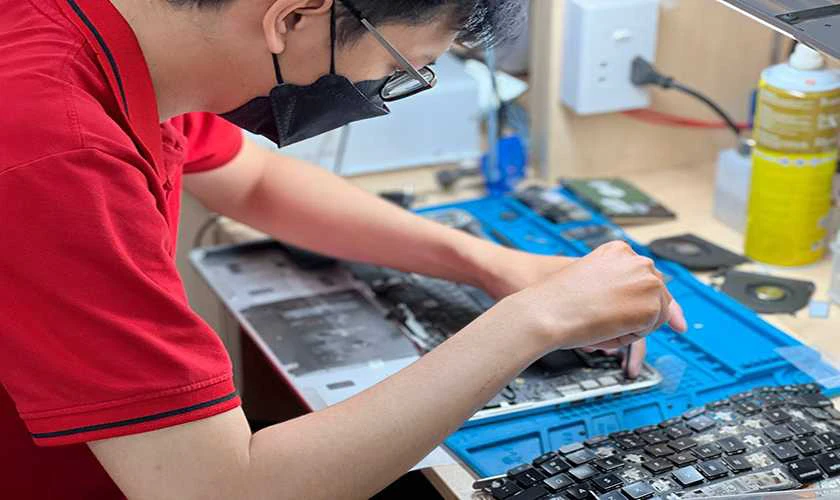
Back up important data, then run the manufacturer's built-in hardware diagnostics. Check storage health, memory tests, battery status, fan operation, and error logs. A failing drive, bad memory module, cooling problem, or damaged power system needs repair rather than software cleanup.
A clean operating-system installation can help when years of software changes have left persistent conflicts, but it is a last resort. Verify the backup, recovery key, application licenses, and installer before erasing anything.

Prioritize fixes by impact
- Restart and identify the resource bottleneck.
- Disable unnecessary startup apps and free storage.
- Update the system and scan for malware.
- Fix overheating or a failing drive.
- Upgrade RAM or replace an HDD only when diagnostics support that decision.
This order avoids risky tweaks and helps distinguish a temporary software load from hardware that genuinely needs attention.
Related Articles
 Fix Asus Laptop Running Slow in Windows 10/11: Key Facts10 minutes read
 Computer Running Slow and How to Fix It19 minutes read
 Causes and Ways to Fix Slow Running Laptops9 minutes read
 Your Computer Is Slow - Cause and an Effective, Simple Fix6 minutes read
 Cause and How to Fix Slow Computer4 minutes read
 Stop These 4 Bad Habits That Slow Down Your Laptop!8 minutes read
Reader Comments 0
Sign in with email or Google to join the discussion.