Table of Contents
If Cốc Cốc looks off-center, cropped, unusually large, or shifted to one side, reset the page zoom first. Most cases are caused by per-site zoom, full-screen mode, an extension, or Windows display scaling—not a damaged monitor.
1. Reset page zoom and window mode
- Press Ctrl+0 to restore the current page to 100% zoom. On macOS, use Command+0.
- Press F11 once to exit full-screen mode on Windows. Some keyboards require Fn+F11.
- Maximize the window, then restore and resize it. If only one website is affected, reload it with Ctrl+Shift+R.
- Open the Cốc Cốc menu and confirm that the Zoom control shows 100%.
If text is the right size but a page's main column is off-center, test another website. A layout problem limited to one site is usually caused by that site's CSS, an ad blocker, or a cached page asset.
2. Update and restart Cốc Cốc
Install pending browser and operating-system updates, then restart the computer. Download Cốc Cốc only from the official Cốc Cốc website. Avoid “update” buttons displayed by an unfamiliar webpage.
3. Test without extensions
Open a private window and load the same page. If the layout is correct there, disable extensions one at a time—especially page translators, dark-mode tools, font changers, ad blockers, zoom tools, and user-style extensions. The browser's extensions page can usually be opened from the menu or by entering coccoc://extensions.
Remove an extension you do not recognize rather than merely turning it off. See the steps for removing browser extensions.
4. Reset Cốc Cốc settings
A reset restores startup, search, new-tab, content, and extension-related settings. It may disable extensions and clear temporary site settings, but it should not be used before you have checked zoom.
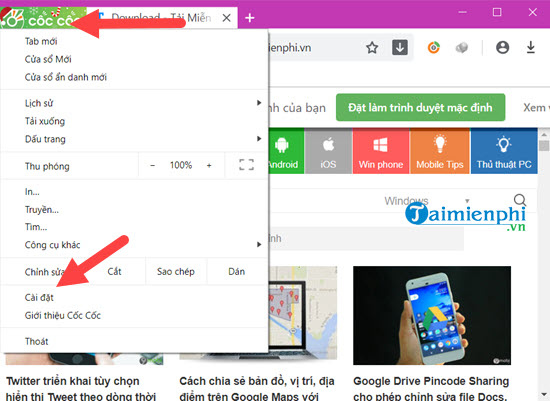
- Open the Cốc Cốc menu and select Settings.
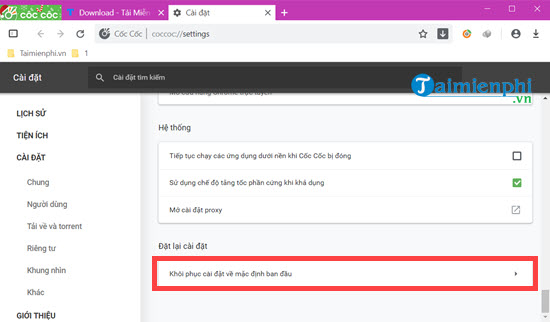
- Search Settings for reset, or open the reset section under advanced settings.
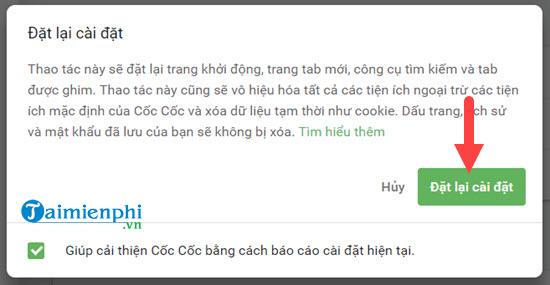
- Select Restore settings to their original defaults and read the confirmation carefully.
- Confirm, close every Cốc Cốc window, and reopen the browser.
The labels in these older screenshots may differ from the current interface:
5. Check Windows display scaling
If menus, tabs, and every website are misaligned—not just page content—close the browser and check Settings > System > Display in Windows:
- Use the recommended display resolution.
- Try the recommended Scale value.
- If several monitors use different scaling, move Cốc Cốc to the other monitor, close it there, and reopen it.
- Update the graphics driver if multiple apps show the same rendering fault.
A screenshot helps separate browser layout from monitor positioning: if the problem appears in the screenshot, it is generated by software; if the screenshot looks normal but the physical display does not, check the monitor's position, aspect-ratio, and auto-adjust controls.
6. Create a clean profile before reinstalling
A clean browser profile is a safer diagnostic than deleting the existing profile. Back up or sync bookmarks first, then use the profile menu to create a temporary profile and test the affected page. If it works, a setting or extension in the old profile is responsible.
Also clear the affected site's cached data if only one site is broken. The process is similar to clearing Cốc Cốc browsing data, but select only the data you intend to remove so saved passwords and history are not erased unnecessarily.
7. Reinstall only as a last resort
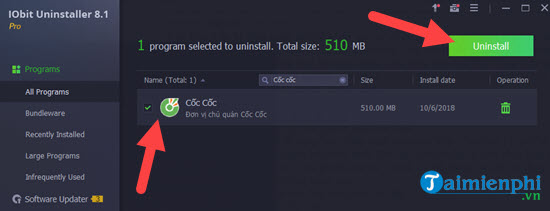
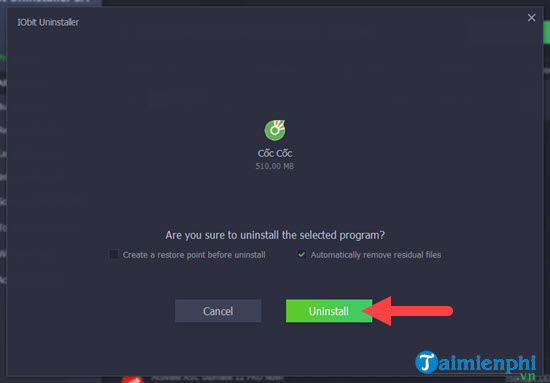
Uninstall Cốc Cốc through Windows Settings > Apps > Installed apps (or the equivalent Apps screen), restart Windows, and reinstall from the official site. You do not need a third-party uninstaller. Back up unsynced bookmarks, passwords, and open-tab information first.
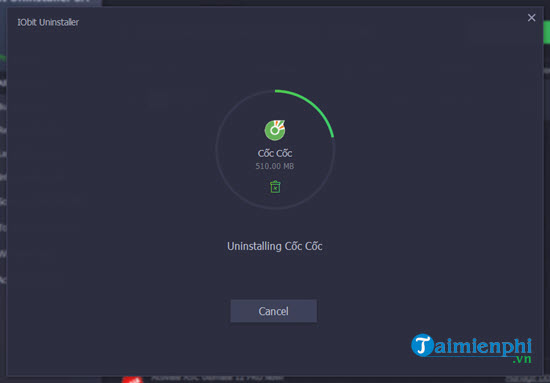
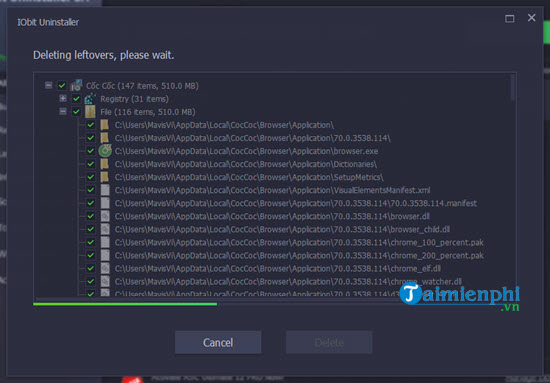
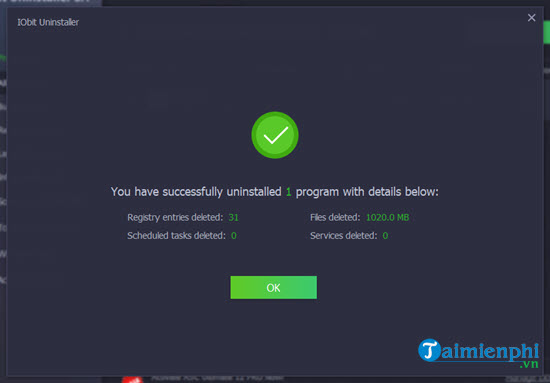
The images below document the older third-party uninstaller workflow from the original article. That method is no longer recommended because it adds software and may delete profile data if the removal options are not reviewed carefully.
When the problem is not Cốc Cốc
If Chrome, Firefox, and desktop apps are also shifted or cropped, investigate Windows resolution, graphics drivers, the video cable, and the monitor's own image-position settings. If only Cốc Cốc fails even in a new profile after reinstalling, collect the browser version, operating-system version, a screenshot, and the exact affected URL before contacting Cốc Cốc support.
If you decide to switch while diagnosing the problem, compare the options in our guide to modern desktop browsers.
Related Articles
 How to Fix a Skewed Computer Screen: Step-by-Step Guide3 minutes read
 How to Align an HP Printer: Step-by-Step Guide11 minutes read
 How to Take Photos, Record Screen Videos on Chrome8 minutes read
 How to Project a Computer Screen to a TV with Chromecast9 minutes read
 How to Create Wifi Hotspot on UC Browser Web Browser5 minutes read
 Fix Chrome Browser Error Showing a Blank Screen4 minutes read
Reader Comments 0
Sign in with email or Google to join the discussion.