Table of Contents
Google is pushing to integrate AI into Chrome to provide users with a smarter search and interaction experience. However, not everyone wants to use these AI features, or feels that the quick access buttons appearing on the browser interface negatively impact their user experience.
On Google Chrome for Windows 11 and macOS, you can disable the AI Mode button that appears to the right of the address bar, as well as the AI Mode button in the search box on New Tab pages. Additionally, you can disable the Ask Gemini button in Chrome, along with related options. Here are detailed instructions to help you do this.
Disable the AI button on Chrome using the Registry.
Step 1:
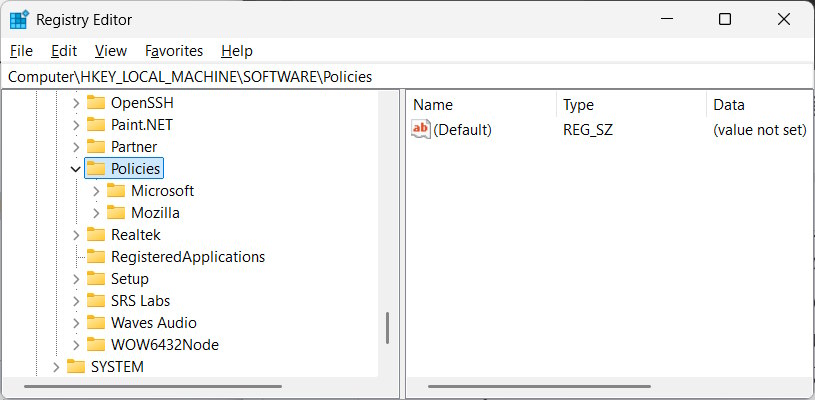
Access regedit on your computer, then navigate to the following path.
HKEY_LOCAL_MACHINESoftwarePolicies
Step 2:
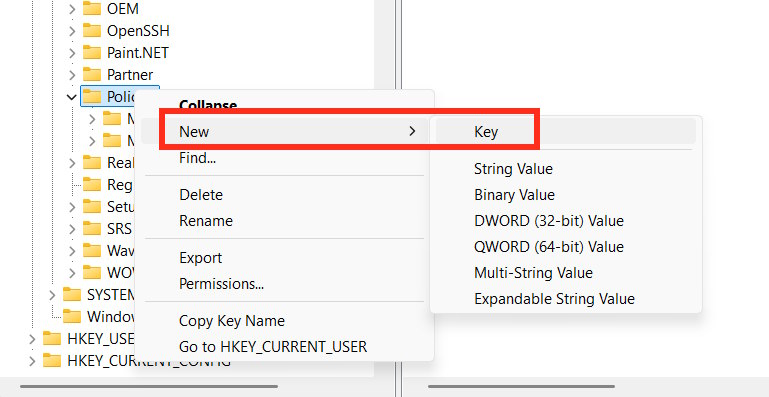
Next, right-click on the Policies folder , then click on New , and then select Key .
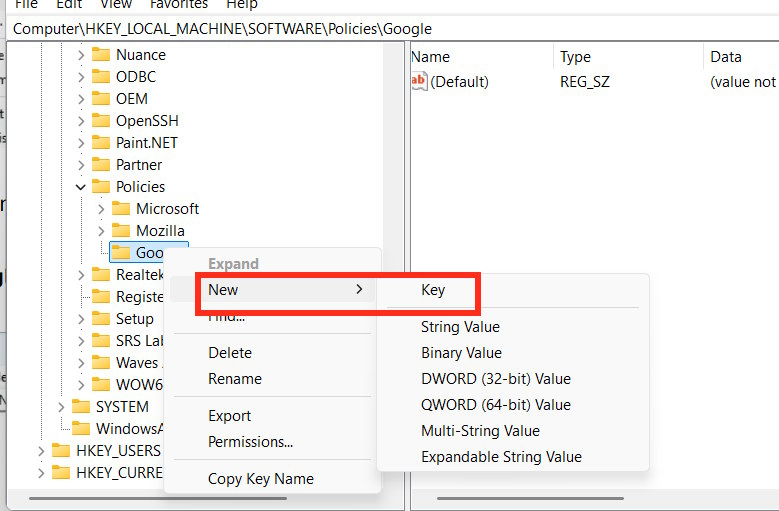
Now, name the new folder "Google" . Next, right-click on the Google folder and select "New" , then select "Key" .
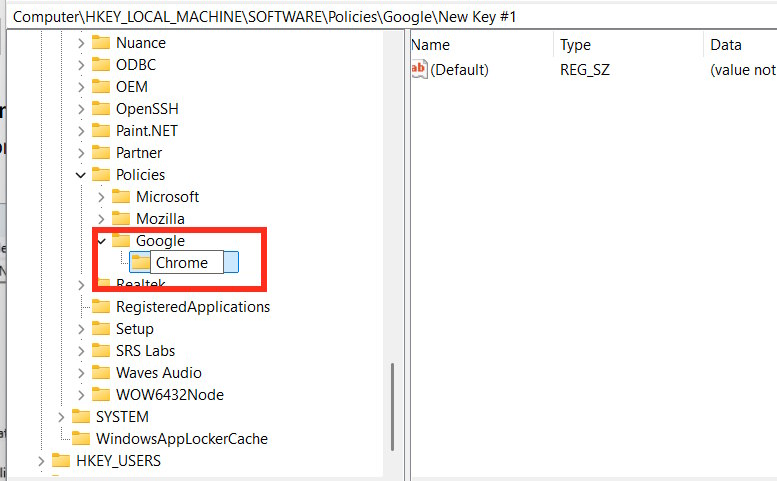
Name this subfolder Chrome .
Step 3:
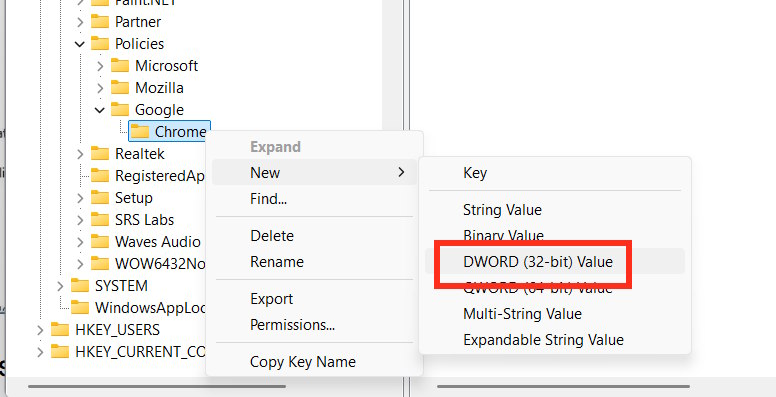
Right-click on the Chrome subfolder , select New, then select DWORD (32-bit) Value to create a value in this subfolder.
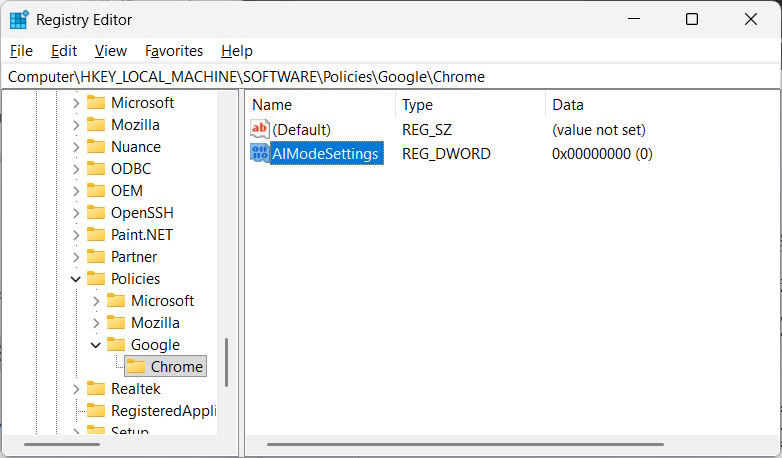
Name this value AIModeSettings .
Step 4:
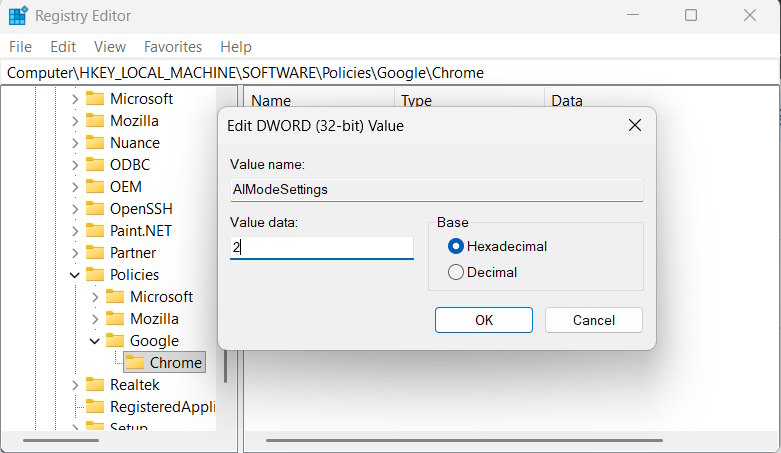
Right- click on the AIModeSettings value and select Modify to adjust the value. Now, enter 2 to completely disable AI Mode in Chrome.
Step 5:
Right-click on the Chrome subfolder and select New , then select DWORD (32-bit) Value to create a new value, and name it GeminiSettings .
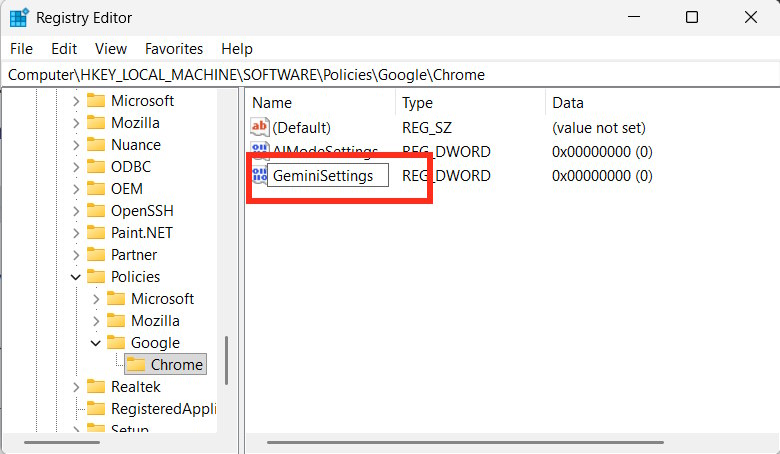
Double-click the GeminiSettings value, then select 1 to hide the Ask Gemini button and disable Gemini settings in Chrome.
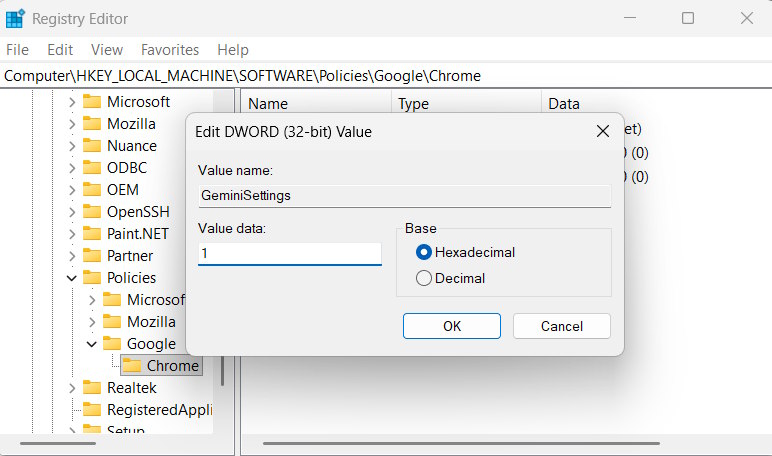
After completing the setup steps, Google Chrome will no longer display AI Mode options in the address bar or in the search box on the New Tab page. Additionally, this setting will remove the Ask Gemini button from its pinned location in the top right corner of the browser interface and disable Gemini-related options in Chrome.
Related Articles
 How to Group Tabs with Web Pages on Chrome5 minutes read
 How to Select and Close Multiple Chrome or Firefox Tabs at the Same4 minutes read
 How to Pin Tabs in Chrome for Android3 minutes read
 How to Hide Tabs for Later Viewing on Chrome6 minutes read
 How to Reopen Many Tabs on Google Chrome: Keeper Chrome Tab4 minutes read
 How to Use Switch Workstation to Manage Tabs on Chrome3 minutes read
Reader Comments 0
Sign in with email or Google to join the discussion.